
1. Úvod
This manual provides essential information for the setup, operation, maintenance, and troubleshooting of your BNCF NewBook 11 2-in-1 Laptop. Designed for versatility, this device functions as both a laptop and a tablet, powered by an Intel N150 processor and running Windows 11 Pro. Please read this manual thoroughly to ensure optimal performance and longevity of your device.

Figure 1.1: BNCF NewBook 11 2-in-1 Laptop
2. Co je v krabici
Upon opening your BNCF NewBook 11 package, verify that all the following items are included:
- BNCF NewBook 11 2-in-1 Laptop
- Magnetická klávesnice
- Kickstand
- Napájecí adaptér (12V/3A)
- Uživatelská příručka (tento dokument)
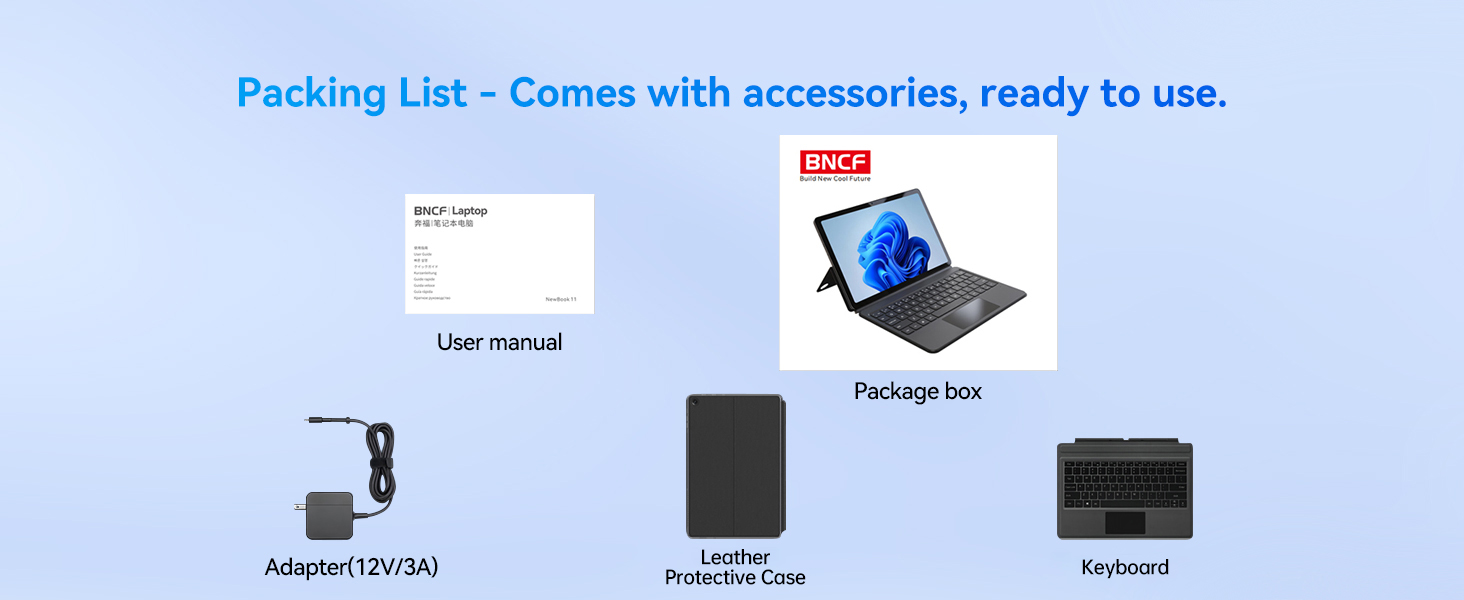
Obrázek 2.1: Obsah balení
3. Konec produktuview
3.1 Klíčové vlastnosti
- Procesor: Intel Alder Lake N150 Quad-core CPU (up to 3.6GHz Turbo) with Intel UHD Graphics.
- Operační systém: Windows 11 Pro.
- Paměť a úložiště: 12GB DDR5 RAM and 256GB NVMe SSD.
- Zobrazit: 11-inch FHD IPS In-Cell Touchscreen (1920x1200 resolution).
- Kamery: Duální fotoaparáty (5MP přední, 8MP zadní).
- Baterie: 34.2Wh with Type-C fast charging (PD 36W).
- Konektivita: Wi-Fi 6 (2.4/5GHz), Bluetooth 5.0, 2x Type-C ports (charging/data), 1x USB 3.0 port, Micro HDMI, 3.5mm audio jack.
- Design: Durable 635g metal body (tablet only), total 1106g with keyboard and kickstand.
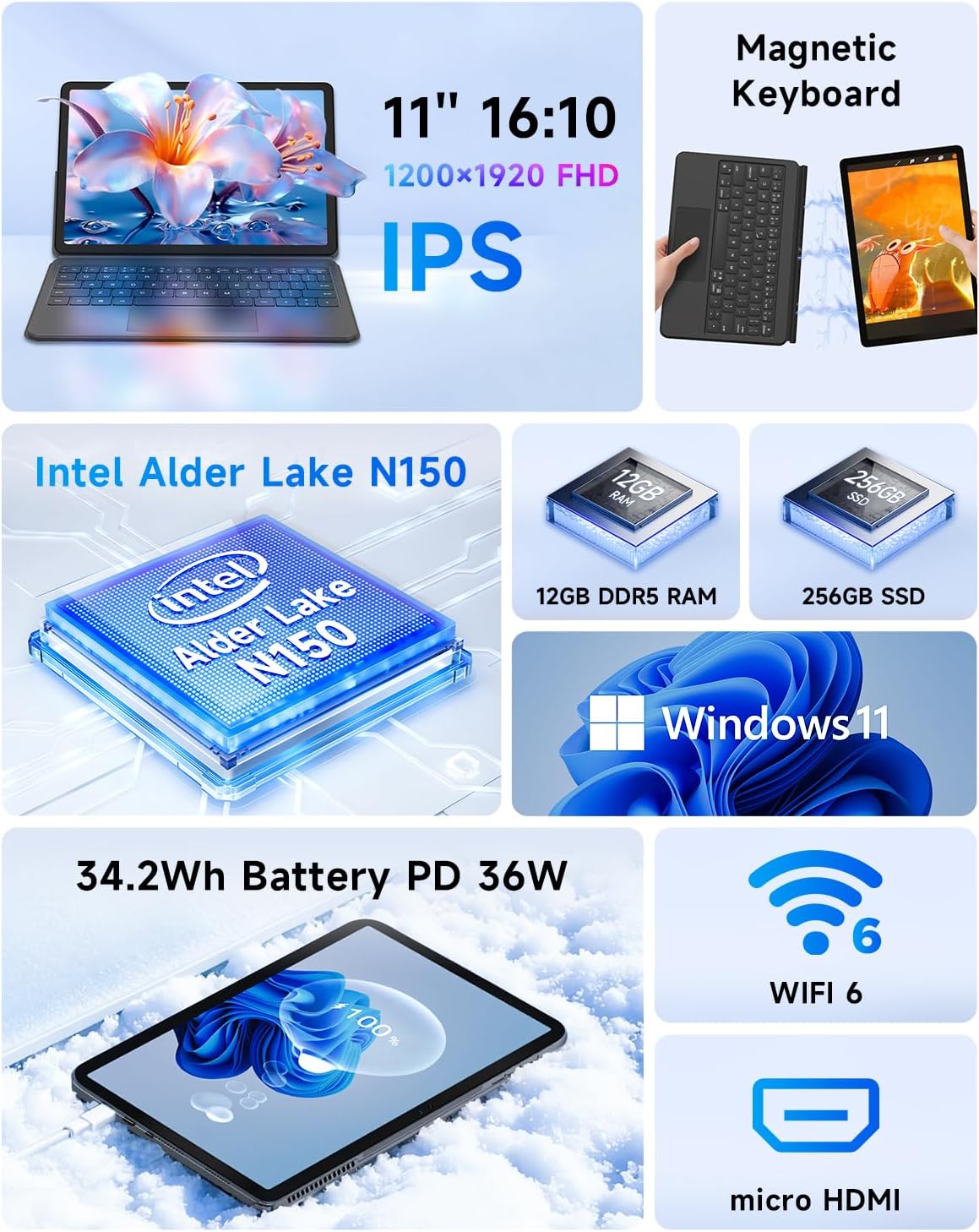
Obrázek 3.1: Klíčové vlastnostiview
3.2 Porty a tlačítka
Familiarize yourself with the location and function of the ports and buttons on your device:
- Vypínač: Located on the top edge. Press to power on/off or sleep/wake.
- Tlačítka hlasitosti: Located on the top edge, next to the power button.
- Porty typu C: Two ports on the left side, supporting charging and data transfer.
- Port USB 3.0: Standardní USB port pro připojení periferií.
- Port Micro HDMI: Pro připojení k externím displejům.
- 3.5mm konektor pro sluchátka: Pro audio výstup.
- Řečníci: Integrované stereo reproduktory.
- Mikrofon: Built-in for audio input.
- Přední kamera: 5MP camera for video calls.
- Zadní kamera: 8MP camera for photos and videos.
- Keyboard Docking Connector: Magnetic connector at the bottom edge for attaching the keyboard.

Figure 3.2: Device Ports and Buttons
4. Nastavení
4.1 Počáteční nabíjení
Before first use, connect the provided power adapter to one of the Type-C ports on your device and plug it into a power outlet. Allow the device to charge for at least 30 minutes, or until the charging indicator shows a sufficient charge, before powering it on.
4.2 Attaching the Keyboard and Kickstand
The magnetic keyboard and kickstand can be easily attached to transform your tablet into a laptop. Align the magnetic connector on the keyboard with the docking port on the bottom edge of the tablet. The magnets will secure the connection. The kickstand attaches magnetically to the back of the tablet, allowing you to prop it up for comfortable viewpsaní nebo psaní na stroji.

Figure 4.1: Attaching the Magnetic Keyboard and Kickstand
4.3 Powering On and Initial Windows Setup
- Stiskněte a podržte Tlačítko napájení on the top edge until the screen illuminates.
- Postupujte podle pokynů na obrazovce a dokončete počáteční nastavení systému Windows 11 Pro, včetně výběru jazyka, síťového připojení a vytvoření uživatelského účtu.
- Connect to a Wi-Fi network to ensure your device can download necessary updates and drivers.
5. Návod k obsluze
5.1 Přepínání mezi režimy
Your BNCF NewBook 11 supports three primary modes:
- Režim notebooku: With the magnetic keyboard and kickstand attached, use the device as a traditional laptop for typing and productivity.
- Režim tabletu: Detach the keyboard and fold the kickstand for a lightweight, portable tablet experience, ideal for browsing or media consumption.
- Režim stojanu: With the kickstand deployed and the keyboard detached or folded back, the tablet can stand upright, perfect for watching videos or presentations.
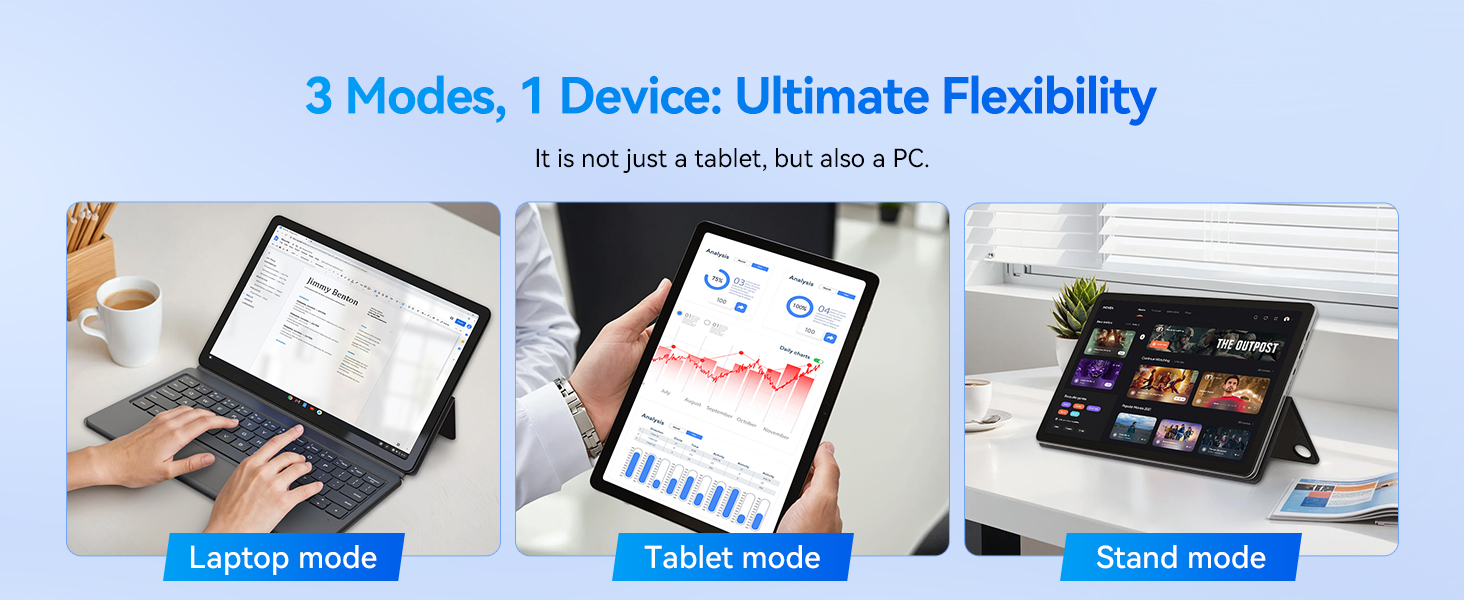
Figure 5.1: Flexible Usage Modes
5.2 Touchscreen and Gestures
The 11-inch FHD IPS In-Cell touchscreen supports multi-touch gestures. Common gestures include:
- Klepněte na: Vyberte položku nebo otevřete aplikaci.
- Klepnutí a podržení: Access contextual menus.
- Přiblížení/zvětšení prsty: Přiblížení nebo oddálení obrázků a web stránky.
- Výpad: Scroll through content or navigate interfaces.
5.3 Konektivita
- Wi-Fi 6: Připojte se k bezdrátovým sítím pro přístup k internetu. Přejděte na Nastavení > Síť a internet > Wi-Fi spravovat připojení.
- Bluetooth 5.0: Pair with wireless accessories like headphones or mice. Go to Nastavení > Bluetooth a zařízení.
- Micro HDMI: Use a Micro HDMI to HDMI cable to connect to external monitors or projectors. This supports 1080p HD output.
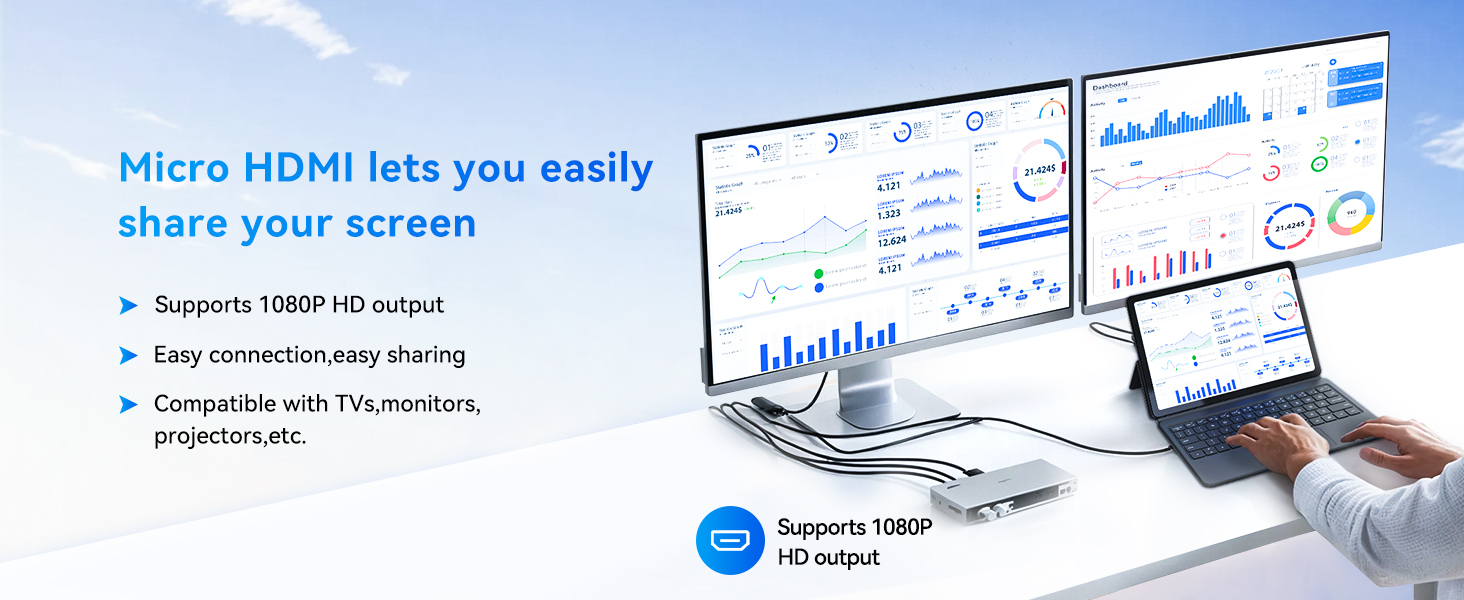
Figure 5.2: Micro HDMI Connectivity
5.4 Správa baterie
The device is equipped with a 34.2Wh battery and supports PD 36W fast charging via the Type-C port. To maximize battery life:
- Upravte jas obrazovky na pohodlnou úroveň.
- Zavřete nepoužívané aplikace.
- Enable Battery Saver mode in Windows settings.
- Use the provided adapter for optimal charging speed.
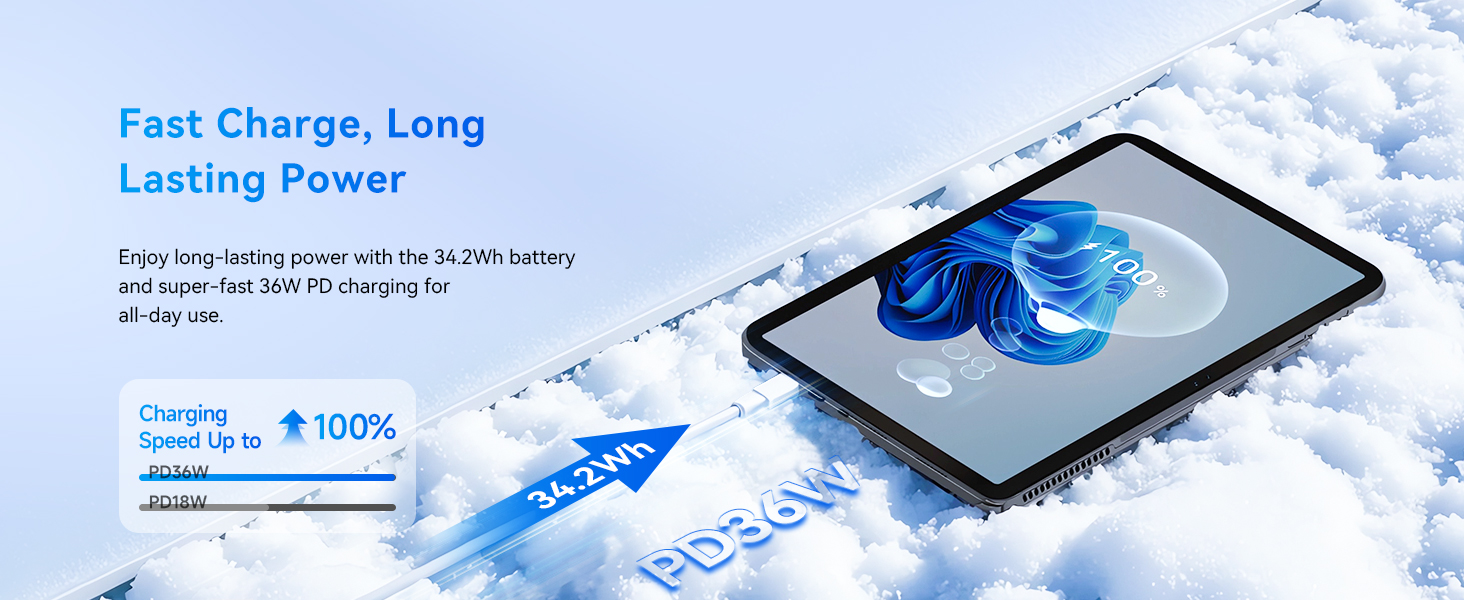
Figure 5.3: Fast Charging Feature
6. Údržba
Proper maintenance ensures the longevity and optimal performance of your BNCF NewBook 11.
- Čištění: K čištění obrazovky a vnějšího povrchu použijte měkký hadřík, který nepouští vlákna. V případě odolných šmouh lehceampOtřete hadřík vodou nebo čisticím prostředkem na obrazovky. Vyhněte se agresivním chemikáliím.
- Skladování: Přístroj skladujte na chladném a suchém místě mimo dosah přímého slunečního záření a extrémních teplot.
- Aktualizace softwaru: Regularly check for and install Windows updates to ensure security and performance improvements. Go to Nastavení > Aktualizace systému Windows.
- Záloha dat: Pravidelně zálohujte důležitá data na externí disk nebo cloudové úložiště, abyste předešli jejich ztrátě.
- Chladicí systém: The device features an active cooling system with a PC-level fan and copper heat pipe. Ensure the air vents are not obstructed to maintain efficient cooling.

Figure 6.1: Active Cooling System
7. Řešení problémů
This section addresses common issues you might encounter with your BNCF NewBook 11.
| Problém | Možné řešení |
|---|---|
| Zařízení se nezapne | Ensure the device is charged. Connect the power adapter and wait a few minutes before attempting to power on again. If unresponsive, perform a hard reset by holding the power button for 10-15 seconds. |
| Obrazovka je prázdná nebo nereaguje | Check if the device is powered on. If it is, try restarting the device. If the touchscreen is unresponsive, use the keyboard/mouse or perform a hard reset. |
| Keyboard or trackpad not working | Ensure the magnetic keyboard is securely attached to the tablet's docking port. Detach and reattach the keyboard. Restart the device. |
| Wi-Fi or Bluetooth connectivity issues | Check if Wi-Fi/Bluetooth is enabled in Windows settings. Restart your router/modem. Forget the network/device and reconnect. Update network drivers if necessary. |
| Pomalý výkon | Close unnecessary applications. Check for background processes consuming resources (Task Manager). Ensure sufficient free storage space. Run Windows Update. |
| External display not detected via Micro HDMI | Ensure the Micro HDMI cable is securely connected to both the tablet and the external display. Verify the external display is set to the correct input source. Try restarting both devices. |
8. Specifikace
Detailed technical specifications for the BNCF NewBook 11 2-in-1 Laptop:
| Funkce | Specifikace |
|---|---|
| Název modelu | NewBook 11 |
| Operační systém | Windows 11 Pro |
| Procesor | Intel Alder Lake N150 (Quad-core, up to 3.6 GHz) |
| Grafický koprocesor | Grafická karta Intel UHD (integrovaná) |
| BERAN | 12 GB DDR5 |
| Pevný disk | 256GB NVMe SSD |
| Velikost obrazovky | 11 palce |
| Rozlišení obrazovky | 1920 x 1200 pixels (FHD IPS In-Cell) |
| Bezdrátový typ | Wi-Fi 6 (802.11a/b/g/n/ac), Bluetooth 5.0 |
| USB porty | 2x Type-C (charging/data), 1x USB 3.0 |
| Video výstup | Micro HDMI |
| Zvuk | 3.5mm Headphone Jack, Dual Stereo Speakers |
| Kamery | Přední 5 MP, zadní 8 MP |
| Baterie | 34.2Wh, PD 36W Fast Charging |
| Hmotnost položky | Tablet: 635g (1.4 lbs), Total with keyboard/kickstand: 1106g (2.44 lbs) |
| Rozměry produktu | 10.12 x 6.61 x 0.38 palce |
| Barva | Černý |
9. Záruka a podpora
BNCF is committed to providing high-quality products and customer satisfaction.
9.1 Informace o záruce
Your BNCF NewBook 11 comes with a jednoletá záruka. For tablets purchased from the BNCF Official Flagship Store, customers benefit from a 12-month free repair warranty and lifetime technical support. This warranty covers manufacturing defects and malfunctions under normal use.
9.2 Zákaznická podpora
If you encounter any issues or have questions regarding your device, please contact BNCF customer support. You can expect a response within 24 hours. Our expertise is available to help solve problems, or to facilitate return or exchange services if necessary.
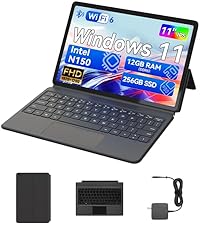
Figure 9.1: BNCF Warranty and Support
9.3 Plány ochrany
K dispozici jsou k zakoupení další ochranné plány:
- Dvouletý ochranný plán: K dispozici za 52.99 dolarů.
- Dvouletý ochranný plán: K dispozici za 90.99 dolarů.
- Kompletní ochrana: Měsíční tarif za 16.99 USD/měsíc, který pokrývá všechny způsobilé minulé i budoucí nákupy.