
1. Úvod
This manual provides detailed instructions for the Ransanx 3.5-inch IPS USB Mini Screen, a compact display designed for monitoring computer system parameters. This device connects via a single USB cable and does not require AIDA64 software for basic functionality. It offers real-time display of various hardware data, enhancing your ability to monitor your PC's performance and health.

Image 1.1: The Ransanx 3.5-inch IPS USB Mini Screen, including its adjustable stand and USB-C cable.
2. Konec produktuview
The Ransanx 3.5-inch IPS USB Mini Screen is designed for ease of use and comprehensive system monitoring. Key features include:
- USB-TYPEC Interface: Simple connection with a single USB cable.
- Plný IPS Viewúhel: Ensures clear visibility from various perspectives.
- Dynamic Themes: Supports customizable dynamic wallpapers and visual effects.
- Úspora energie: Features automatic screen off after shutdown and stepless brightness adjustment.
- Zobrazení dat v reálném čase: Monitors CPU, memory, hard disk, and graphics card data.
- Kompaktní design: Overall size of 55x85 mm, with a display area of 49x74 mm.
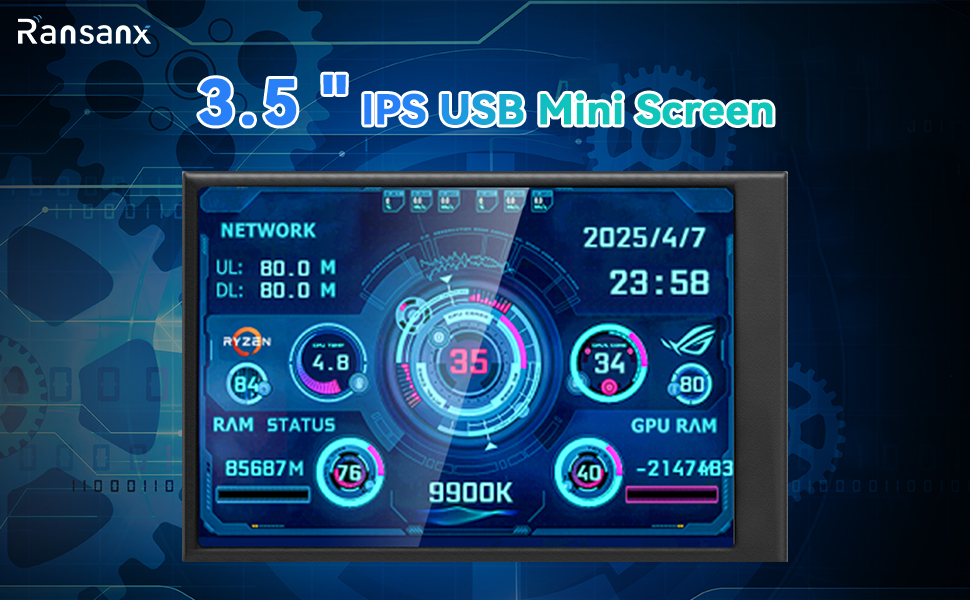
Image 2.1: Visual representation of the screen's key features, including USB-C connection, dynamic themes, and comprehensive monitoring.
3. Nastavení
Setting up your Ransanx Mini Screen is straightforward:
- Rozbalit: Opatrně vyjměte všechny součásti z obalu.
- Připevněte stojan: Secure the adjustable bracket to the back of the screen.
- Připojte kabel USB: Use the provided USB-TYPEC cable to connect the screen to an available USB port on your computer. The screen will power on automatically.
- Software (Optional): While the screen can display basic information without additional software, for advanced customization and dynamic themes, refer to the "Software Installation and Usage" section.
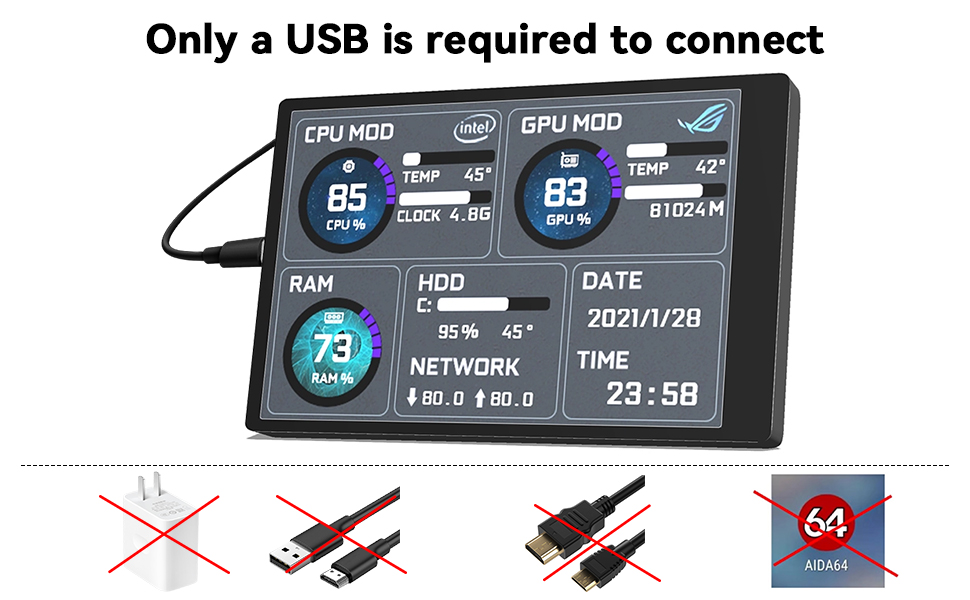
Image 3.1: Illustration showing that only a USB cable is required for connection, eliminating the need for external power adapters or HDMI cables.
4. Návod k obsluze
Once connected, the screen will automatically display system information. You can customize its display and behavior using the dedicated software:
- Orientace obrazovky: The software allows switching between horizontal and vertical screen orientations (0° and 180° options).
- Nastavení jasu: Adjust the screen brightness steplessly through the software interface for optimal viewpohodlí.
- Automatické vypnutí: The screen is designed to automatically turn off when your computer shuts down, conserving energy.
- Theme Selection: Choose from a variety of pre-installed themes or customize your own to display data in your preferred style.
The screen displays real-time data for various components:
| Komponent | Zobrazená data |
|---|---|
| CPU | Temperature, Frequency, Usage |
| Síť | Upload speed, Download speed |
| Pevný disk | Temperature, Space Usage |
| Paměť | Used memory, Usage rate |
| Grafická karta | Temperature, Memory, Usage |
| Ostatní | Date, time, volume, weather forecast |
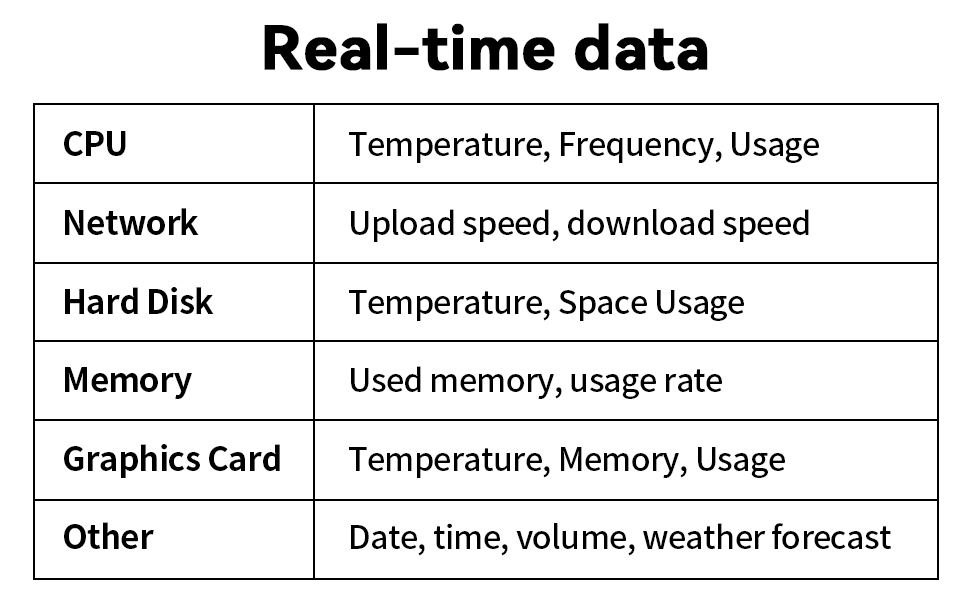
Image 4.1: A table summarizing the various real-time data points that can be displayed on the screen.
5. Software Installation and Usage
To unlock the full customization potential of your Ransanx Mini Screen, you will need to install the accompanying software. Please follow these steps carefully:
- Stáhnout software: Visit the official download webmísto (např. www.turzx.com) and locate the "DOWNLOAD" section.
- Find Application: Hledat the 3.5-inch application, specifically the English version.
- Download and Unzip: Download the compressed software package to your desktop. Důležité: Decompress the package before use. Do not run the software directly from the compressed file.
- Spustit aplikaci: Navigate to the unzipped folder, find the "usbmonitor" executable, right-click on it, and select "Run as administrator."
- Přizpůsobení: Use the software interface to adjust settings such as screen flip (0° or 180°), theme selection, brightness, and background settings.
Poznámka: If you encounter issues with hardware names (e.g., Intel and RTX 3060 displayed incorrectly), instructions on how to modify these names are typically found within the software folder.

Image 5.1: Visual guide for downloading and installing the screen's control software.

Image 5.2: Screenshot of the "Turing Smart Screen" software interface, showing options for screen flip, theme, and brightness adjustment.
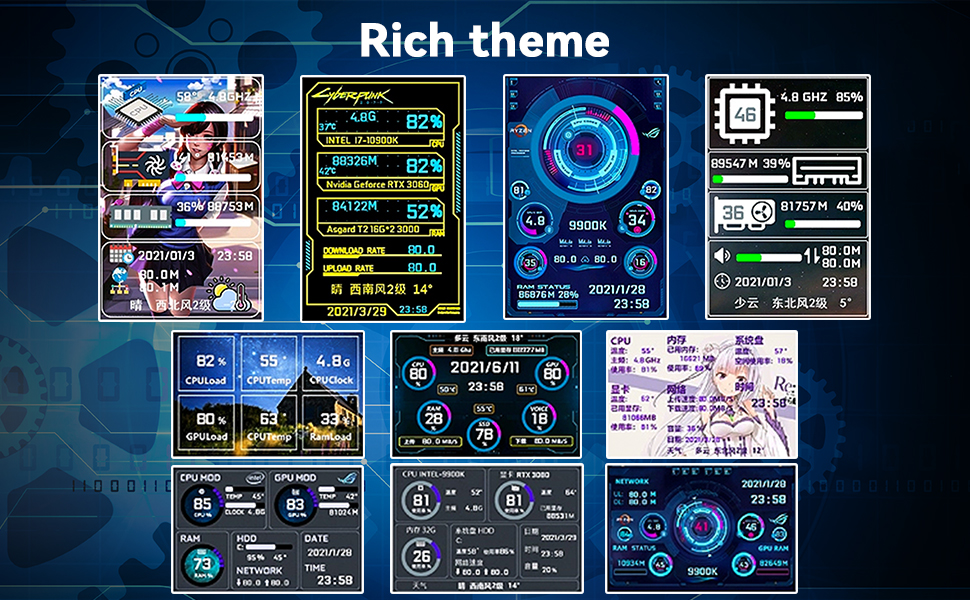
Image 5.3: Various theme options displayed on the Ransanx Mini Screen, showcasing different data layouts and visual styles.
6. Údržba
To ensure the longevity and optimal performance of your Ransanx Mini Screen, follow these simple maintenance guidelines:
- Čištění: Use a soft, dry, anti-static cloth to gently wipe the screen surface. Avoid using harsh chemicals or abrasive materials.
- Skladování: When not in use for extended periods, store the screen in a cool, dry place away from direct sunlight and extreme temperatures.
- Péče o kabely: Handle the USB cable with care to prevent bending or damage to the connectors.
7. Řešení problémů
If you encounter issues with your Ransanx Mini Screen, refer to the following common problems and solutions:
- Obrazovka se nezapne:
- Ujistěte se, že je kabel USB bezpečně připojen k obrazovce i k počítači.
- Zkuste se připojit k jinému portu USB na počítači.
- Verify that your computer is powered on.
- Software Download/Unzip Issues:
- Ensure you are downloading from the correct official webweb (www.turzx.com).
- Make sure you have a reliable internet connection.
- Use standard decompression software (e.g., WinRAR, 7-Zip) to extract the files. Remember to unzip the package before running the software.
- Incorrect Hardware Information Displayed:
- This can occur if the software's theme configuration does not match your specific hardware.
- Refer to the instructions within the software folder for guidance on modifying hardware names displayed on the theme.
- Screen Freezes or Displays Incorrect Data:
- Restart the "usbmonitor" application (run as administrator).
- Odpojte a znovu připojte kabel USB.
- Ujistěte se, že máte aktuální operační systém a ovladače.
Pokud tyto kroky váš problém nevyřeší, obraťte se prosím na zákaznickou podporu s žádostí o další pomoc.
8. Specifikace
Detailed technical specifications for the Ransanx 3.5-inch IPS USB Mini Screen:
| Parametr | Hodnota |
|---|---|
| Typ projektu | IPS USB Mini Screen |
| Materiál produktu | LCD, electronic components |
| Velikost produktu | Přibližně 20.2 x 11 x 3.70 cm (7.95 x 4.33 x 1.46 palce) |
| Velikost obrazovky | 3.5 palců |
| Oblast zobrazení | 49 x 74 mm |
| Rezoluce | 320x480 |
| Tloušťka | 7-8 mm |
| Viewúhel | IPS plný viewúhel |
| Rozhraní | USB Type-C |
| Materiál pláště | Kov |

Image 8.1: A visual summary of the computer screen's parameters, including display area, overall size, resolution, and interface type.
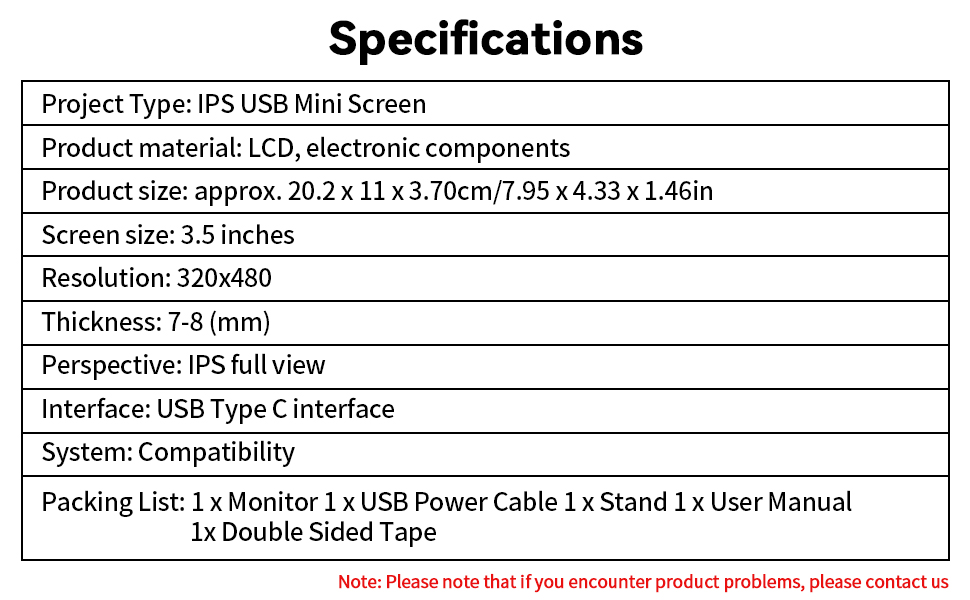
Image 8.2: Another table detailing the product specifications, including screen size, resolution, and system compatibility.
9. Obsah balení
The Ransanx 3.5-inch IPS USB Mini Screen package includes the following items:
- 1 x 3.5-inch Screen
- 1 x USB Data Cable (USB-A to USB-C)
- 1 x Adjustable Bracket
- 1 x Produktový manuál
- 1 x Acrylic Double-sided Tape
- 1 x balení

Image 9.1: A visual representation of all items included in the product package, such as the screen, USB cable, stand, and manual.
10. Záruka a podpora
Ransanx is committed to providing high-quality products and customer satisfaction. If you encounter any issues with your Ransanx 3.5-inch IPS USB Mini Screen that cannot be resolved using this manual, please do not hesitate to contact our customer support team.
Our support team is available 24 hours a day to assist you with any product-related questions or concerns. Please refer to the contact information provided with your purchase or on the official Ransanx webmísto pro pomoc.