
1. Úvod
This manual provides essential information for the safe and efficient operation, maintenance, and troubleshooting of your OMTech 60W CO2 Laser Engraver, Model SH-G570. Please read this manual thoroughly before operating the machine to ensure proper usage and to prevent injury or damage.
2. Konec produktuview
The OMTech 60W CO2 Laser Engraver is a versatile machine designed for precision cutting and engraving across a wide range of materials. It features a 28"x20" working area, autofocus, air assist, and 4-way pass-through capabilities, making it suitable for various creative and industrial applications.
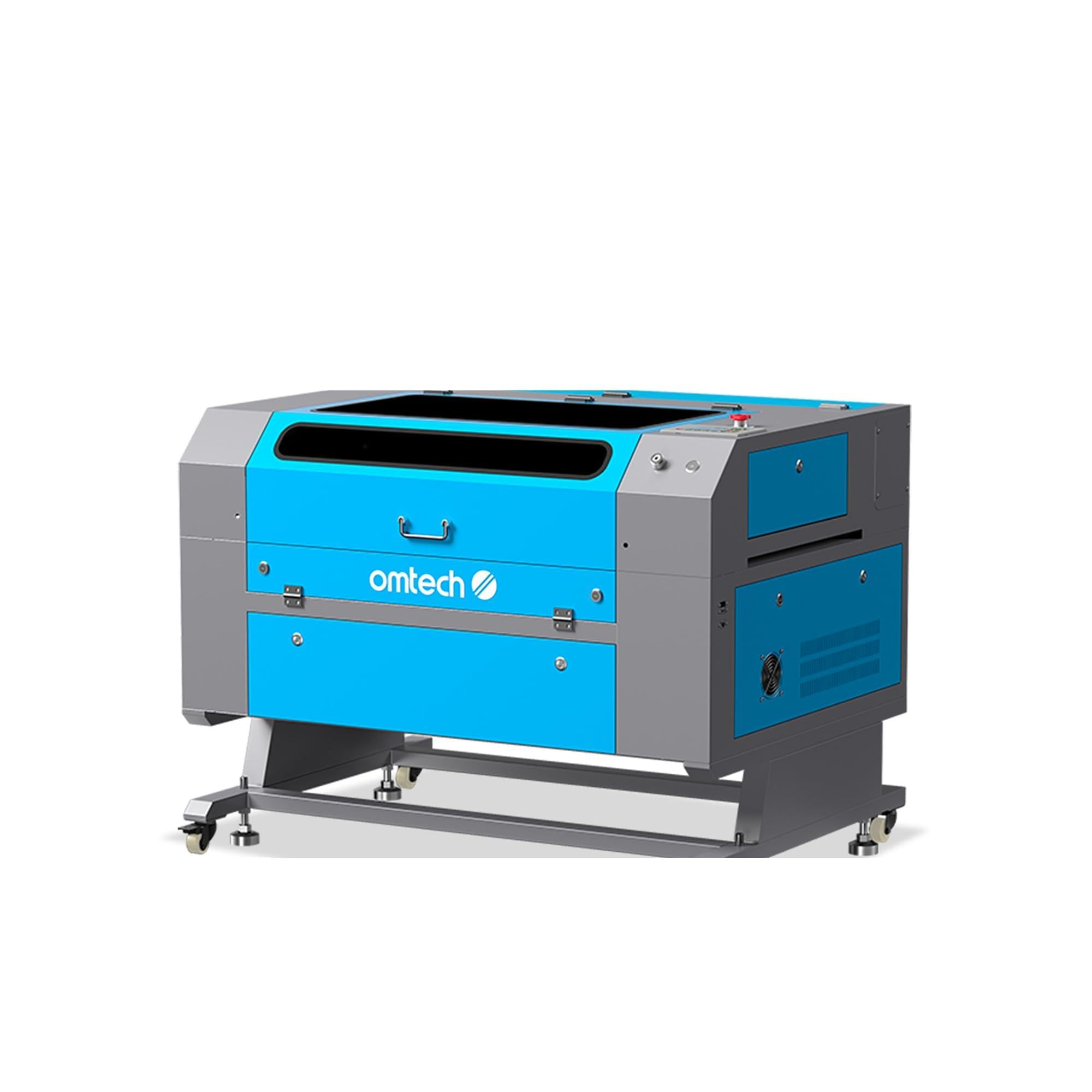
Figure 2.1: OMTech 60W CO2 Laser Engraver, Model SH-G570.
Klíčové vlastnosti:
- 60W CO2 laserová trubice: Provides sufficient power for engraving and cutting various materials.
- 28"x20" Working Area: Accommodates a wide range of project sizes.
- Autofocus Function: Simplifies setup by automatically adjusting the laser focal distance.
- Vzduchová asistence: Helps to clear debris and reduce scorching during operation, resulting in cleaner cuts and engravings.
- 4-Way Pass-Through: Allows for processing of oversized materials.
- Kompatibilita softwaru: Supports LightBurn, RDWorks, CorelDRAW, and AutoCAD.

Obrázek 2.2: Přesview of the laser engraver's main features including laser power, working area, engraving speed, autofocus, and software compatibility.

Figure 2.3: The built-in autofocus and air assist system ensures precise focusing and efficient debris removal for optimal results.

Figure 2.4: The machine offers wide compatibility with popular software like RDWorks, LightBurn, CorelDRAW, and AutoCAD.
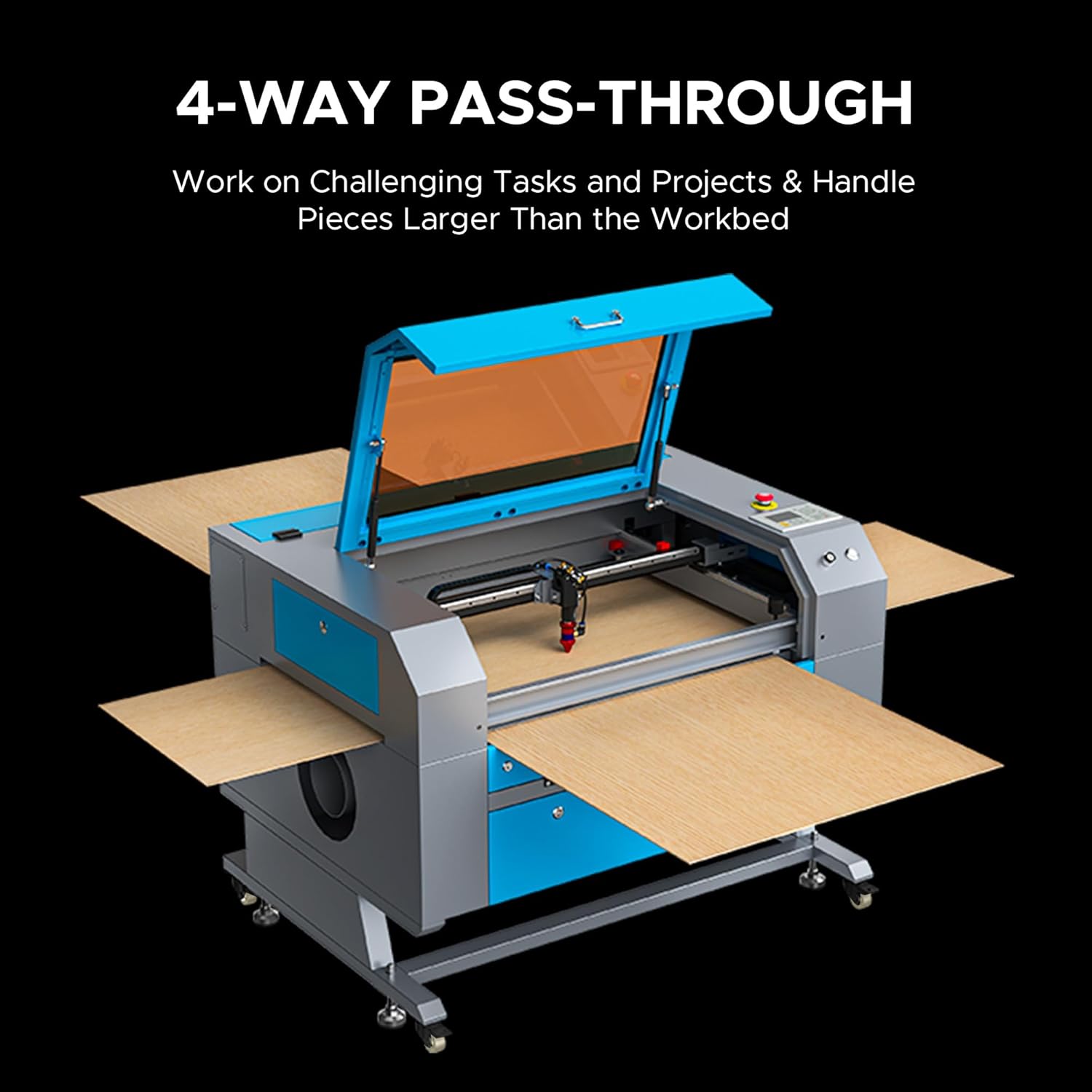
Figure 2.5: The 4-way pass-through design allows for working with materials larger than the internal workbed.
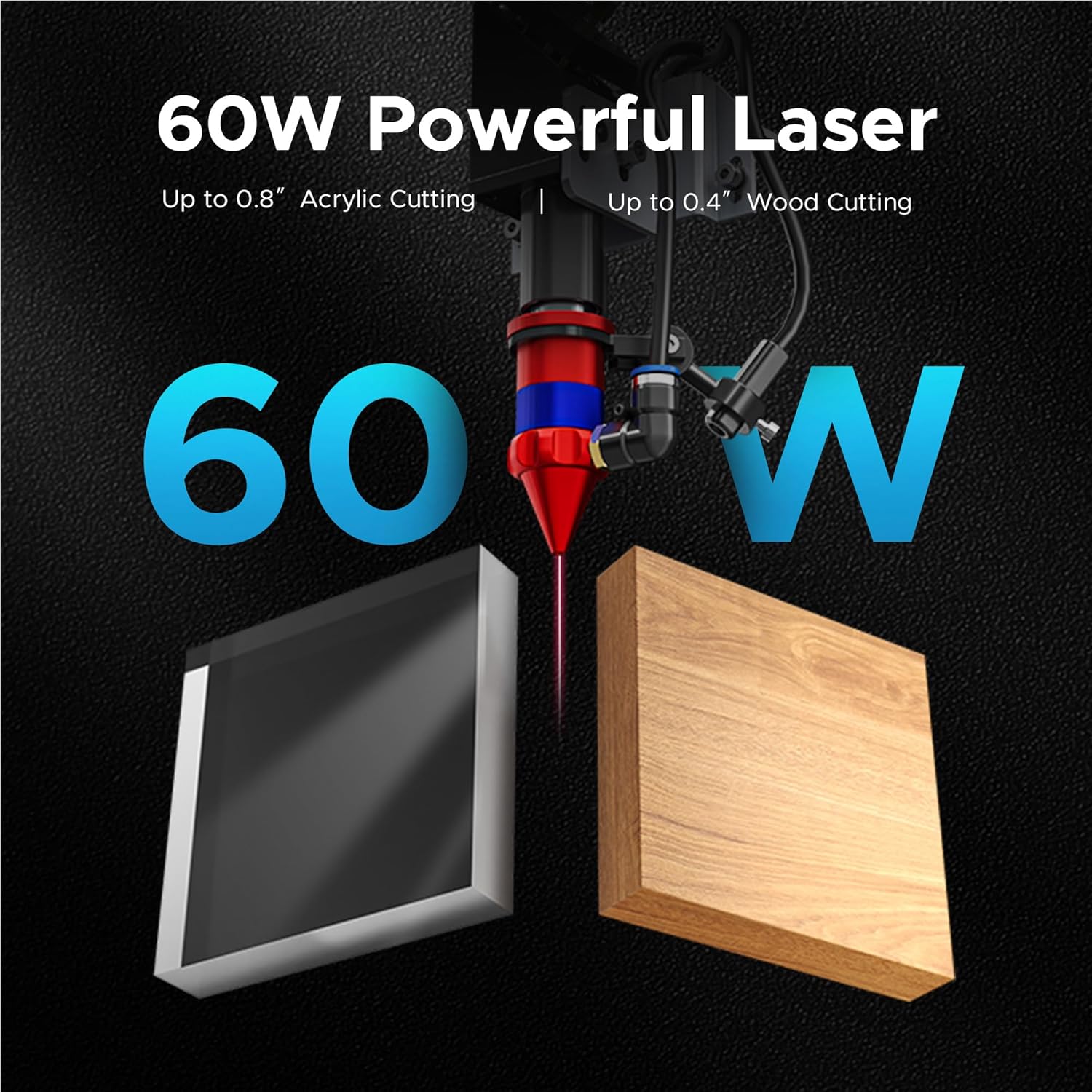
Figure 2.6: The 60W laser is capable of cutting up to 0.8 inches of acrylic and 0.4 inches of wood.

Figure 2.7: The laser head precisely engraves text onto a wooden surface, demonstrating its detailed capabilities.
3. Bezpečnostní informace
Operating a laser engraver involves inherent risks. Adhere to all safety guidelines to prevent accidents and ensure safe operation.
- Ochrana očí: Always wear appropriate laser safety glasses when the laser is in operation.
- Větrání: Ensure adequate ventilation to remove fumes and smoke generated during engraving and cutting. An efficient exhaust system is crucial.
- Požární bezpečnost: Mějte po ruce hasicí přístroj. Nikdy nenechávejte stroj během provozu bez dozoru.
- Materiálová kompatibilita: Only engrave or cut materials approved for CO2 lasers. Avoid materials that produce toxic fumes or are highly flammable.
- Elektrická bezpečnost: Ensure the machine is properly grounded and connected to a suitable power supply.
- Nouzové zastavení: Seznamte se s umístěním a obsluhou tlačítka nouzového zastavení.

Figure 3.1: An efficient exhaust system is vital for directing hazardous debris and fumes away from the engraving surface and into a ventilation system.
4. Nastavení
Follow these steps to set up your OMTech 60W CO2 Laser Engraver.
4.1 Vybalení a umístění
- Opatrně vyjměte stroj z obalu.
- Place the engraver on a stable, level surface in a well-ventilated area.
- Zajistěte dostatečný prostor kolem stroje pro provoz a údržbu.
4.2 Připojení komponent
- Connect the exhaust fan and ducting to the machine and vent outdoors.
- Connect the water pump/chiller to the laser tube's inlet and outlet ports. Ensure the water reservoir is filled with distilled water.
- Connect the air pump to the air assist inlet.
- Připojte napájecí kabel do uzemněné zásuvky.
4.3 Instalace softwaru
Your OMTech laser engraver is compatible with LightBurn and RDWorks. Refer to the software-specific installation guides provided with your machine or available on the OMTech webna webu pro podrobné pokyny.
Video 4.1: Toto video poskytuje obecný přehledview of OMTech laser engravers, demonstrating their capabilities and ease of use, which can be helpful during initial setup and understanding the machine's potential.
5. Návod k obsluze
Tato část popisuje základní kroky pro obsluhu laserového gravírovacího stroje.
5.1 Zapnutí a úvodní kontroly
- Turn on the water chiller/pump and air pump. Verify water flow and air pressure.
- Zapněte hlavní vypínač na stroji.
- The control panel will initialize.
5.2 Umístění materiálu a zaostřování
- Place your material on the honeycomb or blade workbed.
- Zavřete víko stroje.
- Use the autofocus function by pressing the designated button on the control panel. The laser head will automatically adjust to the correct focal distance.
5.3 Software Operation and Job Execution
- Open your design software (e.g., LightBurn) on your computer.
- Importujte nebo vytvořte svůj vlastní návrh.
- Set appropriate power and speed settings for your material. Refer to the material compatibility chart below for general guidelines.
- Send the job to the laser engraver.
- On the machine's control panel, select the job and press 'Start'.
- Monitor the engraving/cutting process through the flame-resistant window.

Figure 5.1: This table illustrates the wide range of materials compatible with the OMTech 60W CO2 laser for both engraving and cutting applications.

Figure 5.2: The machine's maximum engraving speed of 600 mm/s significantly enhances productivity.
6. Údržba
Regular maintenance is crucial for the longevity and optimal performance of your laser engraver.
6.1 Denní údržba
- Clean the workbed and interior of the machine to remove debris.
- Check the water level in the chiller and ensure proper circulation.
- Inspect the laser lens and mirrors for dust or residue.
6.2 Týdenní údržba
- Clean the laser lens and mirrors using a specialized lens cleaning solution and wipes.
- Clean the exhaust fan and ducting.
- Lubricate the guide rails and bearings.
6.3 Péče o laserovou trubici
The CO2 laser tube has a lifespan of up to 1,000 hours, which can be extended with efficient use at lower power settings. Ensure the water chiller maintains a stable temperature to prevent overheating.

Figure 6.1: The high-performance laser tube is designed for long-lasting operation, providing up to 1,000 hours of use.
7. Řešení problémů
Tato část se zabývá běžnými problémy, se kterými se můžete setkat, a jejich možnými řešeními.
7.1 Žádný laserový výstup
- Zkontrolujte napájení: Ensure the machine is powered on and connected to a working outlet.
- Vodní chladič: Verify the water chiller is on and circulating water. The laser will not fire if the water protection sensor is triggered.
- Nastavení softwaru: Confirm that the laser power and speed settings in your software are correctly configured and not set to zero.
- Nouzové zastavení: Ujistěte se, že tlačítko nouzového zastavení není stisknuté.
7.2 Špatná kvalita gravírování/řezu
- Soustředit: Re-run the autofocus function or manually adjust the focal distance. An incorrect focus is a common cause of poor quality.
- Lens/Mirrors: Clean the laser lens and mirrors. Dirt or smudges can significantly degrade laser performance.
- Výkon/rychlost: Adjust laser power and speed settings. Different materials require different settings.
- Kvalita materiálu: Ensure the material itself is suitable and consistent in thickness.
7.3 Zařízení nereaguje
- Softwarové připojení: Check the USB or network connection between the computer and the machine.
- Restartovat: Try restarting both the machine and the computer.
- Ovládací panel: Ensure no error messages are displayed on the control panel.
8. Specifikace
Detailed technical specifications for the OMTech 60W CO2 Laser Engraver, Model SH-G570.

Figure 8.1: Summary of rated power, max engraving speed, machine weight, pass sizes, and machine dimensions.
| Specifikace | Hodnota |
|---|---|
| Číslo modelu | SH-G570 |
| Výkon laseru | 60W |
| Pracovní oblast | 28" × 20" (700 × 500 mm) |
| Max. Rychlost gravírování | 600 mm/s |
| Hloubka řezu (dřevo) | Až 0.4" |
| Cutting Depth (Acrylic) | Až 0.8" |
| Laserová třída | Class 2 (0.874 mW output power) |
| Autofokus | Ano |
| Air Assist | Ano |
| Pass-Through | 4-cestný |
| Softwarová kompatibilita | LightBurn, RDWorks, CorelDRAW, AutoCAD |
| Hmotnost stroje | 249.1 lb |
| Rozměry stroje | 47.2 cm x 34.3 cm x 36.6 cm |
9. Záruka a podpora
OMTech provides comprehensive support for its products.
9.1 Informace o záruce
Your OMTech 60W CO2 Laser Engraver comes with a two-year support period. For specific warranty terms and conditions, please refer to the documentation included with your purchase or visit the official OMTech webmísto.
9.2 Zákaznická podpora
For technical assistance, troubleshooting, or any inquiries regarding your laser engraver, please contact OMTech customer support. They offer U.S.-based technical support and 24/7 online customer service.

Figure 9.1: OMTech offers a demo room program with hosts across the United States for hands-on experience and support.
Video 9.1: This video features 'Laser Guys from OMTech' discussing their experience with OMTech lasers, highlighting the quality, pricing, and how the machines have supported their business growth and product development.