
Zavedení
Thank you for choosing the ATTACK SHARK G6 Wireless Gaming Mouse. This manual provides detailed instructions for setting up, operating, maintaining, and troubleshooting your new gaming mouse. Please read this manual carefully to ensure optimal performance and longevity of your device.

Image: The ATTACK SHARK G6 Wireless Gaming Mouse, showcasinjeho ergonomický design a klíčové vlastnosti.
Konec produktuview
Klíčové vlastnosti
- Třírežimové připojení: Podporuje bezdrátové připojení 2.4 GHz, Bluetooth 5.0 a kabelové připojení USB-C.
- Vysoce přesný senzor: Equipped with PixArt PAW3311 optical sensor, offering 800-24000 DPI.
- Adjustable Polling Rate: Up to 1000Hz polling rate for responsive performance.
- Lehký design: Weighs approximately 72g for reduced hand fatigue.
- Dlouhá výdrž baterie: 750mAh battery provides extended wireless usage.
- Odolné spínače: 10 million click lifespan micro switches.
- Přizpůsobitelné RGB osvětlení: Rear RGB lighting with various effects.
- Programovatelná tlačítka: 5 remappable buttons via driver software.
- Univerzální kompatibilita: Works with Windows, macOS, Linux, Chrome OS.
Komponenty a tlačítka
Familiarize yourself with the mouse's components and button layout:

Image: Diagram illustrating the multi-function buttons and interfaces on the ATTACK SHARK G6 mouse, including Left Button, Right Button, Scroll Wheel, Forward Button, Backward Button, Type-C Interface, DPI Button, 2.4G/OFF/BT Button, Atmosphere Light Switch, and USB Receiver storage.
- Levé tlačítko: Standardní funkce levého kliknutí.
- Pravé tlačítko: Standardní funkce kliknutí pravým tlačítkem myši.
- Rolovací kolečko: Funkce rolování nahoru/dolů a kliknutí prostředním tlačítkem myši.
- Tlačítko vpřed: Naviguje vpřed web prohlížeče nebo aplikace.
- Tlačítko zpět: Naviguje zpět web prohlížeče nebo aplikace.
- Rozhraní typu C: Pro kabelové připojení a nabíjení.
- Tlačítko DPI: Cykluje mezi nastaveními DPI.
- 2.4G/OFF/BT Button: Switch between 2.4GHz wireless, Off, and Bluetooth modes.
- Atmosphere Light Switch & Wireless Mode Binding Button: Controls RGB lighting and initiates wireless pairing.
- USB přijímač: Stores inside the mouse for 2.4GHz wireless connection.
Nastavení
1. Nabíjení myši
Before first use, it is recommended to fully charge the mouse. Connect the provided USB-C cable to the mouse's Type-C interface and the other end to a USB power source (e.g., computer USB port, wall adapter). The charging indicator light will show charging status.
2. Připojení myši
The G6 mouse supports three connection modes: 2.4GHz wireless, Bluetooth, and USB-C wired. Use the switch on the bottom of the mouse to select your desired mode.

Image: Illustration detailing the Tri-Mode Wireless Connection options for the ATTACK SHARK G6 mouse, including 2.4GHz Wireless Mode, USB-C Wired Mode, and Bluetooth Mode.
2.1. Bezdrátový režim 2.4 GHz
- Locate the USB receiver stored in the bottom compartment of the mouse.
- Zapojte USB přijímač do volného USB portu na vašem počítači.
- Posuňte přepínač na spodní straně myši do polohy „2.4 G“.
- The mouse should automatically connect. If not, press the 'Atmosphere Light Switch & Wireless Mode Binding Button' on the bottom to initiate pairing.
2.2. Režim Bluetooth
- Posuňte přepínač na spodní straně myši do polohy „BT“.
- The mouse will enter pairing mode (indicator light may flash).
- Na svém zařízení (počítači, tabletu, chytrém telefonu) otevřete nastavení Bluetooth a vyhledejte nová zařízení.
- Select 'ATTACK SHARK G6' (or similar) from the list of available devices to pair.
2.3. Drátový režim USB-C
- Connect the provided USB-C cable to the mouse's Type-C interface.
- Připojte druhý konec kabelu k portu USB na počítači.
- The mouse will automatically switch to wired mode and function without needing to select a mode via the bottom switch.
Návod k obsluze
1. Nastavení DPI (citlivosti)
The G6 mouse features a dedicated DPI button to cycle through six preset DPI levels. Each level is indicated by a specific LED color.
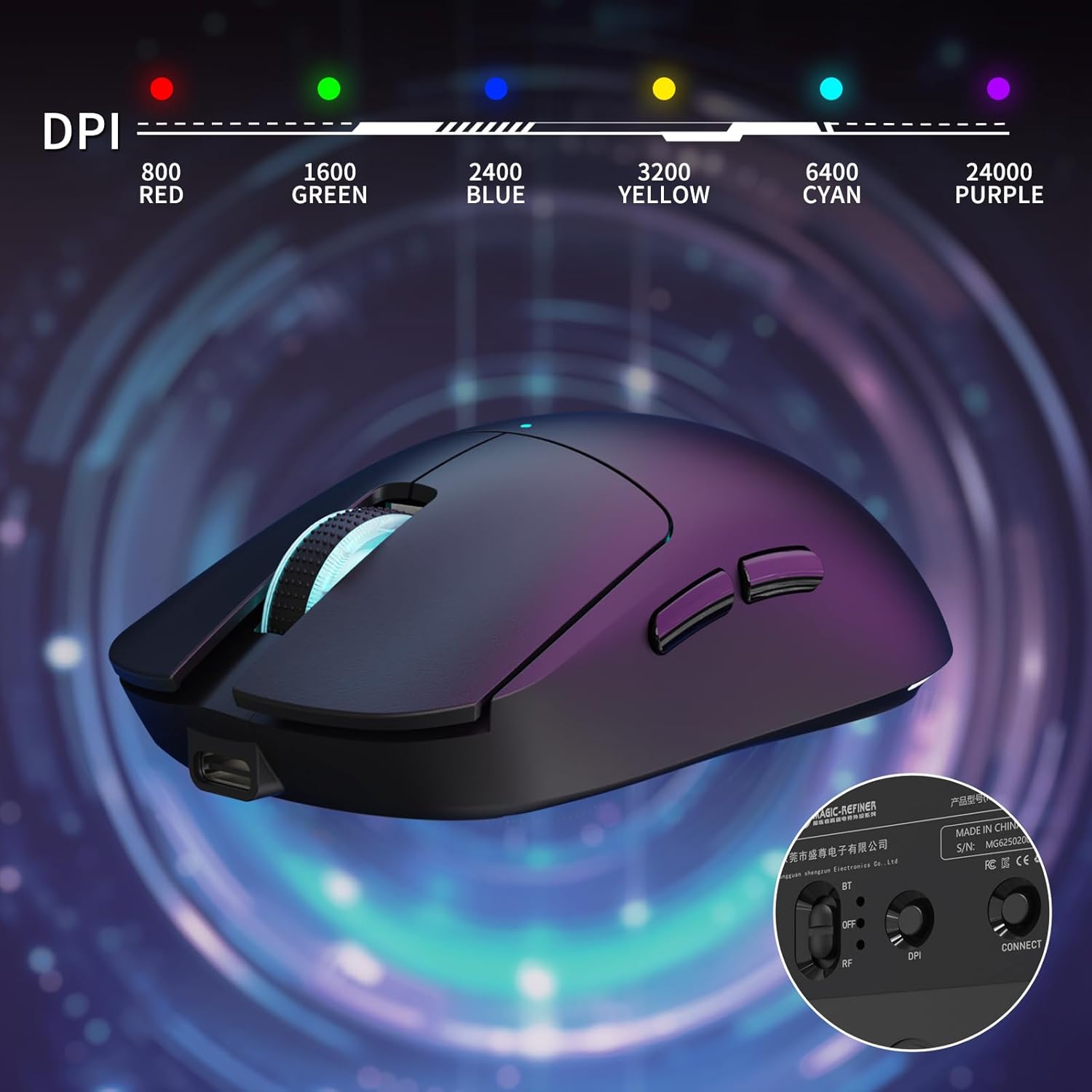
Image: The ATTACK SHARK G6 mouse displaying its DPI settings, with corresponding LED colors for 800 (Red), 1600 (Green), 2400 (Blue), 3200 (Yellow), 6400 (Cyan), and 24000 (Purple).
- Press the DPI button (located on the top of the mouse, behind the scroll wheel) to cycle through the following DPI settings:
- 800 DPI (Red LED)
- 1600 DPI (Green LED)
- 2400 DPI (Blue LED)
- 3200 DPI (Yellow LED)
- 6400 DPI (Cyan LED)
- 24000 DPI (Purple LED)
- You can customize these DPI levels and add more via the driver software.
2. Customizing RGB Lighting
The G6 mouse features customizable RGB lighting. Use the dedicated button on the bottom of the mouse to change lighting effects.

Image: The ATTACK SHARK G6 mouse showcasing its 6 customizable lighting effects, including rainbow and single-color options.
- Press the 'Atmosphere Light Switch' button on the bottom of the mouse to cycle through different RGB lighting modes, including rainbow effects, single colors, and turning the lighting off.
- Further customization of lighting effects and colors can be done through the official driver software.
3. Programovatelná tlačítka
The G6 mouse has 5 programmable buttons. To remap these buttons and create custom macros, download and install the official ATTACK SHARK driver software from the manufacturer's website. The software allows you to save multiple profilepro různé aplikace nebo hry.
Údržba
1. Čištění myši
- Ensure the mouse is turned off or disconnected before cleaning.
- K otření povrchu myši použijte měkký, suchý hadřík, který nepouští vlákna.
- Na odolné nečistoty lehce damphadřík vodou nebo jemným čisticím roztokem. Zabraňte nadměrné vlhkosti.
- Use a cotton swab or compressed air to clean around buttons, scroll wheel, and the optical sensor.
- Nepoužívejte agresivní chemikálie, abrazivní čisticí prostředky ani rozpouštědla.
2. Péče o baterie
- Myš nabijte, když indikátor baterie ukazuje nízký stav nabití.
- Abyste prodloužili životnost baterie, vyhněte se častému úplnému vybíjení.
- Pokud myš delší dobu nepoužíváte, skladujte ji na chladném a suchém místě.

Image: Illustration highlighting the ATTACK SHARK G6 mouse's extra-long battery life and durability, featuring a 750mAh rechargeable battery.
3. Applying Anti-Slip Grips
The G6 mouse includes DIY anti-slip grips for enhanced control and comfort. To apply them:

Image: The ATTACK SHARK G6 mouse with practical non-slip stickers applied, designed to absorb hand sweat and provide an anti-slip effect during use.
- Ensure the mouse surface is clean and dry.
- Carefully peel off the backing from the anti-slip grips.
- Align the grips with the corresponding areas on the mouse (typically sides and buttons).
- Pevně zatlačte, abyste zajistili správnou přilnavost.
Odstraňování problémů
| Problém | Možná příčina | Řešení |
|---|---|---|
| Mouse not responding in 2.4GHz mode | USB receiver not plugged in, incorrect mode selected, low battery, pairing issue. | Ensure receiver is plugged in. Switch mouse to '2.4G' mode. Charge the mouse. Press the binding button on the bottom of the mouse to re-pair. Try a different USB port. |
| Mouse not connecting via Bluetooth | Incorrect mode selected, not in pairing mode, device Bluetooth off, low battery. | Switch mouse to 'BT' mode. Ensure mouse is in pairing mode (flashing light). Enable Bluetooth on your device. Charge the mouse. Remove and re-add the mouse in your device's Bluetooth settings. |
| DPI se nemění | Tlačítko DPI nebylo správně stisknuto, softwarový konflikt. | Ensure you are pressing the DPI button firmly. If using custom software, check settings. |
| RGB podsvícení nefunguje | Lighting turned off, low battery, software conflict. | Press the 'Atmosphere Light Switch' button on the bottom of the mouse to cycle modes. Charge the mouse. Check software settings if applicable. |
| Kurzor myši je nepravidelný nebo nereaguje | Dirty optical sensor, unsuitable surface, low battery, interference. | Clean the optical sensor. Use a mouse pad or a smooth, non-reflective surface. Charge the mouse. Reduce interference by moving closer to the receiver/device or moving other wireless devices. |
Specifikace
Below are the technical specifications for the ATTACK SHARK G6 Wireless Gaming Mouse:

Image: Illustration detailing the PixArt PAW3311 Professional Game Sensor in the ATTACK SHARK G6 mouse, highlighting 24000 DPI, 300 IPS tracking, 1000Hz polling rate, and 35G acceleration.
| Funkce | Specifikace |
|---|---|
| Číslo modelu | G6 |
| Technologie připojení | Bezdrátové 2.4G, Bluetooth 5.0, kabelové USB-C |
| Senzor | Optický senzor PixArt PAW3311 |
| Rozsah DPI | 800–18 000 DPI (6 nastavitelných úrovní) |
| Míra hlasování | 125-1000Hz (software configurable) |
| Rychlost sledování | 300 IPS |
| Akcelerace | 35G |
| Kapacita baterie | 750 XNUMX mAh |
| Přepnout životnost | 10 milionů kliknutí |
| Tlačítka | 8 (5 programovatelných) |
| Hmotnost | 72 ± 3g (0.29 Kilograms) |
| Rozměry | 116.2 x 62.2 x 37.3mm (approximate) |
| Délka kabelu | 1.5m Braided USB-C |
| Kompatibilita | Windows, MacOS, Linux, Chrome OS |
| Materiál | Plast |
Záruka a podpora
Informace o záruce
The ATTACK SHARK G6 Wireless Gaming Mouse comes with a limited warranty. For specific details regarding warranty coverage and duration, please refer to the product packaging or the official ATTACK SHARK webstránky. Uschovejte si prosím doklad o koupi pro případ reklamace.
Zákaznická podpora
If you encounter any issues not covered in the troubleshooting section or require further assistance, please contact ATTACK SHARK customer support. You can typically find contact information on the official ATTACK SHARK webwebu nebo prostřednictvím svého prodejce.
For additional resources, including driver downloads and FAQs, visit the official ATTACK SHARK webmísto.
Důležité bezpečnostní informace
- Do not expose the mouse to extreme temperatures, humidity, or liquids.
- Vyhněte se pádu myši nebo jejímu vystavení silným nárazům.
- Do not attempt to disassemble or modify the mouse. This will void the warranty.
- Keep the mouse away from children and pets.
- Dispose of the mouse and its battery according to local regulations.
Video zdroje
V poskytnutých datech pro tento produkt nebyla nalezena žádná oficiální produktová videa od prodejce.