
ATTACK SHARK G6
ATTACK SHARK×Magic-Refiner G6 Wireless Gaming Mouse User Manual
Model: G6 | Brand: ATTACK SHARK
1. Úvod
Thank you for choosing the ATTACK SHARK×Magic-Refiner G6 Wireless Gaming Mouse. This manual provides detailed instructions on how to set up, operate, and maintain your new gaming mouse. The G6 mouse features tri-mode connectivity, a high-precision PixArt PAW3311 sensor, and a lightweight ergonomic design, making it ideal for various computing tasks and gaming scenarios.
2. Obsah balení
Zaškrtněte prosím políčko u následujících položek:
- ATTACK SHARK×Magic-Refiner G6 Wireless Gaming Mouse
- 2.4G USB přijímač
- Nabíjecí kabel USB-C
- Anti-Slip Grip Tape Set

Image: The ATTACK SHARK G6 Wireless Gaming Mouse in white, shown with its accompanying USB receiver.
3. Konec produktuview
The G6 gaming mouse is designed for versatility and performance. Familiarize yourself with its key components and features.

Image: Detailed diagram of the G6 mouse, highlighting its buttons and features including the Left Button, Scroll Wheel + Middle Button, Right Button, Back Button, Forward Button, Power Toggle Switch (2.4G-OFF-Bluetooth), DPI Cycle Button, Atmosphere Light Switch & Wireless Mode Frequency Binding Button, Battery & DPI Indicator Light, Atmosphere Light, and USB Receiver storage.
3.1. Klíčové vlastnosti
- Třírežimové připojení: Seamlessly switch between USB-C wired, 2.4GHz wireless, and Bluetooth 5.0 connections. The 2.4GHz mode offers a polling rate of 125-1000Hz, while Bluetooth operates at 125Hz. This allows for flexible use across various devices and scenarios.
- Vysoce přesný senzor: Equipped with the PixArt PAW3311 optical sensor, offering six adjustable DPI levels from 800 to 24000. Features a 1000Hz polling rate, 1ms response time, 300 IPS tracking, and 35G acceleration for precise control.
- Lightweight Design & Long Battery Life: Weighs approximately 72±3g, minimizing hand fatigue during extended use. The built-in 750mAh battery provides over 150 hours of wireless usage on a single charge.
- Durable Switches & Customization: Features 10M micro switches with a 10 million click lifespan. Includes a 1.5m braided USB-C cable. Customize rear RGB lighting via a bottom button for various effects.
- Anti-Slip Grips: Comes with a set of 6 DIY anti-slip grip tapes for enhanced control and sweat resistance.

Image: The G6 mouse illustrating its 2.4GHz Wireless, USB-C Wired, and Bluetooth connection modes.
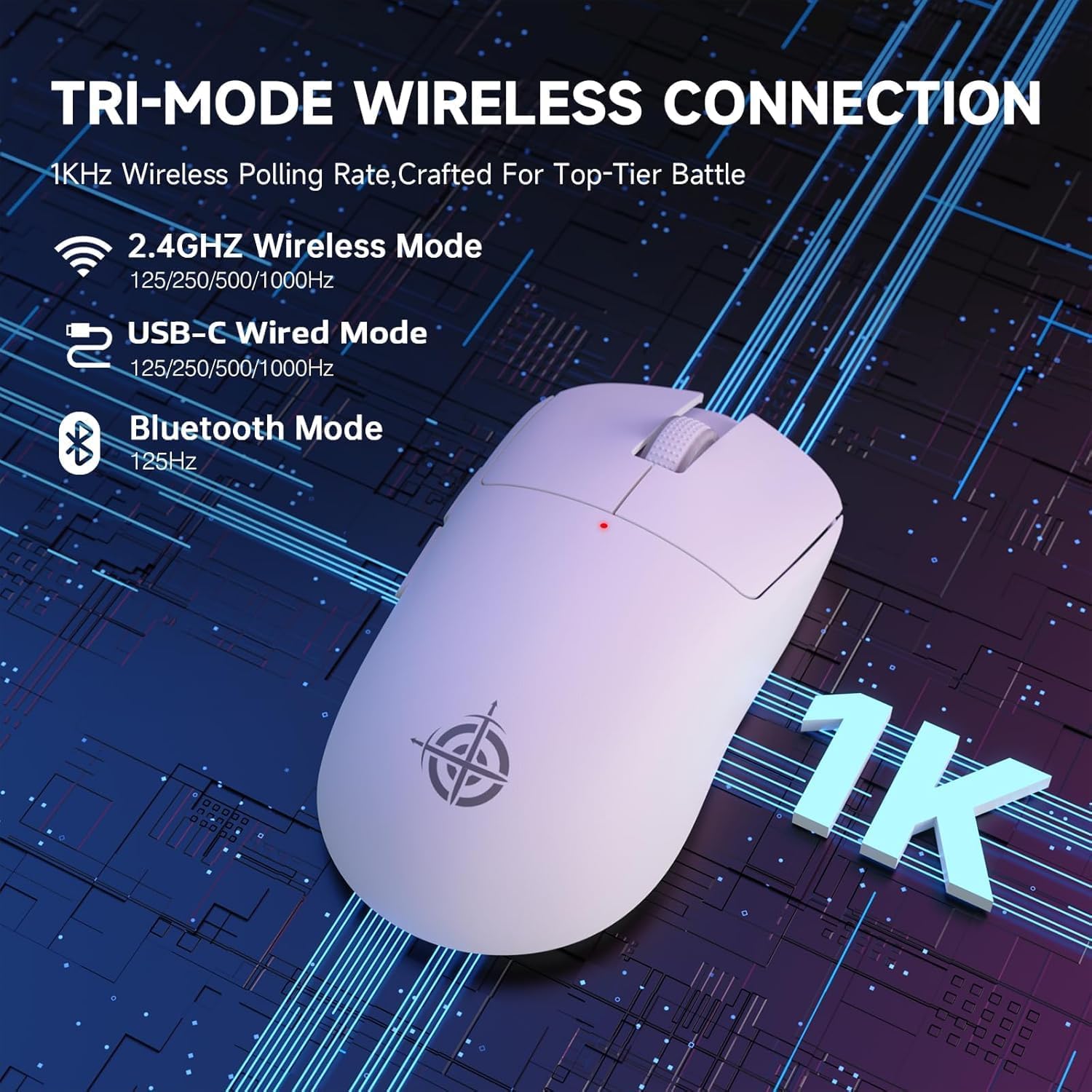
Image: The G6 mouse with an overlay indicating DPI levels (800-24000) and their associated indicator light colors (Red, Green, Blue, Yellow, Cyan, Purple).

Image: The G6 mouse displaying its customizable RGB lighting effects, including rainbow and single color options.

Image: The G6 mouse with its practical non-slip stickers applied, showing the textured surface for improved grip.
4. Průvodce nastavením
The G6 mouse offers three connection methods. Choose the one that best suits your needs.
4.1. Bezdrátový režim 2.4 GHz
- Vyhledejte 2.4G USB přijímač uložený v přihrádce na spodní straně myši.
- Zapojte USB přijímač do volného USB portu na vašem počítači.
- Slide the power toggle switch on the bottom of the mouse to the '2.4G' position.
- The mouse should automatically connect. If not, press the 'Atmosphere light switch & wireless mode frequency binding button' on the bottom of the mouse to initiate pairing.
4.2. Režim Bluetooth
- Slide the power toggle switch on the bottom of the mouse to the 'Bluetooth' position.
- Kontrolka myši začne blikat, což znamená, že je v režimu párování.
- V počítači nebo zařízení přejděte do nastavení Bluetooth a vyhledejte nová zařízení.
- Select 'ATTACK SHARK G6' (or similar name) from the list of available devices to pair.
4.3. Drátový režim USB-C
- Connect the provided USB-C cable to the front port of the mouse.
- Připojte druhý konec kabelu USB-C k volnému portu USB v počítači.
- Myš se automaticky přepne do kabelového režimu a začne se nabíjet.
5. Návod k obsluze
5.1. Nastavení DPI
The G6 mouse has a dedicated DPI cycle button on the bottom. Press this button to cycle through the preset DPI levels (800, 1600, 2400, 3200, 6400, 24000). The indicator light will change color to reflect the current DPI setting (Red, Green, Blue, Yellow, Cyan, Purple respectively).
5.2. Funkce tlačítek
The G6 mouse features 5 programmable buttons:
- Levé tlačítko: Standard left click.
- Pravé tlačítko: Standard right click.
- Scroll Wheel + Middle Button: Posun nahoru/dolů, kliknutí prostředním tlačítkem myši.
- Tlačítko vpřed: Naviguje vpřed web prohlížeče popř file průzkumníci.
- Tlačítko zpět: Naviguje zpět web prohlížeče popř file průzkumníci.
For advanced customization of button functions and macros, please download the official driver software from the ATTACK SHARK webmísto.
5.3. Ovládání RGB osvětlení
The G6 mouse features customizable RGB lighting. Use the 'Atmosphere light switch' button on the bottom of the mouse to cycle through different lighting effects (e.g., Rainbow Lighting, Single Lighting) or to turn the lighting off.
6. Údržba
To ensure the longevity and optimal performance of your G6 gaming mouse, follow these maintenance guidelines:
- Čištění: K otření povrchu myši použijte měkký, suchý hadřík. V případě odolných nečistot lehceampOtřete hadřík vodou nebo jemným čisticím roztokem. Vyhněte se agresivním chemikáliím nebo abrazivním materiálům.
- Péče o senzor: Udržujte optický senzor na spodní straně myši čistý a bez prachu a nečistot. V případě potřeby použijte vatový tampon nebo stlačený vzduch.
- Skladování: Pokud myš delší dobu nepoužíváte, skladujte ji na chladném a suchém místě mimo dosah přímého slunečního záření a extrémních teplot.
- Baterie: Nevystavujte baterii častému úplnému vybíjení. Myš pravidelně nabíjejte, aby baterie vydržela.
7. Řešení problémů
If you encounter any issues with your G6 gaming mouse, please refer to the following common solutions:
- Myš nereaguje:
- Ujistěte se, že je myš nabitá. Připojte ji pomocí kabelu USB-C pro nabití.
- Check the power toggle switch on the bottom of the mouse is in the correct position (2.4G, BT, or OFF for wired).
- V režimu 2.4 GHz se ujistěte, že je USB přijímač bezpečně zapojený do funkčního USB portu. Zkuste jiný USB port.
- For Bluetooth mode, ensure Bluetooth is enabled on your device and the mouse is paired. Try unpairing and re-pairing.
- Pohyb kurzoru je nepravidelný nebo nepřesný:
- Vyčistěte optický senzor na spodní straně myši.
- Ensure you are using the mouse on a suitable surface. Some surfaces (e.g., plain black neoprene pads, highly reflective surfaces) may interfere with optical tracking. Try a different mouse pad or surface.
- Upravte nastavení DPI pomocí tlačítka pro cyklování DPI.
- 2.4GHz dongle not working:
- Ujistěte se, že je myš přepnuta do režimu 2.4G.
- Try plugging the dongle into a different USB port on your computer.
- If issues persist, try re-pairing the mouse with the dongle by pressing the binding button on the mouse while the dongle is connected.
- Problémy s připojením Bluetooth:
- Ensure the mouse is in Bluetooth pairing mode (indicator light blinking).
- Remove the mouse from your device's Bluetooth list and attempt to pair again.
- Ujistěte se, že ovladače Bluetooth vašeho zařízení jsou aktuální.
8. Specifikace
| Funkce | Specifikace |
|---|---|
| Číslo modelu | G6 |
| Technologie připojení | 2.4Ghz / Bluetooth / USB-C Wired |
| Technologie detekce pohybu | Optical (PixArt PAW3311) |
| Úrovně DPI | 800-24000 (6 adjustable levels) |
| Míra hlasování | 125-1000Hz (2.4Ghz), 125Hz (Bluetooth) |
| Kapacita baterie | 750 XNUMX mAh |
| Hmotnost položky | 72±3g (2.54 ounces) |
| Rozměry | 116.2 x 62.2 x 37.3 mm (přibližně) |
| Přepnout životnost | 10 milionů kliknutí |
| Délka kabelu | 1.5m (Braided USB-C) |
| Kompatibilita | Windows, macOS, Linux, Chrome OS, Consoles, Tablets, Smartphones |
9. Záruka a podpora
The ATTACK SHARK×Magic-Refiner G6 Wireless Gaming Mouse comes with a standard manufacturer's warranty. Please refer to the product packaging or the official ATTACK SHARK webkonkrétní záruční podmínky naleznete na webových stránkách.
For technical support, troubleshooting assistance, or warranty claims, please contact ATTACK SHARK customer service through their official webwebu nebo prodejce, kde jste produkt zakoupili.
Poznámka: Do této příručky nebyla k dispozici žádná oficiální produktová videa od prodejce, která by bylo možné vložit.
Ask a question about this manual
Ask about setup, troubleshooting, compatibility, parts, safety, or missing instructions. Manuals+ will review the question and use this page’s manual context to help answer it.