
1. Úvod
This manual provides essential information for setting up, operating, and maintaining your HP OMEN 31.5 inch UHD 144Hz Smart Gaming Monitor. This monitor is designed to deliver an immersive visual experience with its 4K UHD display, high refresh rate, and smart features.
Key features include a 4K UHD (3840 x 2160) IPS panel, 144Hz refresh rate, VESA DisplayHDR 400, 1ms GtG response time with Overdrive, and NVIDIA G-SYNC compatibility. It also offers smart functionalities for streaming and multi-device connectivity.
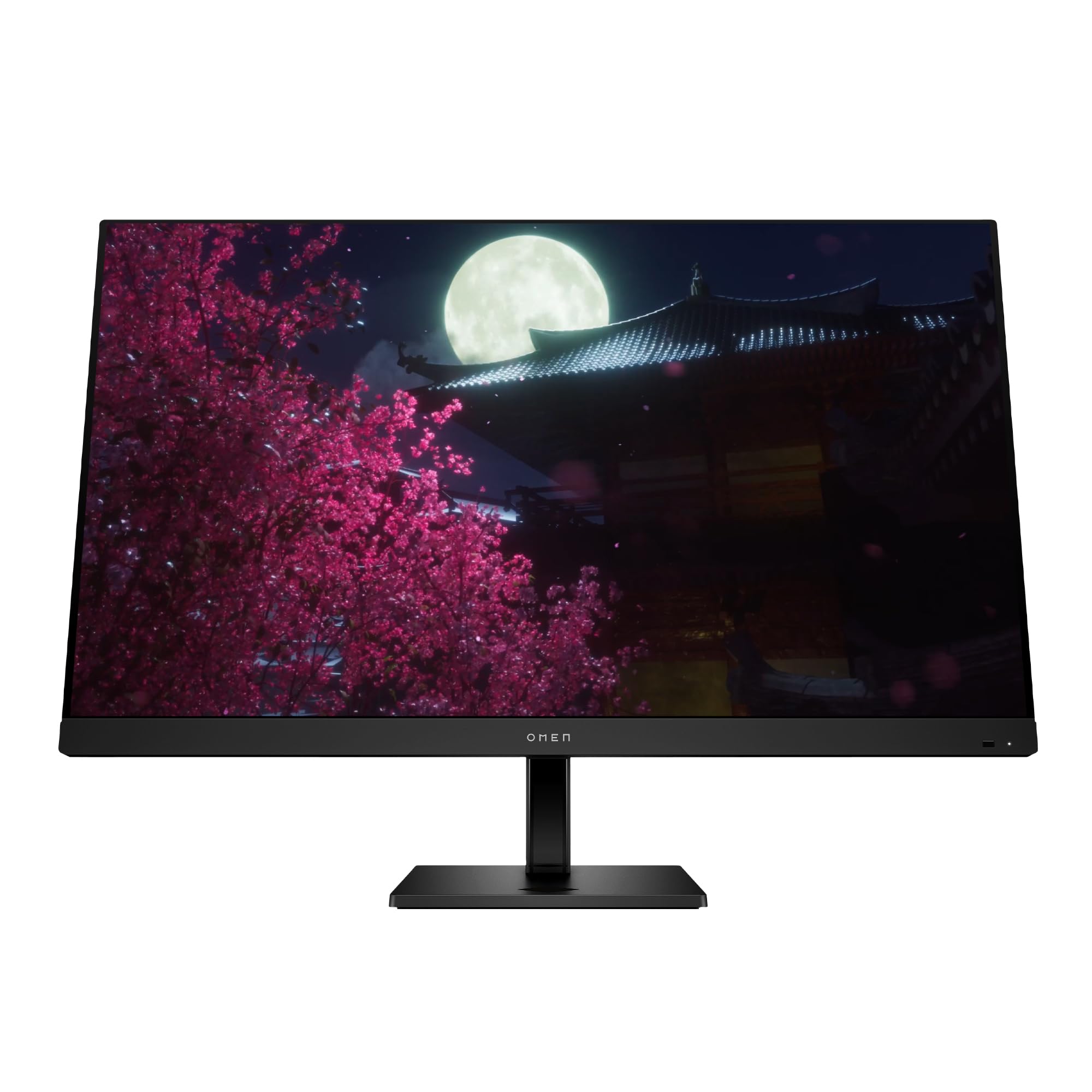
Image 1.1: The HP OMEN 31.5 inch UHD 144Hz Smart Gaming Monitor, highlighting its 4K UHD display, VESA DisplayHDR 400, integrated 3W speakers, and NVIDIA G-SYNC compatibility.
2. Co je v krabici
Před zahájením instalace ověřte, zda jsou v balení přítomny všechny součásti.
- HP OMEN 31.5 inch UHD 144Hz Smart Gaming Monitor
- Stojan na monitor (základna a krk)
- DisplayPort kabel
- HDMI kabel
- Kabel USB Type-C na Type-C
- Síťový napájecí kabel
- IR and Bluetooth remote control
- 2 x AAA baterie (pro dálkové ovládání)
- Držák kabelu
- Plakát s rychlým nastavením
- Documentation (including Warranty card)

Image 2.1: Visual representation of the items included in the product packaging, such as the monitor, cables, remote, and documentation.
3. Nastavení
3.1 Sestavení stojanu monitoru
- Opatrně vyjměte komponenty monitoru a stojanu z obalu.
- Připevněte krk stojanu k panelu monitoru a ujistěte se, že bezpečně zacvakne na místo.
- Attach the stand base to the stand neck, tightening any screws if necessary.
- Sestavený monitor umístěte na stabilní, rovný povrch.
3.2 Připojení monitoru
Připojte potřebné kabely k monitoru a počítači nebo jiným zařízením.
- Moc: Připojte napájecí kabel střídavého proudu k napájení monitoru a poté do elektrické zásuvky.
- Video vstup: Connect either the DisplayPort cable, HDMI cable, or USB Type-C cable from your computer/device to the corresponding port on the monitor. The monitor supports 2 HDMI 2.1 ports, 1 DisplayPort 1.4, and 1 USB Type-C port.
- Zařízení USB: Connect USB peripherals to the 2 USB 2.0 Type-A ports on the monitor.
- Zvukový výstup: If desired, connect external speakers or headphones to the 3.5 mm Audio Jack (Audio Out).
- Síť: For smart features, connect an Ethernet cable to the RJ-45 port (100 Mbps, for Android TV OS use only).

Image 3.1: The rear panel of the monitor, illustrating the location of the 2 HDMI 2.1 ports, USB Type-C port, 2 USB 2.0 Type-A ports, 3.5 mm Audio Jack, DisplayPort 1.4, and RJ-45 port.
3.3 Počáteční zapnutí
- Ujistěte se, že jsou všechny kabely pevně připojeny.
- Press the power button on the monitor or use the remote control to turn on the monitor.
- Follow any on-screen prompts for initial setup, such as language selection and network connection for smart features.
4. Obsluha monitoru
4.1 Basic Controls and OSD Navigation
The monitor can be controlled using the physical buttons located on the monitor or the included IR and Bluetooth remote control. The On-Screen Display (OSD) menu allows you to adjust various settings.
- Use the remote control's directional buttons to navigate the OSD menu.
- Press the 'OK' or 'Enter' button to select an option.
- Use the 'Back' or 'Exit' button to return to the previous menu or exit the OSD.
4.2 Nastavení a funkce displeje
Optimalizujte své viewuživatelský zážitek úpravou následujících nastavení:
- Rezoluce: The monitor supports 4K UHD (3840 x 2160) resolution. Ensure your connected device is configured to output at this resolution for optimal clarity.
- Obnovovací frekvence: Set your device's display settings to 144Hz for smooth motion and responsive gameplay.
- VESA DisplayHDR 400: Enable HDR settings on your device and in the monitor's OSD for enhanced contrast and color depth in compatible content.
- Kompatibilní s NVIDIA G-SYNC: For NVIDIA graphics card users, enable G-SYNC in your NVIDIA Control Panel to synchronize the monitor's refresh rate with your GPU's frame rate, reducing screen tearing and stuttering.
- Dolby Vision a Dolby Atmos: Experience enhanced visuals and immersive audio with Dolby support. Ensure your content and connected devices are compatible.
- HP Eye Ease with Eyesafe Certification: This feature reduces blue light emissions to help minimize eye strain during extended use, without compromising color accuracy.

Image 4.1: The monitor features HP Eye Ease with Eyesafe Certification, designed to provide comfortable viewing by reducing blue light while maintaining color quality.
4.3 Chytré funkce a konektivita
The OMEN 32x monitor offers advanced smart functionalities:
- více-View: Split your screen to display content from two different sources simultaneously. For example, use a wired connection on one side and wireless casting on the other.
- Multi-Platform Streamer Honors: Stream content directly from your screen to multiple platforms. Refer to the monitor's smart OS interface for configuration.
- Shared Keyboard/Mouse (KB/M): Easily switch your keyboard and mouse control between multiple connected devices, simplifying your setup.
- Home Panel Integration: Control smart home devices like lights and thermostats, view doorbell notifications, and full-screen camera feeds directly from the monitor's home panel.

Image 4.2: The monitor's capability to live stream to multiple platforms and utilize a split-screen Multi-View feature for enhanced multitasking.

Image 4.3: The monitor's smart home panel, allowing control of lights, temperature, and displaying doorbell notifications and full-screen camera views.
4.4 Ergonomické úpravy
Nastavte monitor na optimální viewpohodlí:
- Nastavení výšky: The stand allows for a 100mm height adjustment range.
- Náklon: The monitor can be tilted from -5° to +20° to find your preferred viewúhel.

Image 4.4: Illustration of the monitor's ergonomic adjustments, including its tilt range (-5° to +20°) and 100mm height adjustable range.
5. Údržba
5.1 Čištění monitoru
- Před čištěním vždy vypněte monitor a odpojte napájecí kabel.
- Lehce používejte měkký hadřík, který nepouští vlákna dampvodou nebo neabrazivním čističem obrazovek.
- Nestříkejte čisticí prostředek přímo na obrazovku.
- Nepoužívejte agresivní chemikálie, rozpouštědla nebo abrazivní materiály, protože by mohly poškodit obrazovku neboasing.
5.2 Obecná péče
- Nepokládejte na monitor ani na jeho kabely těžké předměty.
- Neblokujte větrací otvory na monitoru.
- Chraňte monitor před přímým slunečním zářením, zdroji tepla a nadměrnou vlhkostí.
6. Řešení problémů
Pokud narazíte na problémy s monitorem, podívejte se na následující běžná řešení:
| Problém | Možné řešení |
|---|---|
| Žádná síla | Ujistěte se, že je napájecí kabel bezpečně připojen k monitoru i k funkční zásuvce. Zkontrolujte, zda je stisknuté tlačítko napájení. |
| Žádný signál / Prázdná obrazovka | Verify that the video cable (DisplayPort, HDMI, or USB-C) is correctly connected to both the monitor and your computer. Ensure the correct input source is selected in the monitor's OSD menu. Try restarting your computer. |
| Blikání nebo zkreslení obrazu | Check the video cable for damage. Ensure your graphics drivers are up to date. Adjust the refresh rate in your computer's display settings. Disable G-SYNC temporarily to see if the issue persists. |
| Barvy se zobrazují nesprávně | Adjust color settings in the OSD menu. Perform a factory reset of the monitor settings. Ensure your graphics card color settings are correctly configured. |
| Dálkové ovládání nefunguje | Check and replace the AAA batteries. Ensure there are no obstructions between the remote and the monitor's IR receiver. Re-pair the Bluetooth remote if necessary. |
If the problem persists after trying these solutions, contact HP customer support.
7. Specifikace
| Funkce | Detail |
|---|---|
| Číslo modelu | 99Z68AA#ABA |
| Velikost obrazovky | 31.5 palce |
| Typ panelu | IPS |
| Rezoluce | 4K UHD (3840 x 2160) |
| Obnovovací frekvence | 144 Hz |
| Doba odezvy | 1ms GtG (s overdrive) |
| Podpora HDR | Displej VESA HDR 400 |
| Kompatibilita s G-SYNC | Kompatibilní s NVIDIA G-SYNC |
| Kontrastní poměr | 1000:1 |
| Jas | 400 nitů (špička) |
| Viewúhly | 178° (H) / 178° (V) |
| Reproduktory | Four integrated 3W speakers |
| Vstupní video porty | 2 x HDMI 2.1, 1 x DisplayPort 1.4, 1 x USB Type-C |
| USB porty | 2 x USB 2.0 Type-A (Battery Charging 1.2) |
| Zvukový výstup | Audio konektor 3.5 mm |
| Síťový port | 1 x RJ-45 (100 Mbps, for Android TV OS only) |
| Ergonomie | Height adjustable (100mm), Tilt (-5° to +20°) |
| Rozměry (ŠxHxV) | 28.11 x 9.58 x 16.93 palce (se stojanem) |
| Hmotnost | 23.3 liber (se stojanem) |
| Barva | Černý |
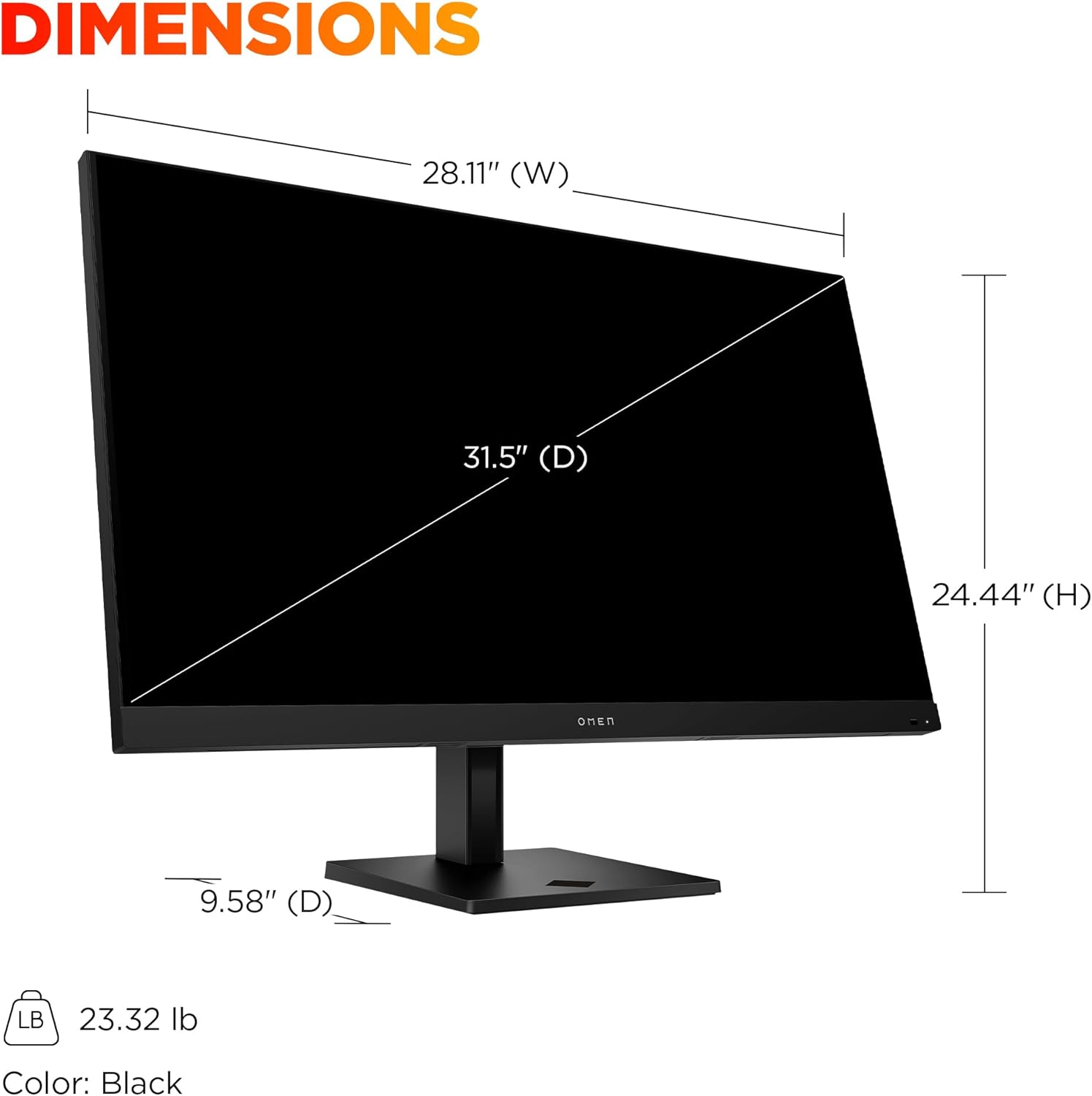
Image 7.1: Detailed dimensions of the HP OMEN 31.5 inch monitor, including width, height, and depth, along with its weight.
8. Záruka a podpora
8.1 Informace o záruce
This HP OMEN monitor comes with a 3letá omezená záruka HPÚplné podmínky naleznete v záruční kartě, která je součástí balení produktu. Uschovejte si doklad o koupi pro případné reklamace.
8.2 Zákaznická podpora
For technical assistance, troubleshooting beyond this manual, or warranty service, please contact HP customer support. You can find support contact information on the official HP website or through the documentation provided with your monitor.
Online resources, drivers, and FAQs may also be available on the Podpora HP webmísto.