
Crelander CR-T40-pink
Uživatelská příručka pro 10.1palcový tablet Crelander Android 13
Model: CR-T40-pink
1. Úvod
This manual provides detailed instructions for the safe and efficient use of your Crelander 10.1 Inch Android 13 Tablet. Please read this manual thoroughly before operating the device and retain it for future reference.
The Crelander 10.1 Inch Android 13 Tablet is a versatile device designed for productivity, entertainment, and communication. It features a powerful processor, ample storage, a vibrant display, and comprehensive connectivity options, including 4G LTE calling.
2. Obsah balení
Upon opening the package, verify that all items are present and in good condition. The standard package includes:
- Crelander 10.1 Inch Android 13 Tablet
- Ochranné pouzdro
- Bezdrátová klávesnice
- Bezdrátová myš
- Stylus Pen
- USB nabíjecí kabel
- USB-C to USB-A Adapter (OTG)
- Uživatelská příručka (tento dokument)

Figure 2.1: Crelander Tablet and included accessories.
3. Rozvržení a funkce zařízení
Familiarize yourself with the physical layout of your tablet.
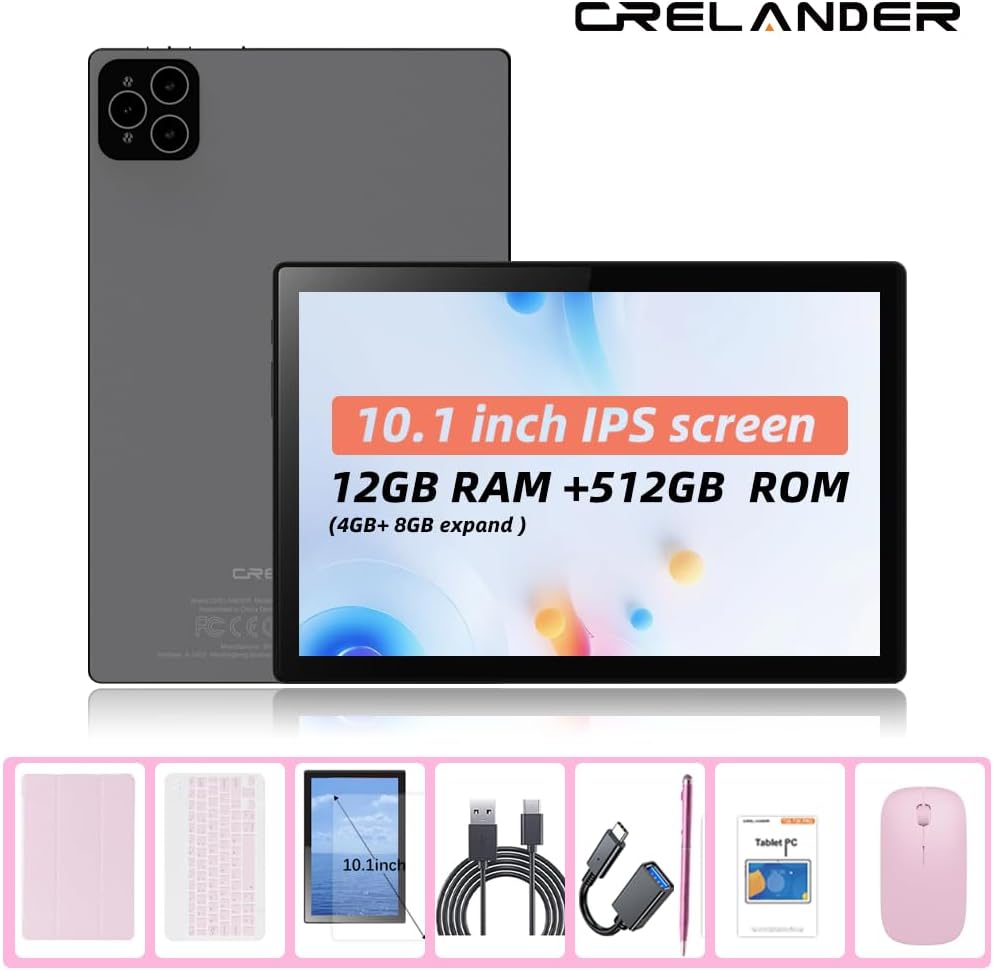
Obrázek 3.1: Přední a zadní strana View of the Tablet.
Klíčové vlastnosti:
- 10.1palcový IPS HD displej: 1280x800 pixel resolution for clear and vibrant visuals.
- Operační systém Android 13: Enhanced performance and user experience.
- Vysoký výkon: 12GB RAM (with potential virtual expansion) and 512GB internal storage (ROM).
- Rozšiřitelné úložiště: Supports up to 1TB TF (microSD) card for additional storage.
- 4G LTE Calling: Integrated SIM card slot for cellular connectivity and voice calls.
- Duální fotoaparáty: Front and rear cameras for photos, videos, and video calls.
- Rozpoznávání obličeje: Pro bezpečné a pohodlné odemykání.
- Baterie 8000 mAh: Dlouhotrvající výkon pro delší používání.
- Bezdrátové připojení: Bluetooth and Wi-Fi (802.11n) for seamless connections.
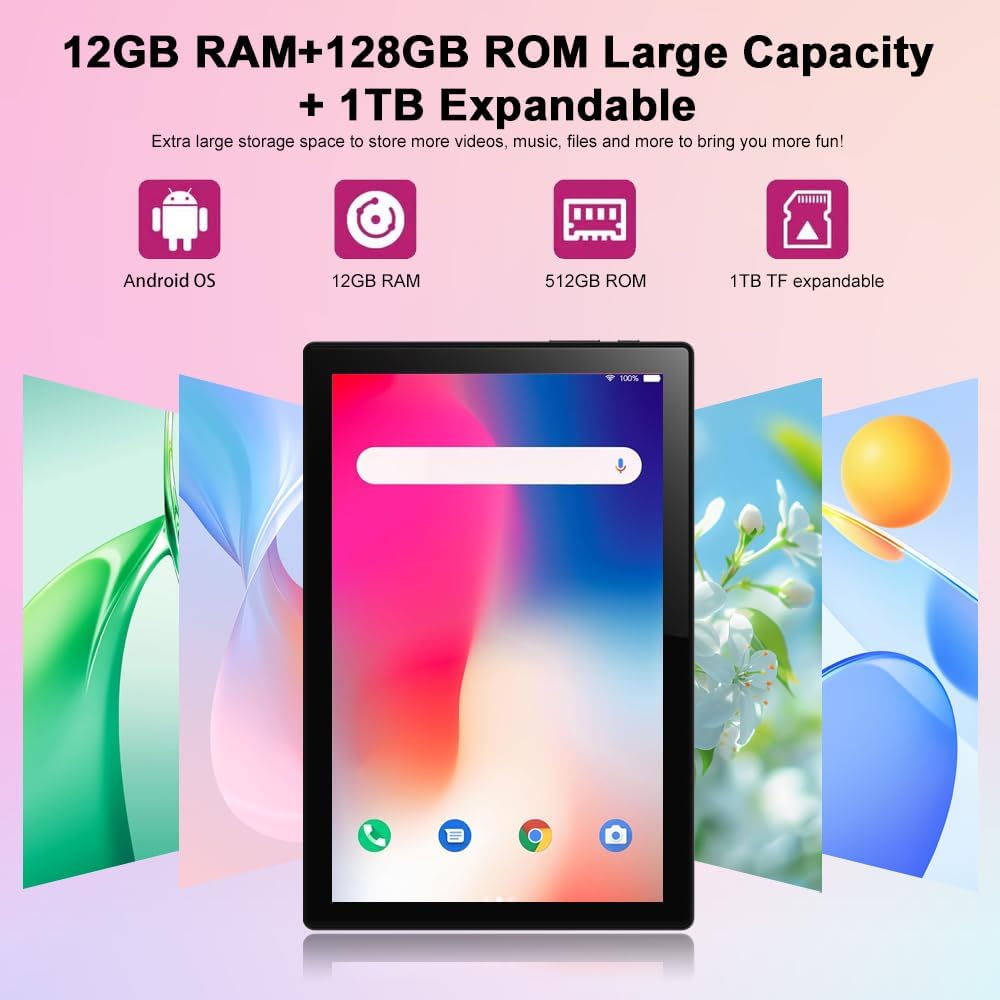
Figure 3.2: Storage and RAM Capabilities.

Figure 3.3: Display Specifications.
4. Začínáme: Nastavení
4.1 Nabíjení tabletu
Before first use, fully charge the tablet. Connect the USB charging cable to the tablet's charging port and the other end to a compatible USB power adapter (not included) or a computer's USB port. The battery indicator on the screen will show charging status.
4.2 Zapnutí/vypnutí
- Zapnutí: Press and hold the Power button until the Crelander logo appears.
- Vypnutí: Stiskněte a podržte tlačítko Napájení, dokud se nezobrazí nabídka možností napájení, poté vyberte „Vypnout“.
- Restartovat: Stiskněte a podržte tlačítko Napájení, dokud se nezobrazí nabídka možností napájení, a poté vyberte „Restartovat“.
4.3 Průvodce počátečním nastavením
Po prvním zapnutí vás tablet provede procesem počátečního nastavení. Ten zahrnuje:
- Výběr jazyka.
- Připojování k síti Wi-Fi.
- Nastavení účtu Google (volitelné, ale doporučené pro stahování aplikací).
- Nastavení zámku obrazovky (PIN, vzorec, heslo nebo rozpoznávání obličeje).
4.4 Inserting a SIM Card (for 4G LTE Calling)
The tablet supports Micro SIM cards for 2G/3G/4G cellular connectivity and calling.
- Vyhledejte držák SIM karty na boku tabletu.
- K otevření zásuvky použijte dodaný nástroj pro vysunutí SIM karty (pokud je součástí balení) nebo malou kancelářskou sponku.
- Carefully place the Micro SIM card into the designated slot on the tray, ensuring correct orientation.
- Jemně zatlačte zásobník zpět do tabletu, dokud nezacvakne na místo.

Figure 4.1: Inserting a Micro SIM Card.
4.5 Inserting a MicroSD (TF) Card
To expand storage, insert a MicroSD (TF) card (up to 1TB, not included).
- Locate the MicroSD card slot, often combined with the SIM tray or a separate slot.
- Insert the MicroSD card into the slot with the gold contacts facing down, until it clicks into place.
- The tablet will recognize the card, and you may be prompted to format it for internal or portable storage.
5. Ovládání tabletu
5.1 Základní navigace
The Android 13 operating system uses touch gestures for navigation:
- Klepněte na: To open apps, select items, or activate buttons.
- Výpad: To scroll through pages, menus, or switch between home screens.
- Přiblížení/zvětšení prsty: Pro přiblížení nebo oddálení obrázků, map nebo web stránky.
- Dlouhé stisknutí: Pro přístup k kontextovým nabídkám nebo přesun ikon aplikací.
5.2 Připojení příslušenství (klávesnice, myš, stylus)
Dodaná klávesnice a myš se připojují přes Bluetooth. Stylus je obvykle pasivní a nevyžaduje párování.
- Povolit Bluetooth: Přejít na Nastavení > Připojená zařízení > Bluetooth a zapněte Bluetooth.
- Párování klávesnice/myši: Put the keyboard/mouse into pairing mode (refer to their individual manuals if needed). Select the device from the list of available Bluetooth devices on your tablet and follow on-screen prompts to pair.
5.3 Using Facial Recognition
Nastavte si rozpoznávání obličeje pro rychlé a bezpečné odemykání.
- Přejít na Nastavení > Zabezpečení a soukromí > Odemknutí zařízení > Odemknutí obličejem.
- Follow the on-screen instructions to register your face using the front camera.
- Ensure good lighting and hold the tablet at eye level during registration.
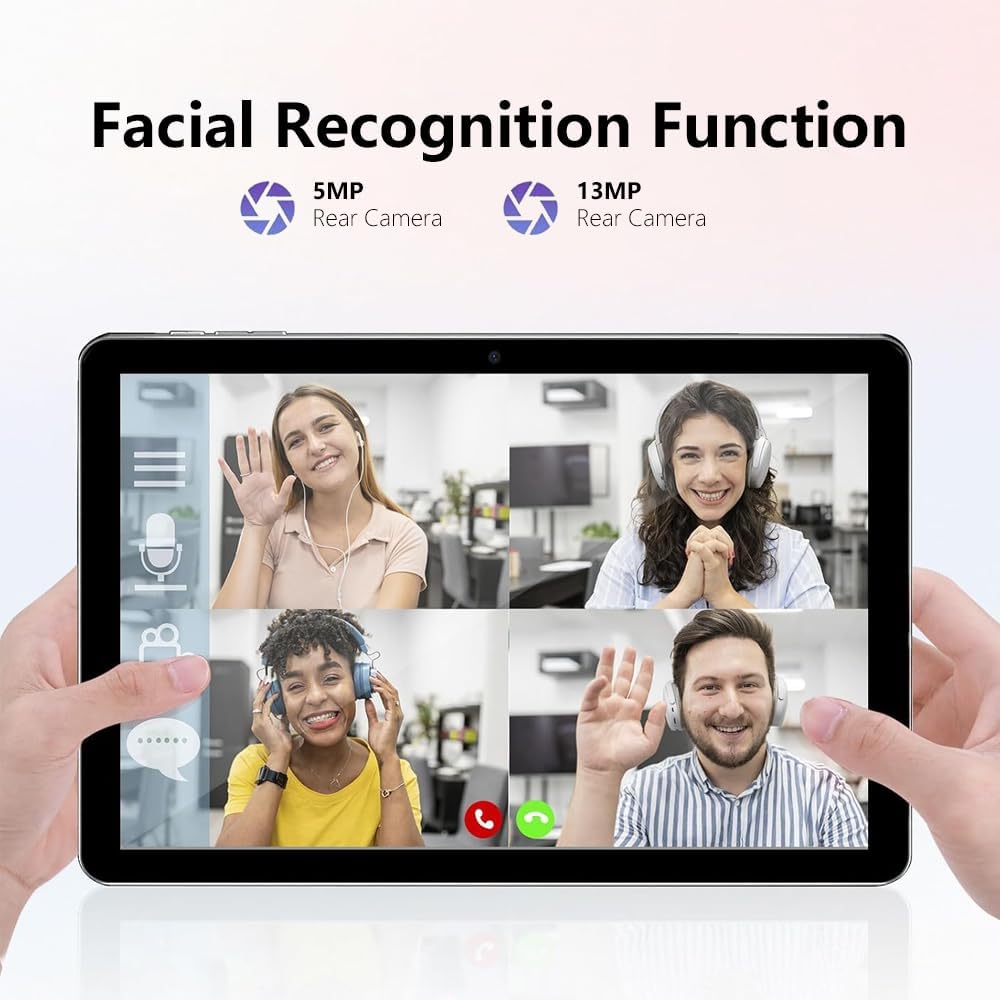
Figure 5.1: Facial Recognition in Use (Illustrative).
5.4 Wi-Fi and Cellular Data
- Wi-Fi: Přístup Nastavení > Síť a internet > Internet pro připojení k dostupným sítím Wi-Fi.
- Mobilní data: If a SIM card is inserted, enable mobile data via Nastavení > Síť a internet > SIM karty.
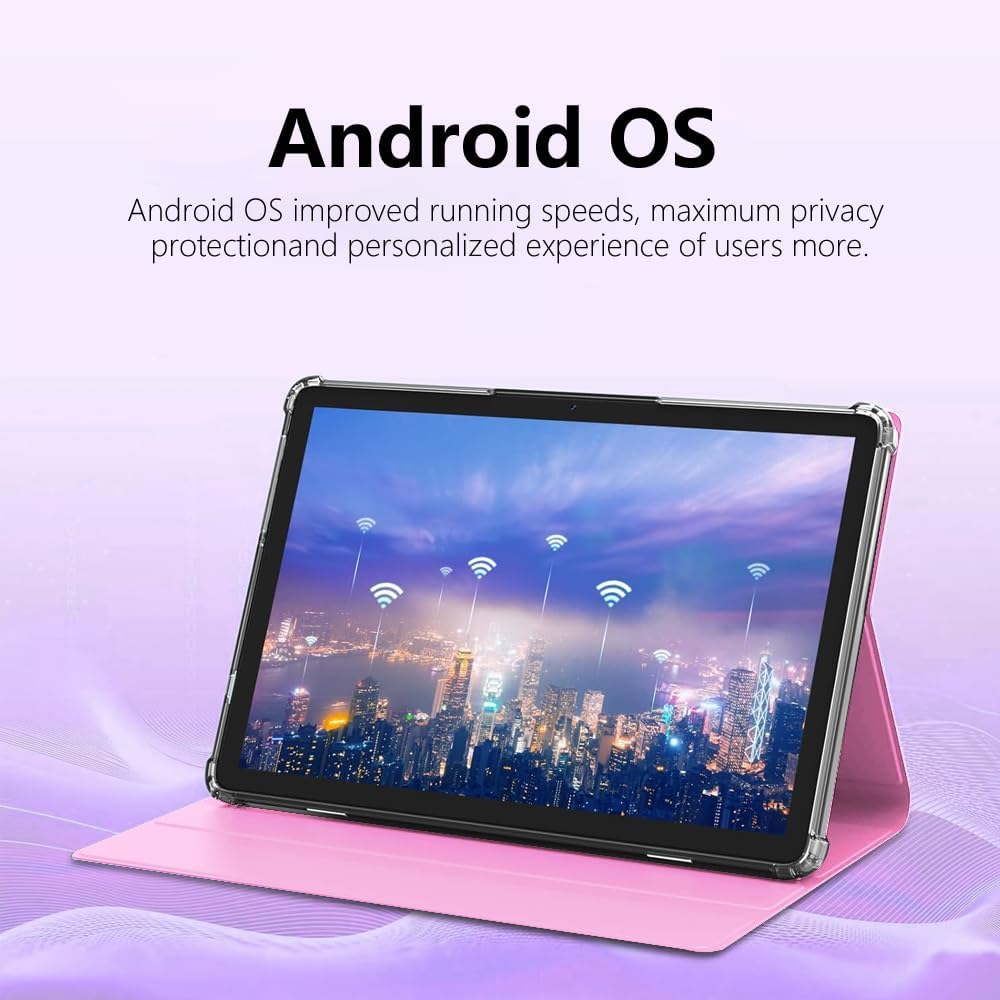
Figure 5.2: Android OS and Wireless Connectivity.
6. Údržba a péče
- Čištění: K čištění obrazovky a těla přístroje používejte měkký hadřík, který nepouští vlákna. Nepoužívejte abrazivní čisticí prostředky ani rozpouštědla.
- Péče o baterie: Nevystavujte extrémním teplotám. Pro dlouhodobé skladování nabijte baterii přibližně na 50 %.
- Aktualizace softwaru: Pravidelně kontrolujte aktualizace systému prostřednictvím Nastavení > Systém > Aktualizace systému aby byl zajištěn optimální výkon a bezpečnost.
- Správa úložiště: Pravidelně mazejte mezipaměť, odinstalujte nepoužívané aplikace a přenášejte velké soubory. files to external storage (MicroSD card) to maintain performance.
- Ochrana: Use the provided protective case to guard against drops and scratches.
7. Řešení problémů
| Problém | Možné řešení |
|---|---|
| Tablet se nezapne. | Ensure the tablet is charged. Connect to a charger for at least 30 minutes before attempting to power on again. |
| Nelze se připojit k Wi-Fi. | Zkontrolujte, zda je v nastavení povolena Wi-Fi. Restartujte router. Zapomeňte na síť a znovu se připojte. |
| SIM karta nebyla detekována. | Ensure the SIM card is correctly inserted and is a Micro SIM. Restart the tablet. Check with your carrier if the SIM is active. |
| Tablet je pomalý nebo nereaguje. | Close unused apps. Clear app caches. Restart the tablet. Consider a factory reset as a last resort (backup data first). |
| Baterie se rychle vybíjí. | Reduce screen brightness. Disable unused features like Bluetooth/GPS. Close background apps. Limit notifications. |
8. Specifikace
| Funkce | Detail |
|---|---|
| Číslo modelu | CR-T40-pink |
| Operační systém | Android 13 |
| Zobrazit | 10.1-inch IPS HD Touchscreen (1280 x 800 pixels) |
| Procesor | MT6763 |
| BERAN | 12 GB |
| Interní úložiště (ROM) | 512 GB |
| Rozšiřitelné úložiště | Až 1 TB přes kartu MicroSD (TF) |
| Kamery | Front and Rear (specific MP not detailed in all specs, but 5MP/13MP mentioned in image) |
| Baterie | 8000 mAh (vestavěná dobíjecí) |
| Konektivita | Wi-Fi (802.11n), Bluetooth, 4G LTE (Micro SIM) |
| Rozměry (DxŠxV) | 10 x 0.3 x 7 palce |
| Hmotnost | 3.3 libry |
| Barva | Růžový |
9. Záruka a podpora
Crelander products are designed for reliability and performance. For warranty information, technical support, or service inquiries, please refer to the contact information provided with your purchase or visit the official Crelander webmísto.
Uschovejte si prosím doklad o koupi pro uplatnění záruky.
Související dokumenty - CR-T40-pink
 |
CRELANDER W30 Tablet PC User Manual User manual for the CRELANDER W30 10.1-inch IPS Tablet PC, including charging instructions, operating guidelines, maintenance tips, and safety warnings. |
 |
Crelander T30 PRO Tablet PC Uživatelská příručka Uživatelská příručka pro tablet Crelander T30 PRO, která zahrnuje základní obsluhu, tipy, údržbu a shodu s předpisy FCC. |
 |
Průvodce 3D tiskárnou Creality Ender-3 Pro Series Komplexní průvodce pro 3D tiskárnu Creality Ender-3 řady Pro, který zahrnuje nastavení, provoz, instalaci softwaru, tisk, řešení problémů a poprodejní servis. Obsahuje podrobné pokyny, bezpečnostní poznámky a identifikaci součástí. |
 |
Mini-Copter Model Rocket Kit Assembly Instructions | Apogee Components Detailed assembly instructions and parts list for the Apogee Components Mini-Copter model rocket kit (Kit #05012). Learn how to build this high-performance helicopter-style rocket. |
 |
Pellet Stove User Manual: Installation, Operation, and Maintenance Comprehensive user manual for pellet stoves, covering installation requirements, operation instructions, maintenance procedures, troubleshooting, and warranty information. Includes technical specifications and safety precautions for models CR-01 through CR-10-2. |
 |
Uživatelská příručka k 3D tiskárně CREALITY řady CR-10 Komplexní uživatelská příručka pro 3D tiskárny CREALITY řady CR-10, včetně modelů CR-10, CR-10S, CR-10 S4, CR-10 S5 a CR-10 mini. Zahrnuje instalaci, nastavení, provoz, software a poprodejní servis. |
Ask a question about this manual
Ask about setup, troubleshooting, compatibility, parts, safety, or missing instructions. Manuals+ will review the question and use this page’s manual context to help answer it.