
Zavedení
This manual provides essential information for the safe and efficient operation of your Kimwood HY300 Ultra Mini Portable Projector. Please read this guide thoroughly before using the product and retain it for future reference.

Image: The Kimwood HY300 Ultra Mini Portable Projector, a compact white device, projects a vibrant screen showing logos for popular streaming services like YouTube, Prime Video, Hulu, and HBO Max, highlighting its built-in app capabilities. Icons for 1080P/4K support, auto keystone, built-in speakers, 0.8:1 ultra short throw ratio, and WiFi 6 + Bluetooth 5.4 are also visible.
Obsah balení
Ověřte, zda jsou v balení přítomny všechny položky:
- Kimwood HY300 Ultra Mini Portable Projector
- Napájecí kabel
- Dálkové ovládání (baterie AAA nejsou součástí balení)
- Uživatelská příručka (tento dokument)

Image: The Kimwood HY300 Ultra Mini Portable Projector, its power adapter, remote control, and user manual are neatly arranged on a dark surface, illustrating the complete package contents.
Konec produktuview
The Kimwood HY300 Ultra is designed for versatility and ease of use. Key features include:
- Ultra Short Throw Ratio (0.8:1): Projects a large image from a short distance, ideal for small spaces.
- Built-in Android TV Apps: Access streaming services directly without external devices.
- Dual Band Wi-Fi 6 & Bluetooth 5.4: Ensures stable, fast streaming and flexible audio connections.
- Dedicated HiFi Speaker: Provides clear and rich audio output.
- Automatická vertikální korekce lichoběžníkového zkreslení: Effortlessly adjusts image alignment.
- Provoz s nízkou hlučností: Operates at ≤25 dB for minimal distraction.
- Kompaktní a přenosný design: 60% smaller than standard portable models for easy transport.
- Flexible 180° Projection Angle: Allows projection on walls, ceilings, or floors.
Porty a ovládací prvky
The projector features various ports for connectivity:
- HDMI vstup: For connecting external media devices like gaming consoles, laptops, or TV boxes.
- USB port: For connecting USB drives for media playback or other USB accessories.
- 3.5mm audio jack: For connecting external headphones or speakers via a wired connection.
- Příkon: Pro připojení napájecího kabelu.
- Manual Focus Slider: Located near the lens for fine-tuning image sharpness.
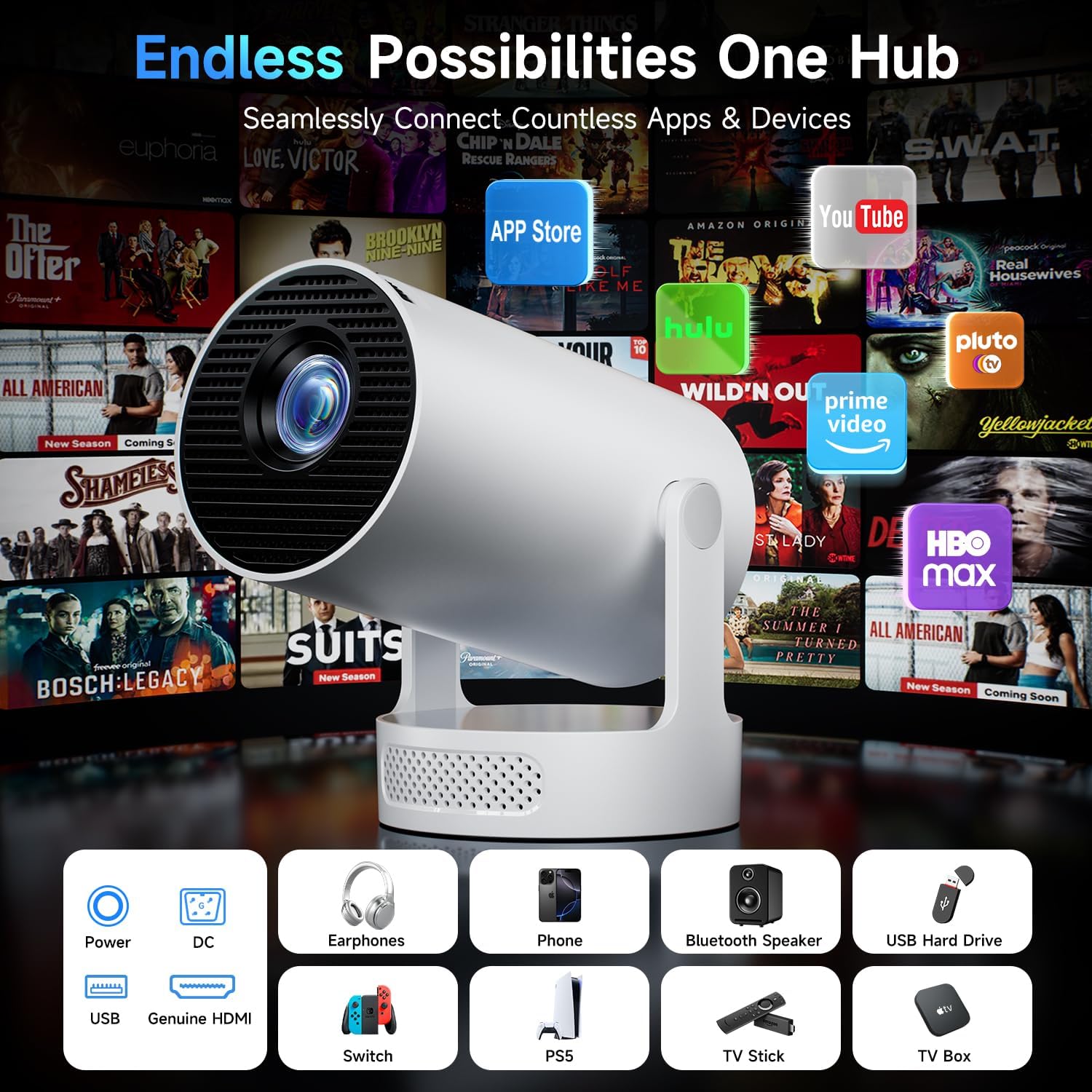
Image: A close-up of the rear of the Kimwood HY300 Ultra Mini Portable Projector, highlighting its various connectivity options including HDMI, USB, and audio jack, along with the power input. The image also shows the projector's compact design and integrated stand.
Nastavení
1. Připojení napájení
- Připojte napájecí kabel ke vstupnímu portu projektoru.
- Zapojte druhý konec napájecího kabelu do vhodné elektrické zásuvky.
- Stisknutím tlačítka napájení na projektoru nebo dálkovém ovladači zapněte zařízení.

Image: A visual guide illustrating the wired connectivity options of the Kimwood HY300 Ultra Projector, including HDMI and USB ports, and emphasizing the use of genuine HDMI cables for optimal performance.
2. Initial Setup (Wi-Fi & Bluetooth)
Upon first use, follow the on-screen prompts to connect to your Wi-Fi network and pair Bluetooth devices.
- Navigate to the "Settings" menu using the remote control.
- Select "Network & Internet" to connect to your Wi-Fi 6 network for fast and stable streaming.
- Select "Bluetooth" to pair with external Bluetooth speakers or other compatible devices (Bluetooth 5.4 supported).

Image: A couple enjoys content projected by the Kimwood HY300 Ultra, illustrating its stable and ultra-fast Dual-Band WiFi 6 connectivity for smooth streaming with minimal buffering.
3. Nastavení zaostření
Adjust the manual focus slider located near the projector lens until the image appears sharp and clear on the projection surface.
4. Korekce lichoběžníkového zkreslení
The projector features automatic vertical keystone correction. If the image appears distorted (trapezoidal), the projector will automatically adjust it for a perfectly aligned rectangular screen. Manual 4-point correction is also available in the settings for fine-tuning.

Image: The Kimwood HY300 Ultra Mini Portable Projector is shown projecting an image onto a wall, with diagrams illustrating its auto keystone correction, 50-100% digital scaling, 4-point correction, and flexible focus capabilities. The projector's 180° projection angle is also highlighted.
5. Možnosti umístění
The integrated 180° rotating stand allows for flexible placement. You can project onto walls, ceilings, or floors. For optimal viewing, ensure the projection surface is flat and free from obstructions.

Image: A diagram illustrating the flexible 180-degree screen rotation of the Kimwood HY300 Ultra Projector, showing how it can project images onto various surfaces like walls and ceilings from different angles.
Provozní
1. Built-in Apps
The projector comes with pre-installed Android TV apps, including YouTube, Prime Video, and Hulu. Access these directly from the home screen. You can also download additional apps from the app store.

Image: The Kimwood HY300 Ultra Projector's interface is shown with various streaming apps and settings, demonstrating its massive app compatibility for endless entertainment.
2. Připojení externích zařízení
- HDMI: Connect your device to the HDMI port using an HDMI cable. Select "HDMI" as the input source from the projector's menu.
- USB: Insert a USB drive into the USB port. Navigate to the "Media" section on the projector's home screen to browse and play content.
3. Zrcadlení obrazovky (kabelové/bezdrátové)
The projector supports screen mirroring from smartphones and other compatible devices. Refer to your device's instructions for initiating screen mirroring and select the appropriate option (Wired Screen or Wireless Screen) on the projector.
4. Zvukový výstup
The projector features a dedicated HiFi speaker for clear audio. For enhanced audio, connect external speakers via Bluetooth 5.4 or the 3.5mm audio jack.

Image: A visual comparison highlighting the Kimwood HY300 Ultra's dedicated audio module for clearer sound versus a shared vent design that can distort sound output, emphasizing its upgraded independent speaker system.
Údržba
1. Čištění
- K čištění vnější strany projektoru použijte měkký, suchý hadřík.
- For the lens, use a lens cleaning cloth and specialized lens cleaning solution. Avoid abrasive materials.
- Ensure ventilation grilles are free from dust to maintain optimal cooling.
2. Lamp Život
Projektor lamp has an ultra-long life of over 40,000 hours, ensuring years of reliable use.

Image: A cutaway diagram of the Kimwood HY300 Ultra Projector's lens system, highlighting its ultra-long lamp life of over 40,000 hours for extended viewpotěšení.
Odstraňování problémů
| Problém | Možná příčina | Řešení |
|---|---|---|
| Není zobrazen žádný obrázek | Power not connected, incorrect input source, device not powered on. | Check power connection, select correct input source (HDMI, USB), ensure connected device is on. |
| Rozmazaný obraz | Incorrect focus, projector too close/far from screen. | Adjust the manual focus slider. Ensure optimal projection distance (e.g., 1.5m for 86" image). |
| Zkreslený obraz (lichoběžník) | Projektor není kolmý k promítací ploše. | The projector has automatic vertical keystone correction. If needed, use manual 4-point correction in settings. |
| Žádný zvuk | Volume too low, external speaker not connected/paired, incorrect audio output selected. | Increase volume. Check Bluetooth connection for external speakers or ensure 3.5mm cable is properly connected. Verify audio settings. |
| Problémy s připojením k Wi-Fi/Bluetooth | Mimo dosah, rušení, nesprávné heslo. | Ensure projector is within range of router/Bluetooth device. Check Wi-Fi password. Restart projector and router. |
Specifikace
| Funkce | Detail |
|---|---|
| Značka | Kimwood |
| Model | HY300 Ultra |
| Typ zobrazení | LED |
| Nativní rozlišení | 1280 x 720 pixelů |
| Podporované rozlišení | 1920 x 1080 Pixels (1080P/4K HD clarity) |
| Kontrastní poměr obrazu | 10000:1 |
| Poměr stran | 16:9 |
| Poměr házení | 0.8:1 (Ultra Short Throw) |
| Technologie připojení | HDMI, USB, Dual Band Wi-Fi 6, Bluetooth 5.4 |
| Kompatibilní zařízení | Bluetooth Speaker, PS5/Switch, Smartphone, TV Box, USB drives |
| Speciální funkce | Built-in Apps, Independent Speaker Design, Automatic Vertical Keystone Correction, Low Noise (≤25 dB), 180° Projection Angle, Portable |
| Úroveň hluku | ≤25 Decibels |
| Lamp Život | > 40,000 hodiny |
| Rozměry produktu | 9.5 x 9.5 x 17 cm; 678 g |
Záruka a podpora
Kimwood offers 2 years of worry-free support for your projector. If you encounter any questions or issues, please contact our customer support team for fast and hassle-free assistance.
- 365-Day Quality Warranty
- Doživotní technická pomoc
- 24/7 Rapid Response Team

Image: A friendly customer support representative is shown, symbolizing Kimwood's commitment to customer satisfaction with a 365-day quality warranty, lifetime technical assistance, and a 24/7 rapid response team.