
1. Úvod
The MEETION DirectorD-KB is a wireless ergonomic keyboard designed for comfortable and natural typing. It features a scientific wave key design and a built-in firm wrist rest to support your hands during extended use. This keyboard offers broad compatibility with Windows and macOS devices through a 2.4GHz wireless connection.

Image: The MEETION DirectorD-KB Wireless Ergonomic Keyboard positioned on a wooden desk, showcasing its wave-curved design and integrated wrist rest.
2. Obsah balení
Ujistěte se, že v balení jsou přítomny všechny položky:
- 1 x MEETION DirectorD-KB Wireless Ergonomic Keyboard
- 1 x Uživatelská příručka
- 1 x USB-A 2.4GHz Wireless Receiver
- 1 x USB-C adaptér
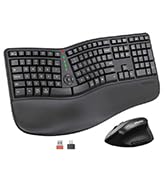
Image: Contents of the MEETION DirectorD-KB package, including the keyboard, user manual, USB-A receiver, and USB-C adapter.
3. Pokyny k nastavení
3.1. Instalace baterie
- Vyhledejte přihrádku na baterie na spodní straně klávesnice.
- Otevřete kryt bateriového prostoru.
- Insert two AAA batteries (not included) into the compartment, ensuring correct polarity.
- Bezpečně zavřete kryt bateriového prostoru.

Image: The underside of the keyboard showing the battery compartment for two AAA batteries and details on power saving features.
3.2. Připojení přijímače
- Locate the USB-A 2.4GHz wireless receiver, typically found in the slot inside the keyboard's battery compartment or in the accessory pouch.
- For devices with a USB-A port: Plug the USB-A receiver directly into an available USB-A port on your computer.
- For devices with a USB-C port: Attach the provided USB-C adapter to the USB-A receiver, then plug the combined unit into an available USB-C port on your computer.
- The keyboard is plug-and-play and should connect automatically.
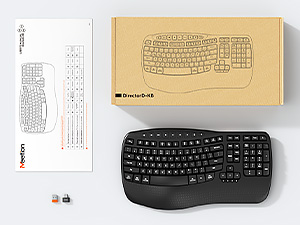
Image: Step-by-step guide on connecting the USB-A receiver with the USB-C adapter to a computer's USB-C port.
3.3. Zapnutí
After installing batteries and connecting the receiver, slide the power switch on the keyboard to the 'ON' position. The keyboard is now ready for use.
4. Návod k obsluze
4.1. Ergonomic Design and Wrist Rest
The keyboard features a wave-shaped key layout and a firm, integrated wrist rest. This design guides your hands and wrists into a natural, relaxed typing position, reducing strain during long typing sessions.

Image: A user's hands resting comfortably on the integrated wrist rest while typing on the ergonomic keyboard.
4.2. Adjustable Tilt
Utilize the adjustable tilt legs on the underside of the keyboard to find your preferred typing angle. Different angles can further enhance comfort and reduce wrist fatigue.

Obrázek: Side profiles of the keyboard demonstrating three different adjustable tilt angles for personalized comfort.
4.3. Dual System Layout (Windows/macOS)
The keyboard supports both Windows and macOS layouts. To switch between operating systems:
- Stiskněte FN+Q pro rozvržení Windows.
- Stiskněte FN + W pro rozvržení v macOS.
4.4. Multimediální klávesy
The keyboard includes dedicated and combined multimedia keys for quick access to functions like volume control, media playback, and more.
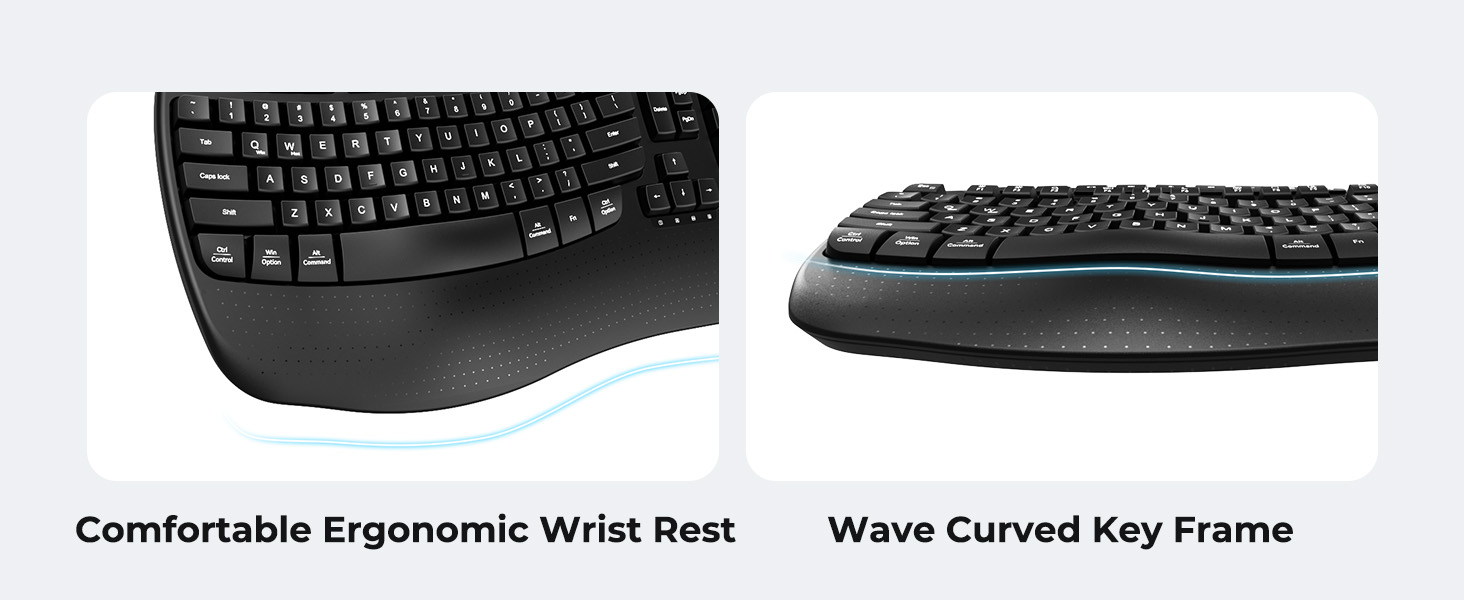
Image: A visual representation of the independent and combined multimedia keys available on the keyboard.
4.5. Inteligentní úspora energie
The keyboard features an auto-sleep mode to conserve battery life. After 20 minutes of inactivity, it will enter hibernation. To wake it up, simply press any key.

Image: Close-up of the keyboard's indicator lights, showing status for Num Lock, Caps Lock, FN Lock, and low battery warning.
5. Údržba
Abyste zajistili dlouhou životnost a optimální výkon klávesnice, dodržujte tyto pokyny pro údržbu:
- Čištění: K otření povrchu klávesnice použijte měkký, suchý hadřík. Pro důkladnější čištění použijte lehceamp cloth with mild soap can be used, ensuring no liquid enters the keycaps or internal components.
- Vyhněte se tekutinám: Nevystavujte klávesnici nadměrné vlhkosti ani na ni nelijte tekutiny.
- Skladování: Klávesnici skladujte na chladném a suchém místě mimo dosah přímého slunečního záření a extrémních teplot.
- Výměna baterie: Replace batteries promptly when the low battery indicator appears to maintain consistent performance.
6. Řešení problémů
If you encounter issues with your MEETION DirectorD-KB keyboard, refer to the following common solutions:
- Klávesnice nereaguje:
- Zkontrolujte, zda je klávesnice zapnutá.
- Ensure the batteries are correctly installed and not depleted. Replace if necessary.
- Verify that the USB receiver is securely plugged into your computer's USB port (or via the USB-C adapter).
- Zkuste zapojit přijímač do jiného USB portu.
- Restartujte počítač.
- Zpoždění nebo přerušované připojení:
- Ensure the keyboard is within the effective range of the receiver (typically up to 10 meters).
- Minimize interference from other wireless devices by moving them further away.
- Avoid placing the receiver near large metal objects.
- Klávesy nefungují správně:
- Zkontrolujte, zda se pod klávesami nenacházejí nějaké fyzické překážky.
- Ensure the correct operating system layout (Windows/macOS) is selected using FN+Q or FN+W.
7. Specifikace
| Funkce | Detail |
|---|---|
| Značka | SETKÁNÍ |
| Číslo modelu | DirectorD-KB |
| Technologie připojení | 2.4G Wireless (USB-A, USB-C Adapter) |
| Kompatibilní zařízení | Laptop, PC (Windows XP/7/8/10/11 & macOS X 10.6 or later) |
| Rozložení klávesnice | QWERTY |
| Počet klíčů | 113 |
| Speciální funkce | Ergonomic, Hotkeys and Media Keys, Integrated Stand, Wave Keys, Wrist Rest |
| Rozměry produktu (D x Š x V) | 17.39 cm x 9.43 cm x 1.81 cm |
| Materiál | Plast |
| Zdroj napájení | Napájení z baterií (2 x AAA, nejsou součástí balení) |
8. Oficiální video produktu
Video: Oficiální video s produktemasing the features and ergonomic design of the MEETION DirectorD-KB Wave Ergonomic Wireless Keyboard. (Duration: 0:39)
9. Záruka a podpora
This MEETION DirectorD-KB Wireless Ergonomic Keyboard comes with a 1-year manufacturer's warranty.
For further assistance, troubleshooting, or warranty claims, please visit the official MEETION store or contact customer support.
Official MEETION Store: Obchod MEITION na Amazonu