
1. Úvod
This user manual provides essential information for setting up, operating, and maintaining your Prechen 10.5" OLED Touchscreen Portable Monitor. Designed for versatility and high-quality visuals, this monitor offers a stunning 2.5K resolution, vibrant OLED display, and intuitive touchscreen functionality, making it an ideal companion for laptops, mini PCs, and smartphones.

Image: The Prechen 10.5" OLED Touchscreen Portable Monitor with its protective case, showcasing its vibrant display and touch capabilities.
2. Co je v krabici
- Prechen 10.5" OLED Touchscreen Portable Monitor
- 2-in-1 Magnetic Protective Case
- USB-C to USB-C Cable (Full-featured)
- Kabel USB-A na USB-C
- Mini kabel HDMI na HDMI
- Napájecí adaptér
- Uživatelská příručka (tento dokument)

Obrázek: Overview of the monitor's key features and included accessories, such as cables and power adapter.
3. Nastavení a připojení
The Prechen portable monitor offers flexible connectivity options to suit various devices. Ensure the monitor receives stable power for optimal performance.
3.1. Connecting with Full-featured USB-C Port (USB-C 3.1)
For devices with a full-featured USB-C port (supporting video, audio, and power delivery), a single USB-C to USB-C cable is sufficient for signal, touch function, and power transmission. This provides a clean, single-cable solution.

Image: Visual guide for connecting the monitor via a single full-featured USB-C cable to a laptop or smartphone.
Poznámka:
- When connecting devices with higher power requirements (such as gaming devices and some smartphones), the monitor may flicker or not turn on due to insufficient power supply. In such cases, connect the original power adapter to the monitor to ensure stable power before connecting the signal cable.
3.2. Connecting with HDMI and USB-A Ports
If your device does not have a full-featured USB-C port but has HDMI and USB-A ports, you will need to use both a Mini HDMI to HDMI cable for video signal and a USB-A to USB-C cable for touch functionality and power transmission.

Image: Visual guide for connecting the monitor using both HDMI and USB-A cables for video and touch/power.
Poznámka:
- The touch functionality of this 10.5-inch OLED touch monitor is not supported on gaming devices, Apple devices, Fire-TV cube, and Linux systems.
3.3. Přenosview
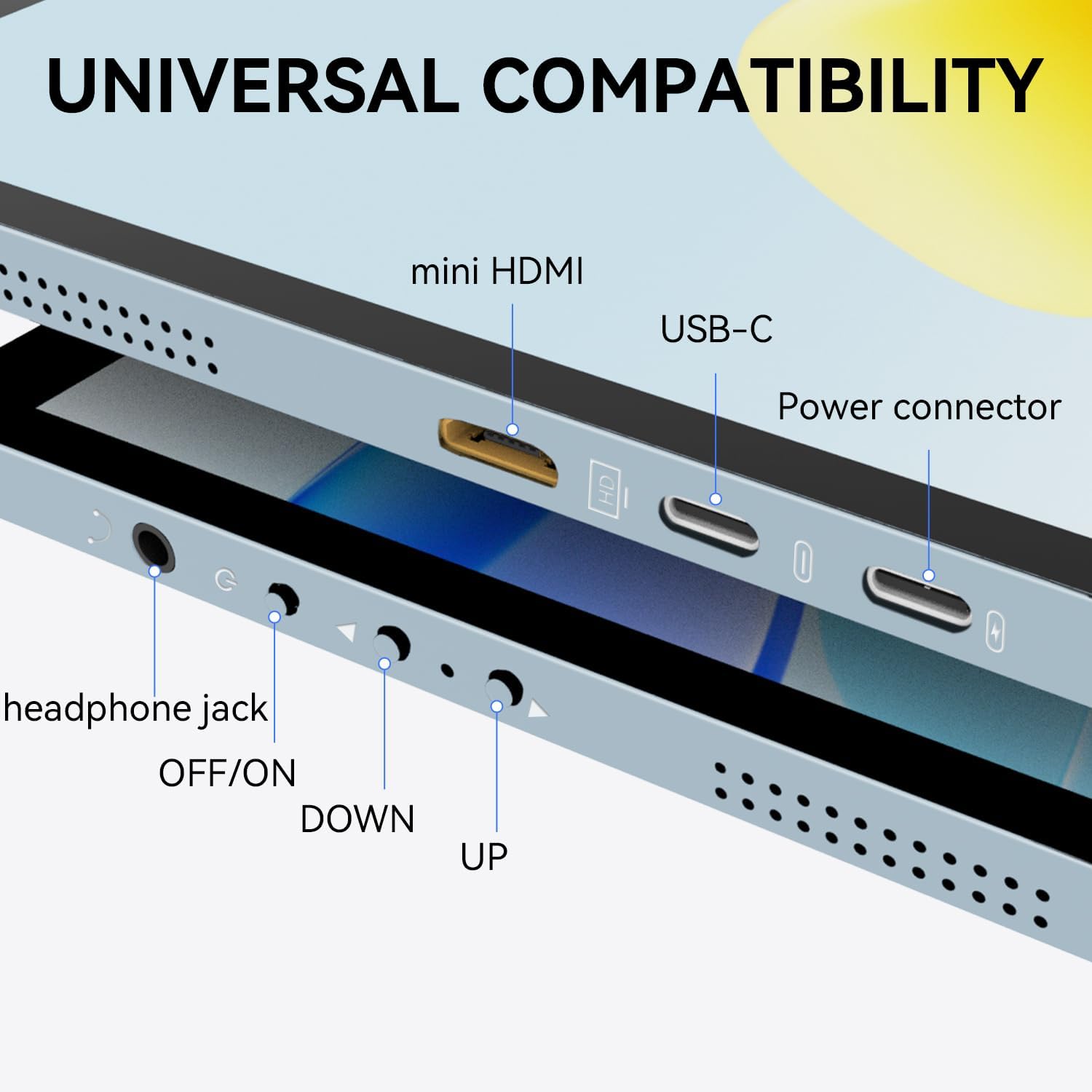
Obrázek: Podrobný view vstupních/výstupních portů a ovládacích tlačítek monitoru.
The monitor features the following ports and controls:
- Mini HDMI: Pro video vstup.
- Full-featured USB-C 3.1: For video, audio, touch, and power.
- Napájecí konektor: Pro externí napájení.
- Sluchátkový jack: Pro audio výstup.
- Tlačítko OFF/ON: Ovládání výkonu.
- DOWN/UP Buttons: Navigation and adjustment in the OSD menu.
3.4. Official Setup Video
Video: An official demonstration by Prechen US showing various connection methods for the 10.5-inch OLED touchscreen monitor, including USB-C and HDMI setups.
4. Obsluha monitoru
4.1. Funkce dotykové obrazovky
The monitor supports 10-point multi-touch functionality, allowing for intuitive gestures such as zooming, scrolling, and tapping directly on the screen. This enhances productivity and interaction with your content.
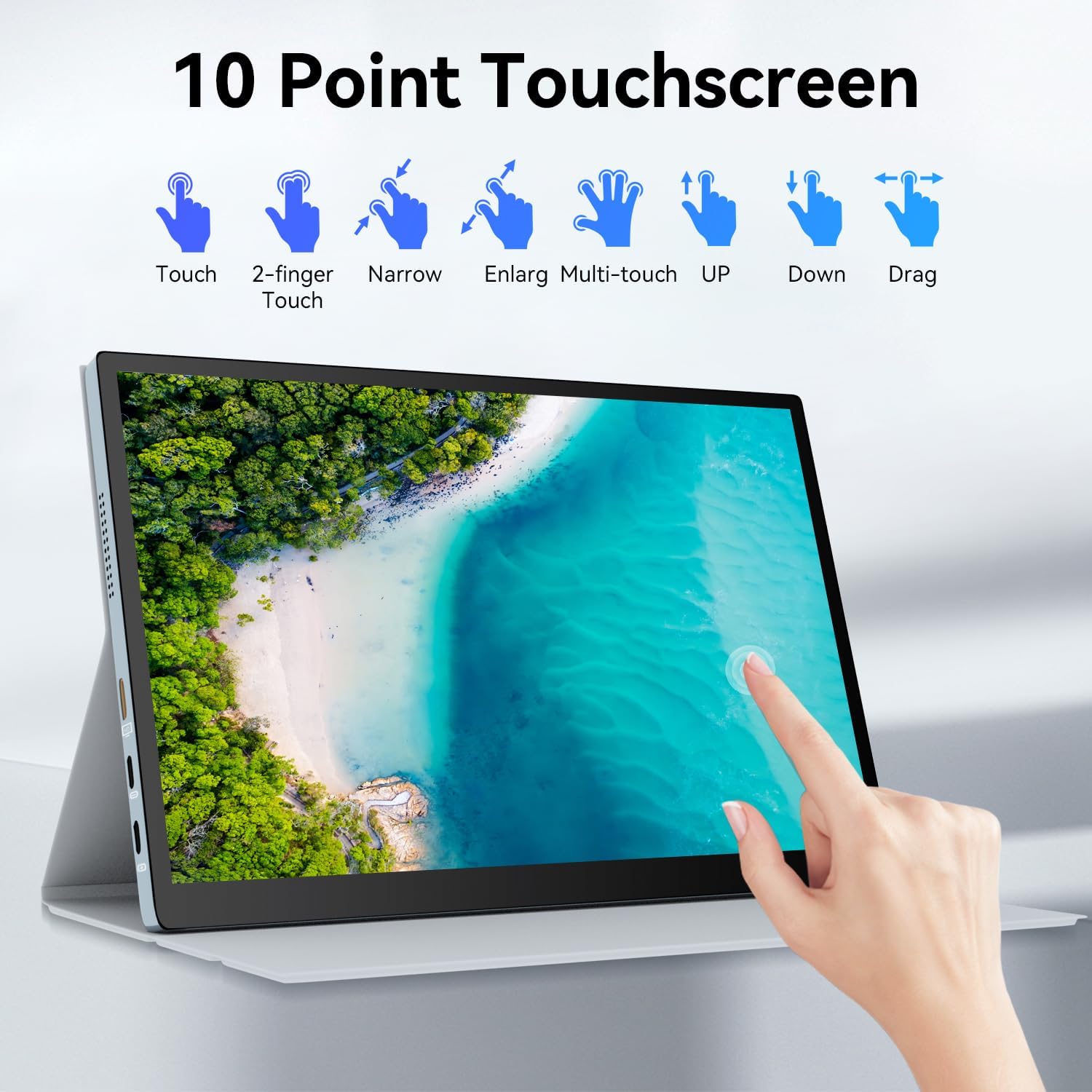
Image: Visual representation of various 10-point multi-touch gestures supported by the monitor.
4.2. Režimy zobrazení
The monitor can be configured to various display modes depending on your needs and operating system settings.
- Duplicitní režim: Zrcadlí obsah vašeho primárního displeje.
- Rozšířený režim: Expands your desktop area, allowing you to drag windows between your primary display and the portable monitor.
- Režim druhé obrazovky: Uses only the portable monitor as the display, with the primary display turned off.

Image: The portable monitor displaying the same content as the connected laptop, illustrating Duplicate Mode.

Image: The portable monitor functioning as an extended display, showing different applications across both screens.

Image: The portable monitor acting as the primary display, with the laptop screen closed or inactive.
5. Vlastnosti a výhody
- Stunning OLED Visuals: Features a 2560x1600 resolution, 54000:1 contrast ratio for deep blacks and vibrant colors, and 100% NTSC color gamut for true-to-life visuals.
- Hladký výkon: An ultra-fast 1ms response time minimizes motion blur, ideal for gaming and video playback.
- Přenosný design: Weighs just 1.1 pounds and is 0.39 inches thick, making it easy to carry. Comes with a high-quality protective case.
- Odolná konstrukce: Constructed using advanced CNC technology for a sleek and robust metal shell.
- Vestavěné reproduktory: Delivers clear and rich audio for a complete multimedia experience without external speakers.
- Technologie péče o oči: Incorporates features like low-blue light, anti-glare, and flicker-free technology to reduce eye strain during prolonged use.

Image: The versatile 2-in-1 magnetic protective case that also functions as a stand for the monitor.
6. Specifikace
| Funkce | Specifikace |
|---|---|
| Velikost stálé obrazovky | 10.5 palce |
| Rezoluce | 2560 x 1600 Pixels (2.5K QXGA Wide) |
| Poměr stran | 16:10 |
| Jas obrázku | 300 kandel (cd/m²) |
| Kontrastní poměr | 54000:1 |
| Barevný gamut | 100 % NTSC |
| Popis povrchu obrazovky | Lesklý |
| Hmotnost položky | 2.46 libry |
| Rozměry produktu | 0.39 x 9.44 x 6.29 palce |
| Číslo modelu položky | HD-105 |
| Výrobce | Shenzhen Kenowa Electronics Co., LTD |
| Země původu | Čína |
7. Řešení problémů
- Žádný displej / Žádný signál:
- Ujistěte se, že všechny kabely (USB-C nebo HDMI/USB-A) jsou bezpečně připojeny k monitoru i k vašemu zařízení.
- Verify that the monitor is receiving sufficient power. If using a single USB-C cable, try connecting the external power adapter to the monitor.
- Check your device's display settings to ensure the external monitor is detected and configured correctly (e.g., Extend, Duplicate).
- Try a different cable or port on your device if available.
- Dotyková funkce nefunguje:
- Ensure the USB-A to USB-C cable (for HDMI connections) or the full-featured USB-C cable is connected to a port that supports data transfer for touch.
- Confirm that your operating system supports touchscreen functionality with external displays. (Note: Touch function is not supported on Apple devices, gaming consoles, Fire-TV cube, and Linux systems).
- For Windows, you may need to configure Tablet PC Settings in the Control Panel to ensure touch input is correctly mapped to the portable monitor.
- Blikající obrazovka:
- This often indicates insufficient power. Connect the external power adapter to the monitor.
- Ensure the display resolution and refresh rate are supported by both the monitor and your connected device.
- Žádný zvuk z vestavěných reproduktorů:
- Check your device's audio output settings and ensure the Prechen monitor is selected as the playback device.
- Adjust the volume on both your device and the monitor.
8. Údržba
- Čištění obrazovky: Použijte měkký hadřík, který nepouští vlákna dampOmyjte vodou nebo neabrazivním čističem obrazovek. Vyhněte se agresivním chemikáliím nebo abrazivním materiálům.
- Generální úklid: Otřete c monitoruasinměkkým, suchým hadříkem.
- Skladování: When not in use, store the monitor in its protective case to prevent scratches and damage. Avoid placing heavy objects on top of the monitor.
- Teplota a vlhkost: Operate and store the monitor in a dry environment within recommended temperature ranges. Avoid extreme temperatures or high humidity.
9. Záruka a podpora
For warranty information and technical support, please refer to the documentation included with your product or visit the official Prechen webmísto. Uschovejte si doklad o koupi pro případ záručních reklamací.