
Mini PC Ninkear MBOX 11
Ninkear Mini PC W-11 (MBOX 11) User Manual
Model: MBOX 11 Mini PC
Zavedení
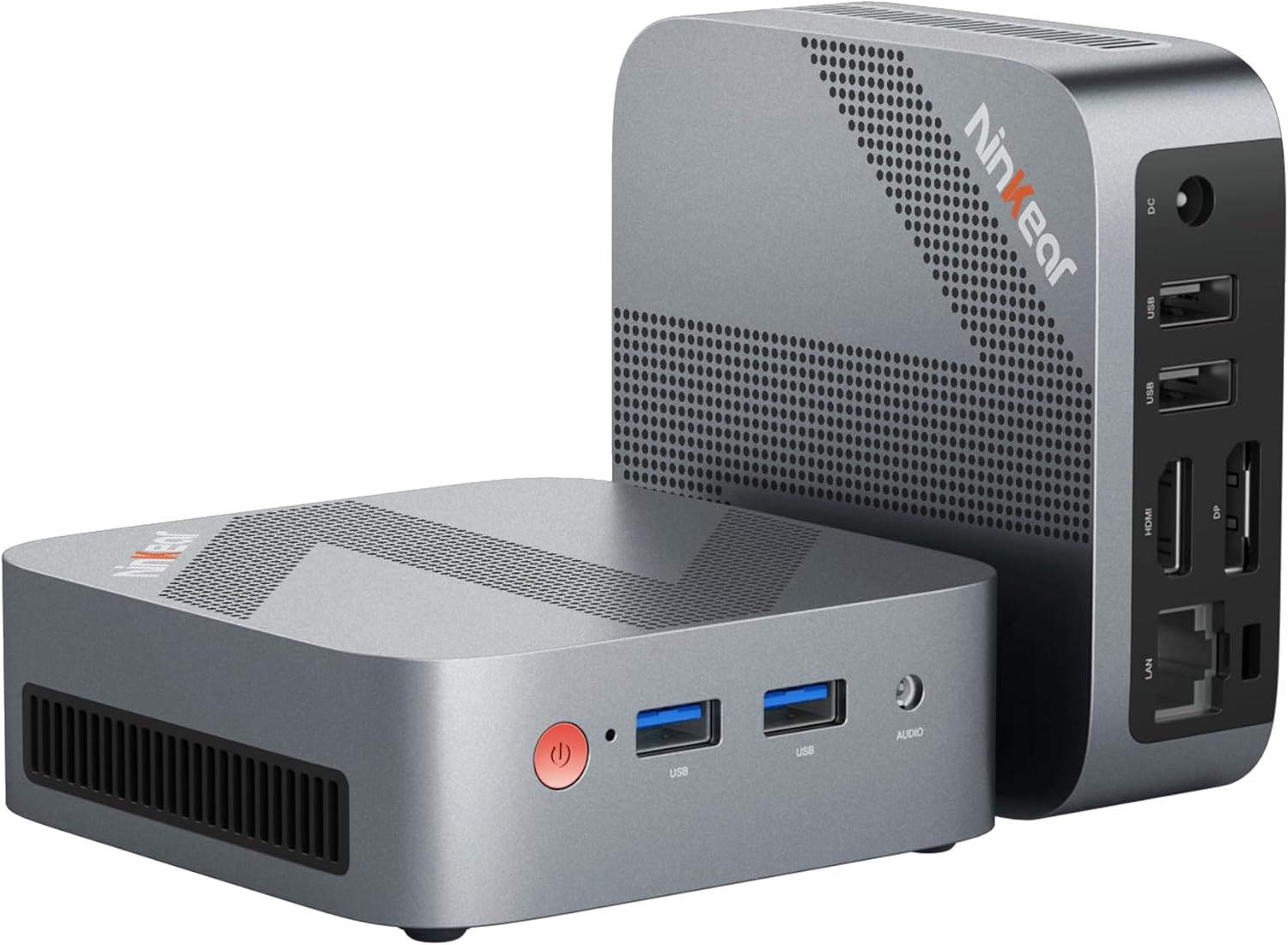
Figure 0.1: Ninkear Mini PC W-11. This compact and powerful mini PC is designed for various computing needs, from office work to multimedia entertainment.
This comprehensive user manual provides detailed instructions for the Ninkear Mini PC W-11 (MBOX 11 Mini PC). It covers initial setup, daily operation, maintenance, troubleshooting common issues, and full technical specifications. Please read this manual carefully to ensure proper use and to maximize the performance and longevity of your Ninkear Mini PC for office, home, and multimedia applications.
1. Nastavení
1.1 Vybalení a obsah balení
Carefully unpack all components from the box. Ensure all items listed below are present. If any item is missing or damaged, please contact customer support.

Figure 1.1: Package Contents. The box includes the Ninkear Mini PC, a user manual, a charging cable, an HDMI cable, and a fixed bracket for mounting.
- Ninkear Mini PC (MBOX 11)
- Uživatelská příručka
- Napájecí adaptér/nabíjecí kabel
- HDMI kabel
- Fixed Bracket (for VESA mounting)
1.2 Fyzická připojení
Before powering on, connect all necessary peripherals to the Mini PC. Refer to the diagrams below for port identification.

Figure 1.2: Front and Rear Ports of the Ninkear Mini PC. The front features USB 3.0 ports and an audio jack, while the rear includes LAN, HDMI, DisplayPort, USB 2.0, and DC power input.

Figure 1.3: Multi-purpose Port Diagram. This diagram illustrates the layout and function of each port on the Ninkear Mini PC, including power, USB 3.0, headphone/MIC jack on the front, and RJ45, DP, HDMI, USB 2.0, and DC on the back.
- Připojení k displeji: Use the provided HDMI cable to connect the Mini PC's HDMI port to your monitor or TV. The device also supports DisplayPort (DP) for alternative display connections.
- Připojení periferií:
- Klávesnice a myš: Connect your USB keyboard and mouse to the available USB 3.0 ports on the front or USB 2.0 ports on the rear.
- Zvuk: Připojte sluchátka nebo reproduktory k 3.5mm audio konektoru na přední straně.
- Síť: For a wired connection, connect an Ethernet cable to the RJ45 LAN port on the rear.
- Připojení napájení: Připojte napájecí adaptér ke vstupnímu portu stejnosměrného proudu na zadní straně Mini PC a poté zapojte adaptér do elektrické zásuvky.
1.3 První spuštění a počáteční konfigurace
Once all connections are secure, press the power button on the front of the Mini PC. The device comes with Windows 11 pre-installed and ready for immediate use. Follow the on-screen prompts to complete the initial Windows setup, including language, region, network connection, and user account creation.
2. Provoz
2.1 Základní obsluha
- Zapnutí: Stiskněte tlačítko napájení na přední straně zařízení.
- Vypnout: From the Windows operating system, click the Start button, then select Power > Shut down. Alternatively, you can press and hold the power button for a few seconds to force a shutdown (not recommended for regular use).
- Restartovat: From the Windows operating system, click the Start button, then select Power > Restart.
2.2 Nastavení duálního zobrazení
The Ninkear Mini PC supports dual 4K@60Hz display output via its HDMI 2.0 and DisplayPort (DP) interfaces, allowing for enhanced multitasking and productivity.

Figure 2.1: 4K Dual Display Setup. The Mini PC can connect to two monitors simultaneously via HDMI and DisplayPort, supporting 4K resolution at 60Hz for an extended desktop experience.
- Connect your primary monitor to the HDMI port.
- Connect your secondary monitor to the DisplayPort (DP).
- Jakmile jsou oba monitory připojeny a zapnuty, systém Windows by je měl automaticky detekovat.
- To configure display settings (extend, duplicate, or show only on one screen), right-click on the desktop, select "Display settings," and adjust as needed.
2.3 Připojení (Wi-Fi, Bluetooth, Ethernet)
The Mini PC offers versatile connectivity options for your network and wireless devices.

Figure 2.2: Multiple Connection Options. The Mini PC supports high-speed Ethernet (RJ45-1000M), WiFi 2.4/5.0 GHz, and Bluetooth 5.0 for comprehensive connectivity.
- Wi-Fi: The Mini PC supports Wi-Fi 5 (802.11ac) for fast wireless internet access. To connect, click the Wi-Fi icon in the system tray, select your network, enter the password, and click Connect.
- Bluetooth: With Bluetooth 5.0, you can connect wireless peripherals suchs as keyboards, mice, headphones, and speakers. Go to Windows Settings > Bluetooth & devices to pair new devices.
- Ethernet: For a stable and high-speed wired network connection, plug an Ethernet cable into the RJ45 port. The Mini PC supports Gigabit Ethernet (1000M).
2.4 Rozšíření úložiště
The Ninkear Mini PC comes with a 512 GB M.2 SSD. For additional storage, you can upgrade the M.2 NVMe PCIe3.0 SSD or M.2 SATA SSD up to 2 TB.

Figure 2.3: Efficient and High-Capacity Storage. The Mini PC features 16GB DDR4 RAM and a 512GB M.2 SSD, with the SSD being upgradeable up to 2TB.
Consult a qualified technician or refer to detailed upgrade guides if you plan to expand the internal storage to avoid damaging the device.
3. Údržba
3.1 Čištění
To maintain optimal performance and extend the lifespan of your Mini PC, regular cleaning is recommended.
- Vnější: Use a soft, dry, lint-free cloth to wipe the exterior surfaces. For stubborn smudges, slightly dampnavlhčete hadřík vodou nebo jemným neabrazivním čisticím prostředkem.
- Porty: Use compressed air to gently clear dust from the USB, HDMI, DP, and other ports. Avoid inserting any objects into the ports.
- Větrání: Ensure the ventilation holes are clear of dust and obstructions to allow for proper airflow and cooling.
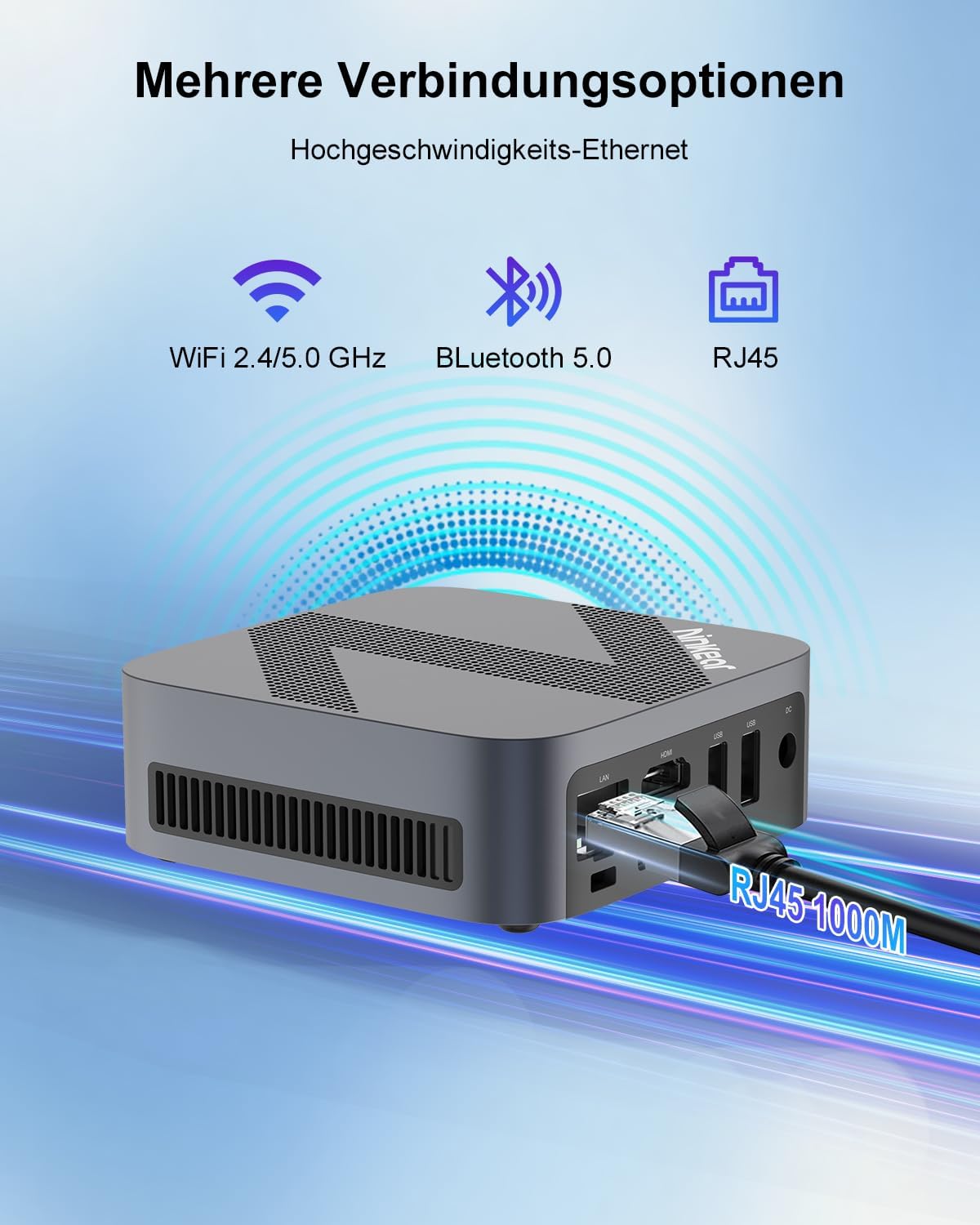
Figure 3.1: Powerful Cooling System. The Mini PC utilizes a copper pipe and aluminum heatsink design for efficient heat dissipation, ensuring quiet operation and low power consumption.
3.2 Aktualizace softwaru
Pravidelně aktualizujte operační systém a ovladače, abyste zajistili stabilitu, zabezpečení a optimální výkon systému.
- Aktualizace systému Windows: Go to Windows Settings > Windows Update and check for available updates.
- Aktualizace ovladačů: While Windows Update often handles driver updates, you may occasionally need to check the Ninkear official website for the latest drivers for specific components if you encounter issues.
3.3 Správa úložiště
To maintain the health and performance of your SSD, avoid filling it to full capacity. Periodically clean up unnecessary files a aplikace.
- Vyčištění disku: Použijte vestavěný nástroj Vyčištění disku systému Windows k odstranění dočasných files and other non-essential data.
- Uninstall Programs: Remove programs you no longer use from Windows Settings > Apps > Installed apps.
4. Řešení problémů
This section addresses common issues you might encounter with your Ninkear Mini PC. If the problem persists, please refer to the Warranty and Support section.
4.1 Bez napájení
- Zkontrolujte připojení napájení: Ujistěte se, že je napájecí adaptér bezpečně připojen k Mini PC i k funkční zásuvce.
- Testovací zásuvka: Try plugging another device into the same power outlet to confirm it is functional.
- Vypínač: Ensure you are pressing the power button firmly.
4.2 Žádný výstup na displej
- Kabelové připojení: Verify that the HDMI or DisplayPort cable is securely connected to both the Mini PC and the monitor.
- Vstup monitoru: Ensure your monitor is set to the correct input source (e.g., HDMI 1, DP).
- Otestujte s jiným displejem/kabelem: If possible, try connecting the Mini PC to a different monitor or using a different HDMI/DP cable to rule out display or cable issues.
- Restartovat: Power cycle the Mini PC and the monitor.
4.3 Problémy s připojením k Wi-Fi nebo Bluetooth
- Povolit Wi-Fi/Bluetooth: Ujistěte se, že jsou v nastavení systému Windows povoleny Wi-Fi a Bluetooth.
- Kontrola řidiče: Verify that the Wi-Fi and Bluetooth drivers are installed and up to date in Device Manager.
- Router/Device Proximity: Move closer to your Wi-Fi router or Bluetooth device.
- Restart Router/Mini PC: Restart your Wi-Fi router and the Mini PC.
4.4 System Performance Issues (Slowdown, Lag)
- Zavření nepoužívaných aplikací: Close any applications running in the background that are not in use.
- Check Task Manager: Open Task Manager (Ctrl+Shift+Esc) to identify processes consuming high CPU, RAM, or disk resources.
- Místo na disku: Ujistěte se, že je na SSD disku dostatek volného místa.
- Skenování malwaru: Spusťte úplnou kontrolu systému pomocí antivirového softwaru.
- Chlazení: Ensure the Mini PC has adequate ventilation and is not overheating.
5. Specifikace
Below are the detailed technical specifications for the Ninkear Mini PC W-11 (MBOX 11 Mini PC).
| Funkce | Specifikace |
|---|---|
| Značka | Ninkear |
| Model / řada | MBOX 11 |
| Číslo modelu | MBOX 11 Mini PC |
| Barva | Šedá |
| Rozměry produktu | 9.9 x 9.9 x 3.3 cm |
| Hmotnost položky | 240 g |
| Značka procesoru | Intel |
| Typ procesoru | Celeron N150 (4 Cores, 4 Threads) |
| Rychlost procesoru | Až 3.6 GHz |
| Velikost RAM | 16 GB |
| Technologie paměti | DDR4, SO-DIMM |
| Max Supported Storage | 2 TB (M.2 NVMe PCIe3.0 SSD or M.2 SATA SSD) |
| Hard Drive Size (Included) | 512 GB |
| Technologie pevných disků | SSD |
| Grafický koprocesor | Grafika Intel UHD |
| Grafické rozhraní | Integrovaný |
| Typ připojení | Bluetooth 5.0, Wi-Fi 5 (WLAN) |
| Rozhraní HDMI | 1 2.0 (HDMI XNUMX) |
| DisplayPort Interfaces | 1 |
| USB porty | 2x USB 3.0 (přední), 2x USB 2.0 (zadní) |
| Ethernet | RJ45 (Gigabit) |
| Audio Jack | 1x 3.5mm Headphone/MIC Jack |
| Operační systém | Windows 11 (W11 OS) |
| Batteries (Internal) | 1 C Battery required (included) |
| Kapacita lithiové baterie | 6 watthodin |
| Hmotnost lithiové baterie | 10 gramů |
| Number of Lithium-Ion Cells | 1 |
Poznámka: Specifikace se mohou změnit bez předchozího upozornění.
6. Záruka a podpora
Ninkear is committed to providing high-quality products and excellent customer service.
6.1 Informace o záruce
If you purchase the product and experience a failure due to product defects within 1 year, please contact Ninkear customer support. You will need to provide your order number, a video or photo of the defect, and a detailed description of the issue.
6.2 Zákaznická podpora
For any questions, technical assistance, or warranty claims, please contact the Ninkear Official Store or the designated customer service center. They will guide you through the repair process or provide further assistance.
Pro více informací navštivte Obchod Ninkear na Amazonu.
Ask a question about this manual
Ask about setup, troubleshooting, compatibility, parts, safety, or missing instructions. Manuals+ will review the question and use this page’s manual context to help answer it.