
1. Konec produktuview
The HP OfficeJet Pro 9125e is a versatile All-in-One printer designed for office and hybrid workspace environments. This certified refurbished unit offers print, scan, copy, and fax functionalities, along with advanced features like a color touchscreen and HP Wolf Pro Security. It is engineered for professional-quality color documents and efficient operation.
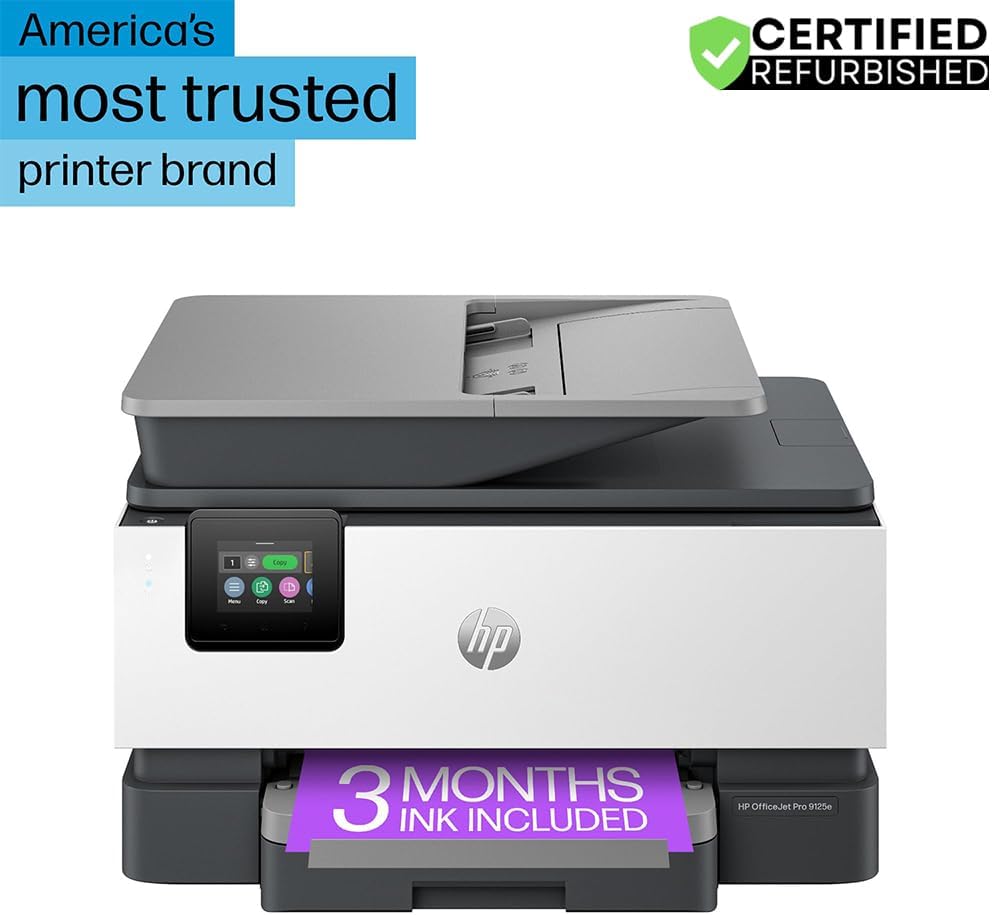
Obrázek 1: Přední strana view of the HP OfficeJet Pro 9125e All-in-One Printer.
Klíčové vlastnosti:
- Funkce vše v jednom: Možnosti tisku, kopírování, skenování a faxování.
- Vysokorychlostní tisk: Up to 22 pages per minute (ppm) for black and 18 ppm for color.
- Bezdrátové připojení: Reliable dual-band Wi-Fi with automatic connection issue resolution.
- Aplikace HP Smart: Umožňuje tisk, skenování, kopírování a faxování přímo ze smartphonu.
- HP Wolf Pro Security: Integrated security tools to protect data and networks.
- 2.7palcový barevný dotykový displej: Intuitivní uživatelské rozhraní pro snadnou navigaci.
- Automatický podavač dokumentů (ADF): Pro efektivní skenování a kopírování více stránek.
- Oboustranný tisk: Automatic two-sided printing.
- Udržitelný design: Constructed with over 40% recycled plastic.

Obrázek 2: Přesview of the HP OfficeJet Pro 9125e's primary functions and features.
2. Pokyny k nastavení
2.1 Vybalení a obsah
Carefully unpack the printer and ensure all components are present. The package should contain the following:
- Multifunkční tiskárna HP OfficeJet Pro 9125e
- Černá inkoustová kazeta HP 936
- Azurová inkoustová kazeta HP 936
- Purpurová inkoustová kazeta HP 936
- Žlutá inkoustová kazeta HP 936
- Napájecí kabel
- Regulační leták
- Inkoust upozornění leták
- Instalační plakát
- Referenční příručka

Figure 3: Included items in the HP OfficeJet Pro 9125e package.
2.2 Počáteční nastavení tiskárny
- Připojení napájení: Připojte napájecí kabel k tiskárně a poté do zásuvky ve zdi.
- Zapnutí: Stisknutím tlačítka napájení zapněte tiskárnu.
- Instalace inkoustové kazety: Follow the on-screen instructions on the 2.7-inch touchscreen to install the HP 936 setup ink cartridges. Ensure each cartridge clicks into place.
- Vkládání papíru: Load plain paper into the 250-sheet input tray. Adjust the paper guides to fit the paper size.
- Jazyk a region: Select your preferred language and region on the touchscreen.
- Internetové připojení: Connect the printer to your wireless network using the touchscreen. The dual-band Wi-Fi will help ensure a stable connection.
- HP Smart App Installation: Download the HP Smart App on your smartphone or computer for guided setup and advanced features.
- Aktivace HP+ (volitelné): If you wish to enroll in the Instant Ink delivery service and extend your warranty, activate HP+ during the setup process. This may include 3 months of Instant Ink.
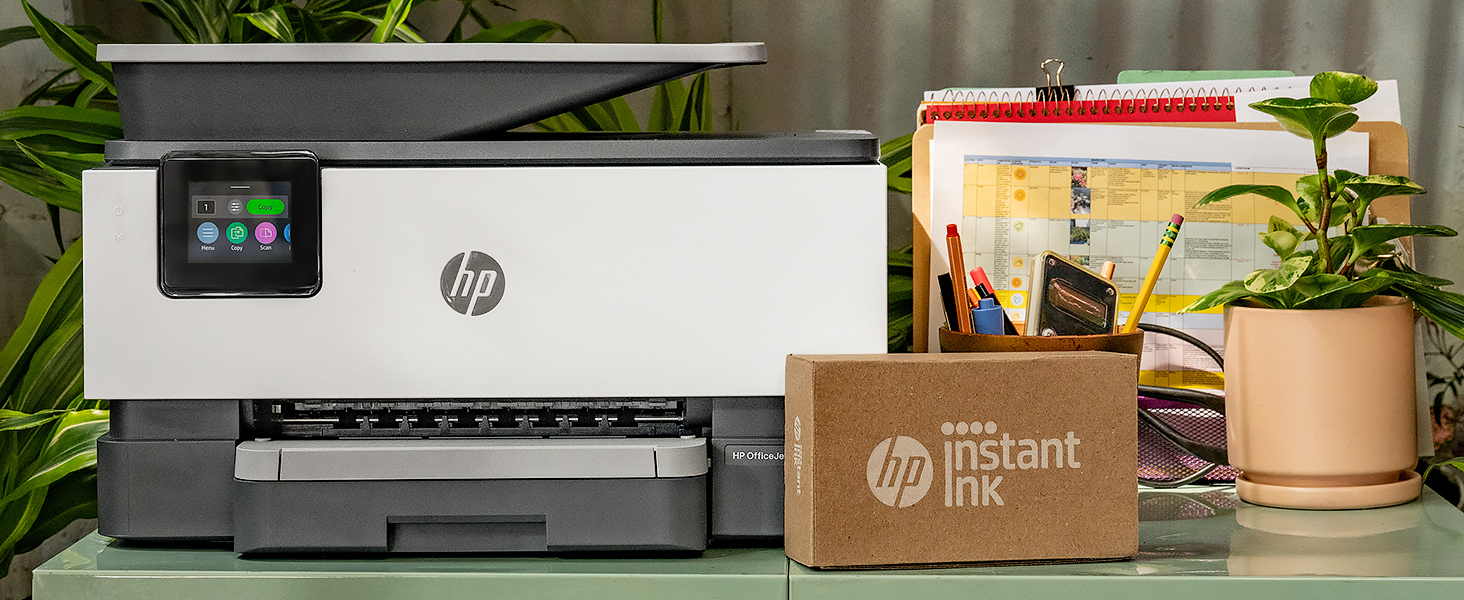
Figure 4: Printer ready for setup, showing the Instant Ink box.
3. Návod k obsluze
3.1 Tisk dokumentů
The HP OfficeJet Pro 9125e supports printing from various devices, including computers and smartphones.
- Z počítače: Ensure the printer drivers are installed. Select "Print" from your application, choose the HP OfficeJet Pro 9125e, and adjust settings as needed (e.g., color, black and white, duplex printing).
- Z mobilního zařízení (aplikace HP Smart): Open the HP Smart App, select "Print Documents" or "Print Photos," choose the filea odešlete jej do tiskárny.
- Rychlosti tisku: Až 22 str./min. pro černobílý tisk a 18 str./min. pro barevný tisk.
- Oboustranný tisk: The printer supports automatic two-sided printing. This option can be selected in your print settings.
3.2 Skenování dokumentů
Documents can be scanned using the flatbed scanner or the Automatic Document Feeder (ADF).
- Používání plochého lože: Place a single document face down on the scanner glass. Close the lid. Select "Scan" on the printer's touchscreen or through the HP Smart App.
- Používání automatického podavače dokumentů: Load multiple pages face up into the ADF. The ADF supports dual-pass 2-sided scanning. Select "Scan" on the printer's touchscreen or through the HP Smart App and choose the ADF option.
- Cíle skenování: Scanned documents can be sent to a computer, email, or cloud services via the HP Smart App.
3.3 Kopírování dokumentů
The printer allows for quick and efficient copying.
- Zahájit kopírování: Press the "Copy" icon on the printer's touchscreen.
- Místo dokumentu: Vložte dokument na plochý skener nebo do automatického podavače dokumentů (ADF).
- Upravit nastavení: Select the number of copies (up to 99), color or black and white, and other options like resizing or quality.
- Spustit kopírování: Press the "Start Copy" button on the touchscreen.
3.4 Faxování dokumentů
The HP OfficeJet Pro 9125e includes fax functionality.
- Načíst dokument: Vložte dokument na plochý skener nebo do automatického podavače dokumentů (ADF).
- Enter Number: Press the "Fax" icon on the touchscreen and enter the recipient's fax number.
- Odeslat fax: Confirm settings and send the fax.
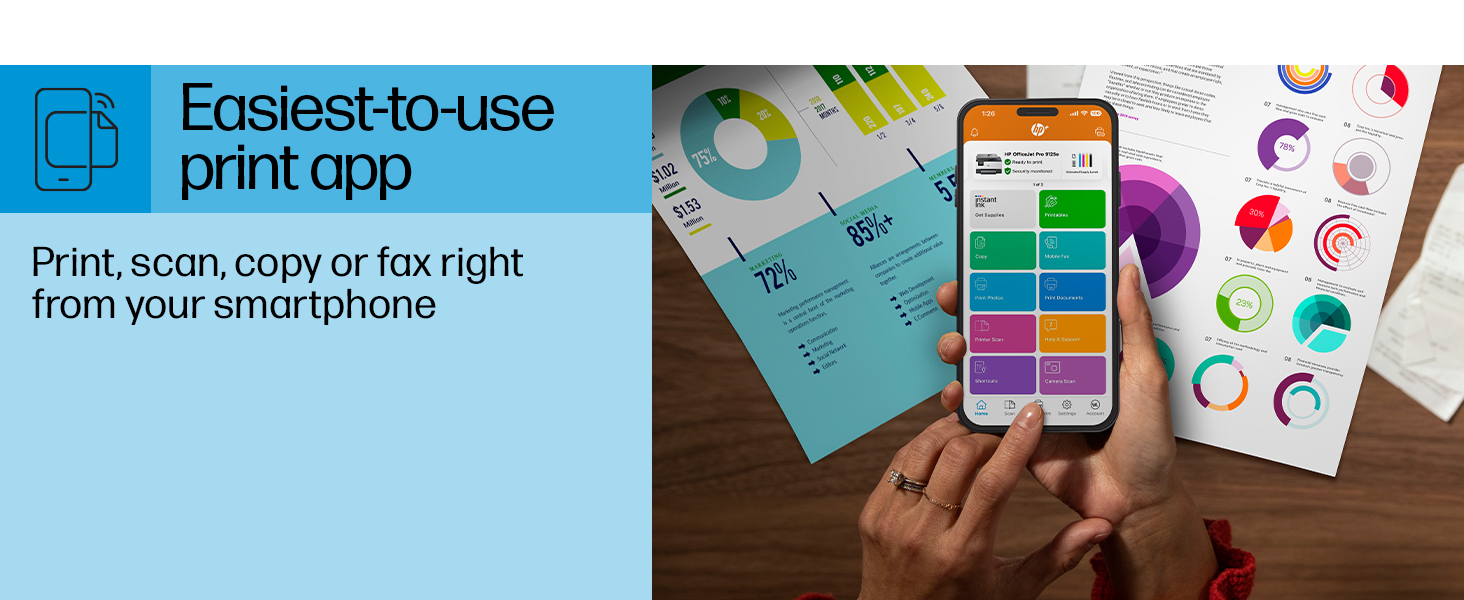
Figure 5: The HP Smart App allows control of print, scan, copy, and fax functions from a smartphone.
4. Údržba
4.1 Výměna inkoustové kazety
The printer uses HP 936 series ink cartridges (Black, Cyan, Magenta, Yellow). The touchscreen will indicate when ink levels are low or when a cartridge needs replacement.
- Otevřete přístupová dvířka inkoustových kazet.
- Stiskněte jazýček na staré kazetě, abyste ji uvolnili, a poté ji vytáhněte.
- Unpack the new HP 936 cartridge, being careful not to touch the electrical contacts or ink nozzles.
- Vložte novou kazetu do příslušného slotu, dokud nezacvakne.
- Zavřete přístupová dvířka inkoustových kazet.
4.2 Manipulace s papírem
- Vstupní zásobník: The printer features a 250-sheet input tray. Ensure paper is loaded correctly and paper guides are adjusted to prevent jams.
- Výstupní zásobník: The output tray has a capacity of 60 sheets.
- Podporovaná média: The printer supports various paper types and sizes, including plain paper, photo paper, and envelopes. Supported sizes range from 3 x 5 inches to 8.5 x 14 inches.
- Envelope Stopper: Utilize the built-in envelope stopper to prevent jams when printing envelopes.
4.3 Čištění
Pravidelné čištění pomáhá udržovat kvalitu tisku a dlouhou životnost tiskárny.
- Vnější: Otřete vnější povrch tiskárny měkkým,amp, hadřík nepouštějící vlákna.
- Sklo skeneru: Sklo skeneru očistěte měkkým hadříkem a neabrazivním čističem skla.
- Válečky ADF: Obraťte se na podporu HP website or the HP Smart App for instructions on cleaning ADF rollers if paper feed issues occur.
5. Řešení problémů
This section provides solutions to common printer issues. For more detailed troubleshooting, refer to the HP support webwebu nebo v aplikaci HP Smart.
5.1 Problémy s připojením
- Tiskárna offline: Ensure the printer is powered on and connected to the correct Wi-Fi network. Restarting both the printer and your router can often resolve temporary network glitches.
- Odpojení Wi-Fi: The printer's dual-band Wi-Fi is designed to automatically resolve connection issues. If problems persist, try reconnecting through the printer's touchscreen or the HP Smart App.
- Připojení USB/Ethernet: If using a wired connection, ensure cables are securely plugged into both the printer and the computer/router.
5.2 Problémy s kvalitou tisku
- Vybledlé nebo pruhované výtisky: Check ink levels and replace any low or empty cartridges. Perform a printhead cleaning cycle through the printer's maintenance menu.
- Nesprávné barvy: Ensure you are using genuine HP ink cartridges. Run a printhead alignment from the printer's maintenance menu.
- Zaseknutý papír: Follow the on-screen instructions to clear any jammed paper. Ensure paper is loaded correctly and not overfilled in the input tray.
5.3 Scanning/Copying Issues
- Blank Scans/Copies: Ensure the document is placed correctly on the scanner glass or in the ADF.
- Lines on Scans/Copies: Clean the scanner glass and the ADF rollers.
6. Technické specifikace
| Funkce | Specifikace |
|---|---|
| Název modelu | HP OfficeJet Pro 9125e |
| Funkce | Tisk, kopírování, skenování, fax |
| Technologie tisku | Inkjet (Four-color inkjet cartridges) |
| Maximální rychlost tisku (černobíle) | 22 ppm |
| Maximální rychlost tisku (barevně) | 18 ppm |
| Maximální rozlišení tisku (černobíle) | 1200 x 1200 dpi |
| Maximální rozlišení tisku (barevně) | Optimalizované rozlišení až 4800 x 1200 dpi |
| Oboustranný tisk | Automatický |
| Typ skeneru | Snadno vysouvací sklo, dvouprůchodový oboustranný automatický podavač dokumentů |
| Maximální rozlišení kopírování | 600 x 600 dpi (černobíle i barevně) |
| Max Copies per Run | 99 |
| Konektivita | Ethernet, USB, Wi-Fi (Dual-band) |
| Kontrolní metoda | App, Touchscreen |
| Velikost dotykové obrazovky | 2.7 palců |
| Kapacita vstupních listů | 250 listů |
| Výstupní kapacita listů | 60 listů |
| Podporované velikosti médií | 3 x 5 palce až 8.5 x 14 palců |
| Kapacita paměti | 512 MB |
| Rozměry produktu (D x Š x V) | 13.48 cm x 17.3 cm x 10.94 cm |
| Hmotnost položky | 20.5 libry |
| Spotřeba energie | 5.06 wattů |

Figure 6: Physical dimensions of the HP OfficeJet Pro 9125e.
7. Záruka a podpora
7.1 Informace o záruce
- Certified Refurbished Warranty: This unit comes with a 90-day manufacturer warranty, ensuring reliable, like-new performance.
- Extended Protection Pack: The product bundle includes a 2-year CPS Enhanced Protection Pack.
- HP+ Offer Warranty: A one-year limited hardware warranty is provided, with an option to extend to two years upon acceptance of the HP+ Offer during setup.
For specific terms and conditions regarding your warranty, please refer to the documentation included with your product or visit the official HP support webmísto.
7.2 Zákaznická podpora
For further assistance, technical support, or to access detailed user guides and drivers, please visit the official HP support webmísto:
You can also utilize the HP Smart App for troubleshooting and accessing support resources directly from your mobile device.