
1. Úvod
This manual provides essential information for the safe and efficient operation of your Machenike Machcreator N17A laptop. Please read this manual thoroughly before using the device and retain it for future reference.
2. Obsah balení
Ověřte, zda jsou v balení přítomny všechny položky:
- Notebook Machenike Machcreator N17A
- Napájecí adaptér
- Uživatelská příručka (tento dokument)
3. Konec produktuview
The Machenike Machcreator N17A is a 17.3-inch laptop designed for daily computing tasks. It features an Intel N100 Processor, 8GB DDR5 RAM, and a 256GB PCIe SSD for responsive performance. The 17.3" Full HD 120Hz display provides clear visuals, and the laptop runs on Windows 11 Home.
3.1. Součásti notebooku

Obrázek 3.1: Přední strana view of the Machenike Machcreator N17A laptop.
This image shows the overall design of the Machenike Machcreator N17A laptop, highlighting its large 17.3-inch display and sleek chassis.

Figure 3.2: The 17.3-inch Full HD 120Hz display.
Detailní view of the laptop's 17.3-inch Full HD display, emphasizing its narrow bezels and 120Hz refresh rate for smooth visuals.

Figure 3.3: Backlit keyboard and touchpad.
This image highlights the backlit keyboard and the spacious touchpad, designed for comfortable typing and navigation.
3.2. Porty a konektory
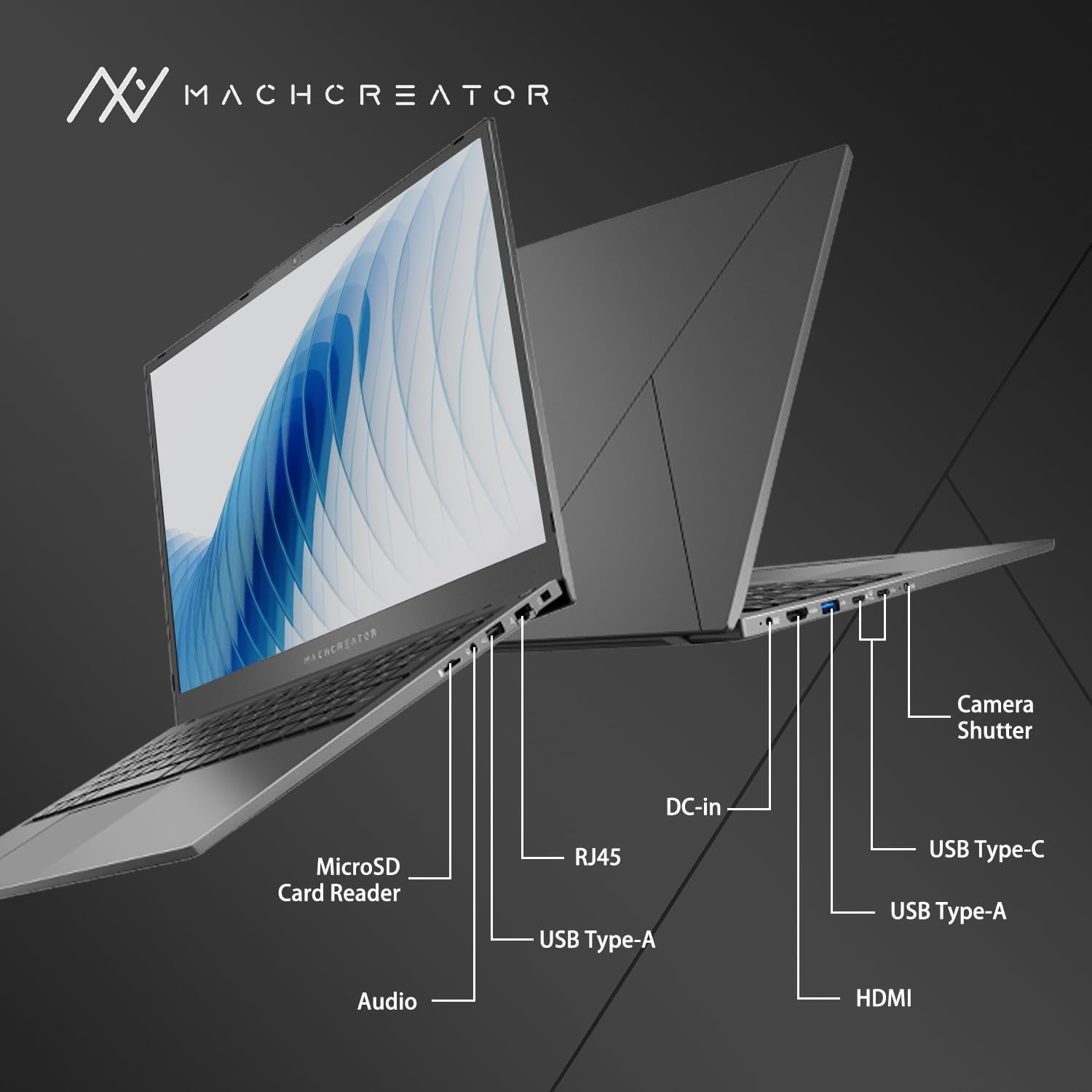
Obrázek 3.4: Strana view with port labels.
An illustration detailing the various input/output ports available on the laptop, including USB, HDMI, and the SD card reader.
- Čtečka karet MicroSD: For reading and writing data to MicroSD cards.
- DC-in: Connect the power adapter for charging and power supply.
- Thunderbolt 4 (x2): Vysokorychlostní přenos dat, video výstup a napájení.
- USB 2.0 typu A (x2): Připojte zařízení USB.
- HDMI: Připojení k externím displejům nebo projektorům.
- RJ45: Ethernetový port pro kabelové připojení k síti.
- Audio jack: Připojte sluchátka nebo externí reproduktory.
4. Nastavení
4.1. Počáteční zapnutí
- Vybalte notebook a veškeré příslušenství z krabice.
- Připojte napájecí adaptér k portu DC-in na notebooku a poté do elektrické zásuvky.
- Otevřete víko notebooku.
- Stisknutím tlačítka napájení na klávesnici zapněte notebook.
- Postupujte podle pokynů na obrazovce a dokončete proces nastavení systému Windows 11 Home. To zahrnuje výběr regionu, jazyka a nastavení uživatelského účtu.
4.2. Připojení k Wi-Fi
- During the Windows setup, you will be prompted to connect to a Wi-Fi network. Select your desired network from the list.
- Enter the Wi-Fi password if prompted and click "Connect".
- If you skip this step, you can connect later via Windows Settings: Go to Start > Nastavení > Síť a internet > Wi-Fi.
5. Návod k obsluze
5.1. Používání klávesnice a touchpadu
The laptop features a full-size keyboard with a numeric keypad and a large touchpad. The keyboard is backlit, which can be activated or adjusted using the function keys (e.g., Fn + F5).
Obrázek 5.1: Rozložení klávesnice a touchpadu.
This image illustrates the keyboard and touchpad, showing the key layout and the size of the touchpad for user interaction.
5.2. Připojení externích zařízení
Pro připojení externích zařízení využijte dostupné porty:
- Zařízení USB: Plug USB drives, mice, or keyboards into the USB Type-A or Thunderbolt 4 (USB-C) ports.
- Externí displej: Connect an external monitor or TV using the HDMI port or one of the Thunderbolt 4 ports (with an appropriate adapter, if needed).
- SD karty: Insert a MicroSD card into the MicroSD Card Reader slot to access its contents.
- Kabelová síť: Connect an Ethernet cable to the RJ45 port for a stable wired internet connection.
5.3. Adjusting the Display Angle
The laptop screen can be adjusted up to a 170-degree angle, providing flexibility for various viewing positions, presentations, or collaborative work.
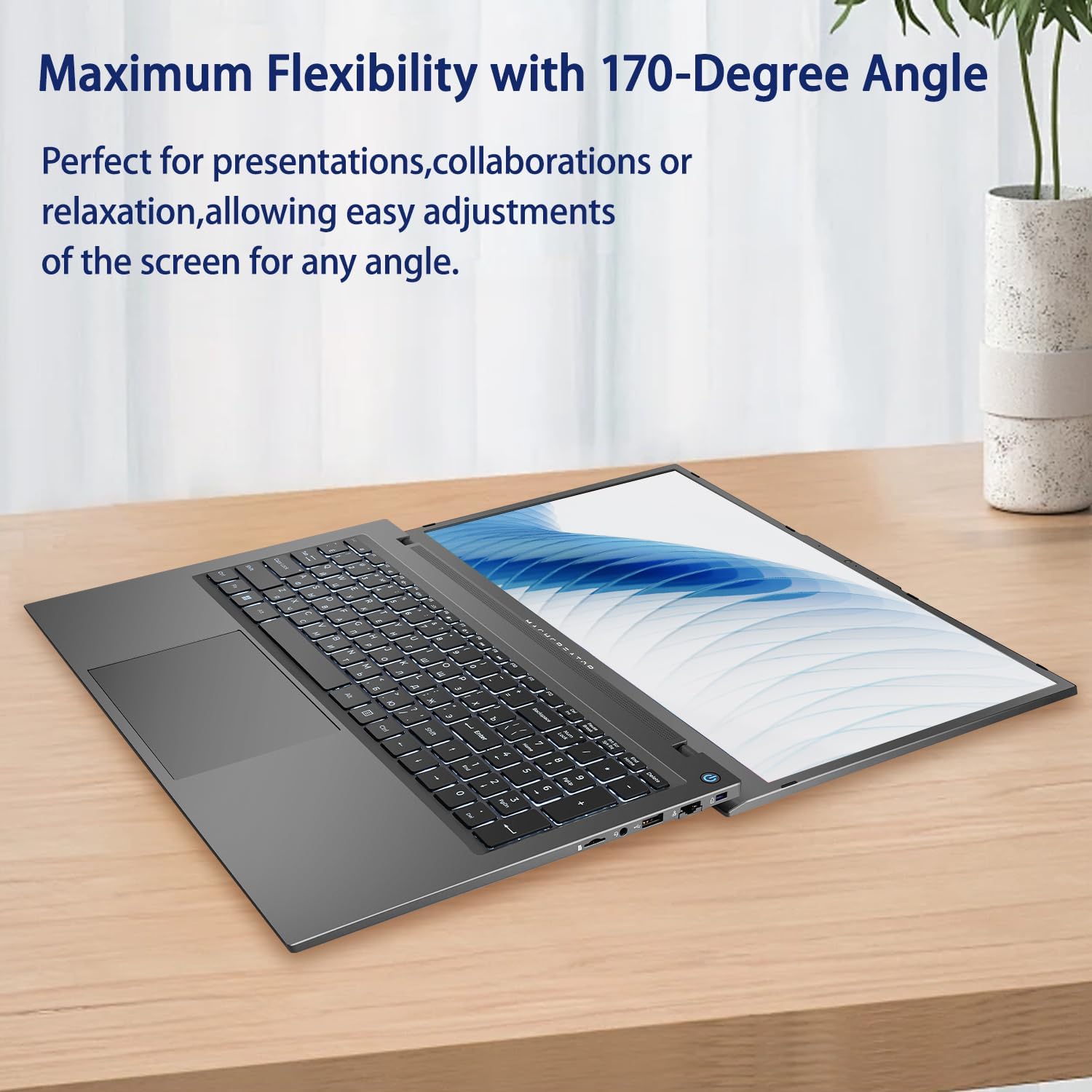
Figure 5.2: Laptop display at 170-degree angle.
This image demonstrates the laptop's ability to open its screen to a wide 170-degree angle, useful for various viewscénářů.
5.4. Charging the Laptop
Connect the provided power adapter to the DC-in port. The laptop also supports fast charging via its USB-C (Thunderbolt 4) ports with a compatible USB-C Power Delivery charger.
6. Údržba
6.1. Čištění
- K čištění obrazovky použijte měkký hadřík, který nepouští vlákna. V případě odolných skvrn lehceamphadřík vodou nebo roztokem na čištění obrazovky.
- Wipe the keyboard and chassis with a soft, dry cloth. Avoid using harsh chemicals or abrasive materials.
- Před čištěním se ujistěte, že je notebook vypnutý a odpojený od sítě.
6.2. Péče o baterie
- Vyhněte se častému úplnému vybíjení baterie.
- Nevystavujte notebook extrémním teplotám.
- If storing the laptop for an extended period, charge the battery to approximately 50-70% before turning it off.
6.3. Aktualizace softwaru
Regularly update your Windows operating system and drivers to ensure optimal performance and security. Go to Start > Nastavení > Windows Update pro kontrolu aktualizací.
7. Řešení problémů
| Problém | Možné řešení |
|---|---|
| Notebook se nezapne. |
|
| Žádné připojení Wi-Fi. |
|
| Obrazovka je prázdná nebo bliká. |
|
| Podsvícení klávesnice nefunguje. |
|
8. Specifikace
| Funkce | Detail |
|---|---|
| Název modelu | Machenike Machcreator N17A |
| Procesor | Intel N100 (4 Cores, up to 3.4 GHz) |
| BERAN | 8GB DDR5 (4800 MHz) |
| Skladování | 256GB PCIe SSD |
| Grafika | Grafická karta Intel UHD (integrovaná) |
| Zobrazit | 17.3" FHD (1920x1080) IPS, 120Hz |
| Operační systém | Windows 11 Home |
| Porty | 2x Thunderbolt 4, 2x USB 2.0 Type-A, 1x HDMI, 1x RJ45, 1x MicroSD Card Reader, 1x Audio Jack, 1x DC-in |
| Bezdrátové připojení | Wi-Fi (802.11n) |
| Speciální funkce | Podsvícená klávesnice, numerická klávesnice |
| Rozměry (DxŠxV) | 15.6 x 10.32 x 1.02 palce |
| Hmotnost | 5.78 liber |
| Barva | Šedá |
9. Záruka a podpora
For warranty information and technical support, please refer to the documentation provided with your purchase or visit the official Machenike webUschovejte si doklad o koupi pro případ reklamace.
Online zdroje:
- Oficiální Machenike Webmísto: www.machenike.com (Poznámka: Toto je zástupný symbol URL, please refer to your product's specific warranty card for the correct support contact.)
10. Video s ukázkou produktu
Video 10.1: Machcreator N17A Laptop Overview.
Toto video poskytuje vizuální ukázkuview of the Machenike Machcreator N17A laptop, showcasing its design, key features, and various ports. It demonstrates the unboxing experience, the backlit keyboard, and the available connectivity options.