
DOOGEE DOOGEE TAB G6
DOOGEE TAB G6 Tablet User Manual
Model: DOOGEE TAB G6 (G6 Black)
Zavedení
This manual provides essential information for the proper use and maintenance of your DOOGEE TAB G6 Tablet. Please read this manual thoroughly before operating the device to ensure optimal performance and longevity. The DOOGEE TAB G6 is an 11-inch Android 15 tablet designed for versatile use, featuring robust connectivity, ample storage, and a powerful processor.

Obrázek: Přední a zadní strana view of the DOOGEE TAB G6 Tablet, showcasing its design and key specifications like 4G LTE, 8000mAh battery, Android 15, Unisoc T7250 processor, 30GB RAM, and 256GB storage.
Co je v krabici
Po otevření balení se prosím ujistěte, že obsahuje všechny následující položky:
- 1* Tablet DOOGEE Tab G6
- 1* Kabel typu C
- 1* nabíječka
- 1* Card Remover (SIM ejector tool)
- 1 * Balicí krabice
- 1* Uživatelská příručka (tento dokument)
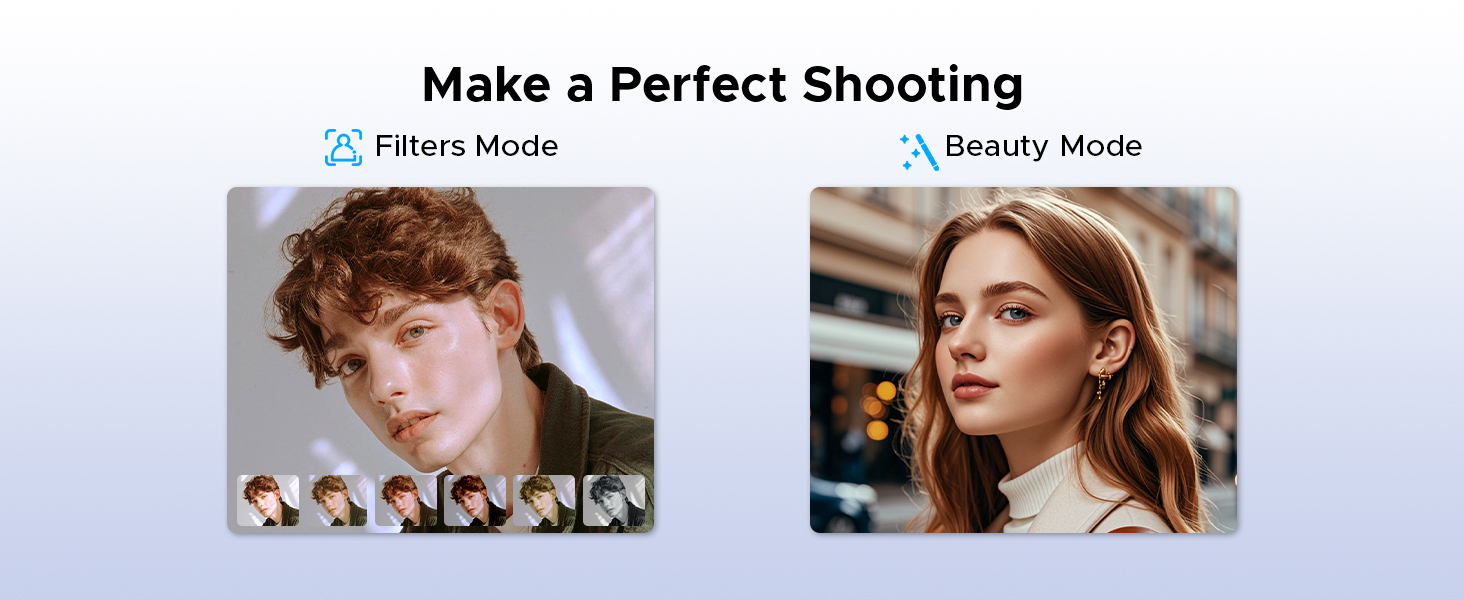
Image: A visual representation of the DOOGEE Tab G6 Tablet and its included accessories: Type-C cable, charger, card remover tool, and user manual, all neatly arranged within the packaging box.
Konec produktuview
The DOOGEE TAB G6 is engineered for performance and user experience. It features an 11-inch display, an octa-core processor, and a large battery, all housed within a sleek and lightweight design.
Klíčové komponenty:
- Zobrazit: 11-inch HD IPS display with 1280 x 800 resolution and 90Hz refresh rate.
- Procesor: Unisoc T7250 Octa-Core Processor for efficient performance.
- Paměť a úložiště: 30GB (6GB physical + 24GB extended) RAM and 256GB internal storage, expandable up to 2TB via TF card.
- Kamery: 13MP rear main camera and 5MP front camera.
- Zvuk: Premium 1217 BOX Dual Speakers.
- Baterie: 8000mAh large capacity battery with 10W fast charging and 5W reverse charging.
- Konektivita: Dual SIM 4G LTE, 5G WiFi, Bluetooth 5.0, GPS (Beidou+GLONASS+Galileo+AGPS).
- Operační systém: Android 15.

Obrázek: Detailní záběr view of the DOOGEE TAB G6 Tablet's side profile, emphasizing its 7.9mm thickness and 554g weight, along with details of its sleek straight edges and metal body construction.
Nastavení
1. Nabíjení zařízení
Before first use, fully charge your DOOGEE TAB G6 Tablet. Connect the provided Type-C cable to the tablet's charging port and the other end to the charger. Plug the charger into a power outlet. The battery indicator on the screen will show charging progress.

Obrázek: Explodoval view diagram of the DOOGEE TAB G6 Tablet highlighting its 8000mAh large battery, along with icons indicating 10W fast charging and 5W reverse charging capabilities.
2. Vložení SIM/TF karty
The DOOGEE TAB G6 supports dual SIM cards (Nano SIM) or one Nano SIM and one TF (microSD) card for expandable storage up to 2TB. Use the provided card remover tool to open the SIM tray.
- Vyhledejte držák SIM karty na boku tabletu.
- Insert the card remover tool into the small hole next to the tray and press gently until the tray ejects.
- Vložte kartu (karty) Nano SIM a/nebo kartu TF do určených slotů v držáku a dbejte na správnou orientaci.
- Opatrně zatlačte zásobník zpět do tabletu, dokud nezacvakne na místo.

Image: A visual guide demonstrating the insertion of SIM cards and a TF card into the DOOGEE TAB G6 Tablet, emphasizing its Dual SIM 4G LTE Connectivity for quicker download speeds, faster web browsing, and decreased network loads.
3. Počáteční zapnutí
Press and hold the Power button located on the side of the tablet until the DOOGEE logo appears. Follow the on-screen prompts to complete the initial setup, including language selection, Wi-Fi connection, and Google account sign-in.
4. Připojení k Wi-Fi
During initial setup or anytime later, you can connect to a Wi-Fi network:
- Přejít na Nastavení > Síť a internet > Wi-Fi.
- Přepnout Wi-Fi On.
- Vyberte ze seznamu požadovanou síť Wi-Fi.
- Zadejte heslo, pokud se zobrazí výzva, a klepněte na Připojit.

Image: An illustration highlighting the benefits of Wi-Fi 5 High-speed Transmission on the DOOGEE TAB G6, including low power consumption, high data rate, low latency, anti-congestion, and wide coverage.
Návod k obsluze
Systém Android 15
Your DOOGEE TAB G6 runs on the latest Android 15, offering enhanced security, privacy, and user experience features. Explore options like Bedtime Mode, Multi-User System, and Parental Control for a tailored experience.

Image: A graphic representing the Android 15 system, highlighting features such as Bedtime Mode, Multi-User System, and Parental Control, indicating a fast and lightning-quick operating experience.
Utilize features like Split Screen for multitasking, allowing you to view dvě aplikace současně.
Image: A visual demonstration of the Split Screen feature on the DOOGEE TAB G6, showing two applications (Google Meet and Maps) open side-by-side for double vision at the same time.
Display and Eye Protection
The 11-inch HD IPS display provides a clear visual experience. For extended use, activate Eye Comfort Mode or Dark Mode to reduce eye strain.
- Režim pohodlí pro oči: Gently protects your eyesight by reducing blue light emission. Access this in Nastavení > Zobrazit.
- Tmavý režim: Softens light for night use, providing a more comfortable viewing experience in low-light conditions. Access this in Nastavení > Zobrazit.

Image: A detailed graphic showcasing the 11-inch HD 90Hz IPS Ultra-Clear Display of the DOOGEE TAB G6, highlighting its 83.3% screen-to-body ratio, 1280*800 resolution, 16:10 aspect ratio, 16.7 million colors, and 350nit brightness.

Image: A visual representation of the Eye Comfort Mode and Dark Mode features, demonstrating how they gently protect eyesight and soften light for night use on the tablet.
Kamery
The tablet is equipped with a 13MP rear main camera and a 5MP front camera. Use these to capture photos and videos. Explore different modes like Filters and Beauty Mode for enhanced photography.

Obrázek: Vizuální přehlídkaasing the 13MP Main Camera and 5MP Front Camera of the DOOGEE TAB G6 Tablet, accompanied by exampfotografie pořízené tímto zařízením.

Image: A comparison showing the effects of Filters Mode and Beauty Mode for photography on the tablet, demonstrating how to make a perfect shooting.
Zvukové funkce
Enjoy clear sound with the Premium 1217 BOX Dual Speakers. For private listening, connect headphones via the 3.5mm AUX headphone jack. The tablet also supports FM Radio when wired headphones are connected.

Image: A user holding the DOOGEE TAB G6 Tablet, which is displaying a racing game, illustrating the immersive audio experience provided by its Premium 1217 BOX Dual Speakers, designed for cinema-like sound in a tablet size.
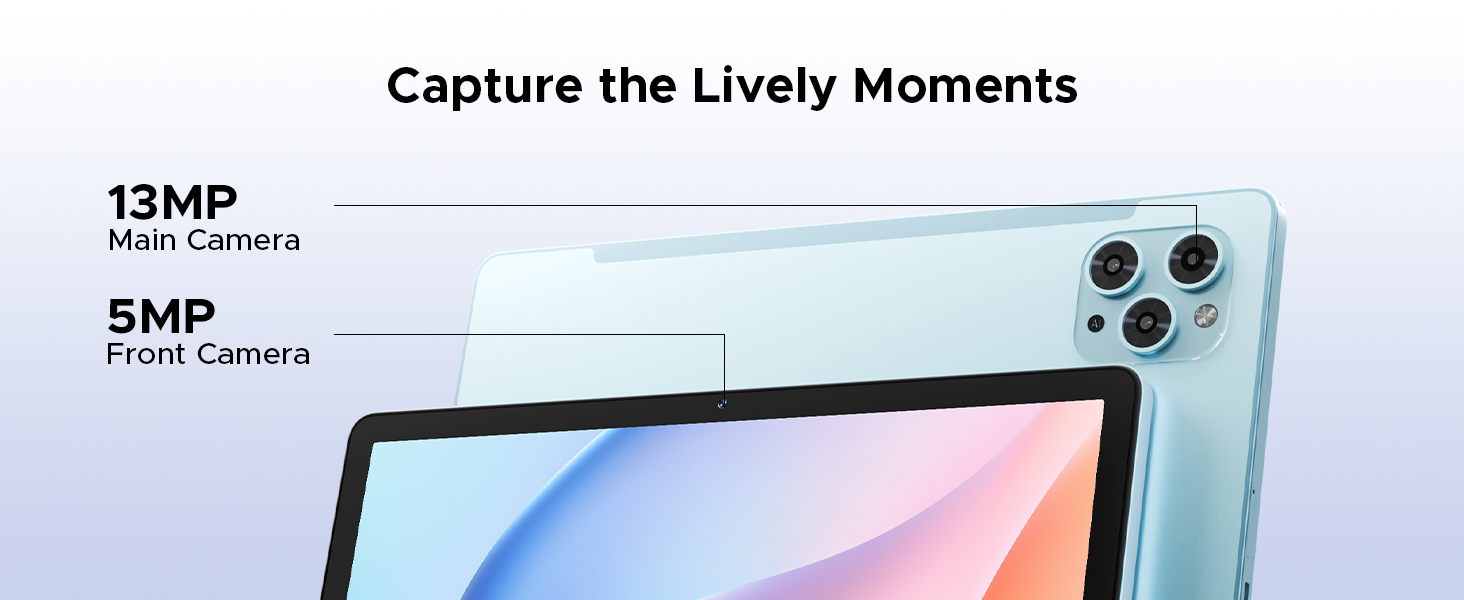
Image: A person using the DOOGEE TAB G6 Tablet with wired headphones, demonstrating the FM Radio feature, which allows instant FM enjoyment by simply plugging in headphones.
Konektivita
The DOOGEE TAB G6 offers comprehensive connectivity options:
- 4G LTE: Supports cellular data for internet access on the go.
- 5G WiFi: Provides high-speed wireless internet connection.
- Bluetooth 5.0: Pro připojení bezdrátového příslušenství, jako jsou sluchátka a klávesnice.
- GPS: Integrated Beidou, GLONASS, Galileo, and AGPS for accurate navigation.

Image: A visual depicting the accurate navigation system of the DOOGEE TAB G6, showing a tablet displaying a map in a car, with icons for GPS, Glonass, Galileo, and Beidou.
Správa úložiště
With 256GB of internal storage and support for up to 2TB expandable memory via TF card, you have ample prostor pro vaše files. Regularly manage your storage to ensure optimal performance.
- Kontrola úložiště: Přejděte na Nastavení > Skladování.
- Pro uvolnění místa: Odstraňte nepotřebné fileodinstalujte nepoužívané aplikace nebo přesuňujte velké soubory filena externí TF kartu.

Image: A graphic illustrating the massive storage capabilities of the DOOGEE TAB G6 Tablet, detailing 30GB RAM (6GB Basic + 24GB Extended RAM), 256GB ROM (Basic Storage), and 2TB Expandable Memory, with various app icons displayed on the tablet screen.
Kancelář WPS
The tablet comes with a built-in PC-level WPS Office suite, allowing you to work on documents, spreadsheets, and presentations anywhere.
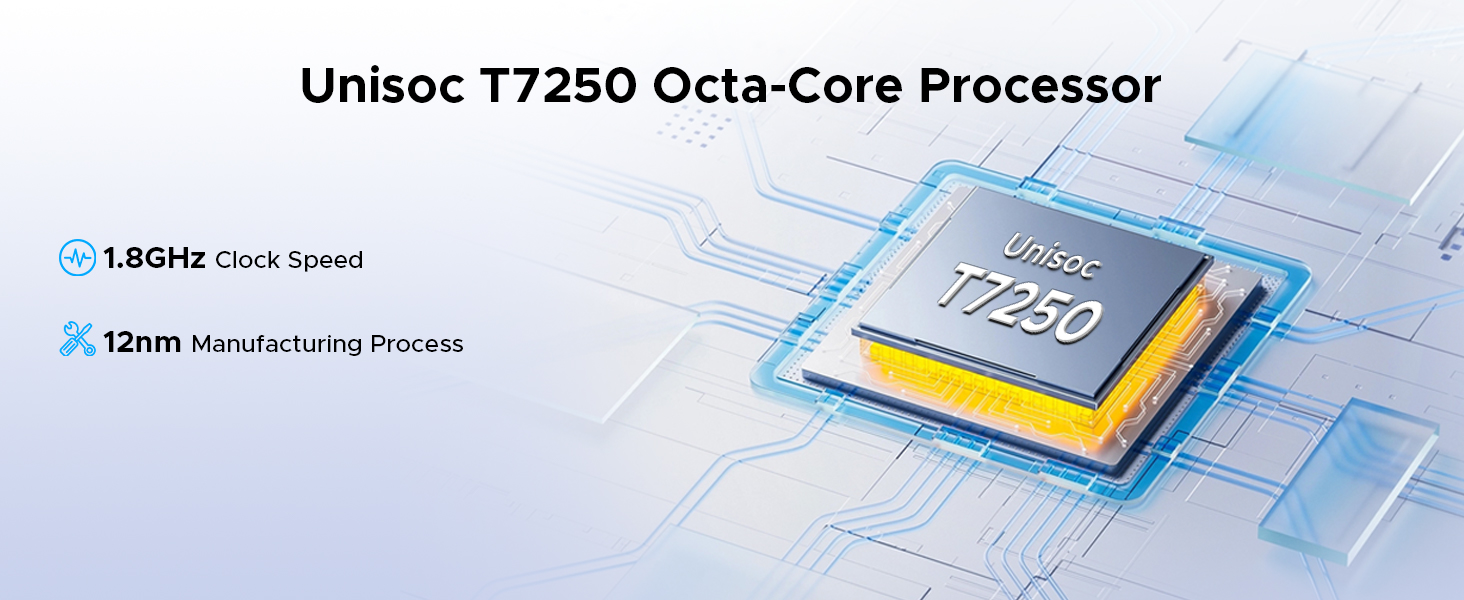
Image: Three scenarios showing users interacting with the DOOGEE TAB G6 Tablet for productivity, demonstrating the built-in PC-level WPS Office for Word, Excel, and PowerPoint applications.
Odemknutí rozpoznáním obličeje
For convenient and secure access, utilize the facial recognition unlock feature.
- Přejít na Nastavení > Zabezpečení a soukromí > Odemknutí obličejem.
- Registrujte svůj obličej podle pokynů na obrazovce.
- Once registered, simply look at the front camera to unlock your tablet.
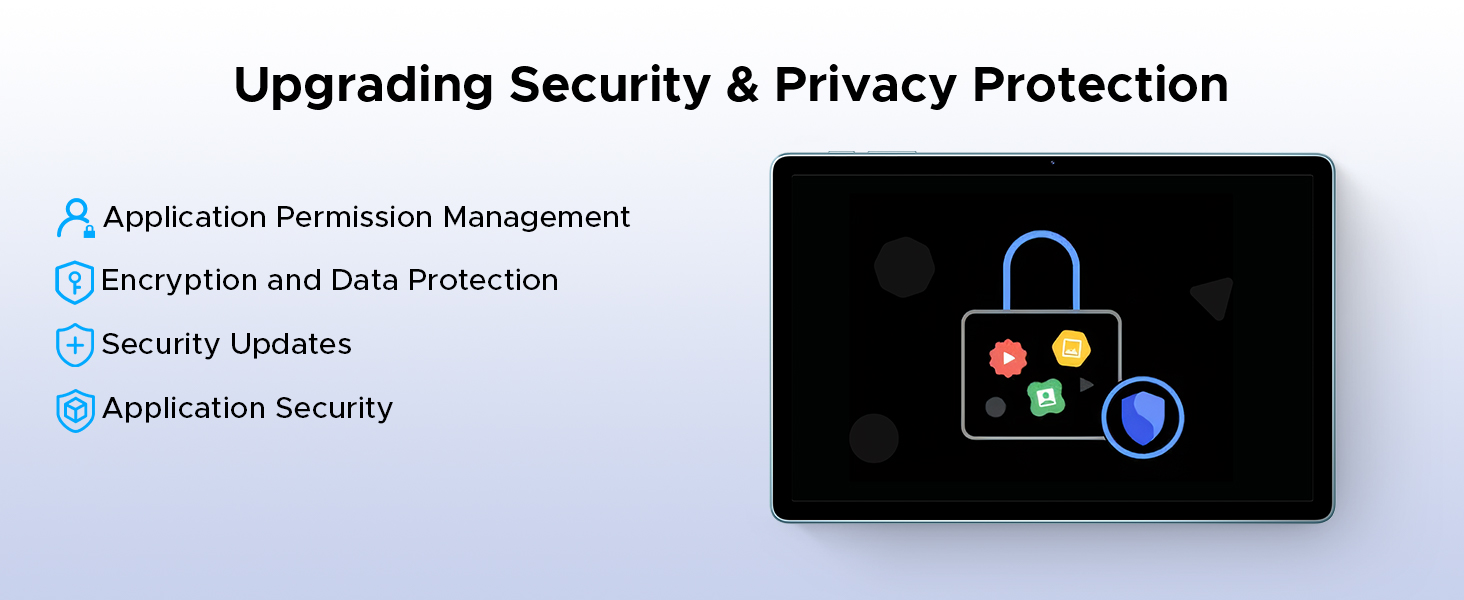
Image: A visual representation of the Facial Recognition Unlock feature, showing a user effortlessly accessing the tablet by looking at the front camera.
Podpora Widevine L1
The DOOGEE TAB G6 supports Widevine L1, allowing you to stream high-definition content from popular platforms like Netflix, YouTube, HBO, and Prime Video in true 1080P resolution.
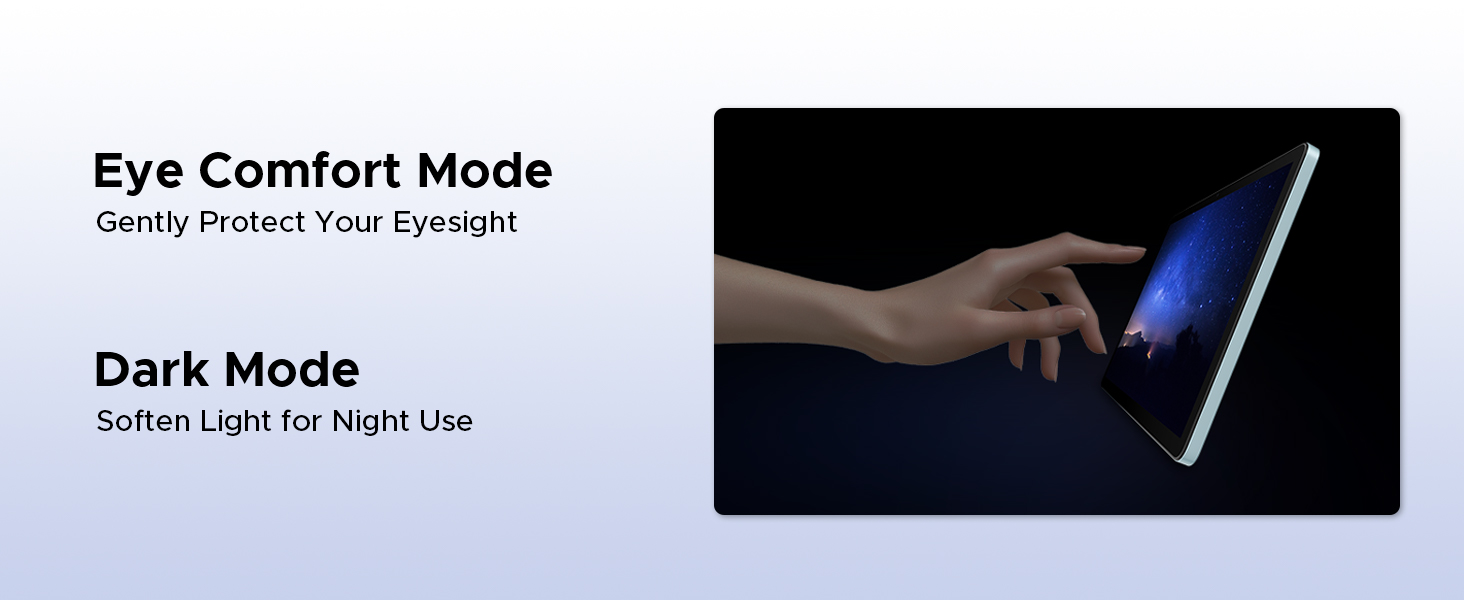
Image: A tablet displaying a high-definition video, surrounded by logos of streaming services like Hulu, Amazon Prime Video, HBO Max, and YouTube, indicating Widevine L1 support.
Údržba
Čištění
K čištění tabletu použijte měkký hadřík, který nepouští vlákna. V případě odolných šmouh lehceampOtřete hadřík vodou nebo čističem obrazovek určeným pro elektroniku. Nepoužívejte agresivní chemikálie, abrazivní materiály ani nadměrnou vlhkost.
Péče o baterie
Chcete -li prodloužit životnost baterie:
- Vyhněte se extrémním teplotám (horku nebo chladu).
- Nenechávejte baterii často úplně vybít.
- Použijte originální nabíječku a dodaný kabel.
- If storing the tablet for a long period, charge it to about 50% before turning it off.
Aktualizace softwaru
Pravidelně kontrolujte a instalujte aktualizace softwaru, abyste zajistili, že váš tablet má nejnovější funkce, bezpečnostní záplaty a vylepšení výkonu. Přejděte na Nastavení > Systém > Aktualizace systému pro kontrolu aktualizací.
Odstraňování problémů
| Problém | Možná příčina | Řešení |
|---|---|---|
| Tablet se nezapne. | Slabá baterie; havárie softwaru. | Nabíjejte tablet alespoň 30 minut. Stiskněte a podržte tlačítko napájení po dobu 10–15 sekund pro vynucení restartu. |
| Nelze se připojit k Wi-Fi. | Nesprávné heslo; problém s routerem; Wi-Fi vypnuto. | Ensure correct password. Restart router. Check Wi-Fi settings on tablet. |
| Aplikace jsou pomalé nebo padají. | Insufficient RAM; too many background apps; app bug. | Close unused apps. Clear app cache (Settings > Apps). Restart tablet. |
| Úložiště tabletu je plné. | Příliš mnoho files/apps. | Smazat nepotřebné files. Uninstall unused apps. Move files to TF card. |
| SIM karta nebyla detekována. | Improper insertion; faulty SIM card. | Re-insert SIM card correctly. Test with another SIM card if possible. |
Specifikace
| Funkce | Detail |
|---|---|
| Značka | DOOGEE |
| Název modelu | DOOGEE TAB G6 |
| Rozměry produktu | 25.7 x 16.8 x 0.8 cm |
| Hmotnost položky | 552 g |
| Velikost displeje | 11 palců |
| Rozlišení obrazovky | 1280 x 800 pixelů |
| Značka procesoru | Osmijádrový Unisoc T7250 |
| Rychlost procesoru | 1.8 GHz |
| Velikost RAM | 30 GB (6 GB fyzická + 24 GB rozšiřitelná) |
| Kapacita paměti | 256 GB (rozšiřitelné až na 2 TB) |
| Přední WebRozlišení vačky | 5 MP |
| Rozlišení zadní kamery | 13 MP |
| Operační systém | Android 15 |
| Kapacita baterie | 8000 XNUMX mAh |
| Konektivita | 4G LTE, 5G WiFi, Bluetooth 5.0, GPS |
| Speciální funkce | Supports USB OTG, Stylus Support, Expandable Storage, Cellular Connectivity, Fast Charging, Widevine L1, Face ID, Dual Speakers, FM Radio |
Záruka a podpora
DOOGEE products are designed for reliability and performance. For warranty information, please refer to the warranty card included in your product packaging or visit the official DOOGEE webUschovejte si doklad o koupi pro případ reklamace.
For technical support, troubleshooting assistance beyond this manual, or service inquiries, please contact DOOGEE customer support through their official channels. Details can typically be found on the DOOGEE webmístě nebo na obalu produktu.
Důležité: Neoprávněné opravy nebo úpravy mohou vést ke zrušení záruky.
Ask a question about this manual
Ask about setup, troubleshooting, compatibility, parts, safety, or missing instructions. Manuals+ will review the question and use this page’s manual context to help answer it.