
1. Úvod
This manual provides essential information for setting up, operating, maintaining, and troubleshooting your new CyberPowerPC Gamer Xtreme GXiVR8060A47 Gaming PC. This system is designed for high-performance gaming and demanding multimedia tasks, featuring an Intel Core i5-14400F processor and NVIDIA GeForce RTX 5060 graphics.
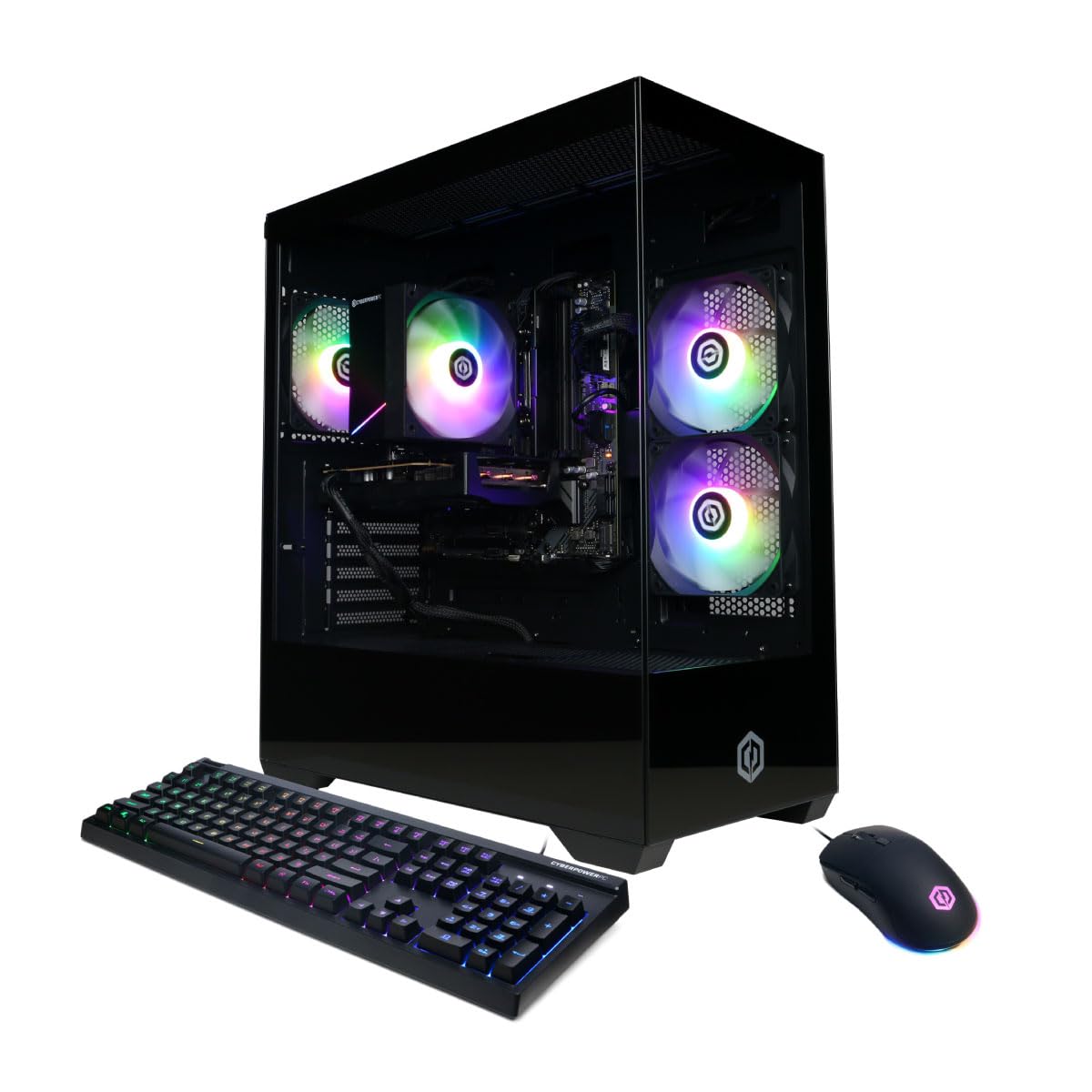
Obrázek: Přední strana view of the CyberPowerPC Gamer Xtreme GXiVR8060A47 Gaming PC with RGB lighting.
2. Obsah balení
Ověřte, zda jsou v balení přítomny všechny položky:
- CyberPowerPC Gamer Xtreme GXiVR8060A47 Gaming PC
- Napájecí kabel
- Herní klávesnice
- Herní myš
- Dokumentace (včetně této příručky)

Image: The CyberPowerPC gaming desktop tower, keyboard, and mouse.
3. Průvodce nastavením
3.1 Rozbalení a umístění
- Opatrně vyjměte počítač a veškeré příslušenství z obalu. Obal uschovejte pro budoucí přepravu nebo reklamaci.
- Umístěte počítač na stabilní, rovný povrch s dostatečným větráním. Zajistěte volný prostor kolem otvorů pro přívod a odvod vzduchu.
- Remove any internal packing foam or protective films from the PC components.
3.2 Připojení periferních zařízení
Připojte monitor, klávesnici, myš a další periferní zařízení k příslušným portům na zadní straně počítače.
- Monitor: Connect your monitor to the graphics card (NVIDIA GeForce RTX 5060) ports (HDMI or DisplayPort). Do not connect to the motherboard's video outputs if a dedicated graphics card is installed.
- Klávesnice a myš: Připojte se k libovolným dostupným USB portům.
- Moc: Connect the power cord to the PC's power supply unit (PSU) and then to a grounded electrical outlet.
- Síť: For wired internet, connect an Ethernet cable to the LAN port. For wireless internet, the system is WiFi 6 ready.

Obrázek: Zadní view of the PC showing various connectivity ports for peripherals.
3.3 Počáteční spuštění
- Stiskněte tlačítko napájení umístěné na přední nebo horní straně počítače.
- The system will boot into Windows 11 Home. Follow the on-screen instructions to complete the initial Windows setup, including language, region, and user account creation.
- It is recommended to check that the graphics card is securely seated in its slot after shipping. Gently press down on the graphics card near the PCIe slot to ensure it is fully engaged.
4. Návod k obsluze
4.1 Zapnutí/vypnutí
- Zapnutí: Stiskněte jednou tlačítko napájení.
- Vypnout: V systému Windows klikněte na tlačítko Start a poté vyberte Napájení > Vypnout. Nepřidržujte tlačítko napájení přímo k vypnutí počítače, mohlo by dojít ke ztrátě dat nebo poškození systému.
- Restartovat: V systému Windows klikněte na tlačítko Start a poté vyberte Napájení > Restartovat.
4.2 Windows 11 Home
Your PC comes pre-installed with Windows 11 Home. Familiarize yourself with its interface and features. Regular updates are crucial for security and performance.
4.3 Hraní her a výkon
The CyberPowerPC Gamer Xtreme GXiVR8060A47 is optimized for gaming. For optimal performance:
- Ensure graphics drivers are up to date. Visit the NVIDIA webstránky pro nejnovější ovladače.
- Close unnecessary background applications when gaming.
- Upravte si nastavení grafiky ve hře tak, abyste vyvážili vizuální kvalitu a snímkovou frekvenci podle svých preferencí.
4.4 Ovládání RGB osvětlení
Your PC features custom RGB lighting. Control options may include:
- Tlačítko pouzdra: A dedicated button on the PC case allows cycling through various lighting modes and colors.
- Ovládání softwaru: For advanced customization, connect the RGB fan cables to the motherboard's RGB headers and use compatible motherboard software (if available) to synchronize and control lighting effects. Refer to your motherboard manual for specific instructions.

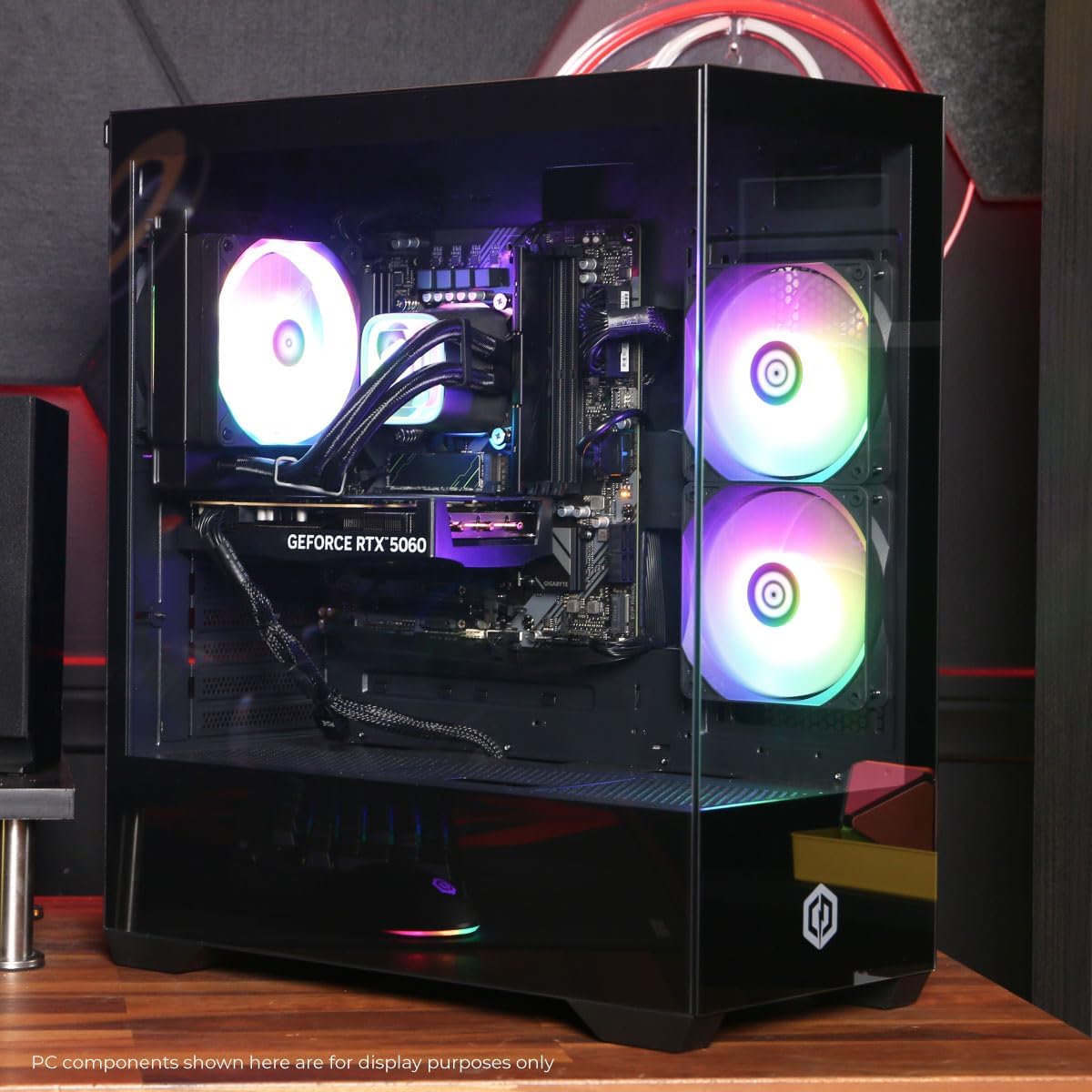
Obrázek: Interní view of the PC showcasing the RGB fans and components.
5. Údržba
5.1 Čištění počítače
- Vnější: Použijte měkký, damp hadříkem otírejte vnější povrch pouzdra. Nepoužívejte agresivní chemikálie.
- Interiér: Periodically clean dust from inside the PC using compressed air. Focus on fans (CPU cooler, case fans, GPU fans) and heatsinks. Ensure the PC is powered off and unplugged before opening the case.
- Prachové filtry: If your case has removable dust filters, clean them regularly to maintain optimal airflow.
5.2 Aktualizace softwaru
Regularly update your operating system, drivers (especially graphics drivers), and antivirus software to ensure system stability, security, and performance.
5.3 Proudění vzduchu a chlazení
Proper airflow is critical for component longevity. Ensure the PC is placed in an open area, not confined in a cabinet, to allow for unrestricted air circulation.
Obrázek: Nahoře view of the PC, highlighting the mesh panel for ventilation.
6. Řešení problémů
Pokud narazíte na problémy, postupujte podle následujících běžných kroků pro řešení potíží:
- Bez displeje: Ensure your monitor is connected to the graphics card's output, not the motherboard's. Check all cable connections (power, video). Try a different video cable or monitor if possible.
- Počítač se nezapíná: Verify the power cord is securely connected to both the PC and the wall outlet. Check the power switch on the PSU (if present) is in the 'On' position. Try a different power outlet.
- Nadměrný hluk ventilátoru: This can indicate dust buildup or a fan issue. Clean the interior of the PC as described in the Maintenance section. If the noise persists, contact support.
- System Instability/Blue Screen Errors (BSOD): Ensure all drivers are updated. Check for Windows updates. Run a memory diagnostic tool (Windows Memory Diagnostic) to check RAM integrity. Ensure components are properly seated.
- Nefunkční periferie: Try connecting the keyboard or mouse to different USB ports. Ensure drivers are installed for specialized peripherals.
V případě přetrvávajících problémů se podívejte na kontaktní informace v části Záruka a podpora.
7. Specifikace
| Komponent | Detail |
|---|---|
| Název modelu | Gamer Xtreme GXiVR8060A47 |
| Procesor | Intel Core i5-14400F 2.5GHz (10 Cores) |
| Čipová sada | Intel B760 |
| Grafická karta | NVIDIA GeForce RTX 5060 8GB GDDR7 |
| BERAN | 16GB DDR5 (4800 MT/s) |
| Skladování | 1TB PCIe 4.0 NVMe SSD |
| Operační systém | Windows 11 Home |
| Konektivita | WiFi 6, Bluetooth 5.3, 1x LAN |
| USB porty | 2 x USB-A 3.2, 6 x USB-A 2.0 (Total 8) |
| Video výstup | 1x HDMI, 2x DisplayPort |
| Zvuk | 7.1kanálový zvuk |
| Rozměry (D x Š x V) | Cca. 19.09 x 8.27 x 18.90 palců (54.5 x 52.5 x 29.5 cm) |
| Hmotnost | Přibl. 13.96 kg |

Obrázek: Detailní interní view of the PC showing the CPU cooler, RAM, and graphics card.
8. Záruka a podpora
8.1 Informace o záruce
Your CyberPowerPC Gamer Xtreme GXiVR8060A47 Gaming PC comes with a 1 rok omezená záruka krytí dílů a práce. Uschovejte si prosím doklad o koupi pro případ reklamace.
8.2 Technická podpora
CyberPowerPC offers Free Lifetime Technical Support for your product. For assistance with setup, troubleshooting, or any other technical inquiries, please contact CyberPowerPC customer service.
Contact information can typically be found on the CyberPowerPC official website or in the documentation included with your PC.