
Bemi BRCT5
Uživatelská příručka k Bemi Cognita Tab 5 E-Reader
Model: BRCT5
1. Úvod
This manual provides essential instructions for the setup, operation, and maintenance of your Bemi Cognita Tab 5 E-Reader. The Cognita Tab 5 is a lightweight e-reader designed for comfortable reading, featuring a 5.76-inch e-paper display, Android 8.1 operating system, and Wi-Fi connectivity. Please read this manual thoroughly to ensure proper use and to maximize your device's potential.
2. Obsah balení
Upon unpacking your Bemi Cognita Tab 5, please verify that all the following items are included:
- Bemi Cognita Tab 5 E-Reader
- USB nabíjecí kabel
- Rychlý průvodce
- Uživatelská příručka (tento dokument)
- Záruční list

Image: Contents of the Bemi Cognita Tab 5 E-Reader package, including the device, charging cable, and documentation.
3. Zařízení skončiloview
Familiarize yourself with the physical components of your Bemi Cognita Tab 5.
3.1 Přední View
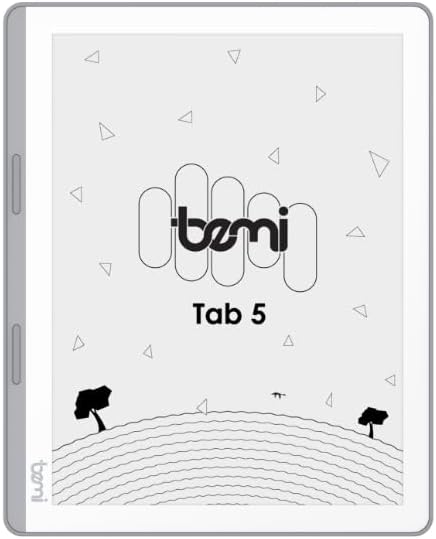
Obrázek: Přední strana view of the Bemi Cognita Tab 5 E-Reader, showing the e-paper display and side buttons.
- Zobrazení elektronického papíru: 5.76-inch screen with 920x680 resolution (198 ppi) and anti-glare coating.
- Tlačítka pro otáčení stránek: Located on the side for convenient navigation through content.
3.2 Zpět View

Obrázek: Zpět view of the Bemi Cognita Tab 5 E-Reader, highlighting its textured surface and branding.
- Rubberized Casing: Provides a secure grip and durability.
3.3 Porty a tlačítka
- Vypínač: Slouží k zapnutí/vypnutí zařízení a jeho přepnutí do režimu spánku.
- USB port: Pro nabíjení a přenos dat.
- Slot pro microSD kartu: Pro rozšíření úložiště až na 64 GB.
- Sluchátkový jack: Pro audio výstup.
4. Nastavení
4.1 Počáteční nabíjení
Before first use, fully charge your Bemi Cognita Tab 5. Connect the provided USB cable to the device's USB port and plug the other end into a compatible USB power adapter (not included) or a computer's USB port. The charging indicator will show the charging status.
4.2 Zapnutí/vypnutí
- Zapnutí: Press and hold the Power button until the screen activates.
- Vypnutí: Press and hold the Power button, then select 'Power Off' from the options that appear on the screen.
- Spánek/probuzení: Krátkým stisknutím tlačítka napájení zařízení uspíte nebo probudíte.
4.3 Základní navigace
The Cognita Tab 5 features a responsive touchscreen for navigation. Tap to select items, swipe to scroll, and use pinch-to-zoom where applicable. The dedicated page-turn buttons on the side can also be used for navigating through e-books.
4.4 Wi-Fi připojení
To access online content, transfer files wirelessly, or update software, connect your device to a Wi-Fi network:
- Přejít na Nastavení z hlavní nabídky.
- Vybrat Wi-Fi.
- Přepnout Wi-Fi On.
- Vyberte požadovanou síť ze seznamu a v případě potřeby zadejte heslo.
5. Návod k obsluze
5.1 Čtení elektronických knih
The Bemi Cognita Tab 5 supports various e-book formats including PDF, EPUB, and MOBI. To start reading:
- Přejděte na knihy section on your device.
- Tap on the cover of the e-book you wish to read.
- Use the touchscreen or the physical page-turn buttons to navigate through pages.

Image: A person holding the Bemi Cognita Tab 5 E-Reader, demonstrating the reading experience on its e-paper display.
5.2 Nastavení podsvícení
The adjustable screen backlight allows for comfortable reading in various lighting conditions. Access backlight settings through the quick settings panel or the main Settings menu to adjust brightness levels.
5.3 File Převod
Můžete přenést files to your Cognita Tab 5 via USB or Wi-Fi.
- USB přenos: Connect the device to your computer using the USB cable. The device will appear as a removable storage drive, allowing you to drag and drop files.
- Přenos přes Wi-Fi: Ensure both your device and the transmission device are on the same local area network (LAN). On your Cognita Tab 5, navigate to the Wi-Fi Transfer option (often found in the 'Storage' or 'Settings' menu). An IP address will be displayed (e.g., http://172.20.10.8:12580). Enter this address into a web browser on your computer or phone to access the device's storage and transfer files. Do not close this page during transmission.

Image: Screenshots showing the Wi-Fi transfer interface with an IP address and a file management screen on the Bemi Cognita Tab 5 E-Reader.
5.4 Installing Additional Applications
Running on Android 8.1, the Cognita Tab 5 allows for the installation of additional reading applications. You can typically install apps by transferring their APK files to the device and installing them through a file manager, or by using a pre-installed app store if available.
5.5 Zvukové funkce
Zařízení podporuje zvuk files and features text-to-speech functionality. Connect headphones to the headphone jack to listen to audiobooks or have your e-books read aloud.
5.6 Special Reading Features
The Cognita Tab 5 includes features to enhance your reading experience:
- PDF Reflow: Optimizes PDF documents for better readability on the smaller screen.
- Slovník: Look up definitions of words directly from your e-book.
- Překladatel: Translate words or phrases within your reading material.
6. Údržba
6.1 Čištění
K čištění obrazovky použijte měkký hadřík, který nepouští vlákna. V případě odolných šmouh lehceampen the cloth with water or a screen cleaner specifically designed for electronics. Avoid harsh chemicals or abrasive materials. For the device body, use a dry, soft cloth.
6.2 Péče o baterii
To prolong battery life, avoid exposing the device to extreme temperatures. Charge the device regularly, but avoid leaving it fully discharged for extended periods. If storing the device for a long time, ensure it has a partial charge (around 50%).
6.3 Skladování
Store your Bemi Cognita Tab 5 in a cool, dry place away from direct sunlight and moisture. Protect the screen from scratches by using a protective cover or case when not in use.
7. Řešení problémů
If you encounter issues with your Bemi Cognita Tab 5, refer to the following common solutions:
- Zařízení se nezapíná: Ensure the battery is charged. Connect the device to a power source and try again. If unresponsive, perform a hard reset by holding the power button for 10-15 seconds.
- Obrazovka nereaguje: Restartujte zařízení. Pokud problém přetrvává, ujistěte se, že je obrazovka čistá a bez nečistot.
- Problémy s připojením Wi-Fi: Verify your Wi-Fi password. Restart your router and the Cognita Tab 5. Ensure the device is within range of the Wi-Fi signal.
- Pomalý výkon: Close unused applications. Clear cache if available in settings. Consider performing a factory reset (this will erase all data).
- Baterie se rychle vybíjí: Reduce screen brightness. Turn off Wi-Fi when not in use. Close background applications.
V případě přetrvávajících problémů, které zde nejsou uvedeny, kontaktujte zákaznickou podporu.
8. Specifikace
| Funkce | Specifikace |
|---|---|
| Název modelu | Cognita Tab 5 (BRCT5) |
| Zobrazit | 5.76-inch E-Paper, 920x680 resolution (198 ppi), Anti-glare |
| Procesor | Cortex-A7 Quad-Core |
| BERAN | 1 GB |
| Interní úložiště | 16 GB |
| Rozšiřitelné úložiště | MicroSD karta až 64 GB |
| Operační systém | Android 8.1 |
| Konektivita | Wi-Fi, USB |
| Speciální funkce | Text-to-speech, Smart Reading, Headphone Jack, Scratch Resistant, Card Support |
| Supported E-book Formats | PDF, EPUB, MOBI, and others |
| Životnost baterie | Up to 2 weeks (typical usage) |
| Hmotnost | 135 g |
| Tloušťka | 8 mm |
9. Záruka a podpora
9.1 Informace o záruce
Your Bemi Cognita Tab 5 E-Reader comes with a warranty. Please refer to the included Warranty Card for specific terms, conditions, and duration of the warranty. Keep your proof of purchase for warranty claims.
9.2 Zákaznická podpora
For technical assistance, troubleshooting beyond this manual, or warranty inquiries, please contact the seller or manufacturer directly. Contact information may be available on the product packaging or the official Bemi webmísto.
Ask a question about this manual
Ask about setup, troubleshooting, compatibility, parts, safety, or missing instructions. Manuals+ will review the question and use this page’s manual context to help answer it.