
1. Úvod
The Fanvil V66 is a professional IP videophone designed for business environments, offering advanced communication features and a modern design. It features a 7-inch color touchscreen, Bluetooth, and WiFi 6 connectivity, ensuring versatile and high-quality communication.
Co je v krabici
- IP telefon Fanvil V66
2. Konec produktuview
Familiarize yourself with the components of your Fanvil V66 Prime Business Phone.
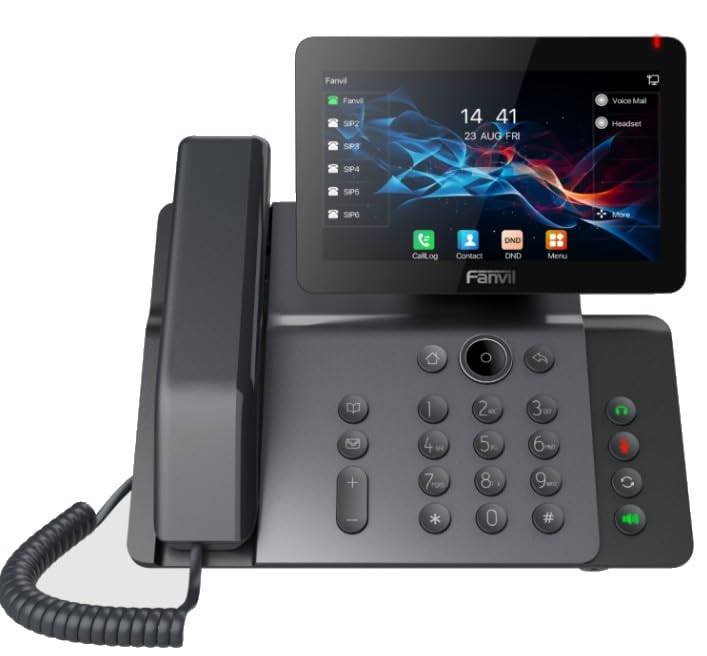
Obrázek 1: Přední strana view of the Fanvil V66 Prime Business Phone, showing the 7-inch color display, numeric keypad, and function keys.
Klíčové vlastnosti
- 7-inch HD Color LCD Screen: Inclinable design for optimal viewIng.
- Bluetooth & WiFi 6 Connectivity: Pro rychlé a stabilní bezdrátové připojení.
- 116-Key Numeric Keypad: Provides comprehensive control over phone functions.
- Integrated Audio and Video System: Supports high-quality professional calls and videoconferences.
- Intuitivní uživatelské rozhraní: Quick menu access for calls, contacts, and main functions.
3. Nastavení
3.1 Sestavení telefonu
- Připevnění stolního stojanu: Align the stand with the slots on the back of the phone and push until it clicks into place.
- Připojení sluchátka: Zapojte jeden konec spirálového kabelu sluchátka do sluchátka a druhý konec do portu pro sluchátko na telefonní základně.
3.2 Připojení k síti a napájení
- Ethernetové připojení: Zapojte jeden konec ethernetového kabelu do portu LAN na zadní straně telefonu a druhý konec do síťového přepínače nebo routeru.
- Power Connection (Choose one):
- Napájení přes Ethernet (PoE): If your network switch supports PoE, the phone will power on automatically once connected via the Ethernet cable. No separate power adapter is needed.
- Napájecí adaptér: If PoE is not available, connect a compatible power adapter to the DC 12V port on the phone and then plug it into a power outlet.
- The phone will automatically power on and begin the boot-up sequence.
3.3 Počáteční konfigurace
Upon first boot, the phone may prompt you for initial network settings or firmware updates. Follow the on-screen instructions. For advanced network settings or SIP account configuration, consult your network administrator or IT support.
4. Návod k obsluze
4.1 Volání
- Vytáčení čísla: Pick up the handset, press the Speaker button, or press the New Call soft key. Dial the desired number using the keypad.
- Rychlé vytáčení: If configured, press the assigned speed dial key.
- Z kontaktů: Tap the "Contacts" icon on the display, select a contact, and tap the call icon.
4.2 Příjem hovorů
When an incoming call rings, you can:
- Odpověď: Pick up the handset, press the Speaker button, or tap the "Answer" soft key on the display.
- Pokles: Tap the "Decline" soft key.
4.3 Using the 7-inch Color Display
The touchscreen display provides access to various functions and settings:
- Domovská obrazovka: Displays time, date, line status, and quick access icons.
- Navigace: Swipe left/right or tap icons to navigate through menus.
- Softwarová tlačítka: Context-sensitive buttons displayed at the bottom of the screen.
- Nastavení: Access phone settings, network configuration, and user preferences.
4.4 Připojení Bluetooth a WiFi
- Bluetooth: Go to "Settings" > "Bluetooth" to enable and pair with Bluetooth headsets or other devices.
- WiFi 6: Go to "Settings" > "Wi-Fi" to enable, scan for available networks, and connect. Enter the password if required.
5. Údržba
5.1 Čištění telefonu
- Use a soft, dry, anti-static cloth to clean the phone's surface.
- Na obrazovku použijte čisticí roztok určený pro obrazovky a hadřík z mikrovlákna.
- Vyhněte se používání agresivních chemikálií, abrazivních čisticích prostředků nebo nadměrné vlhkosti.
5.2 Aktualizace softwaru
Periodically check for firmware updates to ensure optimal performance and security. Updates can usually be found in the phone's "Settings" menu under "System" or "Firmware Update," or provided by your IT department.
6. Řešení problémů
| Problém | Možná příčina | Řešení |
|---|---|---|
| Telefon se nezapne. | Žádné připojení k napájení nebo vadný zdroj napájení. | Check power adapter connection or Ethernet cable for PoE. Ensure power outlet is functional. |
| Nelze se připojit k síti. | Ethernet cable disconnected, incorrect network settings, or Wi-Fi issues. | Verify Ethernet cable is securely connected. Check Wi-Fi settings and password. Contact network administrator for IP configuration. |
| No dial tone or audio during calls. | Handset/headset not connected properly, volume too low, or SIP registration issue. | Ensure handset/headset is plugged in correctly. Adjust volume. Verify SIP account registration status on the display. |
| Displej nereaguje. | Dočasná softwarová závada. | Restart the phone by disconnecting and reconnecting power. If issue persists, contact support. |
7. Specifikace
| Funkce | Detail |
|---|---|
| Značka | Fanvil |
| Číslo modelu | V62 PRO (Note: Product series is V66) |
| Barva | Černý |
| Zobrazit | 7-inch HD Color LCD, Inclinable |
| Konektivita | Bluetooth, WiFi 6, Ethernet (PoE support) |
| Klávesnice | 116 klíčů |
| Materiál | Plast |
| Zdroj napájení | Napájecí adaptér / PoE |
| Rozměry (D x Š x V) | 20 x 20 x 15 cm |
| Hmotnost položky | 600 gramů |
| Kompatibilní zařízení | EHS (Electronic Hook Switch) headsets |
8. Záruka a podpora
For warranty information, please refer to the warranty card included with your product or visit the official Fanvil website. If you encounter any issues not covered in this manual or require further assistance, please contact your vendor or Fanvil technical support.
- Online podpora: Visit the Fanvil official website for FAQs, documentation, and support resources.
- Technická pomoc: Contact your authorized Fanvil reseller or service provider.