
1. Úvod
The Wanbo T2 Ultra is a compact and versatile projector designed for home entertainment. It features Android TV 11.0, offering access to a wide range of streaming applications. With 500 ANSI lumens brightness and native 1080P Full HD resolution, it delivers clear and vibrant images. Advanced features like auto-focus, automatic keystone correction, and integrated HiFi speakers enhance the user experience. This manual provides detailed instructions for setup, operation, and maintenance of your Wanbo T2 Ultra projector.
2. Obsah balení
Zaškrtněte prosím políčko u následujících položek:
- Wanbo T2 Ultra Projector Unit
- Dálkové ovládání
- Napájecí kabel
- HDMI kabel
- Uživatelská příručka (tento dokument)
- Cleaning Tools (if included)

Image: Projector and accessories in packaging. Actual contents may vary slightly.
3. Konec produktuview
3.1 Projector Unit

Obrázek: Přední strana view of the Wanbo T2 Ultra Projector.
3.2 Porty a připojení

Obrázek: Zadní view of the Wanbo T2 Ultra Projector showing various input/output ports.
- HDMI (ARC) Port: Connect to external devices such as laptops, gaming consoles, or TV boxes. Supports Audio Return Channel.
- USB port: Připojte paměťová zařízení USB pro přehrávání médií.
- Zvukový port (3.5 mm): Připojte externí sluchátka nebo reproduktory.
- Příkon: Připojte napájecí kabel k napájení projektoru.
4. Nastavení
4.1 Připojení napájení
- Connect the power cable to the Power Input port on the projector.
- Zapojte druhý konec napájecího kabelu do elektrické zásuvky.
- Stisknutím tlačítka napájení na projektoru nebo dálkovém ovladači zapněte zařízení.
4.2 Počáteční nastavení
Při prvním použití postupujte podle pokynů na obrazovce a dokončete počáteční nastavení, včetně výběru jazyka a připojení k Wi-Fi.
4.2.1 Wi-Fi připojení
- Přejděte na Nastavení z domovské obrazovky.
- Vybrat Síť a internet.
- Zapněte Wi-Fi a vyberte ze seznamu požadovanou síť.
- Zadejte heslo k Wi-Fi pomocí klávesnice na obrazovce a potvrďte.
Video: Illustrates Wi-Fi and Bluetooth connection steps. Note: This video may feature a different projector model but demonstrates the general process.
4.3 Focus & Keystone Correction
The Wanbo T2 Ultra features automatic focus and keystone correction for optimal image clarity and shape.
4.3.1 Automatické nastavení
- The projector automatically adjusts focus and keystone when powered on or moved.
- Obstacle avoidance and automatic screen adjustment features ensure the image fits perfectly on your projection surface.

Image: The projector automatically adjusting focus and keystone correction for a clear, rectangular image.
4.3.2 Manual Adjustment (if needed)
- Přejít na Nastavení > Oprava obrazu.
- Vybrat Ruční korekce lichoběžníkového zkreslení to adjust the four corners of the image.
- Vybrat Soustředit > Manuální ostření to fine-tune the image sharpness using the F+ and F- buttons on the remote.
4.4 Nastavení obrazovky
The projector supports digital zoom to adjust the screen size without moving the unit.
- Přejít na Nastavení > Oprava obrazu.
- Vybrat Screen Zoom and Position.
- Use the directional buttons to adjust the position and the volume buttons to adjust the zoom (50% to 100%).
4.5 Projekční režimy
The projector can be used in various orientations:
- Přední projekce: Projector placed in front of the screen.
- Zadní projekce: Projector placed behind a translucent screen.
- Projekce stropu: Projector mounted upside down on the ceiling. The integrated stand allows for easy adjustment for ceiling or wall projection.
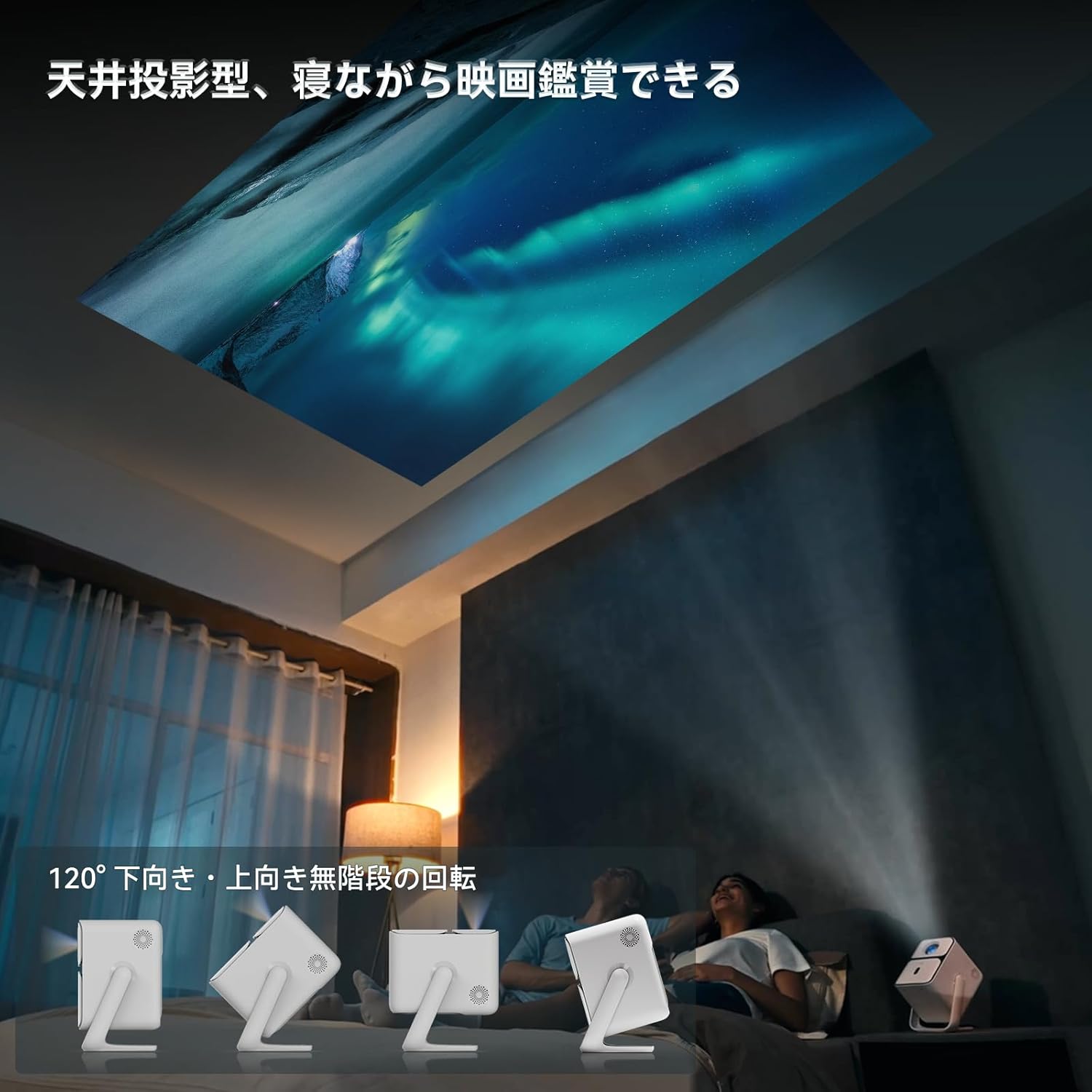
Image: Projector positioned for ceiling projection, allowing viewvleže.
Video: Demonstrates ceiling projection mode. Note: This video may feature a different projector model but demonstrates the general process.
5. Návod k obsluze
5.1 Funkce dálkového ovládání

Image: Remote control for the projector, showing buttons for power, navigation, volume, focus, and direct access to streaming apps like Netflix, YouTube, and Prime Video.
- Vypínač: Zapne/vypne projektor.
- Hlasové vyhledávání: Aktivuje Google Assistant pro hlasové příkazy.
- One-Touch Focus: Spustí automatické nastavení zaostření.
- Directional Keys (Up/Down/Left/Right): Navigace v nabídkách a výběrech.
- Tlačítko OK: Potvrzuje výběr.
- Tlačítko Zpět: Vrátí se na předchozí obrazovku.
- Tlačítko Domů: Vrátí se na domovskou obrazovku.
- Hlasitost +/-: Nastavuje úroveň hlasitosti.
- Focus +/- (F+/F-): Manually adjusts focus.
- Tlačítko ztlumení: Vypne/zapne zvuk.
- Input Signal Switch: Změní vstupní zdroj.
- Nastavení aplikace: Accesses application settings.
- Nastavení projekce: Accesses projection-related settings.
- Tlačítka pro přímý přístup k aplikaci: Dedicated buttons for Netflix, YouTube, Prime Video, and Disney+.
5.2 App Management (Android TV 11.0)
The Wanbo T2 Ultra runs on Android TV 11.0, providing access to the Google Play Store.
- Přístup k aplikacím: From the home screen, you can directly launch pre-installed apps or navigate to the Google Play Store to download more.
- Streamovací služby: Enjoy popular services like Netflix, Prime Video, YouTube, Disney+, Hulu, U-NEXT, and more. The projector supports Google Widevine DRM L1 for high-quality content playback.
- Asistent Google: Press the Voice Search button on the remote to use voice commands for searching content, controlling playback, and more.

Image: The projector displaying the Android TV 11.0 home screen, featuring various streaming applications.
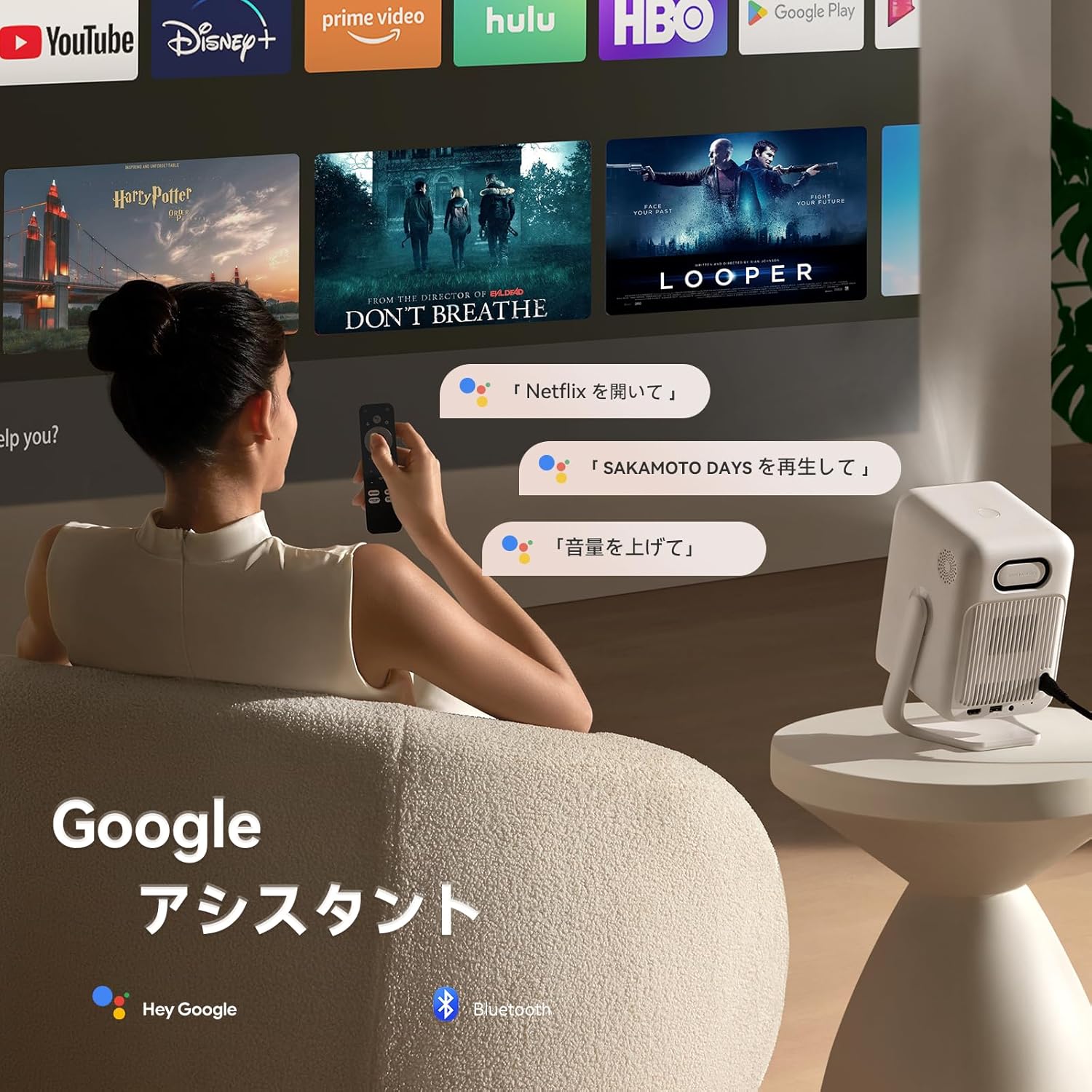
Image: A user utilizing the Google Assistant feature with the remote control to search for content.
5.3 Konektivita
The Wanbo T2 Ultra offers multiple connectivity options for various devices.
5.3.1 Připojení HDMI
- Connect an HDMI cable from your external device (e.g., laptop, game console) to the HDMI port on the projector.
- The projector will automatically detect the HDMI input. If not, navigate to Zdroj signálu and select the corresponding HDMI input.
Video: Demonstrates HDMI connection. Note: This video may feature a different projector model but demonstrates the general process.
5.3.2 Připojení USB
- Vložte paměťové zařízení USB do portu USB na projektoru.
- A notification will appear on the screen. Select to open the file manager and browse your media.
Video: Demonstrates USB connection. Note: This video may feature a different projector model but demonstrates the general process.
5.3.3 Připojení Bluetooth
- Přejít na Nastavení > Bluetooth & Accessories.
- Ujistěte se, že je povoleno Bluetooth.
- Vybrat Přidat zařízení and choose your Bluetooth device (e.g., headphones, speakers) from the list to pair.
Video: Illustrates Bluetooth connection steps. Note: This video may feature a different projector model but demonstrates the general process.
5.3.4 Wireless Screen Mirroring (Chromecast/AirPlay)
The projector has built-in Chromecast for seamless screen mirroring from iOS and Android devices.
- Ensure your mobile device and projector are connected to the same Wi-Fi network.
- On your mobile device, open a compatible app (e.g., YouTube, Netflix) and tap the Cast icon to select the projector.
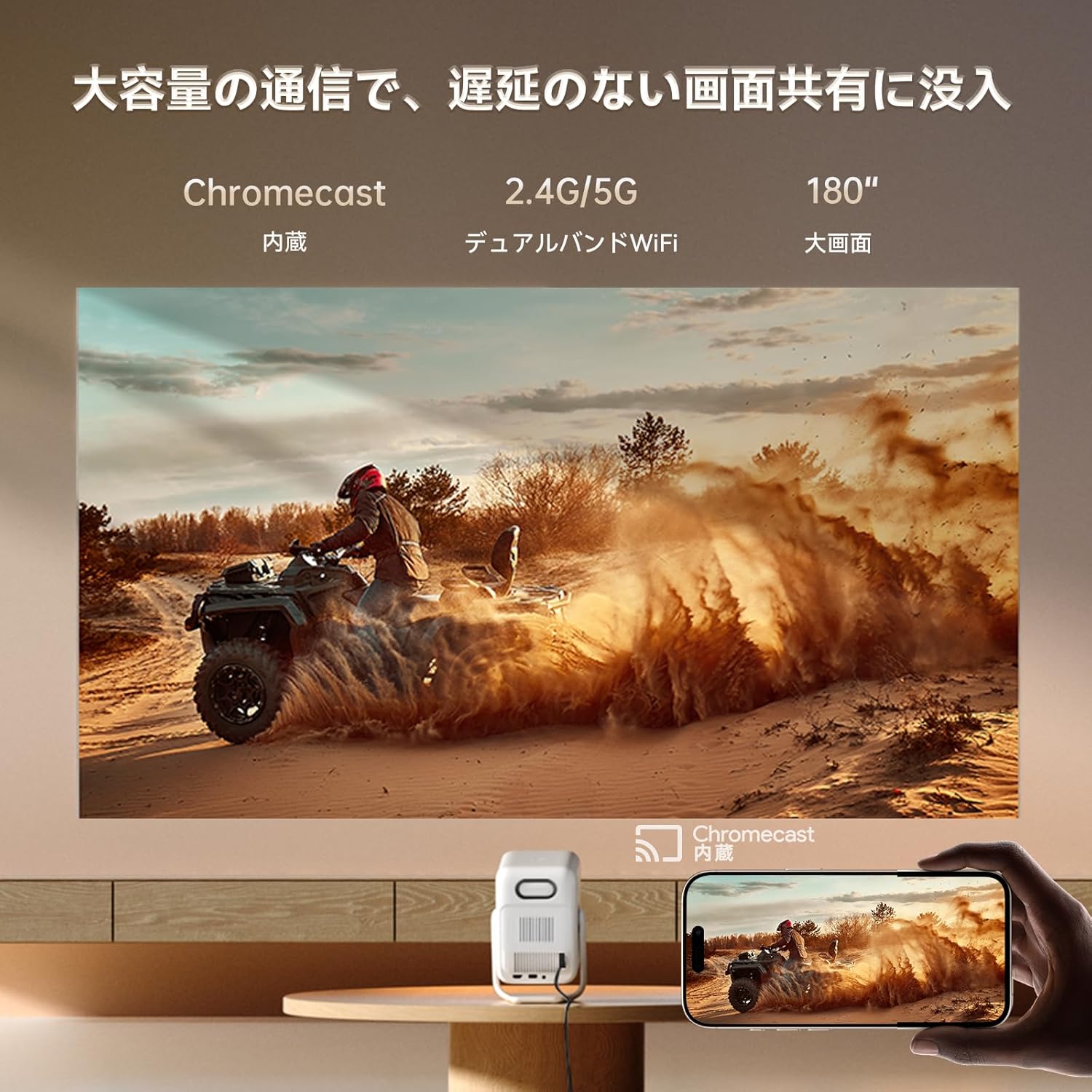
Image: A smartphone wirelessly casting content to the projector, demonstrating Chromecast functionality.
5.4 Nastavení zvuku
The projector features dual 5W HiFi speakers (10W total) with an independent DSP amplifier for rich sound. You can also connect external audio devices.
5.4.1 Nastavení zvukových režimů
- Přejít na Nastavení > Displej a zvuk > Zvukové efekty.
- Choose from various sound modes like Standard, Movie, Music, News, or Sports to optimize audio for your content.
5.4.2 Režim Bluetooth reproduktoru
You can use the projector as a standalone Bluetooth speaker.
- Na domovské obrazovce vyberte možnost Hudba Bluetooth.
- On your mobile device, enable Bluetooth and connect to the projector (device name: ISINBOX_AC311 or similar).
Video: Demonstrates Bluetooth speaker mode. Note: This video may feature a different projector model but demonstrates the general process.
6. Údržba
6.1 Čištění
- Čočka: Use a soft, lint-free cloth or lens cleaning paper to gently wipe the lens. Avoid abrasive materials or excessive pressure.
- Vnější: Vnější povrch projektoru otřete měkkým, suchým hadříkem. Nepoužívejte tekuté čisticí prostředky ani rozpouštědla.
- Průduchy: Regularly clean the ventilation grilles to prevent dust buildup, which can affect performance and lifespan. Use a soft brush or compressed air.
6.2 Skladování
- Projektor skladujte na chladném a suchém místě mimo dosah přímého slunečního záření a extrémních teplot.
- If storing for an extended period, place the projector in its original packaging or a protective case to prevent dust accumulation and damage.
7. Řešení problémů
If you encounter issues with your Wanbo T2 Ultra projector, refer to the following common solutions:
| Problém | Možná příčina | Řešení |
|---|---|---|
| No image/Power off | Power cable disconnected; Projector off | Check power connections; Press power button |
| Rozmazaný obraz | Mimo zaostření; Nesprávné lichoběžníkové zkreslení | Use auto-focus or manual focus; Adjust keystone correction |
| Žádný zvuk | Volume too low; Muted; Incorrect audio output | Increase volume; Unmute; Check audio settings |
| Problémy s připojením k Wi-Fi/Bluetooth | Incorrect password; Device out of range; Interference | Verify password; Move closer to router/device; Reduce interference |
| Dálkové ovládání nefunguje | Low battery; Obstruction; Not paired | Replace batteries; Remove obstructions; Re-pair remote |
8. Specifikace
| Funkce | Specifikace |
|---|---|
| Značka | WANBO |
| Model | T2 Ultra |
| Operační systém | Android TV 11.0 |
| Jas | 500 ANSI Lumens |
| Nativní rozlišení | 1920 x 1080 pixelů (Full HD) |
| Poměr házení | 1.2:1 |
| Reproduktor | 10W HiFi Stereo (Dual 5W) |
| Konektivita | HDMI (ARC), USB, 3.5mm Audio Jack, 5G Wi-Fi, Bluetooth |
| Speciální funkce | Auto-Focus, Auto Keystone Correction, Auto Screen Adjustment, Obstacle Avoidance, Digital Zoom (50-100%), Chromecast Built-in |
| Rozměry (Š x H x V) | 14.48 x 14.22 x 21.84 cm |
| Hmotnost | 2.2 kg |
9. Záruka a podpora
9.1 Záruka na produkt
The Wanbo T2 Ultra projector comes with a 12-month warranty covering quality-related issues. For customers who follow the official Wanbo social media accounts (@wanboglobal), the product warranty is automatically extended to 18 months.
9.2 Zákaznická podpora
For any questions or support needs, please contact us:
- E-mail: support@szwanbo.net
We aim to respond to all inquiries within 24 hours. Lifetime support is provided for product usage.