
1. Úvod
Welcome to the HP OmniDesk Desktop PC user manual. This document provides essential information to help you set up, operate, and maintain your new desktop computer. The HP OmniDesk M02-0310 is designed for daily productivity, offering powerful performance and a modern design. Please read this manual thoroughly to ensure optimal use and longevity of your device.
2. Konec produktuview
The HP OmniDesk Desktop PC M02-0310 combines powerful performance with a modern, gray wood-inspired design. It is equipped with an AMD Ryzen 5 8500G processor, 8 GB DDR5 RAM, and a 512 GB PCIe Gen4 NVMe M.2 SSD for efficient multitasking and fast storage. Integrated AMD Radeon 740M Graphics provide impressive visual fidelity.
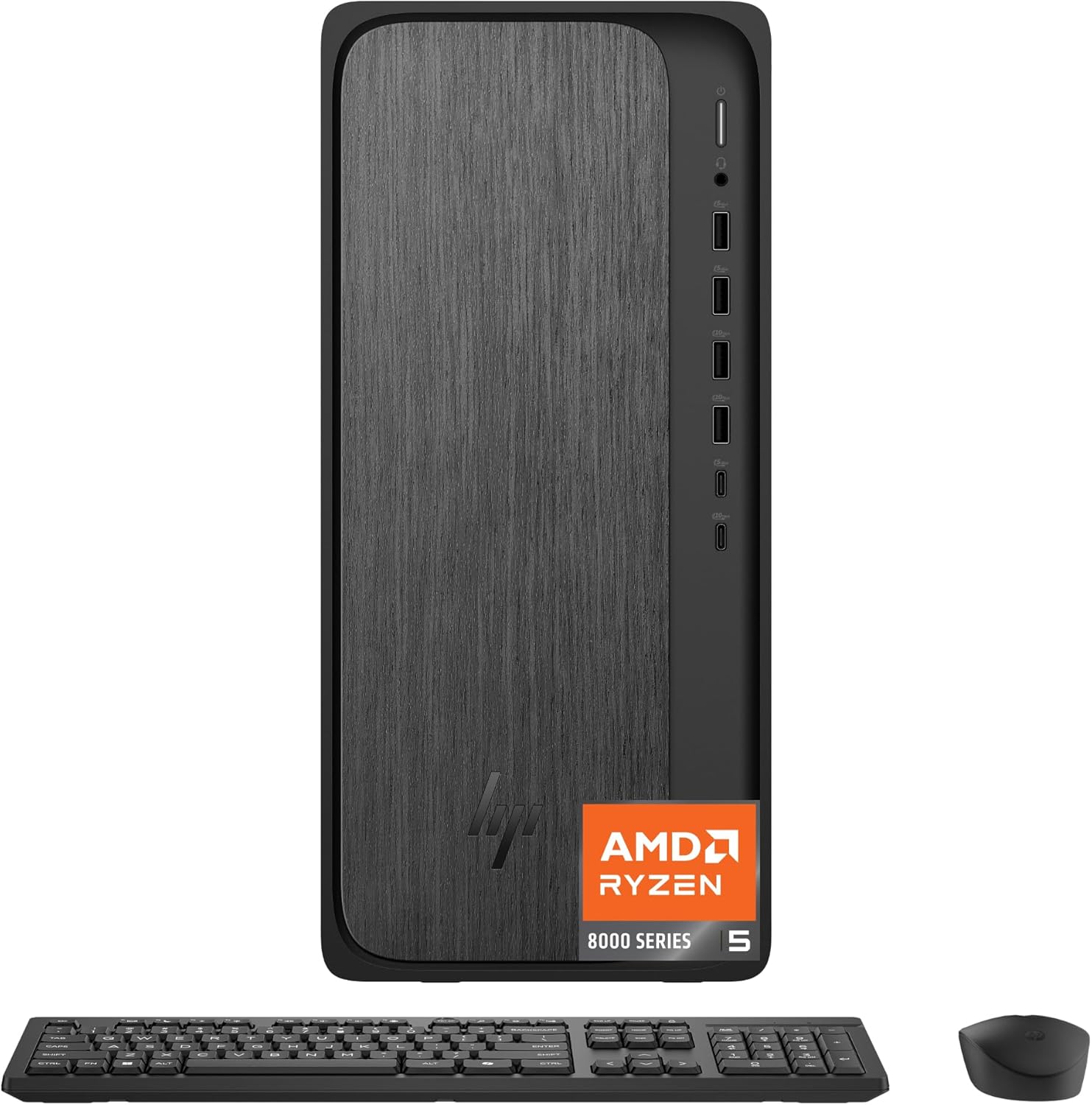
Obrázek 2.1: Přední strana view of the HP OmniDesk Desktop PC, accompanied by the included wireless keyboard and mouse.
Klíčové vlastnosti:
- Procesor: AMD Ryzen 5 8500G for efficient and responsive performance.
- Grafika: AMD Radeon 740M Graphics for immersive visuals.
- Paměť: 8 GB DDR5 RAM for enhanced multitasking.
- Skladování: 512 GB PCIe Gen4 NVMe M.2 SSD for fast boot times and data access.
- Operační systém: Windows 11 Home with Microsoft Copilot integration.
- Konektivita: Wi-Fi 6 and Bluetooth 5.4 for fast wireless connections.
- Podpora zobrazení: Quad display support for expanded workspace.
- Design: Modern gray wood-inspired trim, incorporating recycled materials.
Co je v krabici:

Obrázek 2.2: Ilustrace položek obsažených v balení produktu.
- HP OmniDesk Desktop M02-0310 PC
- Černá bezdrátová klávesnice HP
- Černá bezdrátová myš HP
- Napájecí zdroj s výkonem 280 W a certifikací 80 Plus Platinum
- Pokyny k nastavení
3. Nastavení
Follow these steps to set up your HP OmniDesk Desktop PC.
3.1 Rozbalení a umístění
- Opatrně vyjměte všechny součásti z obalu.
- Place the desktop tower on a stable, flat surface with adequate ventilation. Ensure no vents are obstructed.
3.2 Připojení periferních zařízení
Connect your monitor, keyboard, mouse, and power supply as described below.

Image 3.1: Detailed diagram showing the location and type of front and rear ports on the HP OmniDesk Desktop PC.
- Monitor: Connect your monitor to the HDMI Out or DisplayPort 1.4 on the rear of the PC.
- Klávesnice a myš: Connect the wireless keyboard and mouse via their respective USB receivers to any available USB Type-A ports.
- Moc: Connect the power supply cable to the PC's power input and then to a wall outlet.
- Síť (volitelné): Pro kabelové připojení připojte ethernetový kabel k portu RJ-45 na zadní straně.
3.3 Počáteční spuštění a nastavení systému Windows
- Stiskněte tlačítko napájení na přední straně počítače.
- Follow the on-screen instructions to complete the Windows 11 Home setup. This includes selecting your region, language, and setting up your Microsoft account.
- Allow the system to install any necessary updates.
4. Návod k obsluze
This section covers the basic operation of your HP OmniDesk Desktop PC.
4.1 Zapnutí/vypnutí
- Zapnutí: Stiskněte tlačítko napájení, které se nachází na přední straně počítače.
- Vypnout: V systému Windows klikněte na tlačítko Start a poté vyberte Napájení > Vypnout.
- Restartovat: V systému Windows klikněte na tlačítko Start a poté vyberte Napájení > Restartovat.
- Spát: V systému Windows klikněte na tlačítko Start a poté vyberte Napájení > Režim spánku.
4.2 Síťové připojení
- Wi-Fi 6: To connect to a wireless network, click the network icon in the taskbar, select your desired Wi-Fi network, and enter the password if prompted.
- Bluetooth 5.4: Chcete-li spárovat zařízení Bluetooth, přejděte do Nastavení systému Windows > Bluetooth a zařízení a podle pokynů přidejte nové zařízení.
4.3 Using Ports
The HP OmniDesk features a variety of ports for connecting external devices.

Image 4.1: Visual representation of the HP OmniDesk's connectivity options, including various ports, Wi-Fi 6, and Bluetooth 5.4.
- Přední porty: Headphone/microphone combo, USB Type-A 5Gbps, USB Type-A 10Gbps, USB Type-C 5Gbps, USB Type-C 10Gbps.
- Zadní porty: 4 USB 2.0 Type-A, 1 RJ-45 (Ethernet), 1 HDMI Out, 1 DisplayPort 1.4.
4.4 Microsoft Copilot
Microsoft Copilot is integrated into Windows 11 Home to assist with productivity and creativity. Access Copilot via the dedicated key on your keyboard or through the taskbar icon for personalized AI assistance.
4.5 Nastavení více displejů
The HP OmniDesk supports up to four displays. To configure multiple monitors:
- Connect additional monitors to the available HDMI Out and DisplayPort 1.4 ports.
- Klikněte pravým tlačítkem myši na plochu a vyberte možnost „Nastavení zobrazení“.
- Arrange your displays and choose your preferred display mode (e.g., Extend, Duplicate).
4.6 MyHP Software
Utilize the MyHP software to customize, optimize, and secure your device. It provides tips, tricks, easy-to-access settings, and helpful messages to ensure smooth operation.
5. Údržba
Proper maintenance ensures the longevity and optimal performance of your HP OmniDesk Desktop PC.
5.1 Čištění
- Vnější: Použijte měkký hadřík, který nepouští vlákna dampOpláchněte vodou nebo jemným čisticím roztokem. Vyhněte se agresivním chemikáliím.
- Průduchy: Periodically clean dust from the ventilation grilles using compressed air to prevent overheating.
5.2 Aktualizace softwaru
Regularly check for and install Windows updates and HP driver updates to ensure system stability, security, and performance. Windows updates can be managed via Settings > Windows Update.
5.3 Environmentální hlediska
The HP OmniDesk Desktop PC is designed with sustainability in mind.

Image 5.1: Information highlighting the HP OmniDesk's construction with recycled materials and its EPEAT Gold with Climate+ and ENERGY STAR certifications.
- Vyrobeno z recyklovaného plastu a recyklovaného kovu.
- EPEAT Gold with Climate+ certified.
- Certifikace ENERGY STAR pro energetickou účinnost.
6. Řešení problémů
This section addresses common issues you might encounter with your HP OmniDesk Desktop PC.
6.1 Bez napájení
- Ensure the power cable is securely connected to both the PC and a working power outlet.
- Ověřte funkčnost elektrické zásuvky zapojením jiného zařízení.
- Zkontrolujte napájecí jednotku, zda nesvítí nějaké kontrolky.
6.2 Žádné zobrazení na monitoru
- Zkontrolujte, zda je monitor zapnutý a zda je správně vybrán jeho vstupní zdroj.
- Check that the video cable (HDMI or DisplayPort) is securely connected to both the PC and the monitor.
- Try connecting the monitor to a different video port on the PC, if available.
6.3 Problémy s připojením k síti
- Wi-Fi: Restart your router and modem. Ensure Wi-Fi is enabled in Windows settings.
- Kabelové (Ethernet): Check the Ethernet cable connection. Verify your router is functioning correctly.
6.4 Peripheral Devices Not Responding
- Ensure USB receivers for wireless devices are properly inserted into a USB port.
- Check battery levels for wireless keyboard and mouse.
- Zkuste zařízení připojit k jinému USB portu.
7. Specifikace
Detailed technical specifications for the HP OmniDesk Desktop PC M02-0310.

Image 7.1: Diagram illustrating the physical dimensions of the HP OmniDesk Desktop PC.
| Funkce | Specifikace |
|---|---|
| Číslo modelu | M02-0310 (B5RQ9AA#ABA) |
| Procesor | AMD Ryzen 5 8500G (5 GHz) |
| BERAN | 8 GB DDR5 (5200 MHz) |
| Skladování | 512GB PCIe Gen4 NVMe M.2 SSD |
| Grafika | Grafická karta AMD Radeon 740M (integrovaná) |
| Operační systém | Windows 11 Home |
| Bezdrátové připojení | Wi-Fi 6 (802.11ax), Bluetooth 5.4 |
| Přední porty | Kombinace sluchátek/mikrofonu, USB typu A 5 Gb/s, USB typu A 10 Gb/s, USB typu C 5 Gb/s, USB typu C 10 Gb/s |
| Zadní porty | 4 USB 2.0 Type-A, 1 RJ-45, 1 HDMI Out, 1 DisplayPort 1.4 |
| Napájení | 280 W, certifikace 80 Plus Platinum |
| Rozměry (DxŠxV) | 13.27 x 6.1 x 12.4 palce |
| Hmotnost | 11.78 libry |
| Barva | Gray wood, jack black chassis |
8. Záruka a podpora
Your HP OmniDesk Desktop PC M02-0310 comes with comprehensive support and warranty coverage.
8.1 Omezená záruka na hardware
This HP computer includes a 1-year limited hardware warranty, covering defects in materials and workmanship under normal use.
8.2 Technická podpora
You are entitled to 1-year limited technical support for software and initial setup assistance. For support, please visit the official HP support webwebu nebo se obraťte na zákaznický servis HP.
Pro další informace a zdroje navštivte prosím Oficiální HP Webmísto.