
1. Úvod
This manual provides essential instructions for setting up, operating, maintaining, and troubleshooting your CRUA 32-inch 4K UHD 160Hz Curved Gaming Monitor (Model CR320A). Please read this manual thoroughly before using the product to ensure proper functionality and to prevent damage.
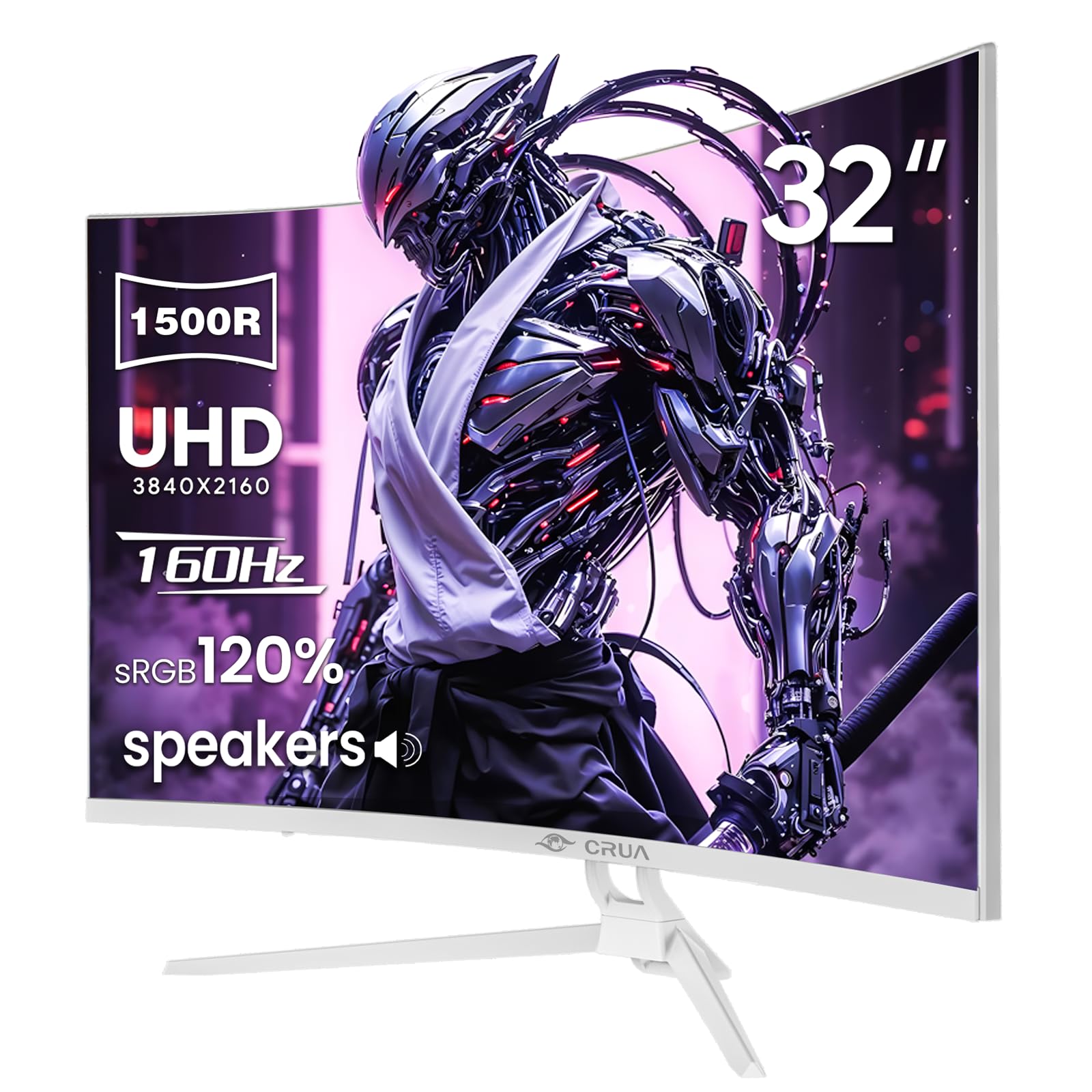
Obrázek 1: Přední strana view of the CRUA 32-inch 4K UHD 160Hz Curved Gaming Monitor.
2. Co je v krabici
Ověřte, zda jsou v balení přítomny všechny součásti:
- CRUA 32-inch Monitor
- Monitor Base and Support
- Kabel DisplayPort (DP)
- Napájecí jednotka
- Uživatelská příručka (tento dokument)
3. Nastavení
3.1 Sestavení stojanu
- Carefully remove the monitor from its packaging, placing it face down on a soft, clean surface to prevent screen damage.
- Attach the monitor support arm to the back of the monitor. Ensure it clicks securely into place or is fastened with screws if provided.
- Connect the base to the support arm and secure it with the provided screw(s).
Note: The included stand is fixed and does not offer height, tilt, or swivel adjustments. For adjustable positioning, the monitor supports VESA wall mounting (75mm x 75mm) using a compatible VESA mount (sold separately).

Obrázek 2: Zadní view of the monitor with stand attachment area and RGB lighting.
3.2 Propojovací kabely
- Connect the DisplayPort (DP) cable from your computer's graphics card to the DP 1.4 port on the monitor. Alternatively, use an HDMI 2.1 cable for compatible devices.
- Connect the power supply unit to the monitor's power input, then plug the power cord into an electrical outlet.
- Ujistěte se, že jsou všechna připojení bezpečná.

Figure 3: Monitor connectivity ports including HDMI 2.1, DP 1.4, and audio out.
4. Obsluha monitoru
4.1 Zapnutí/vypnutí
Stisknutím tlačítka napájení, které se obvykle nachází na zadní nebo pravé dolní straně monitoru, monitor zapnete nebo vypnete. Kontrolka napájení se rozsvítí, když je monitor zapnutý.
4.2 Nabídka na obrazovce (OSD)
The OSD menu allows you to adjust various monitor settings. Use the navigation buttons (joystick or individual buttons) typically found on the back or bottom of the monitor to access and navigate the OSD.
- Vstupní zdroj: Select between DisplayPort and HDMI inputs.
- Nastavení obrazu: Upravte jas, kontrast, ostrost a teplotu barev.
- Nastavení barev: Fine-tune color gamut (120% sRGB), gamma, and color depth (8-bit).
- Herní nastavení: Enable/disable AMD FreeSync, adjust refresh rate (144Hz/160Hz), and other gaming-specific features.
- Nastavení zvuku: Control volume for the built-in speakers or connected external audio devices.
- RGB osvětlení: Customize the RGB lighting effects on the back of the monitor.

Figure 4: Visual representation of color and brightness capabilities.
4.3 AMD FreeSync
This monitor supports AMD FreeSync technology, which synchronizes the monitor's refresh rate with your graphics card's frame rate to eliminate screen tearing and stuttering. Ensure FreeSync is enabled in both the monitor's OSD and your graphics card's control panel for optimal performance.

Figure 5: Visualizing the benefit of 160Hz refresh rate and FreeSync.
4.4 Curved Display (1500R)
The 1500R curvature of the screen provides an immersive viewing experience, reducing eye strain and enhancing depth perception, especially beneficial for gaming and multimedia content.

Figure 6: The 1500R curved screen design.
5. Údržba
5.1 Čištění monitoru
- Před čištěním vždy vypněte monitor a odpojte napájecí kabel.
- Použijte měkký hadřík, který nepouští vlákna dampvodou nebo neabrazivním čističem obrazovek.
- Nestříkejte čistič přímo na obrazovku. Nejprve jej naneste na hadřík.
- Nepoužívejte alkohol, amoniak ani abrazivní čisticí prostředky, protože by mohly poškodit povrch obrazovky.
5.2 Obecná péče
- Chraňte monitor před přímým slunečním zářením, nadměrným teplem a vlhkostí.
- Zajistěte dostatečné větrání kolem monitoru, aby nedošlo k jeho přehřátí.
- Nepokládejte na monitor ani na jeho kabely těžké předměty.
6. Řešení problémů
6.1 Bez napájení
- Zkontrolujte, zda je napájecí kabel bezpečně připojen k monitoru i k elektrické zásuvce.
- Ověřte, zda zásuvka funguje správně, zapojením jiného zařízení.
- Ujistěte se, že je stisknuto tlačítko napájení monitoru.
6.2 Žádný signál
- Confirm that the video cable (DP or HDMI) is securely connected to both the monitor and your computer/device.
- Ujistěte se, že je v nabídce OSD monitoru vybrán správný vstupní zdroj.
- Zkontrolujte, zda je váš počítač/zařízení zapnutý a zda vydává signál.
- Zkuste jiný video kabel nebo port, pokud je k dispozici.
6.3 Screen Flickering or Tearing
- Ujistěte se, že je funkce AMD FreeSync povolena jak v nastavení OSD monitoru, tak i v nastavení grafické karty.
- Ověřte, zda jsou ovladače grafické karty aktuální.
- Check the refresh rate setting in your operating system's display settings; it should be set to 144Hz or 160Hz.
6.4 Washed Out Colors or Poor Picture Quality
- Access the OSD menu and adjust picture settings such as brightness, contrast, and color temperature.
- Obnovte tovární nastavení monitoru pomocí nabídky OSD.
- Ensure your graphics card output settings are correctly configured for the monitor's resolution (3840x2160) and color depth.
6.5 No Sound from Built-in Speakers
- Check the volume level in the monitor's OSD menu.
- Verify that the audio output on your computer/device is set to the monitor.
- Ensure the video cable (DP or HDMI) supports audio transmission.
7. Specifikace
| Funkce | Specifikace |
|---|---|
| Číslo modelu | CR320A |
| Velikost obrazovky | 32 palce |
| Typ panelu | VA |
| Zakřivení | 1500R |
| Rezoluce | 4K UHD (3840 x 2160 pixelů) |
| Poměr stran | 16:9 |
| Obnovovací frekvence | 144Hz / 160Hz |
| Jas | 320 kandel (cd/m²) |
| Kontrastní poměr | 3000:1 |
| Barevný gamut | 120% sRGB |
| Barevná hloubka | 8bitový |
| Povrch obrazovky | Matný |
| Konektivita | HDMI 2.1, DisplayPort 1.4 |
| Zvuk | Vestavěné reproduktory |
| Kompatibilita s montáží VESA | Rozměr 75 mm x 75 mm |
| Rozměry produktu (D x Š x V) | 1 x 28 x 16.6 palce |
| Hmotnost položky | 16.57 libry |
8. Záruka a podpora
8.1 Product Assurance
CRUA is committed to providing high-quality computer monitors and premium services. We offer assurances for our products to ensure customer satisfaction.
8.2 Zákaznická podpora
If you encounter any issues or have questions regarding your CRUA monitor, please contact our customer support team. We are available to assist you and resolve any problems you may experience.
For support, please refer to the contact information provided on the official CRUA webwebu nebo v dokumentaci k nákupu.