
Zavedení
Thank you for choosing the NEWFAST WiFi 6E PCIe Network Card. This card is designed to provide high-speed wireless connectivity and Bluetooth functionality for your desktop PC. Featuring the Intel AX210 chipset, it supports the latest WiFi 6E standard, offering tri-band operation (2.4GHz, 5.8GHz, and 6GHz) with speeds up to 5374Mbps. The integrated Bluetooth 5.3 ensures fast and reliable connections to your wireless peripherals. This manual will guide you through the installation process, operation, and provide troubleshooting tips.

Nadview of the NEWFAST WiFi 6E PCIe Card's multi-performance features, including WiFi 6E standard, Bluetooth 5.3 upgrade, Tri-Band support (6GHz/5.8GHz/2.4GHz), 5374Mbps speed, WPA-PSK/WPA2-PSK/WPA3 security, OFDMA, MU-MIMO technology, and power saving capabilities.
Co je v krabici
Zkontrolujte prosím obsah balení, abyste se ujistili, že jsou přítomny všechny položky:
- 1 x NEWFAST WiFi 6E PCIe Network Card
- 1 x Multi-language Instruction Manual (this document)
- 1 x Bluetooth Cable
- 2 x 5dBi antény
- 2 x šrouby
Specifikace
| Funkce | Detail |
|---|---|
| Značka | NEWFAST |
| Model | NF-P395 |
| Čipová sada | Intel AX210 |
| Bezdrátové Standardní | WiFi 6E (IEEE 802.11ax) |
| Data Link Protocol | IEEE 802.11ac/a/b/g/n, IEEE 802.11ax |
| Frekvenční pásma | 2.4 GHz, 5.8 GHz, 6 GHz (třípásmové) |
| Max. Rychlost přenosu dat | 5374 Mbps (2.4GHz: 574Mbps, 5.8GHz: 2400Mbps, 6GHz: 2400Mbps) |
| Verze Bluetooth | Bluetooth 5.3 |
| Hardwarové rozhraní | PCI-E X1, X4, X8, X16 (PCI slots not supported) |
| Antény | 2 x 5dBi externí antény |
| Bezpečnostní funkce | WPA-PSK/WPA2-PSK/WPA3 |
| Podporovaný OS | Windows 10 (64bitový), Windows 11 (64bitový) |
| Rozměry (balení) | 19.9 x 11.9 x 3.4 cm |
| Hmotnost položky | 230 g |

Detailed breakdown of WiFi 6E speeds across 6GHz, 5.8GHz, and 2.4GHz bands, highlighting the Intel AX210 chip and Bluetooth 5.3 capabilities.
Pokyny pro nastavení
1. Instalace hardwaru
- Vypněte počítač: Before starting, ensure your computer is completely powered off and unplugged from the power outlet.
- Otevřete skříň počítače: Pro přístup k základní desce sejměte boční panel skříně počítače.
- Vyhledejte slot PCI-E: Find an available PCI-E X1, X4, X8, or X16 slot on your motherboard. Note: Standard PCI slots are not compatible.
- Insert the WiFi Card: Carefully align the NEWFAST WiFi 6E PCIe card with the chosen PCI-E slot and press it firmly until it is securely seated.
- Zabezpečte kartu: Use the provided screw to fasten the card's bracket to your PC case.
- Připojení kabelu Bluetooth: Connect one end of the provided Bluetooth cable to the 9-pin USB header on the WiFi card and the other end to an available F_USB header on your motherboard. This connection is essential for Bluetooth functionality.
- Připojit antény: Screw the two 5dBi external antennas onto the connectors at the back of the WiFi card. Adjust their orientation for optimal signal reception.
- Zavřít PC skříň: Nasaďte zpět boční panel skříně počítače a znovu připojte napájecí kabel.

Illustration of compatible PCI-E slots on a desktop motherboard.
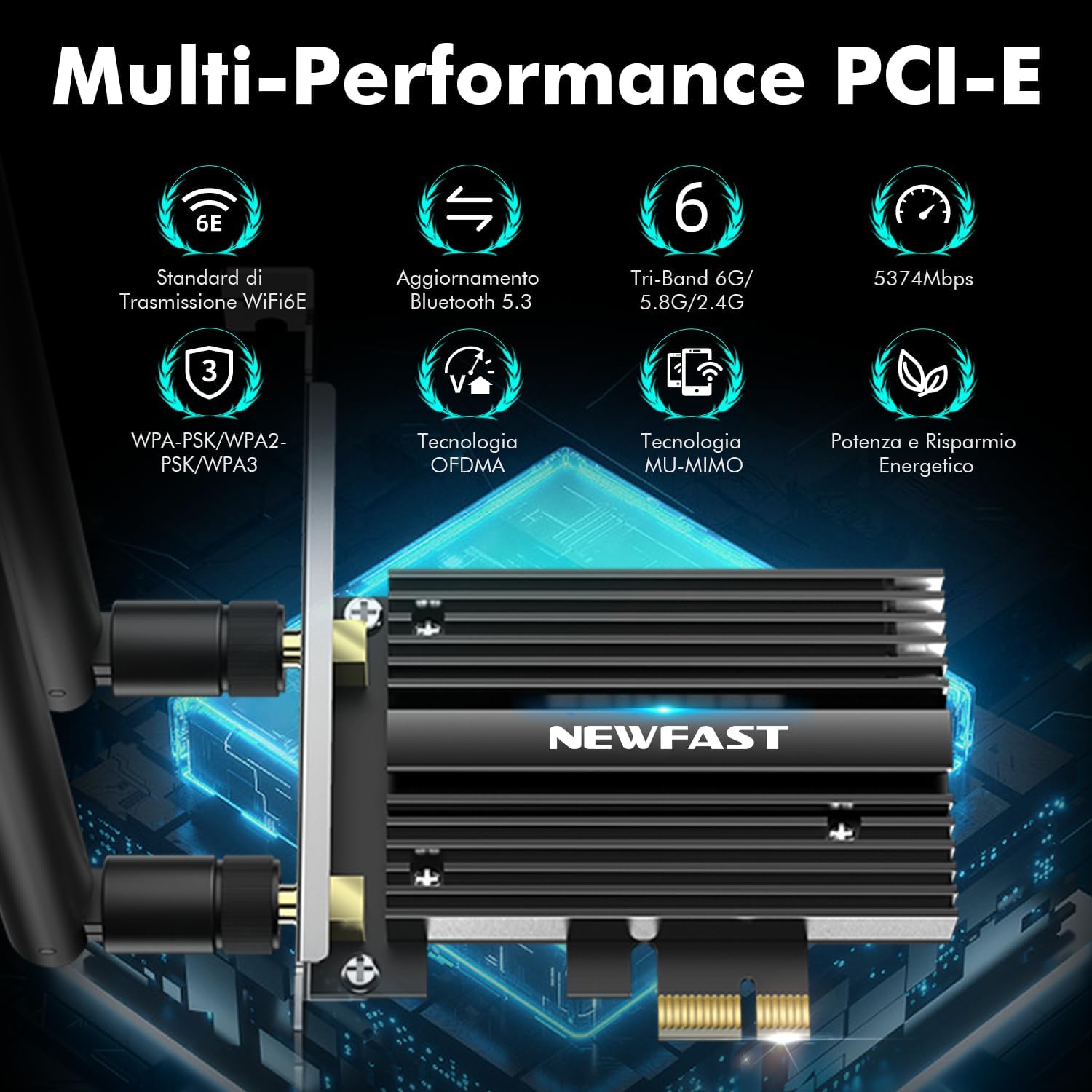
The NEWFAST WiFi 6E PCIe Card with its two external antennas.
2. Instalace ovladače
After hardware installation, power on your PC. You will need to install the drivers for both WiFi and Bluetooth functionality. Drivers are typically available on the manufacturer's website. If you do not have internet access, you may need to download them on another device and transfer them via USB.
- Stáhnout ovladače: Visit the NEWFAST official website or the Intel support page for the AX210 chipset to download the latest WiFi and Bluetooth drivers for Windows 10 (64-bit) or Windows 11 (64-bit).
- Nainstalujte ovladač WiFi: Locate the downloaded WiFi driver file (usually an executable .exe file) and run it. Follow the on-screen instructions to complete the installation.
- Nainstalujte ovladač Bluetooth: Similarly, locate and run the Bluetooth driver file. Follow the installation wizard.
- Restartujte počítač: After installing both drivers, restart your computer to ensure all changes take effect.

The WiFi card supports Windows 10 (64-bit) and Windows 11 (64-bit).
Návod k obsluze
1. Připojení k síti WiFi
- Nastavení sítě pro přístup: On your Windows desktop, click the WiFi icon in the system tray (usually bottom-right corner).
- Vyberte síť: A list of available WiFi networks will appear. Select your desired network.
- Zadejte heslo: Pokud se zobrazí výzva, zadejte bezpečnostní klíč sítě (heslo) a klikněte na tlačítko „Připojit“.
- Ověřit připojení: Once connected, the WiFi icon will indicate an active connection. You can now browse the internet.
2. Používání Bluetooth 5.3
Ensure the Bluetooth cable is correctly connected to your motherboard's F_USB header for Bluetooth functionality.
- Povolit Bluetooth: Go to Windows Settings > Devices > Bluetooth & other devices. Ensure Bluetooth is turned 'On'.
- Spárování zařízení: Klikněte na „Přidat Bluetooth nebo jiné zařízení“ a vyberte „Bluetooth“.
- Nastavit zařízení jako viditelné: Put your Bluetooth device (e.g., headphones, mouse, controller) into pairing mode. Refer to your device's manual for specific instructions.
- Vyberte a připojte se: Your PC will scan for nearby Bluetooth devices. Select your device from the list and follow any on-screen prompts to complete pairing.

The Bluetooth 5.3 feature allows connection to various peripherals with improved speed and range.
Údržba
The NEWFAST WiFi 6E PCIe Network Card is designed for reliable, long-term performance with minimal maintenance. Follow these guidelines:
- Udržujte ovladače aktualizované: Regularly check the NEWFAST or Intel website for the latest WiFi and Bluetooth drivers to ensure optimal performance and security.
- Zajistěte správné proudění vzduchu: Make sure your PC case has adequate ventilation to prevent overheating, which can affect the card's performance. The card's aluminum heatsink is designed for efficient heat dissipation.
- Clean Antennas: Occasionally wipe the antennas with a soft, dry cloth to remove dust.
- Vyhněte se fyzickému poškození: Handle the card with care during installation and avoid bending or stressing the antennas.
Odstraňování problémů
If you encounter issues with your NEWFAST WiFi 6E PCIe Network Card, refer to the following common problems and solutions:
- Bez WiFi připojení:
- Ensure the card is properly seated in the PCI-E slot.
- Verify that WiFi drivers are correctly installed and updated.
- Check if the antennas are securely attached.
- Confirm that your router is powered on and broadcasting a WiFi signal.
- Try restarting your PC and router.
- No Bluetooth Functionality:
- Ensure the Bluetooth cable is securely connected to both the WiFi card and the motherboard's F_USB header. This is crucial for Bluetooth.
- Verify that Bluetooth drivers are correctly installed and updated.
- Check Windows Bluetooth settings to ensure Bluetooth is enabled.
- Zkuste restartovat počítač.
- Pomalé rychlosti Wi-Fi:
- Ensure you are connected to a WiFi 6E compatible router for optimal speeds.
- Zkontrolujte, zda nedochází k rušení jinými elektronickými zařízeními.
- Pro lepší příjem signálu upravte orientaci antény.
- Aktualizujte firmware routeru.
- Ensure your PC is within a reasonable range of your WiFi router.
- Zařízení nebylo detekováno:
- Double-check all physical connections, including the PCI-E slot and Bluetooth cable.
- Ujistěte se, že máte operační systém Windows 10 (64bitový) nebo Windows 11 (64bitový).
- Check Device Manager in Windows for any unknown devices or driver errors.
Záruka a podpora
NEWFAST products are designed for quality and reliability. For specific warranty information, please refer to the warranty card included with your product or visit the official NEWFAST webmísto.
If you encounter any configuration issues, technical problems, or require further assistance, please do not hesitate to contact NEWFAST customer support. Our team is ready to help you.
- Online podpora: Visit the NEWFAST official webweb s nejčastějšími dotazy, ovladači ke stažení a kontaktními informacemi podpory.
- E-mailová podpora: Viz obal produktu nebo oficiální webweb s e-mailovou adresou zákaznické podpory.


