
Zavedení
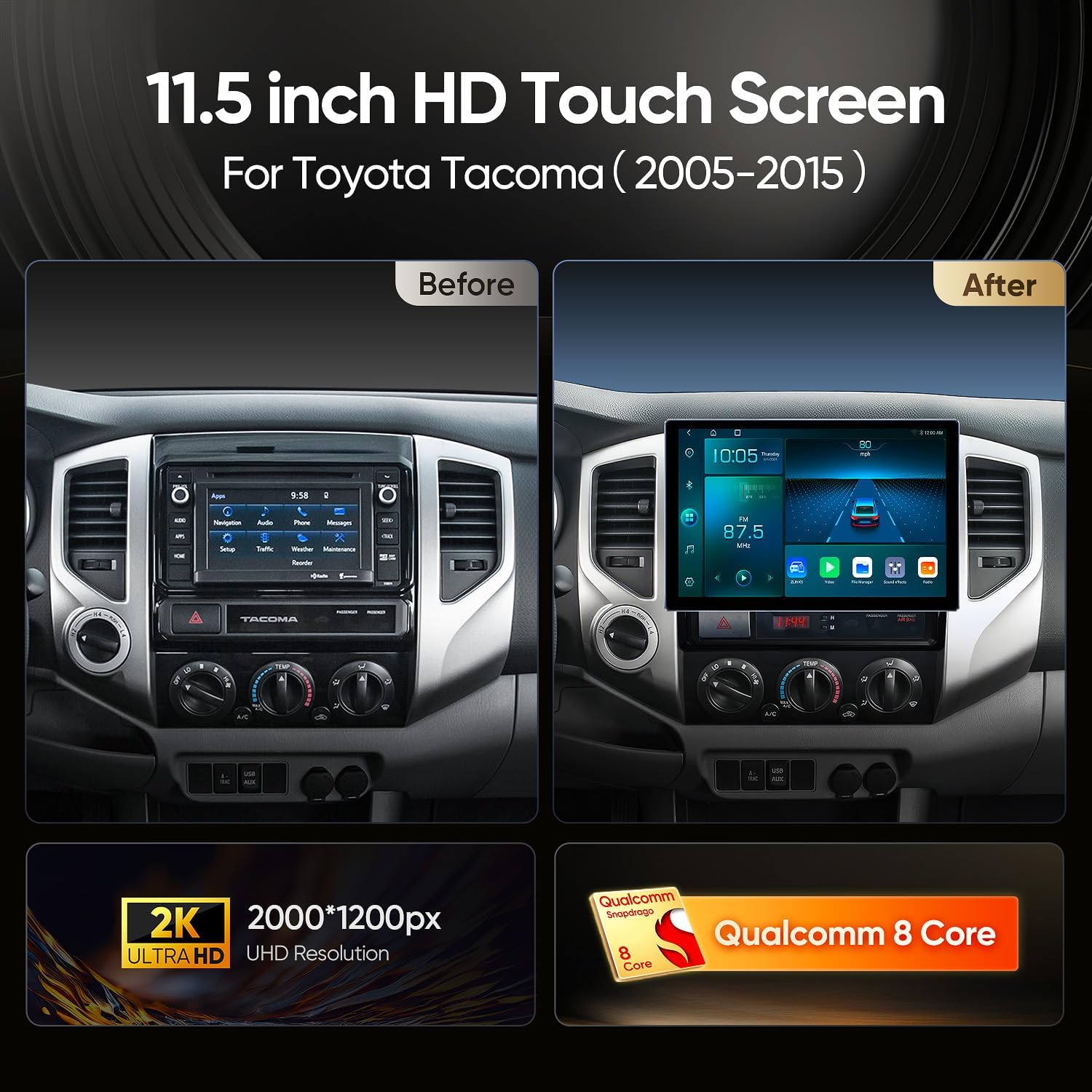
This manual provides detailed instructions for the installation, operation, and maintenance of your AINAVIGO 11.5-inch Android 13 Car Radio Stereo. Designed specifically for the Toyota Tacoma (2005-2015), this system offers an enhanced in-car experience with its ultra HD display, powerful 8-core CPU, and seamless smartphone integration. Please read this manual thoroughly before use to ensure proper functionality and safety.
Co je v krabici
Your AINAVIGO car radio stereo package includes the following components:
- Touchscreen host
- Touchscreen radio install kit
- HD couvací kamera
- Externí mikrofon *1
- USB Cables *2
- Complete set of special harness

Specifikace
| Hmotnost položky | 4.86 libry |
| Rozměry balení | 13.15 x 12.99 x 5.87 palce |
| Číslo modelu položky | 11.5inch 8Core 4GB+64GB |
| Velikost displeje | 11.5 palce |
| Záruka | 12 měsíců |
| Hlasový příkaz | Mikrofon, Dotyková obrazovka |
| Operační systém | Android 13, CarPlay & Android Auto |
| Speciální funkce | HD backup camera, Touchscreen, Wireless CarPlay & Android Auto |
| Technologie připojení | Bluetooth, Carplay&Android Auto, Ethernet, USB, Wi-Fi |
| Typ mapy | Severní Amerika |
Nastavení a instalace
This unit is specifically designed for the Toyota Tacoma (2005-2015) and includes a custom frame kit and dedicated wiring harness for a perfect fit. Professional installation is recommended.
Obecné kroky instalace
- Remove the original head unit: Carefully remove the existing car radio and associated trim.
- Disconnect wiring: Unplug all cables from the original head unit.
- Install the new unit: Attach the new AINAVIGO head unit to the dedicated frame.
- Připojte kabelový svazek: Connect the provided special harness to the new head unit and the vehicle's existing wiring.
- Připojení periferií: Attach the GPS antenna, external microphone, USB cables, and HD reversing camera.
- Zajistěte jednotku: Carefully slide the new head unit assembly into the dashboard and secure it with screws.
- Reinstall trim: Reattach any removed trim pieces.
Instalace záložní kamery
The included HD backup camera enhances safety by providing a clear view when reversing. Connect the camera to the designated input on the head unit and ensure proper wiring to the vehicle's reverse light circuit.

Instalační videa
For visual guidance, please refer to the following seller-provided installation videos:
Video 1: ASURE Car Stereo Radio Installation. This video demonstrates the installation process for a 12.3-inch or 13.1-inch car stereo radio, which shares similar steps with this 11.5-inch unit.
Video 2: How to install RUICAR car radio for your Tacoma 2005-2015. This video provides a step-by-step guide on installing a car radio specifically for Toyota Tacoma models from 2005 to 2015.
Video 3: How to Install Dasaita Head Unit - Toyota Tacoma. This video offers a detailed installation guide for a Dasaita head unit in a Toyota Tacoma, showcasing the process for similar car stereo upgrades.
Návod k obsluze
Bezdrátové CarPlay a Android Auto
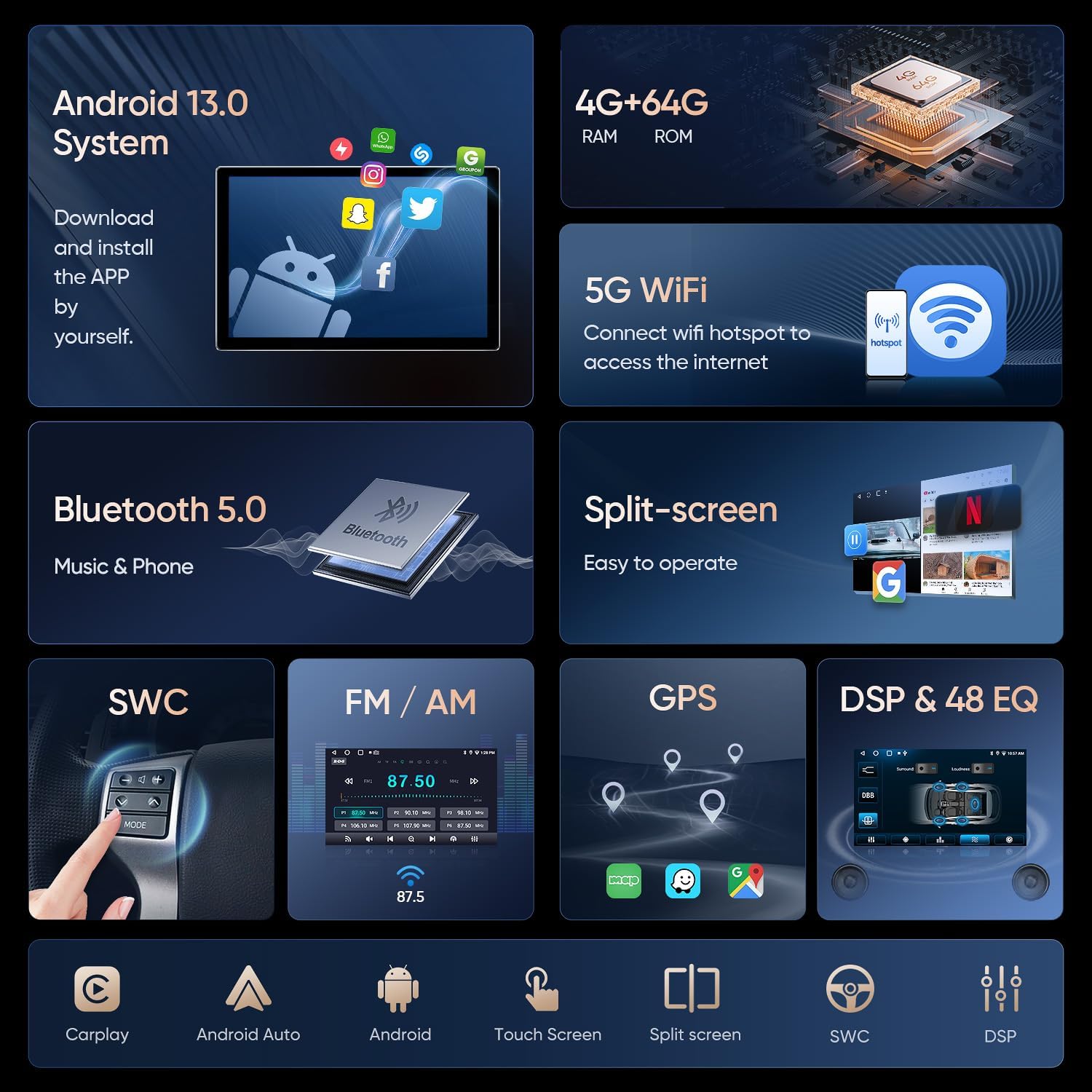
Connect your iPhone or Android device wirelessly to access your favorite apps, make calls, send messages, and navigate with ease. CarPlay and Android Auto integration ensures a seamless and safe driving experience.

Video 4: 11.5'' Car Stereo: CarPlay Setup. This video demonstrates the steps to set up and connect CarPlay on the 11.5-inch car stereo.
Kalibrace dotykové obrazovky
To ensure accurate touch response, you may need to calibrate the screen. This process typically involves pressing and holding five fingers on the screen for about 10 seconds until a calibration prompt appears. Follow the on-screen instructions to tap the indicated points.
Video 5: Essential Troubleshooting Guide. This video covers various common issues and includes instructions for screen calibration and steering wheel control programming.
Programování ovládání na volantu
To program your steering wheel controls, navigate to the car settings menu. Select 'SWC Type' and change it to 'Learning Type'. Enter the SWC setting interface and follow the on-screen prompts to assign functions to your steering wheel buttons. You can program functions for short press and long press actions.

Audio Features (DSP, FM/AM/RDS)
The unit features a built-in Digital Sound Processor (DSP) with 48-band EQ for customizable audio. Access FM/AM radio with RDS functionality for station information.
GPS navigace
Utilize the integrated GPS navigation system with pre-loaded North America maps. The 11.5-inch ultra HD display provides clear visuals for easy navigation.

Údržba
- Čištění obrazovky: Dotykovou obrazovku jemně otírejte měkkým hadříkem, který nepouští vlákna. Nepoužívejte abrazivní čisticí prostředky ani rozpouštědla.
- Aktualizace softwaru: Periodically check for system updates via the Android 13 smart system to ensure optimal performance and access to new features.
- Obecná péče: Ensure all connections remain secure and avoid exposing the unit to extreme temperatures or moisture.
Odstraňování problémů
For common issues and solutions, please refer to the troubleshooting guide provided by the seller:
Video 6: Fixes 90% of Common Issues: Essential Troubleshooting Guide. This video provides solutions for frequently encountered problems, including screen calibration and steering wheel control programming.
Záruka a podpora
The AINAVIGO 11.5-inch Android 13 Car Radio Stereo comes with a Záruka 12 měsíců. AINAVIGO is a leader in automotive electronics, offering high-quality products that enhance driving experiences. Our lineup includes large-screen car radios, rear-seat entertainment systems, and advanced vehicle monitoring solutions. With a focus on innovation, smart design, and reliability, AINAVIGO is the trusted choice for drivers and automotive professionals.
For any questions about compatibility, installation, or product support, our expert support team is available to assist you.
