
Zavedení
This manual provides detailed instructions for the setup, operation, and maintenance of your LENRUE E-1103 Computer Speaker Soundbar. Please read this manual thoroughly before using the product to ensure proper function and longevity.

Image: The LENRUE E-1103 Computer Speaker Soundbar, a sleek black soundbar with RGB lighting on the ends and a USB-A cable with a USB-C adapter.
Obsah balení
Ověřte, zda jsou v balení přítomny všechny položky:
- LENRUE E-1103 Computer Speaker Soundbar
- Adaptér USB-C
- Uživatelská příručka (tento dokument)
Konec produktuview
The LENRUE E-1103 features a compact soundbar design with integrated stereo speakers and touch-controlled ambient lighting. It connects via a single USB cable for both power and audio.
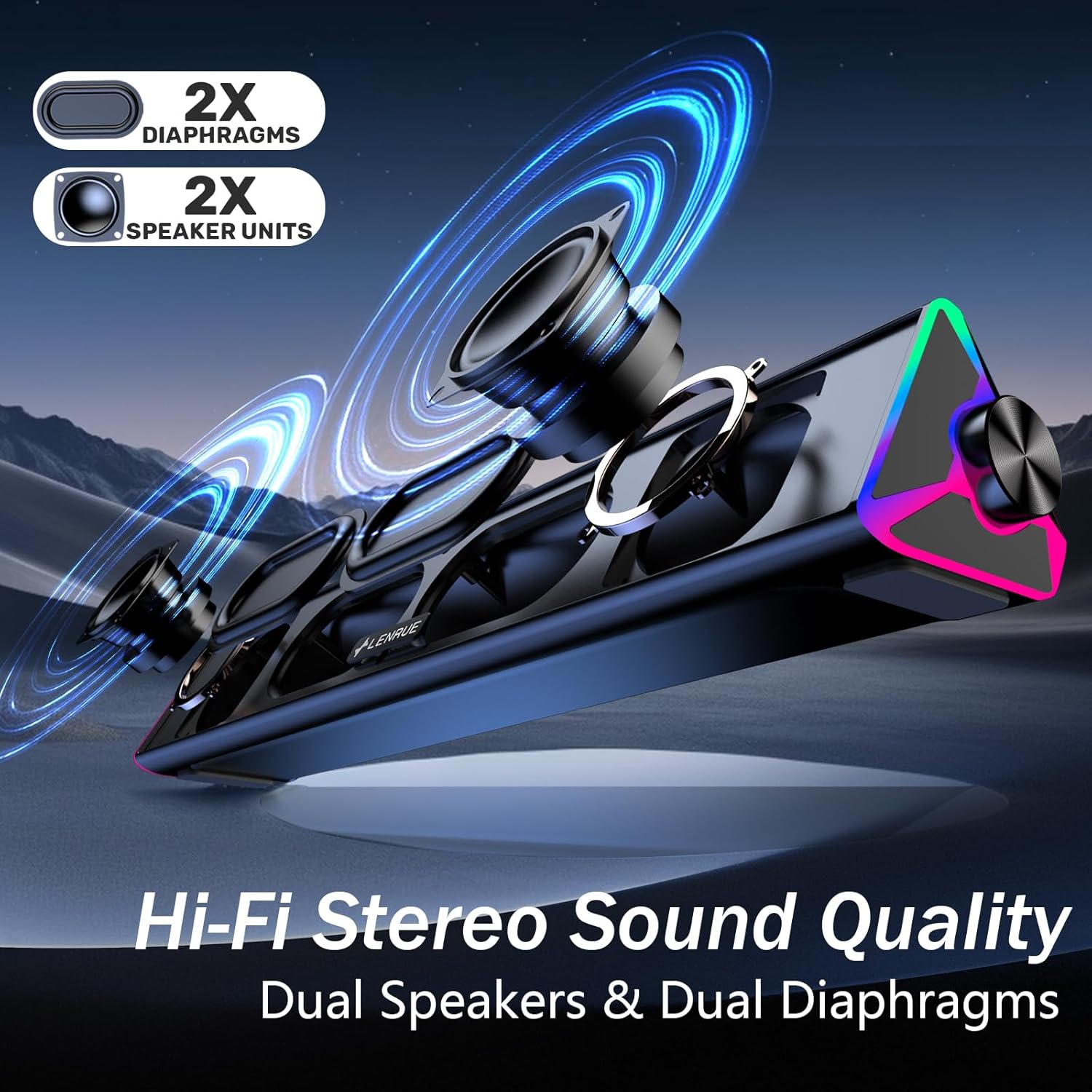
Obrázek: Explodoval view of the LENRUE E-1103 speaker, highlighting its dual speaker units and dual diaphragms for stereo sound.
Klíčové komponenty:
- Mřížka reproduktoru: Front-facing mesh covering the speaker drivers.
- Knoflík hlasitosti: Located on the right side, for adjusting audio output level.
- Dotykový senzor: Integrated into the right side for controlling the ambient lighting.
- USB Cable (USB-A): Main connection for power and audio.
- USB-C adaptér: For compatibility with USB-C ports.
- RGB osvětlení: Dynamic lighting effects on both ends of the soundbar.
Nastavení
Follow these steps to set up your LENRUE E-1103 speaker:
- Umístění: Position the soundbar on a stable surface, such as your desktop, beneath your monitor, or in front of your laptop. Ensure the speaker grille faces towards you for optimal sound delivery.
- Připojení k napájení a zvuku:
- Pro port USB-A: Plug the USB-A connector of the speaker's cable directly into an available USB-A port on your computer (desktop PC or laptop).
- Pro port USB-C: Attach the included USB-C adapter to the USB-A connector of the speaker's cable, then plug the USB-C adapter into an available USB-C port on your computer.

Image: A visual guide demonstrating how to connect the LENRUE E-1103 speaker to a laptop using either the standard USB-A cable or the included USB-C adapter.
The speaker is plug-and-play; no additional drivers or software installation is required.
- Počáteční nastavení hlasitosti: After connecting, ensure your computer's audio output is set to the LENRUE E-1103 speaker. Adjust the volume using the physical volume knob on the right side of the speaker. It is recommended to start with a lower volume and gradually increase it to a comfortable listening level.

Image: A diagram illustrating the compact dimensions of the LENRUE E-1103 speaker and its single USB cable for both power and audio, designed to minimize cable clutter.
Návod k obsluze
Ovládání hlasitosti:
The speaker features a rotary volume knob located on the right side. Rotate the knob clockwise to increase the volume and counter-clockwise to decrease it. For optimal sound, ensure your computer's system volume is also appropriately set.

Image: A three-step visual guide showing how to adjust the volume, including checking computer settings and using the speaker's physical volume knob.
Ambient Lighting Control:
The LENRUE E-1103 includes dynamic RGB lighting on both ends. To control the lighting:
- Zapnout/Vypnout: Gently touch the touch-sensitive area near the volume knob on the right side of the speaker. Each touch will toggle the lighting on or off.
- The lighting features a soft breathing effect, providing ambient illumination.

Image: A close-up of the right side of the LENRUE E-1103 speaker, highlighting the touch control icon for activating or deactivating the gentle breathing ambient lighting.
Údržba
Proper maintenance ensures the longevity and performance of your speaker:
- Čištění: Use a soft, dry, lint-free cloth to wipe the surface of the speaker. Do not use liquid cleaners, aerosols, or solvents, as these may damage the finish or internal components.
- Skladování: Pokud reproduktor delší dobu nepoužíváte, skladujte jej na chladném a suchém místě mimo dosah přímého slunečního záření a extrémních teplot.
- Vyhněte se vlhkosti: Keep the speaker away from water and high humidity environments.
- Zacházejte opatrně: Vyvarujte se pádu reproduktoru nebo jej nevystavujte silným nárazům.
Odstraňování problémů
If you encounter issues with your LENRUE E-1103 speaker, refer to the following common problems and solutions:
| Problém | Možná příčina | Řešení |
|---|---|---|
| Z reproduktoru nevychází žádný zvuk. |
|
|
| Zvuk je zkreslený nebo nejasný. |
|
|
| Ambient lights are not working. |
|
|
| Počítač nerozpoznává reproduktor. |
|
|
Specifikace
| Funkce | Detail |
|---|---|
| Značka | DÉLKA |
| Název modelu | E-1103 |
| Technologie připojení | USB |
| Režim zvukového výstupu | Stereo |
| Maximální výstupní výkon reproduktoru | 5 wattů |
| Frekvenční odezva | 20 kHz |
| Rozměry produktu | 2.5"H x 15"Š x 2.5"V (6.35 cm H x 38.1 cm Š x 6.35 cm V) |
| Hmotnost položky | 15.3 unce (435 gramů) |
| Barva | Černý |
| Doporučená použití | For Computers (Desktop PCs, Laptops, Monitors) |
| Kompatibilita | Windows PCs, some macOS and Chrome OS laptops. Not compatible with Xbox gaming systems or Projectors. |
Záruka a podpora
LENRUE products are designed for reliability and performance. For warranty information or technical support, please refer to the contact details provided on the product packaging or the official LENRUE webUschovejte si účtenku jako doklad o koupi pro případ reklamace.
Pro další pomoc prosím navštivte Obchod LENRUE na Amazonu.