
Zavedení
This manual provides essential information for the proper setup, operation, maintenance, and troubleshooting of your KTC H27T27 27-inch WQHD IPS Flat Monitor. Please read this manual thoroughly before using the product to ensure optimal performance and safety.
The KTC H27T27 monitor features a 27-inch WQHD (2560x1440) IPS panel with a 100Hz refresh rate, designed to deliver clear and detailed images with smooth motion. It includes FreeSync technology for enhanced visual fluidity during dynamic content. The IPS panel ensures vivid colors and wide viewing úhly.

Figure 1: KTC H27T27 27-inch WQHD IPS Flat Monitor Front View
Nastavení
1. Vybalování
Carefully remove all components from the packaging. Ensure all items listed in the packing list are present and undamaged. Retain the original packaging for future transport or service needs.
2. Montáž stojanu
- Položte monitor displejem dolů na měkký, čistý povrch, abyste zabránili poškrábání.
- Připevněte základnu stojanu k krku stojanu pomocí dodaných šroubů.
- Align the assembled stand with the mounting slot on the back of the monitor and secure it firmly.
3. Montáž VESA (volitelné)
The monitor supports VESA 100x100mm mounting. If using a VESA mount, remove the stand and attach the VESA compatible bracket to the monitor's rear panel using appropriate screws.
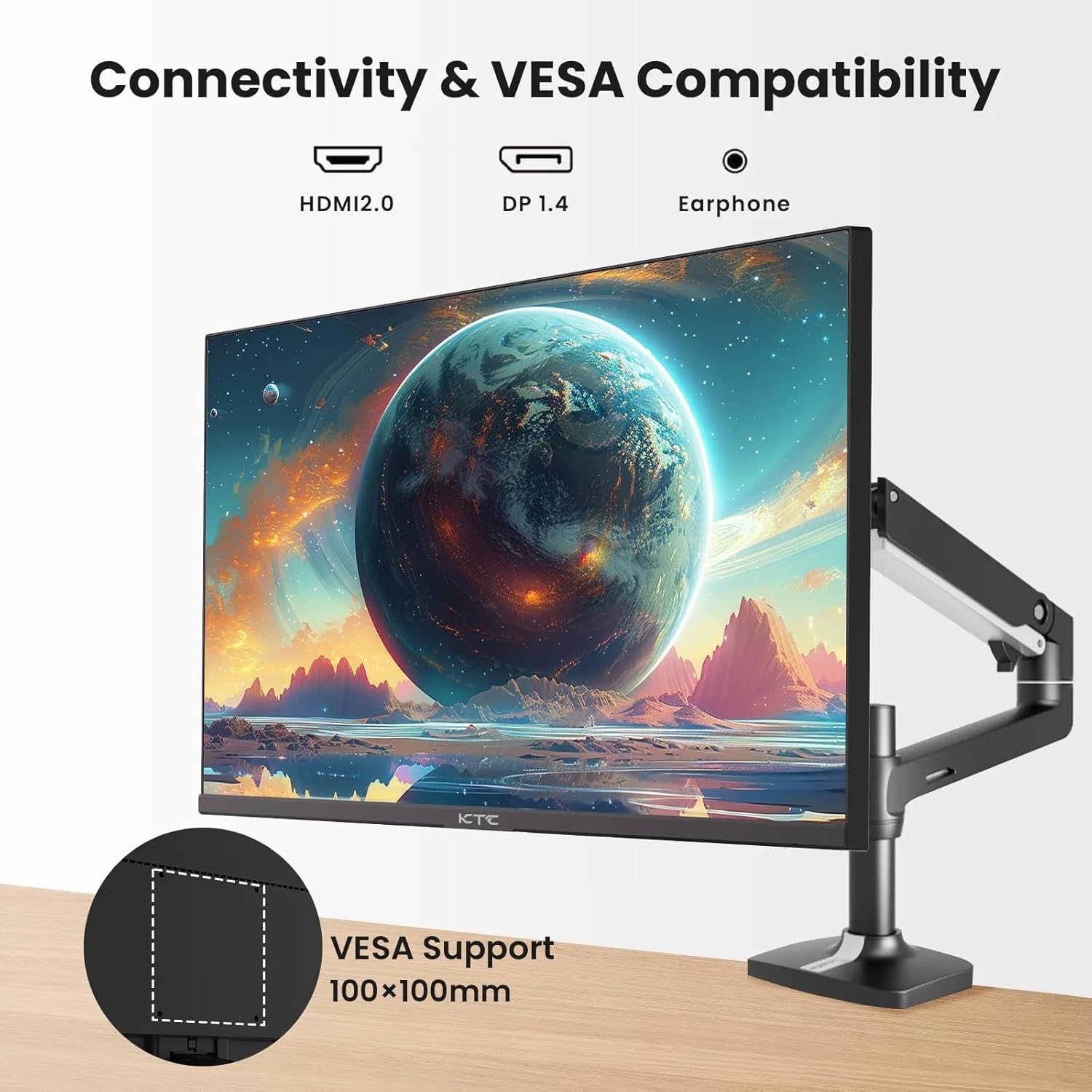
Figure 2: VESA Compatibility and Connectivity Ports
4. Propojovací kabely
Connect the necessary cables to the monitor and your computer or other devices. Ensure all connections are secure.
- Napájecí kabel: Connect the power adapter to the monitor's DC input port, then plug the power cable into a power outlet.
- Video kabel: Connect either an HDMI cable (HDMI 2.0) or a DisplayPort cable (DP 1.4) from your computer's graphics card to the corresponding input port on the monitor.
- Zvukový výstup: If desired, connect headphones or external speakers to the 3.5mm audio output jack.

Obrázek 3: Vstupní porty monitoru
5. Počáteční zapnutí
Press the power button on the monitor. The power indicator light will illuminate. If no image appears, ensure your computer is powered on and the correct input source is selected on the monitor.
Provozní
1. Zapnutí/vypnutí
Press the power button located on the monitor to turn it on or off. The power indicator will show the monitor's status.
2. Nabídka na obrazovce (OSD).
Nabídka OSD umožňuje upravit různá nastavení monitoru. K navigaci v nabídce použijte ovládací tlačítka (obvykle umístěná na zadní nebo spodní straně monitoru).
- Stisknutím tlačítka aktivujete nabídku OSD.
- Pro pohyb mezi možnostmi nabídky použijte navigační tlačítka.
- Press a selection button to enter a sub-menu or confirm a setting.
- Press an exit button to close the OSD menu.
3. Úprava nastavení
Mezi běžná nastavitelná nastavení patří:
- Jas/kontrast: Upravte celkový jas a rozdíl mezi světlými a tmavými oblastmi.
- Nastavení barev: Upravte teplotu barev, gamu a jednotlivé hodnoty RGB.
- Vstupní zdroj: Ručně vyberte mezi vstupy HDMI 1, HDMI 2 nebo DisplayPort.
- Režim obrazu: Select predefined display modes (e.g., Standard, Game, Movie).
4. Obnovovací frekvence
The KTC H27T27 supports a 100Hz refresh rate, providing smoother motion compared to standard 60Hz displays. Ensure your graphics card and operating system are configured to output at 100Hz for the best experience.

Figure 4: 100Hz Refresh Rate Benefit
5. Technologie FreeSync
This monitor is compatible with AMD FreeSync technology, which synchronizes the monitor's refresh rate with your graphics card's frame rate. This helps eliminate screen tearing and stuttering for a smoother gaming and video experience. Ensure FreeSync is enabled in both the monitor's OSD menu and your graphics card's control panel.
Figure 5: FreeSync Technology in Action
Údržba
1. Čištění obrazovky
- Vypněte monitor a odpojte napájecí kabel.
- Jemně otřete obrazovku měkkým hadříkem, který nepouští vlákna.
- Na odolné skvrny lehceampOtřete hadřík vodou nebo specializovaným čističem obrazovek (nestříkejte přímo na obrazovku).
- Nepoužívejte abrazivní čisticí prostředky, alkohol ani roztoky na bázi amoniaku, protože by mohly poškodit povrch obrazovky.
2. Obecná péče
- Chraňte monitor před přímým slunečním zářením, nadměrným teplem a vlhkostí.
- Zajistěte dostatečné větrání kolem monitoru, aby nedošlo k jeho přehřátí.
- Nepokládejte na monitor ani na jeho kabely těžké předměty.
Odstraňování problémů
Pokud se s monitorem setkáte s problémy, podívejte se na následující běžné problémy a jejich řešení:
- Bez napájení:
- Ujistěte se, že je napájecí kabel bezpečně připojen k monitoru i k elektrické zásuvce.
- Zkontrolujte, zda je elektrická zásuvka funkční. - Bez signálu:
- Check that the video cable (HDMI or DisplayPort) is securely connected to both the monitor and your computer.
- Ensure your computer is powered on and not in sleep mode.
- Select the correct input source via the monitor's OSD menu. - Blikající nebo zkreslený obraz:
- Zkontrolujte video kabel, zda není poškozený nebo zda nejsou uvolněné spoje.
- Adjust the refresh rate settings on your computer.
- Disable or enable FreeSync in the OSD menu and graphics card settings to test. - Nesprávné barvy:
- Reset color settings to factory defaults in the OSD menu.
- Adjust color temperature or individual RGB values.
Pokud problém přetrvává i po vyzkoušení těchto řešení, kontaktujte zákaznickou podporu.
Specifikace
| Funkce | Specifikace |
|---|---|
| Značka | KTC |
| Číslo modelu | H27T27 |
| Velikost obrazovky | 27 palců |
| Rezoluce | 2560 1440 x XNUMX XNUMX (WQHD) |
| Obnovovací frekvence | 100 Hz |
| Typ zobrazení | IPS |
| Doba odezvy | 7 milisekund |
| Adaptivní synchronizace | FreeSync |
| Konektivita | 2x HDMI 2.0, 1x DisplayPort 1.4, 1x 3.5mm audio výstup |
| Poměr stran | 1.78:1 |
| Povrch obrazovky | Matný |
| Rozměry položky (D x Š x V) | 1.85"H x 24.25"Š x 14.33"V |
| Hmotnost položky | 4 kg |
Záruka a podpora
Informace o záruce
This KTC monitor is covered by a manufacturer's warranty. Please refer to the warranty card included in your product packaging for specific terms, conditions, and duration of coverage. Keep your purchase receipt as proof of purchase for warranty claims.
Zákaznická podpora
For technical assistance, warranty service, or any product-related inquiries, please contact KTC customer support. Contact details can typically be found on the official KTC webna webu nebo na záručním listu.
When contacting support, please have your monitor's model number (H27T27) and serial number ready.