
1. Úvod
The Cleer ARC II Gaming Earbuds are true wireless open-ear headphones designed for an immersive audio experience across various platforms. Featuring ultra-low latency, Snapdragon Sound with aptX Lossless technology, and Bluetooth 5.3, these earbuds provide high-quality audio for gaming, music, and calls. Their open-ear design ensures comfort during extended use and maintains situational awareness.
2. Co je v krabici
- Cleer ARC II Gaming Earbuds
- Nabíjecí pouzdro
- USB-C dongle
- Nabíjecí kabel USB-C
- Uživatelská příručka
3. Vlastnosti produktu
- Ultra nízká latence: Experience synchronized audio and video with under 67ms latency, ideal for gaming and streaming.
- Snapdragon Sound with aptX Lossless: Delivers industry-leading sound performance with lossless audio quality.
- Prodloužená hrací doba: Up to 35 hours total battery life (8 hours in earbuds, 27 hours with charging case).
- Crystal Clear Voice Capture: Qualcomm cVc noise echo canceling and noise suppression technology for clear calls.
- Pohodlí při otevřeném uchu: Ergonomically designed with adjustable soft ear hooks for comfortable extended wear.
- MultiPoint Pairing: Bluetooth 5.3 with LE Audio and aptX Adaptive technology allows simultaneous connection to two devices.
- Kompatibilita s více platformami: Compatible with PC, Mac, Android Phones, PS4, Nintendo Switch. (Note: Not compatible with PS5 for ultra-low latency dongle connection, but Bluetooth may work).
- IPX5 Sweat Resistant: Vhodné pro vnitřní i venkovní použití.
4. Nastavení a zahájení
4.1 Initial Pairing (First Time Use)
When you open the charging case for the first time, the LEDs on the earbuds will automatically start flashing red and white, indicating they are in pairing mode. On your mobile device, open Bluetooth settings and select "Cleer ARC II" from the list of available devices to connect.
4.2 Dongle Pairing
- Plug the USB-C Dongle into a compatible device (e.g., PC, Nintendo Switch, PS4).
- Long press the Multi-Function Button (MFB) on the dongle for 2 seconds until its LED starts flashing alternately between red and white. The dongle is now ready for pairing.
- Ensure the earbuds are in pairing mode (LEDs flashing red and white). Place the headphones close to the dongle. They will connect automatically, and the dongle's LED will emit a white breathing light.

Image: Steps for dongle pairing with devices like Switch, Mac, VR, PS5, PS4, PC, and laptops.
4.3 Kompatibilita s více platformami
The Cleer ARC II Gaming Earbuds offer versatile connectivity:
- Hardwarový klíč typu C: For devices like Nintendo Switch, Mac, and VR headsets.
- Type-C Dongle + USB-A Adapter: For PS5, PS4, PC, and laptops (USB-A adapter not included).
- Bluetooth 5.3: For mobile phones and laptops.

Obrázek: Overview of the three wireless connection modes for various devices.
4.4 Cleer+ App
Download the Cleer+ App to personalize controls, tailor EQ settings, access real-time power metrics, and receive firmware updates for an optimized audio experience.
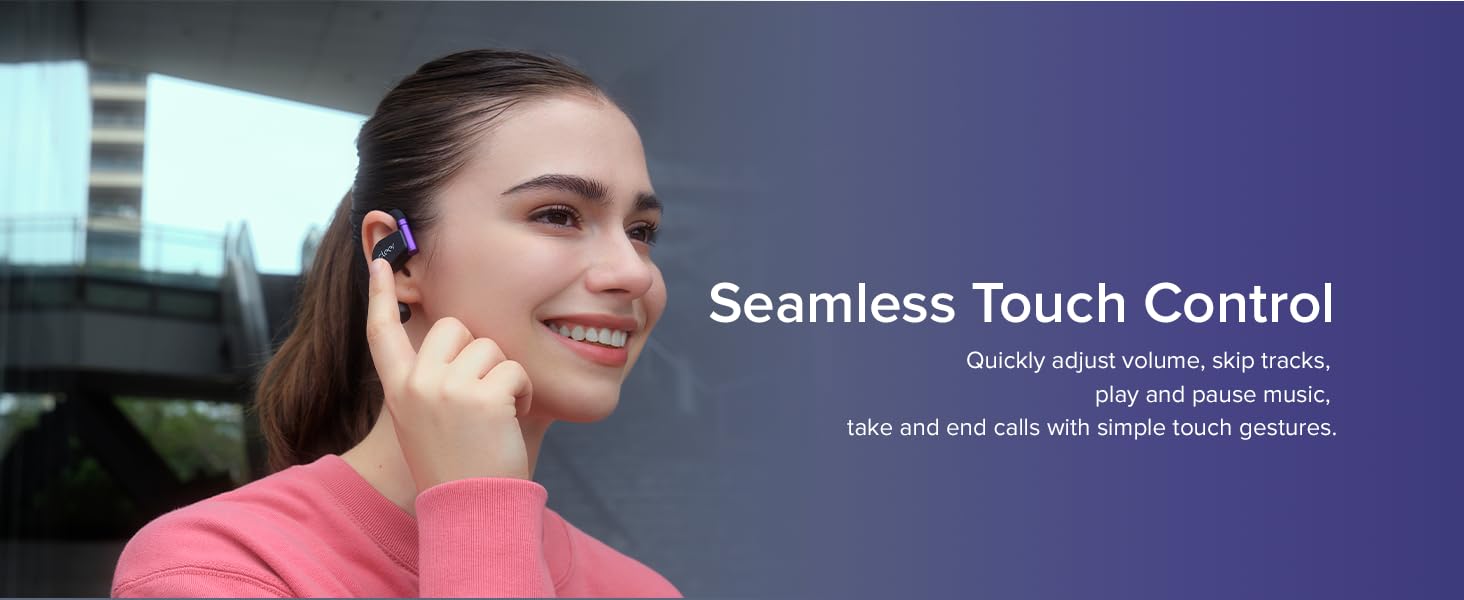
Image: The Cleer+ App allows customization of settings and monitoring of earbud status.
5. Návod k obsluze
5.1 Touch Controls (Playback and Call)
- Single Tap (L/R): Přehrát/Pozastavit hudbu.
- Double Tap (L/R): Next track (music), Pick up/Hang up call.
- Triple Tap (L/R): Předchozí skladba (hudba).
- Tap and Hold (L/R): Trigger default voice assistant, Reject call.
5.2 Touch Controls (Volume)
- Right Earbud (Double tap x2, hold on 2nd tap): Volume up continuously.
- Left Earbud (Double tap x2, hold on 2nd tap): Volume down continuously.

Image: Detailed diagram of earbud touch controls for various functions. Customization is available via the Cleer+ App.
5.3 Head Motion Controls
The ARC II Gaming Earbuds support head gestures for controlling calls and music playback, allowing hands-free operation. This function is deactivated by default and can be activated in the Cleer+ App.
- Nod Head Twice: Pick up call.
- Shake Head Twice: Hang up/Reject call.
- Turn Left and Then Back: Předchozí skladba (hudba).
- Turn Right and Then Back: Next track (music).

Image: Head motion controls for hands-free operation (requires activation in Cleer+ App).
6. Údržba
- Pravidelně čistěte sluchátka a nabíjecí pouzdro měkkým, suchým hadříkem.
- Nevystavujte sluchátka extrémním teplotám nebo přímému slunečnímu záření po delší dobu.
- Do not use abrasive cleaners or immerse the earbuds in water, despite their IPX5 rating, to prevent damage.
- Pokud sluchátka nepoužíváte, uložte je do nabíjecího pouzdra, abyste je chránili a zajistili, že zůstanou nabitá.
7. Řešení problémů
7.1 Problémy s párováním
If you experience difficulty pairing, ensure the earbuds are fully charged and in pairing mode (LEDs flashing red and white). For dongle connection, ensure the dongle is also in pairing mode. If issues persist, try resetting the earbuds.
7.2 Resetování sluchátek
Video: Official guide on how to reset your Cleer ARC II earbuds.
7.3 Problémy s kvalitou zvuku
If the sound quality is poor, ensure the earbuds are properly seated on your ears. Check the equalizer settings in the Cleer+ App and try different presets or custom adjustments. Ensure there are no obstructions between the earbuds and the connected device.
7.4 Obavy ohledně výdrže baterie
If battery life is shorter than expected, ensure both earbuds and the charging case are fully charged. Extreme temperatures can affect battery performance. Check the battery status in the Cleer+ App.
8. Specifikace
| Název modelu | Cleer ARC II Gaming |
| Číslo modelu položky | ARC2GMREDUS |
| Technologie připojení | Bezdrátové připojení (Bluetooth 5.3) |
| Technologie bezdrátové komunikace | Bluetooth |
| Speciální funkce | aptX Lossless Audio, Open-Ear Design, Low Latency USB-C Dongle |
| Životnost baterie | 35 hodin (celkem s pouzdrem) |
| Úroveň odolnosti proti vodě | Voděodolný (IPX5) |
| Umístění uší | Otevřete ucho |
| Form Factor | Skutečné bezdrátové |
| Kontrolní metoda | Touch, Head Motion |
| Materiál | Plast nebo silikon |
| Hmotnost položky | 7 unce |
9. Záruka a podpora
The Cleer ARC II Gaming Earbuds come with a 1-letá záruka. For any inquiries or assistance, please contact Cleer customer support. Our friendly customer support team is available to help with product setup, troubleshooting, and general questions.
For more information and support, visit the official Cleer webmísto: www.cleeraudio.com