
1. Úvod
This manual provides detailed instructions for the setup, operation, maintenance, and troubleshooting of your ACASIS DS-0202 14-in-1 USB C Docking Station. Please read this manual thoroughly before using the product to ensure optimal performance and longevity.

Image 1.1: The ACASIS DS-0202 14-in-1 USB C Docking Station, showcasing its compact design and multiple connectivity options including USB-C, USB-A, HDMI, DisplayPort, Ethernet, and card readers.
2. Klíčové vlastnosti
- 14 v 1 připojení: Expands a single USB-C/Thunderbolt 3/4 port into 14 ports, including 2 HDMI, 1 DisplayPort, 3 USB-C 3.1 (10Gbps), 2 USB-A 3.1 (10Gbps), 1 USB 2.0, SD/TF card reader, 1Gbps Ethernet, 3.5mm audio, and 100W Power Delivery.
- Podpora tří displejů: Supports single 4K@60Hz display and triple 4K@30Hz displays (under DP1.4). Windows systems support both MST (Multi-Stream Transport) and SST (Single-Stream Transport) for mirror and extend modes. macOS systems do not support MST.
- Vysokorychlostní přenos dat: Features 3 USB-C 3.1 and 2 USB-A 3.1 ports, all offering 10Gbps data transfer speeds for rapid file převody.
- 100W napájení: Provides up to 100W Power Delivery through the dedicated USB-C port to charge compatible laptops, tablets, and phones.
- Gigabitový Ethernet: Integrated 1000Mbps Ethernet port ensures stable and fast wired network connectivity.
- Audio konektivita: Includes a 3.5mm audio and microphone port for headset connection.
- Čtečky SD/TF karet: Built-in SD and TF card slots for convenient data access.
3. Rozložení portů
Familiarize yourself with the various ports on the ACASIS DS-0202 docking station:

Obrázek 3.1: Detailní view of the docking station's ports, including RJ45 (Ethernet), DisplayPort, HDMI 1, HDMI 2, USB 2.0, USB-A 3.1, PD 3.0 (Max 100W), 3.5mm Audio, and three USB-C 3.1, two USB-A 3.1, SD/TF 3.0 ports.
- Přední/boční porty:
- 3 x USB-C 3.1 (10Gbps)
- 2 x USB-A 3.1 (10Gbps)
- 1 x SD Card Reader (SD 3.0)
- 1 x TF Card Reader (TF 3.0)
- Zadní porty:
- 1 x RJ45 Gigabit Ethernet (1000Mbps)
- 1 x DisplayPort (4K@60Hz)
- 2× HDMI 2.0 (4K@60Hz)
- 1 x USB 2.0 (480Mbps)
- 1 x USB-A 3.1 (10Gbps)
- 1 x USB-C PD 3.0 (Max 100W input)
- 1 x 3.5mm Audio & Mic In
4. Pokyny k nastavení
Before connecting the docking station, ensure your laptop's USB-C port supports Power Delivery, DisplayPort Alt Mode, and Data Transfer. Refer to your laptop's specifications or manufacturer for details.

Image 4.1: USB-C port compatibility check. Ensure your laptop's USB-C port supports Thunderbolt 3/4 or USB-C with Power Delivery, DisplayPort Alt Mode, and Data Transfer for full functionality.
- Připojení napájecího adaptéru (volitelné, ale doporučené): If you wish to charge your laptop via the docking station, connect your laptop's USB-C power adapter (up to 100W) to the "PD 100W" USB-C port on the docking station.
- Připojení k notebooku: Connect the integrated USB-C cable from the docking station to a compatible USB-C/Thunderbolt 3/4 port on your laptop.
- Připojení externích displejů:
- For single or dual monitors: Connect your monitors using HDMI cables to the HDMI 1 and HDMI 2 ports, or a DisplayPort cable to the DP port.
- For triple monitors: Connect your monitors to the HDMI 1, HDMI 2, and DP ports.
Note: Ensure your display cables are securely connected.
- Připojení periferií: Connect your USB devices (keyboard, mouse, external drives, etc.) to the available USB-A and USB-C data ports.
- Připojení Ethernetu (volitelné): For a wired network connection, connect an Ethernet cable from your router/modem to the RJ45 port on the docking station.
- Připojení zvukových zařízení (volitelné): Zapojte sluchátka nebo reproduktory do 3.5mm audio konektoru.
The docking station is plug-and-play and should be automatically recognized by your operating system. You may need to configure display settings manually.
5. Návod k obsluze
5.1 Display Configuration (Windows)
Windows operating systems support both Mirror Mode (SST) and Extend Mode (MST) for multiple displays. You can configure these settings via your display settings.

Image 5.1: Triple display setup examples for Windows, illustrating Mirror Mode (A-BBB) and Extend Mode (A-BCD, A-BC, A-BD) with various monitor arrangements and resolutions.
- Zrcadlový režim (SST): All connected displays show the same content as your laptop screen.
- Extend Mode (MST): Each connected display can show different content, extending your desktop across multiple screens.
- Rezoluce: Supports up to 4K@60Hz for a single display and 4K@30Hz for triple displays (under DP1.4).
To adjust display settings in Windows:
- Right-click on your desktop and select "Display settings".
- Identify and arrange your displays.
- Select the desired display mode (Extend these displays, Duplicate these displays).
- Podle potřeby upravte rozlišení a orientaci.
5.2 Display Configuration (macOS)
macOS systems do not support Multi-Stream Transport (MST). Therefore, when multiple external monitors are connected, they will either mirror each other or extend the laptop display, but cannot extend independently to three unique displays.

Image 5.2: Triple display setup examples for macOS, illustrating Mirror Mode (A-AAA) where all displays show the same content, and Extend Mode (A-BBB) where external displays mirror each other while extending the laptop screen.
- Zrcadlový režim: All connected displays show the same content as your MacBook screen.
- Rozšířený režim: The external displays will mirror each other, extending your desktop from the MacBook screen. You cannot have three independent extended displays.
- Rezoluce: Supports up to 4K@30Hz for triple displays.
To adjust display settings in macOS:
- Go to "System Settings" (or "System Preferences" on older macOS versions).
- Select "Displays".
- Arrange your displays and select the desired mode (Mirror Displays or Use as separate display).
5.3 Přenos dat
The docking station features 3 USB-C 3.1 and 2 USB-A 3.1 ports, all capable of 10Gbps data transfer. Connect your high-speed storage devices to these ports for optimal performance.

Image 5.3: The docking station's 10Gbps USB-C and USB-A ports enable ultra-fast data transfer for large files and high-bandwidth peripherals.
5.4 Dodávka energie
The dedicated USB-C PD port supports up to 100W power input. Connect your laptop's power adapter to this port to charge your laptop while using the docking station.

Image 5.4: The 100W Power Delivery port allows for fast charging of your laptop while connected to the docking station, with an example showing 100W input and 85W output to the laptop.
5.5 Gigabit Ethernet
The RJ45 port provides a stable and fast 1000Mbps (1 Gigabit) Ethernet connection. This is ideal for reliable internet access and large file transfers over a local network.

Image 5.5: The Gigabit Ethernet port provides a fast and stable wired network connection, supporting speeds up to 1000Mbps.
5.6 SD/TF Card Readers
Insert your SD or TF (Micro SD) cards into the respective slots for quick access to photos and other data. Both slots can be used simultaneously.
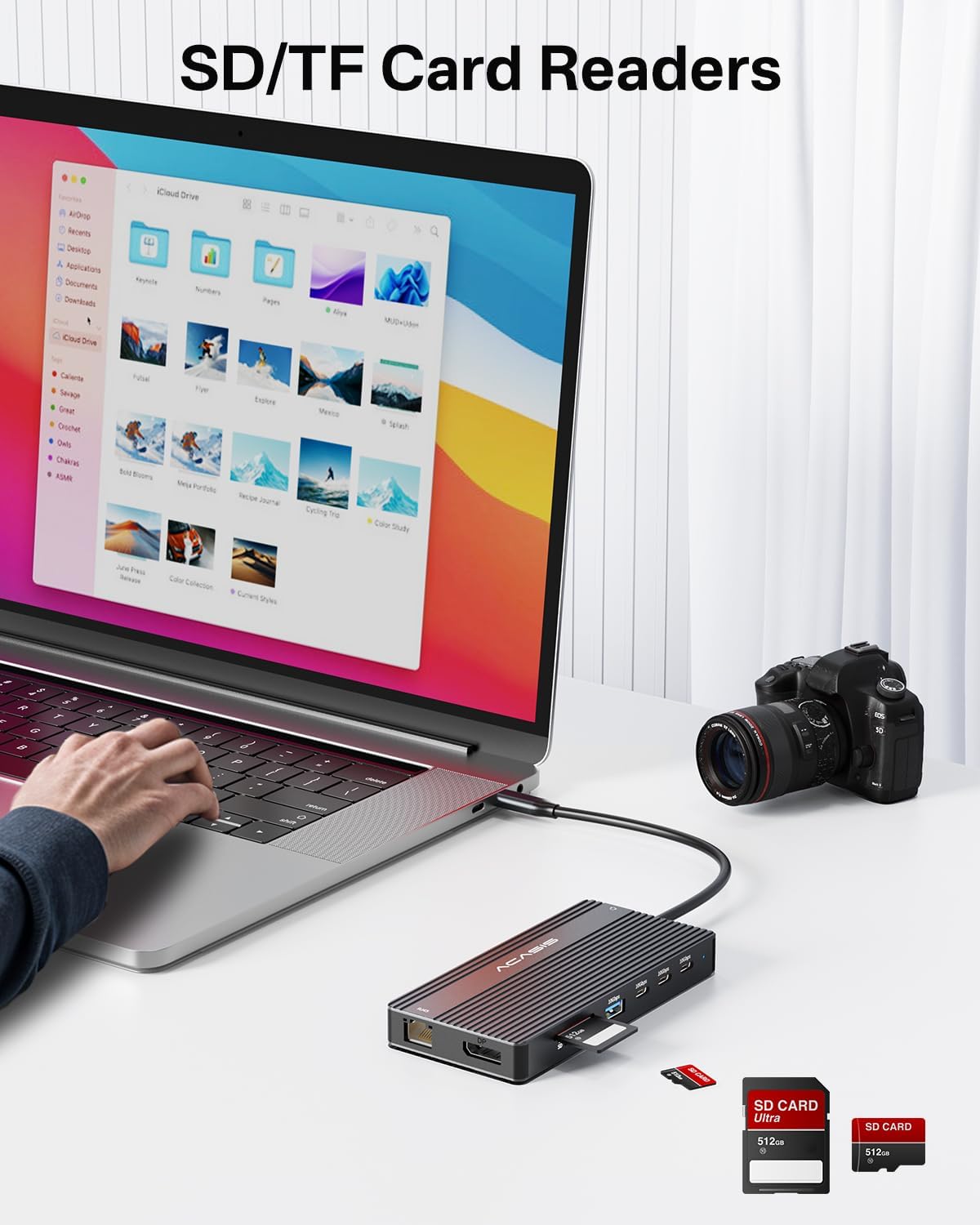
Image 5.6: The integrated SD and TF card readers allow for convenient and fast access to memory card data, useful for photographers and content creators.
6. Údržba
- Čištění: K čištění povrchu dokovací stanice používejte měkký, suchý hadřík. Nepoužívejte tekuté čisticí prostředky ani abrazivní materiály.
- Skladování: Dokovací stanici skladujte na chladném a suchém místě mimo dosah přímého slunečního záření a extrémních teplot.
- Zacházení: Avoid dropping or subjecting the device to strong impacts. Do not bend the integrated USB-C cable excessively.
- Větrání: Ensure the docking station has adequate ventilation to prevent overheating, especially during prolonged use with multiple connected devices.
7. Řešení problémů
| Problém | Možná příčina | Řešení |
|---|---|---|
| No display output / Flickering screen |
|
|
| Notebook se nenabíjí |
|
|
| USB devices not recognized / Slow data transfer |
|
|
| Ethernet connection unstable or not working |
|
|
8. Specifikace
| Funkce | Detail |
|---|---|
| Číslo modelu | DS-0202 |
| Značka | ACASIS |
| Konektivita | USB-C (připojení hostitele) |
| Video výstup | 2 x HDMI 2.0 (4K@60Hz), 1 x DisplayPort (4K@60Hz) |
| Datové porty USB | 3 x USB-C 3.1 (10Gbps), 2 x USB-A 3.1 (10Gbps), 1 x USB 2.0 (480Mbps) |
| Ethernet | 1 x RJ45 Gigabit Ethernet (1000Mbps) |
| Čtečka karet | SD 3.0, TF 3.0 (simultaneous use) |
| Zvuk | 1 x 3.5mm Audio & Mic In |
| Dodávka energie | USB-C PD 3.0, up to 100W input |
| Kompatibilní zařízení | Laptops with full-featured USB-C/Thunderbolt 3/4 ports (Dell, HP, Lenovo, ThinkPad, Surface, MacBook, etc.) |
| Operační systémy | Windows, macOS, Linux, iPadOS |
| Rozměry produktu | 1 x 1 x 1 palce (přibližně) |
| Hmotnost položky | 5 unce (přibližně) |
| Barva | Černý |
9. Informace o záruce
ACASIS products typically come with a standard manufacturer's warranty. For specific warranty terms and conditions, please refer to the warranty card included with your product or visit the official ACASIS webUschovejte si účtenku jako doklad o koupi pro případ reklamace.
Plány ochrany je možné zakoupit i samostatně:
- Dvouletý ochranný plán
- Dvouletý ochranný plán
- Kompletní ochrana (měsíční tarif)
Tyto plány nabízejí rozšířené krytí nad rámec standardní záruky výrobce.
10. Zákaznická podpora
If you encounter any issues or have questions regarding your ACASIS DS-0202 14-in-1 USB C Docking Station, please contact ACASIS customer support through the following channels:
- Oficiální Webmísto: Navštivte ACASIS Store on Amazon pro informace o produktech a zdroje podpory.
- E-mailová podpora: Refer to your product packaging or the ACASIS webwebu, kde najdete nejaktuálnější e-mailovou adresu podpory.
- Online kontaktní formulář: Many manufacturers provide a contact form on their webmísto pro technickou pomoc.
When contacting support, please have your product model number (DS-0202) and purchase details ready.