
1. Konec produktuview
The KOORUI G2722P is a 27-inch QHD (2560x1440) gaming monitor designed for an immersive visual experience. It features a Fast IPS panel with a 200Hz refresh rate and a 1ms response time, ensuring smooth and responsive gameplay. The monitor supports HDR 400 for enhanced contrast and color depth, and Adaptive Sync technology to minimize screen tearing and stuttering. Its ergonomic stand allows for height, tilt, and pivot adjustments, and it is VESA 75x75mm compatible for flexible mounting options.

The KOORUI G2722P monitor integrated into a typical gaming environment.
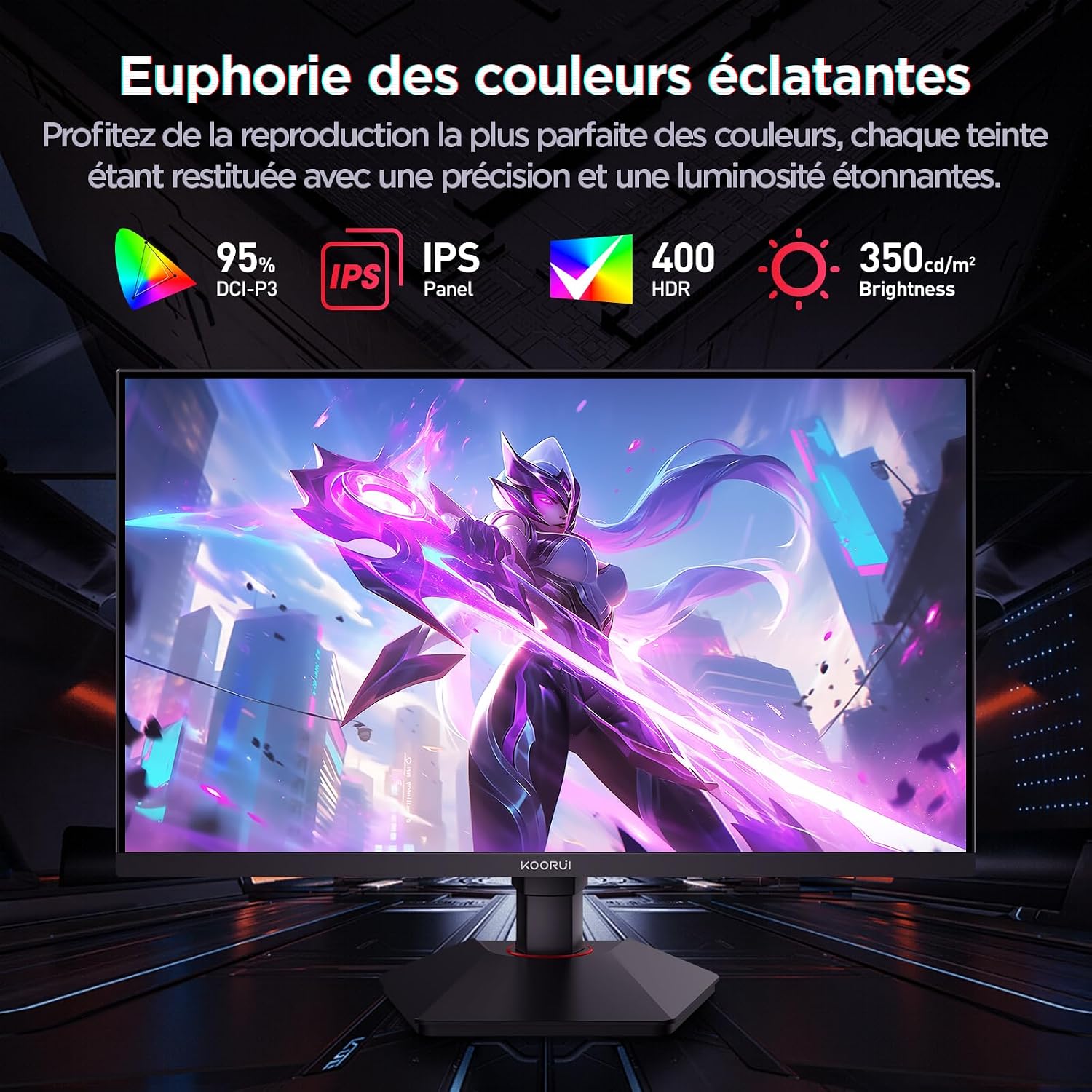
This image highlights the monitor's color capabilities, including 95% DCI-P3 color gamut, IPS panel technology, HDR 400 support, and 350 cd/m² brightness.
2. Bezpečnostní informace
- Před použitím monitoru si pečlivě přečtěte všechny pokyny.
- Nevystavujte monitor dešti ani vlhkosti, abyste předešli riziku požáru nebo úrazu elektrickým proudem.
- Neotevírejte monitor casing. Uvnitř nejsou žádné součásti, které by mohl uživatel opravit. Veškerý servis svěřte kvalifikovanému personálu.
- Umístěte monitor na stabilní, rovný povrch, aby nedošlo k jeho pádu.
- Chraňte monitor před přímým slunečním zářením, zdroji tepla a extrémními teplotami.
- Zajistěte dostatečné větrání kolem monitoru. Neblokujte větrací otvory.
- Používejte pouze napájecí adaptér a kabely dodané nebo doporučené výrobcem.
- Během bouřek nebo pokud jej nebudete delší dobu používat, odpojte monitor ze zásuvky.
3. Obsah balení
Ověřte, zda jsou v balení přítomny všechny položky:
- KOORUI G2722P Monitor
- Stojan na monitor (základna a krk)
- Napájecí adaptér a napájecí kabel
- Kabel DisplayPort (DP)
- Uživatelská příručka (tento dokument)
- Šrouby pro montáž stojanu
4. Sestavení monitoru
4.1 Připevnění stojanu
- Monitor opatrně položte displejem dolů na měkký, čistý hadřík, abyste zabránili poškrábání.
- Attach the stand neck to the back of the monitor until it clicks into place or is secured with screws (refer to specific instructions in the included quick start guide).
- Připevněte základnu stojanu k hrdlu stojanu a zajistěte ji dodaným šroubem.
- Opatrně zvedněte monitor a položte jej na stabilní stůl.
4.2 Montáž VESA
The monitor supports VESA 75x75mm mounting. To use a VESA mount:
- Pokud je již stojan připevněn, odstraňte jej.
- Attach your VESA-compatible mount (sold separately) to the 75x75mm screw holes on the back of the monitor using appropriate screws.
- Ensure the mount is securely fastened before releasinmonitor.

This image demonstrates the monitor's ergonomic adjustments (height, tilt, pivot) and provides a visual reference for stand attachment points.
5. Připojení monitoru
Connect the monitor to your computer or other devices using the available ports.
- Připojení napájení: Connect the power cable to the power adapter, then connect the adapter to the monitor's power input and a wall outlet.
- Připojení videa:
- For optimal performance (QHD @ 200Hz), use the provided DisplayPort (DP 1.4) cable to connect the monitor to your graphics card.
- Alternatively, use an HDMI 2.0 cable to connect to an HDMI port on your device.
- Zvukový výstup: Connect external speakers or headphones to the 3.5mm audio output jack on the monitor if you wish to use the monitor's audio passthrough.

This image displays the rear of the monitor, highlighting the available connectivity options: two HDMI 2.0 ports, one DisplayPort 1.4, an audio output jack, and the VESA 75x75mm mounting pattern.
6. Obsluha monitoru
6.1 Zapnutí/vypnutí
- Stisknutím tlačítka napájení umístěného na monitoru jej zapnete nebo vypnete.
- Kontrolka napájení se rozsvítí, když je monitor zapnutý.
6.2 Nabídka na obrazovce (OSD)
The OSD menu allows you to adjust various monitor settings. Typically, buttons are located on the back or bottom right of the monitor.
- Press one of the OSD buttons to activate the menu.
- Use the navigation buttons (usually directional or a joystick) to browse through menu options.
- Press the select button to enter a sub-menu or confirm a setting.
- Stisknutím tlačítka Konec zavřete nabídku OSD.
7. Nastavení displeje
7.1 Rozlišení a obnovovací frekvence
The monitor supports a native resolution of 2560x1440 (QHD) and a maximum refresh rate of 200Hz. Ensure your graphics card and operating system are configured to use these settings for the best experience.

This image illustrates the difference in motion clarity between a 75Hz and a 200Hz refresh rate, emphasizing the 1ms response time for reduced blur and ghosting.
7.2 Adaptivní synchronizace (FreeSync)
This monitor supports Adaptive Sync technology (compatible with AMD FreeSync) to synchronize the monitor's refresh rate with your graphics card's frame rate, eliminating screen tearing and reducing stuttering.
- Enable Adaptive Sync in the monitor's OSD menu.
- Ensure Adaptive Sync (or FreeSync) is enabled in your graphics card control panel.

This image visually compares the display with Adaptive Sync enabled versus disabled, demonstrating how Adaptive Sync eliminates screen tearing for a smoother visual experience.
7.3 HDR 400
The monitor supports HDR 400, providing a wider dynamic range for brighter whites and deeper blacks, resulting in more vibrant and realistic images.
- Enable HDR in your operating system's display settings and in the monitor's OSD menu if available.
7.4 Nastavení barev
The Fast IPS panel offers excellent color reproduction and wide viewing úhly.
- Adjust color temperature, gamma, and saturation through the OSD menu to suit your preferences.
- The monitor features a 178-degree wide viewing angle, ensuring consistent color and image quality from various perspectives.
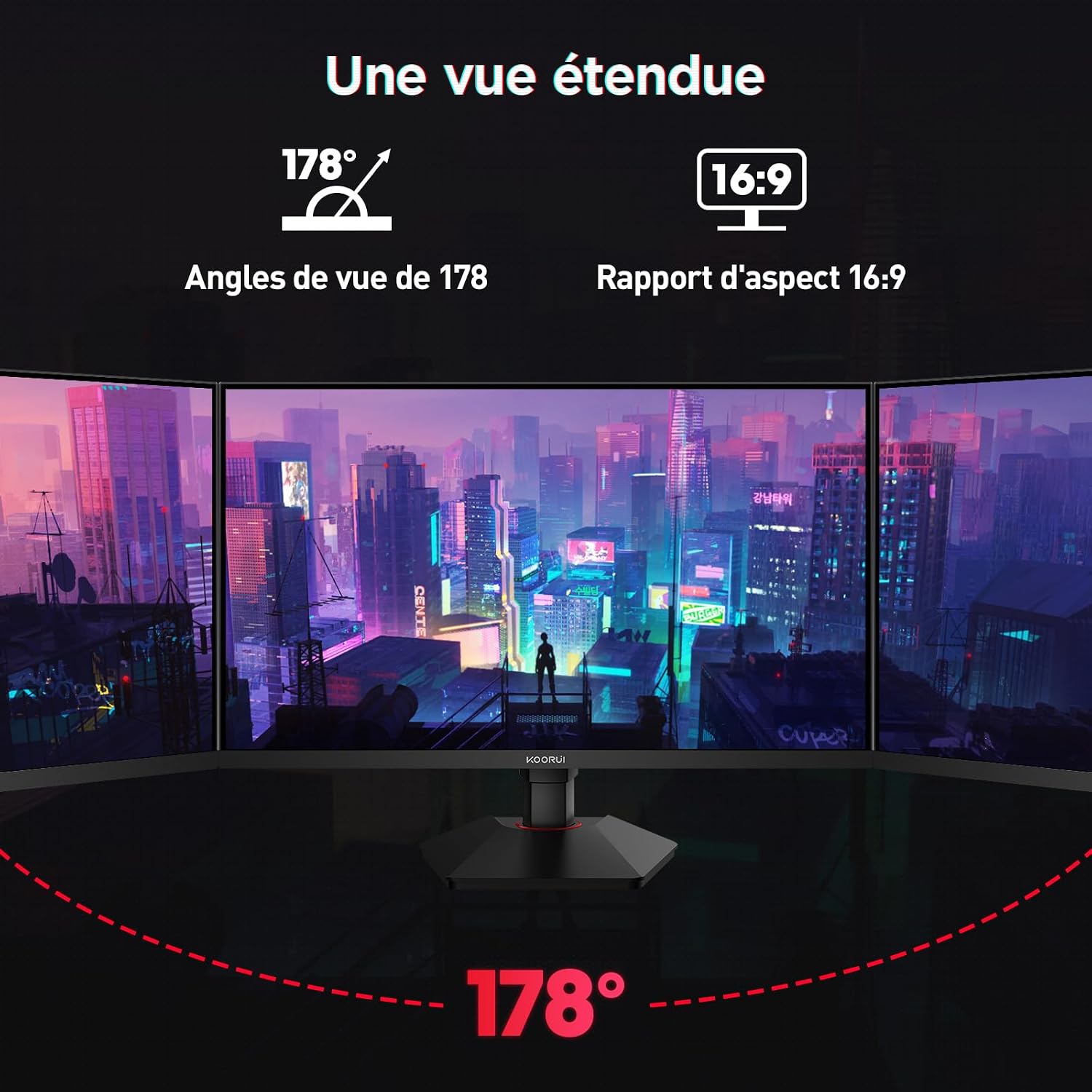
This image demonstrates the monitor's wide 178-degree viewing angle, illustrating how the display maintains clarity and color consistency even when viewed from extreme angles, ideal for multi-monitor setups.
8. Ergonomické úpravy
Stojan monitoru umožňuje různá nastavení pro optimalizaci viewpohodlí:
- Nastavení výšky: Adjust the monitor height by up to 100mm by gently pushing or pulling the monitor up or down.
- Nastavení sklonu: Tilt the screen from -5° (forward) to +20° (backward) to find your preferred viewúhel.
- Otočení (rotace): Rotate the screen 90° to switch between landscape and portrait orientations.
This image illustrates the full range of ergonomic adjustments available: 100mm height adjustment, -5° to +20° tilt, and 90° pivot rotation for optimal viewpohodlí.
9. Funkce péče o zrak
The KOORUI G2722P monitor incorporates features designed to reduce eye strain during prolonged use:
- Technologie Flicker-Free: Snižuje blikání obrazovky, které může způsobovat únavu očí.
- Filtr nízkého modrého světla: Minimizes harmful blue light emissions to protect your eyes. This feature can usually be adjusted or enabled/disabled in the OSD menu.
10. Údržba
Správná údržba zajistí dlouhou životnost a optimální výkon vašeho monitoru.
- Čištění obrazovky: Obrazovku jemně otřete měkkým hadříkem, který nepouští vlákna. Na odolné skvrny použijte čisticí roztok určený pro monitory nanesený na hadřík, nikoli přímo na obrazovku.
- Čištění Casing: K čištění monitoru používejte měkký, suchý hadřík casing. Nepoužívejte abrazivní čisticí prostředky nebo rozpouštědla.
- Zacházení: Avoid touching the screen directly with your fingers or sharp objects. Do not place heavy objects on the monitor.
11. Řešení problémů
Pokud se s monitorem setkáte s problémy, podívejte se na následující běžné problémy a jejich řešení:
| Problém | Možné řešení |
|---|---|
| Na obrazovce není žádný obraz |
|
| Blikání nebo trhání obrazu |
|
| Žádný zvuk z audio výstupu |
|
| Monitor nedosahuje 200 Hz |
|
12. Specifikace
Key technical specifications for the KOORUI G2722P monitor:
| Funkce | Specifikace |
|---|---|
| Velikost obrazovky | 27 palců |
| Typ panelu | Téměř IPS |
| Rezoluce | QHD (2560 1440 x XNUMX XNUMX) |
| Obnovovací frekvence | 200 Hz |
| Doba odezvy | 1 ms |
| Podpora HDR | HDR 400 |
| Adaptivní synchronizace | FreeSync |
| Kontrastní poměr | 1000:1 (statický) |
| Jas | 350 cd/m² |
| Viewúhel | 178° (H/V) |
| Barevný gamut | 95 % DCI-P3 |
| Video vstupy | 2x HDMI 2.0, 1x DisplayPort 1.4 |
| Zvukový výstup | 1x 3.5mm audio výstup |
| Kompatibilita VESA | 75x75mm |
| Spotřeba energie | 19 Watts (Typical) |
| Ergonomie | Height, Tilt, Pivot Adjustment |

This diagram provides the physical dimensions of the monitor, including width, height, and depth.
Podrobné informace o energii naleznete v databázi EPREL: https://eprel.ec.europa.eu/qr/2216313
13. Záruka a podpora
The KOORUI G2722P monitor comes with a 2letá záruka výrobce. Tato záruka se vztahuje na vady materiálu a zpracování při běžném používání.
For technical support, warranty claims, or further assistance, please contact KOORUI customer service through their official webna webu nebo u prodejce, kde byl produkt zakoupen.