
Zavedení
This manual provides detailed instructions for the setup, operation, maintenance, and troubleshooting of your KOORUI S2721XO 27-inch QD-OLED Gaming Monitor. Please read this manual thoroughly before using the product to ensure proper functionality and to prevent damage.

Image: KOORUI S2721XO 27-inch QD-OLED Gaming Monitor showcasing its main features like 240Hz refresh rate, 0.03ms response time, QHD resolution, QD-OLED panel, VESA compatibility, 99% DCI-P3 color gamut, Eye Care, and Adaptive Sync.
Obsah balení
Ověřte, zda jsou v balení přítomny všechny komponenty:
- KOORUI S2721XO 27-inch QD-OLED Gaming Monitor
- Stojan na monitor (základna a krk)
- Napájecí kabel
- HDMI kabel
- Kabel DisplayPort
- Uživatelská příručka (tento dokument)
- Záruční list (pokud existuje)
Pokyny pro nastavení
1. Sestavení stojanu
- Opatrně vyjměte komponenty monitoru a stojanu z obalu.
- Připevněte krk stojanu k panelu monitoru. Ujistěte se, že bezpečně zacvakne nebo je upevněn šrouby, jak je uvedeno v průvodci rychlým spuštěním.
- Připevněte základnu stojanu k krku stojanu a zajistěte ji dodaným šroubem.
- Sestavený monitor umístěte na stabilní, rovný povrch.
Alternatively, the monitor supports VESA 75mm x 75mm mounting for wall mounts or monitor arms. Ensure the VESA mount is rated for the monitor's weight (3 kg).

Image: Illustrations showing the monitor's ergonomic adjustments including height adjustment (110mm), tilt (-20° to 20°), 90° pivot for vertical viewing, and swivel (-5° to 20°).
2. Propojovací kabely
Identify the ports on the back of your monitor and connect the necessary cables.

Obrázek: Zadní view of the KOORUI S2721XO monitor showing the connectivity ports: 1. Power cable input, 2. HDMI 2.1, 3. HDMI 2.1, 4. DisplayPort 1.4, 5. Audio output interface. Also shows VESA 100x100mm mounting points.
- Napájecí kabel: Připojte jeden konec napájecího kabelu k napájení monitoru a druhý konec do elektrické zásuvky.
- Video vstup:
- For HDMI connection, use the provided HDMI cable to connect your computer's HDMI output to one of the monitor's HDMI 2.1 ports.
- For DisplayPort connection, use the provided DisplayPort cable to connect your computer's DisplayPort output to the monitor's DisplayPort 1.4 port.
- Zvukový výstup: If desired, connect external speakers or headphones to the audio output jack.
3. Počáteční zapnutí
- Stiskněte tlačítko napájení na monitoru.
- Turn on your computer. The monitor should automatically detect the input signal. If not, you may need to manually select the input source using the OSD menu.
Návod k obsluze
Nabídka na obrazovce (OSD).
The OSD menu allows you to adjust various monitor settings. Typically, a joystick or a set of buttons located on the back or bottom of the monitor is used to navigate the OSD.
- Press the OSD button/joystick to open the menu.
- Use the navigation controls to move through options.
- Stisknutím tlačítka výběru potvrďte výběr.
- Stisknutím tlačítka Konec zavřete nabídku OSD.
Nastavení obrazu
- Jas/kontrast: Upravte tato nastavení tak, aby vyhovovala vašim viewprostředí.
- Teplota barev: Vyberte si z přednastavených režimů (např. Teplý, Studený, Uživatelský) nebo si upravte hodnoty RGB.
- HDR (vysoký dynamický rozsah): The monitor supports HDR 400. Enable HDR in your operating system and monitor settings for enhanced contrast and color detail.
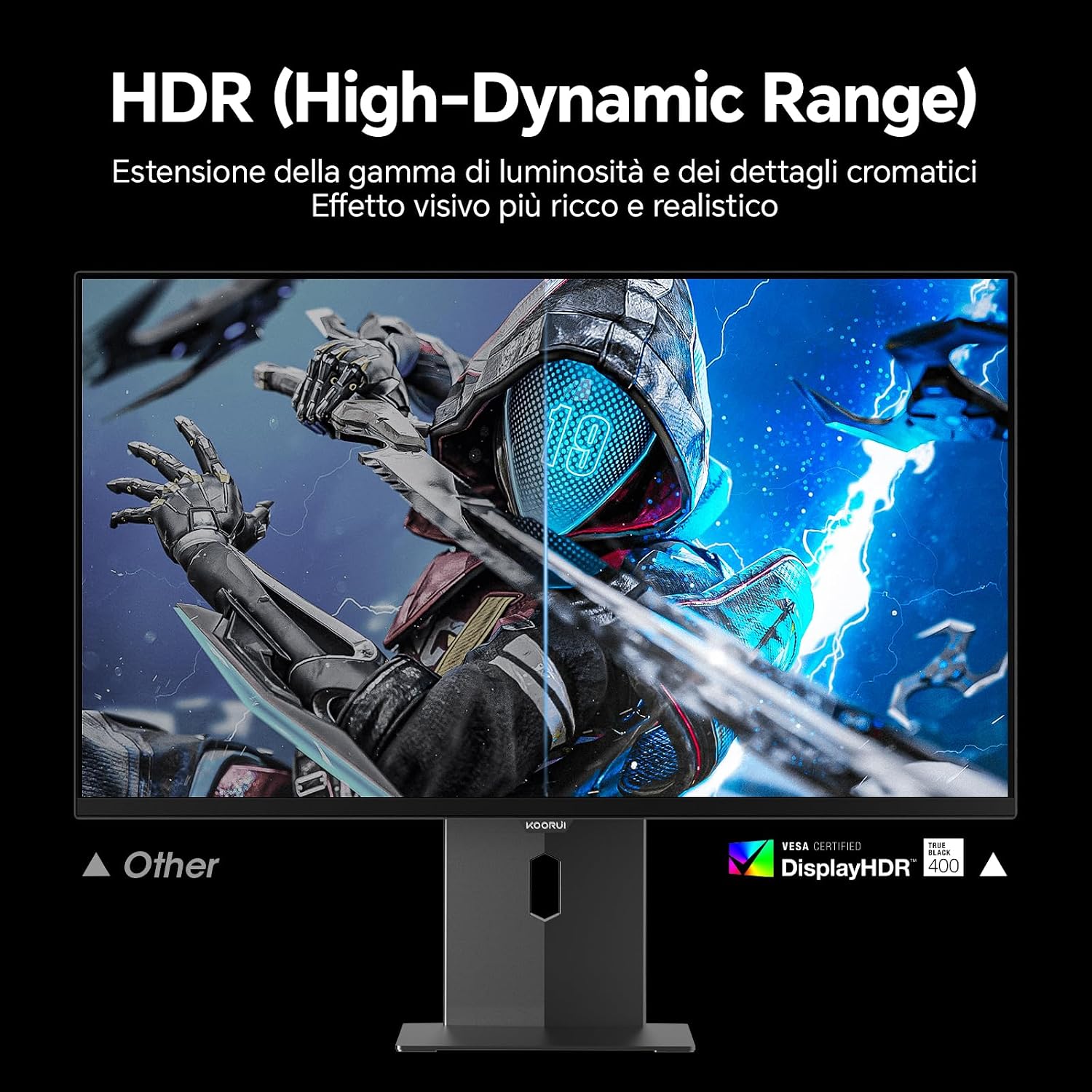
Image: Comparison of a standard display versus the KOORUI S2721XO monitor with HDR (High-Dynamic Range) enabled, showing richer visual effects and realistic details.
Herní funkce
- Obnovovací frekvence: The monitor supports up to 240Hz. Ensure your graphics card and system settings are configured to utilize this refresh rate for smooth gameplay.
- Doba odezvy: With a 0.03ms response time, motion blur is significantly reduced.
- Adaptivní synchronizace: This technology synchronizes the monitor's refresh rate with your GPU's frame rate, eliminating screen tearing and stuttering. Enable Adaptive Sync in the OSD menu and your graphics card control panel.
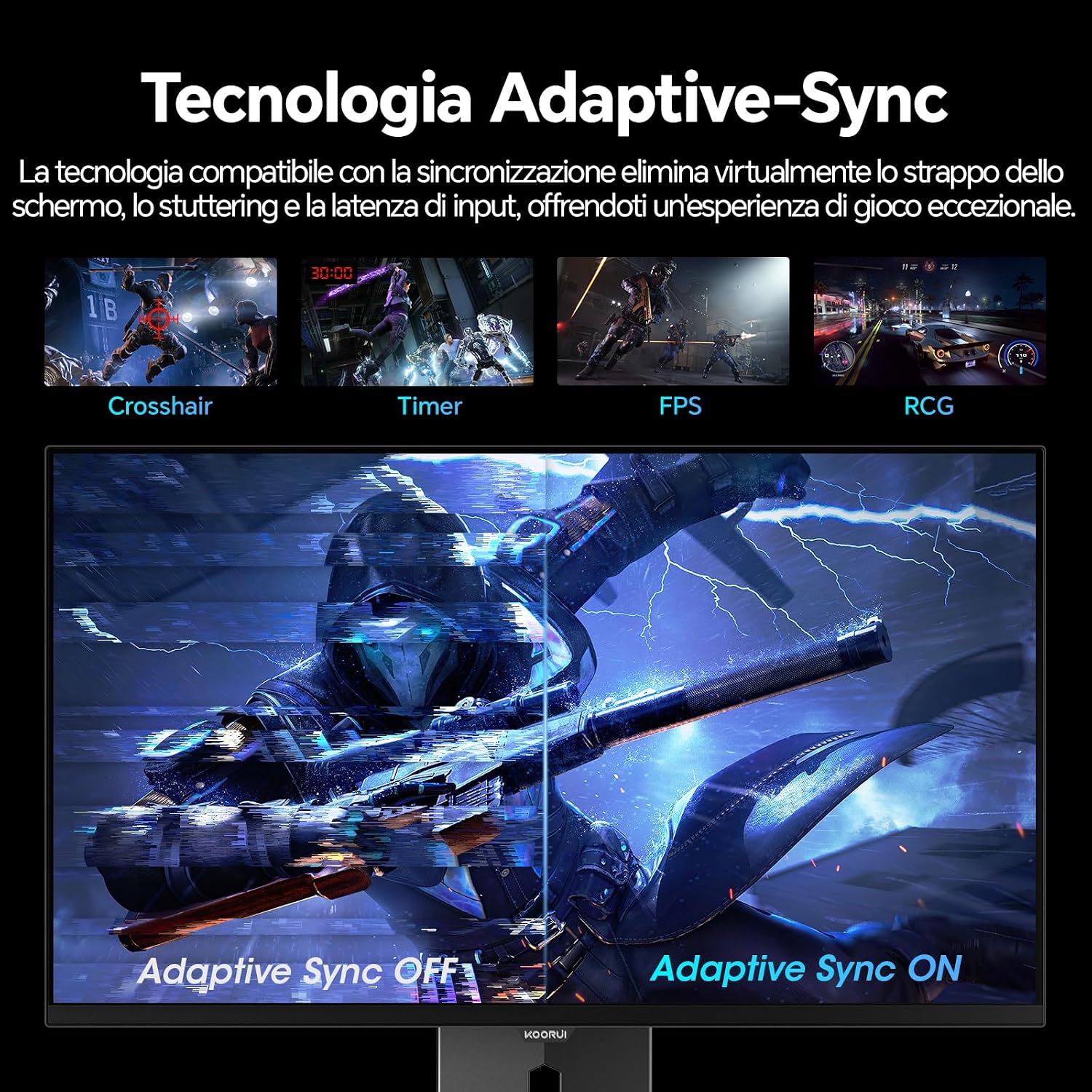
Image: A visual demonstration of Adaptive Sync technology, showing the difference between Adaptive Sync OFF (with screen tearing and stuttering) and Adaptive Sync ON (with smooth, tear-free visuals).

Image: A visual comparison illustrating the ultra-high refresh rate of 240Hz and 0.03ms response time, contrasting it with a 100Hz 5ms display to show the improved fluidity and reduced ghosting.
Režim péče o oči
The monitor includes features designed to reduce eye strain during extended use. Access the Eye Care settings in the OSD menu to enable modes that reduce blue light emission or adjust flicker-free settings.
Údržba
Čištění monitoru
- Před čištěním vždy vypněte monitor a odpojte napájecí kabel.
- Použijte měkký hadřík, který nepouští vlákna dampvodou nebo specializovaným čističem obrazovek.
- Nestříkejte čisticí prostředek přímo na obrazovku.
- Nepoužívejte abrazivní čisticí prostředky, vosky nebo rozpouštědla, protože by mohly poškodit povrch obrazovky.
- Otřete monitor casinměkkým, suchým hadříkem.
Skladování
When storing the monitor for an extended period, ensure it is powered off, unplugged, and stored in a cool, dry place away from direct sunlight and extreme temperatures. Use original packaging if available for best protection.
Odstraňování problémů
| Problém | Možná příčina | Řešení |
|---|---|---|
| Žádná síla | Napájecí kabel není připojen; Zásuvka nefunguje; Monitor je vypnutý. | Ujistěte se, že je napájecí kabel bezpečně připojen. Vyzkoušejte zásuvku s jiným zařízením. Stiskněte tlačítko napájení na monitoru. |
| Žádný signál | Videokabel není připojen; Vybrán nesprávný vstupní zdroj; Počítač není zapnutý. | Check video cable connections (HDMI/DisplayPort). Select the correct input source via the OSD menu. Ensure your computer is powered on and outputting a signal. |
| Blikající obrazovka | Incorrect refresh rate; Faulty cable; Graphics card driver issues. | Adjust refresh rate in display settings. Try a different video cable. Update graphics card drivers. |
| Špatná kvalita obrazu | Incorrect resolution; Picture settings misconfigured; Dirty screen. | Set display resolution to 2560x1440. Adjust brightness, contrast, and color settings in the OSD. Clean the screen as per maintenance instructions. |
Specifikace
| Značka | KOORUI |
| Číslo modelu | S2721XO |
| Velikost obrazovky | 27 palců |
| Typ panelu | QD-OLED |
| Rezoluce | QHD širokoúhlý 1440p (2560 x 1440) |
| Poměr stran | 16:9 |
| Obnovovací frekvence | 240 Hz |
| Doba odezvy | 0.03 ms |
| Kontrastní poměr | 1,500,000:1 |
| Jas | 280 cd/m² |
| Viewúhel | 178 stupňů |
| Hodnota barevného gamautu | 99% DCI-P3 (100% sRGB) |
| Konektivita | 2x HDMI 2.1, 1x DisplayPort 1.4, audio výstup |
| Adaptivní synchronizace | FreeSync compatible |
| Speciální funkce | HDR 400, Eye Care, Height Adjustment, Tilt Adjustment, Swivel Adjustment, Pivot Adjustment |
| Kompatibilita VESA | Rozměr 75 mm x 75 mm |
| Rozměry (Š x V x H) | 610.11 mm x 521.84 mm x 215.82 mm (24.02 palce x 20.54 palce x 8.50 palce) |
| Hmotnost | 3 kg |
Informace o záruce
The KOORUI S2721XO monitor comes with a 2-letá záruka from the date of purchase. This warranty covers manufacturing defects and malfunctions under normal use. Please retain your proof of purchase for warranty claims. For detailed terms and conditions, refer to the warranty card included in your package or visit the official KOORUI webmísto.
Podpora a kontakt
For further assistance, technical support, or customer service inquiries, please visit the official KOORUI website or contact their customer support team. You can also refer to the official PDF instructions for use: