
1. Úvod
The LAMTTO 3-in-1 Wireless CarPlay Adapter is designed to enhance your in-car entertainment and navigation experience. It seamlessly integrates your car's system with Wireless CarPlay and Android Auto, and includes popular multimedia applications such as Netflix, YouTube, and Amazon Prime Video. This adapter makes your journeys safer and more convenient, ideal for long drives, allowing you to relax and enjoy content during stops or breaks.
This device supports wireless connection for both iPhone and Android smartphones, offers plug-and-play functionality with over-the-air (OTA) updates, mirror linking, USB video playback, Bluetooth hands-free calls, and music streaming. It also features an HDMI output port for connecting to external displays.

Image: The LAMTTO Wireless CarPlay Adapter showcasing its multi-functional capabilities including Apple CarPlay, Android Auto, video apps, Airplay, USB drive support, and OTA updates.
2. Nastavení
2.1 Obsah balení
- Wireless Adapter Unit
- Kabel typu C
- USB-Type-C Cable
- Thin Pin (for reset)
- Návod k použití

Image: Visual representation of the package contents, including the adapter, cables, and reset pin.
2.2 První připojení (Plug & Play)
The adapter offers a true 'plug and play' experience. After the initial setup, the device will automatically connect to Wireless CarPlay or Android Auto each time you start your car.
- Insert the wireless adapter into your car's USB port.
- Na smartphonu zapněte Wi-Fi i Bluetooth.
- Connect your smartphone to the wireless adapter via Bluetooth and then confirm the Wi-Fi connection.

Image: Step-by-step diagram illustrating the plug-and-play setup process: insert into car, pair Bluetooth/Wi-Fi, and enjoy CarPlay/Android Auto.
2.3 Connecting to Apple CarPlay
- On your car's display, select 'Apple CarPlay'.
- Ensure Wi-Fi and Bluetooth are enabled on your iPhone.
- Connect your iPhone to the wireless adapter via Bluetooth. The system will then establish a Wi-Fi connection automatically.

Image: Visual guide for connecting Apple CarPlay, showing the steps from selecting CarPlay on the car screen to connecting the iPhone wirelessly.
2.4 Connecting to Android Auto
- On your car's display, select 'Android Auto'.
- Ensure Wi-Fi and Bluetooth are enabled on your Android smartphone.
- Connect your Android smartphone to the wireless adapter via Bluetooth. The system will then establish a Wi-Fi connection automatically.
Hint: The default mode is Apple CarPlay. To switch to Android Auto, you may need to insert a thin pin into the reset hole on the adapter and hold it for 10-15 seconds until the indicator light turns blue.

Image: Visual guide for connecting Android Auto, showing the steps from selecting Android Auto on the car screen to connecting the Android phone wirelessly.
3. Návod k obsluze
3.1 Bezdrátové CarPlay a Android Auto
Once connected, you can wirelessly access your smartphone's functions such as navigation (maps), music playback, and hands-free calling directly on your car's display. This provides a smarter and more integrated driving experience without the need for cables.

Image: Car display showing the interfaces for Wireless Apple CarPlay and Android Auto, demonstrating seamless integration with smartphone apps.
3.2 Built-in Video Applications
The adapter transforms your car into a mobile entertainment hub with pre-installed video applications like Netflix, YouTube, Hulu, Disney+, and Amazon Prime Video. To use these apps, connect the adapter to a mobile hotspot or other available Wi-Fi network.
How to Watch Online Video:
- Zapněte osobní hotspot svého smartphonu.
- On the adapter's interface, turn on Wi-Fi.
- Connect the wireless adapter to your smartphone's hotspot via Wi-Fi.

Image: Car interior view showing the adapter connected, with the car's display showing various built-in video applications such as Netflix, YouTube, and TikTok.

Image: Step-by-step guide on how to enable online video viewing by connecting the adapter to a smartphone's hotspot.
3.3 Mirror Link (Airplay & Android Cast)
Mirror Link allows you to project your smartphone's screen, including videos, app interfaces, and other content, directly onto your car's display. This enables you to enjoy content on a larger screen without the limitations of your phone's size.
Airplay Connection Method:
- Open your smartphone's personal hotspot.
- Connect the car system's Wi-Fi to your smartphone's hotspot.
- On your iPhone's Control Center, tap 'Screen Mirroring' and select the adapter.

Image: A smartphone screen being mirrored onto the car's display, showing a video game or movie.

Image: Step-by-step instructions for connecting via Airplay, including enabling hotspot and selecting screen mirroring.
3.4 USB Video and Audio Playback
The adapter includes a USB port that supports offline video and audio playback. Simply connect a USB device containing your media files to the adapter. This provides additional entertainment options during long drives, allowing you to enjoy high-quality content without relying on data or Wi-Fi.

Image: The wireless adapter with a USB drive inserted, surrounded by various movie and video thumbnails, indicating USB media playback support.
3.5 Bluetooth Phone and Music Playback
Utilize the built-in Bluetooth functionality for hands-free calls, ensuring safety and convenience while driving. You can also stream your favorite music from your smartphone directly to your car's audio system via Bluetooth, enjoying high-quality sound.

Image: Split image showing Bluetooth call interface on one car screen and Bluetooth music playback on another, highlighting dual Bluetooth capabilities.
3.6 Výstupní port HDMI
The HDMI output port allows connection to an external HDMI display that supports touch operation. This provides a clearer and smoother visual experience, enabling you to watch videos, play music, and access various application content on a larger screen for a more immersive entertainment experience.
3.7 Možnosti ovládání
The adapter supports multiple control methods for ease of use:
- Ovládání dotykovou obrazovkou: Přímo komunikujte s dotykovým displejem vozu.
- Ovládání knoflíkem OEM: Use your car's original equipment manufacturer (OEM) control knobs.
- Hlasový asistent: Pro ovládání bez použití rukou používejte hlasové příkazy.

Image: Depiction of the four control options: touchscreen, OEM knob, and voice assistant, for interacting with the car's infotainment system.
4. Údržba
4.1 Online aktualizace OTA
The system supports regular Over-The-Air (OTA) updates to improve performance, fix bugs, and enhance compatibility. This ensures a smoother and more stable in-car entertainment experience. Updates are performed online, eliminating the need for manual intervention or service center visits, allowing you to quickly access the latest features and improvements.
OTA Upgrade Procedure:
- Internetové připojení: Ensure the device is connected to a stable Wi-Fi network or a mobile hotspot.
- Provést upgrade: Navigate to 'All Apps' > 'Update' > 'Check' > 'Download', then select 'Install'. The system will automatically restart after 3-5 minutes.
- Confirm Upgrade: After the system restarts, verify that the system version date has been updated to the latest.
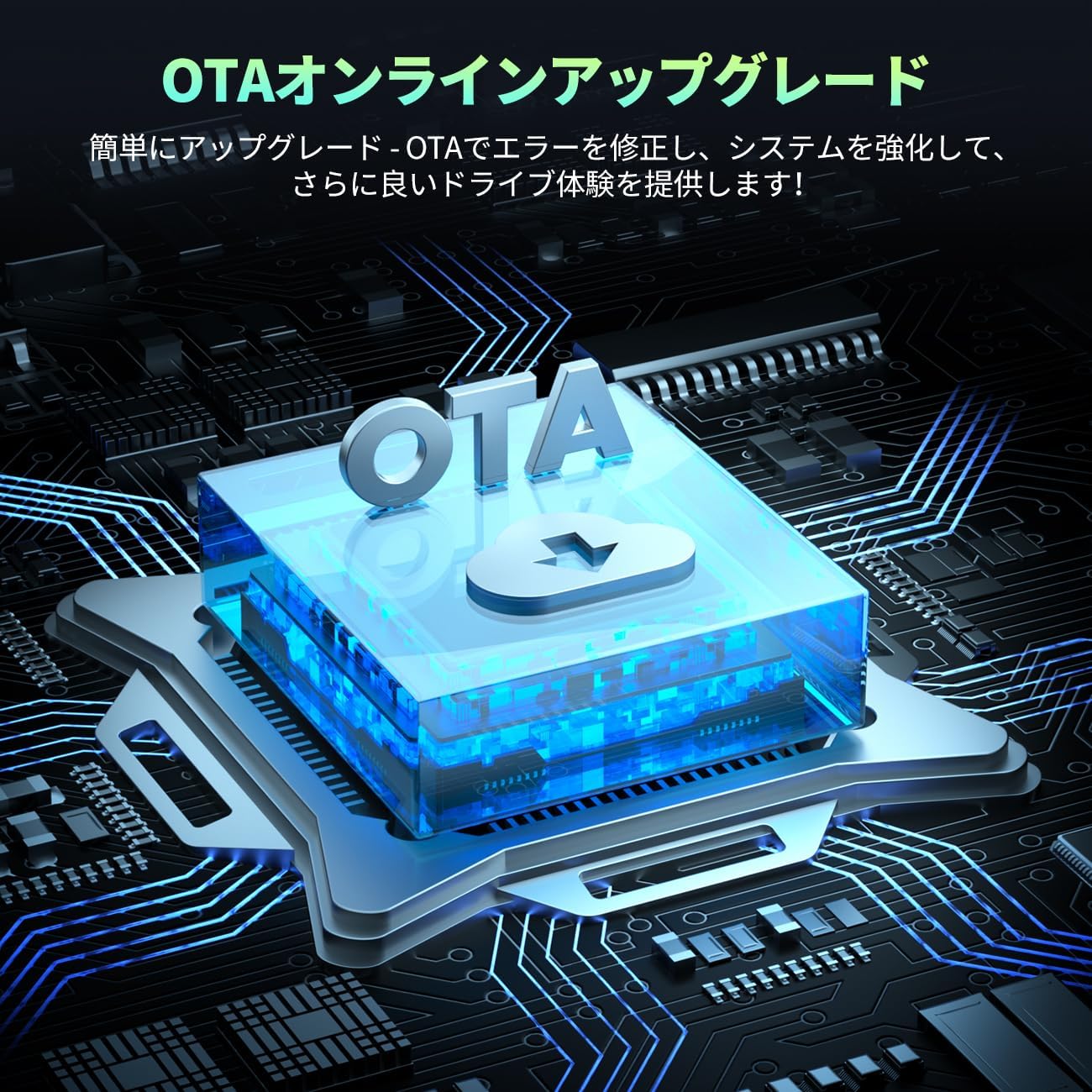
Image: A conceptual diagram illustrating the OTA online upgrade process, showing data flowing to a central cloud server and then to the device, symbolizing seamless updates.

Image: Detailed steps for performing an OTA upgrade, including checking for updates and confirming the new version.
5. Řešení problémů
- Compatibility Note 1: This AI Box cannot be used with car display audio systems that do not support touch screens.
- Compatibility Note 2: This product is not compatible with in-car systems of BMW, Audi, Mercedes-Benz, or Volkswagen Passat models.
- Problémy s připojením: If the device does not connect immediately after plugging in, try turning off and restarting your car's engine. This often resolves initial connection issues.
- Slabý signál Wi-Fi: If you experience a weak Wi-Fi signal, especially for online video streaming, try using your smartphone's personal hotspot for a more stable connection.
- Video Playback Lag/Sync Issues: If online video playback experiences lag or audio/video synchronization issues, ensure a strong Wi-Fi connection. For consistent performance, consider playing content from a USB drive.
- Unresponsive Screen/Frozen System: If the car screen becomes unresponsive or the system freezes, locate the small reset hole on the adapter. Insert the provided thin pin and press for 10-15 seconds to restart the device.

Image: Close-up of the wireless adapter showing the reset button location, indicated by a small hole next to the indicator light.
6. Specifikace
| Název značky | LAMTTO |
| Číslo modelu | bezdrátový adaptér |
| Název výrobce | LAMTTO |
| UPC | 765463557422 |
| GTIN | 765463557422 |
| ASIN | B0DPH2N98J |
| Zahrnuté komponenty | Wireless Adapter Unit |
7. Záruka a podpora
For detailed warranty information, terms, and conditions, please refer to the warranty card included with your product. For technical support, troubleshooting assistance, or any other inquiries, please visit the official LAMTTO webwebové stránky nebo se obraťte přímo na jejich zákaznický servis. Kontaktní údaje obvykle naleznete na obalu produktu nebo na webových stránkách výrobce. webmísto.