
Playzone (ad754a8f-8a58-4183-be43-cda433ee3b26)

Playzone HDD Console User Manual
Model: Playzone (ad754a8f-8a58-4183-be43-cda433ee3b26)
1. Konec produktuview
The Playzone HDD Console is a versatile plug-and-play Solid State Drive (SSD) designed to transform your PC or laptop into a powerful gaming station. It comes pre-loaded with three distinct game systems and a vast library of games, offering an extensive retro and modern gaming experience.

Obrázek 1.1: Konecview of the Playzone HDD Console, highlighting its capacity of 16191 games, 3 game systems, and compatibility with over 80 emulators.
Klíčové vlastnosti:
- Three Integrated Game Systems: Retrobat for classic retro games, Playnite for AAA games, and Launchbox for 3D games.
- Rozsáhlá herní knihovna: Pre-installed with 16,191 games and compatible with over 80 game emulators.
- Vysokorychlostní výkon: Utilizes a 1TB SSD with a data output rate of up to 10Gb/s for smooth gameplay and clear visuals.
- Plug and Play: Designed for easy setup and immediate use with compatible PCs and laptops.
- Rozbalitelné: Supports adding additional games.
2. Průvodce nastavením
Follow these steps to set up your Playzone HDD Console with your computer.
Systémové požadavky:
- Operační systém: 64-bit Windows 8.1, Windows 10, or Windows 11.
- Typ zařízení: Compatible with PC and Laptop.
- Doporučený procesor: Intel Core i5 or above.
- Recommended GPU: NVIDIA GeForce GTX 1050 Ti or above.
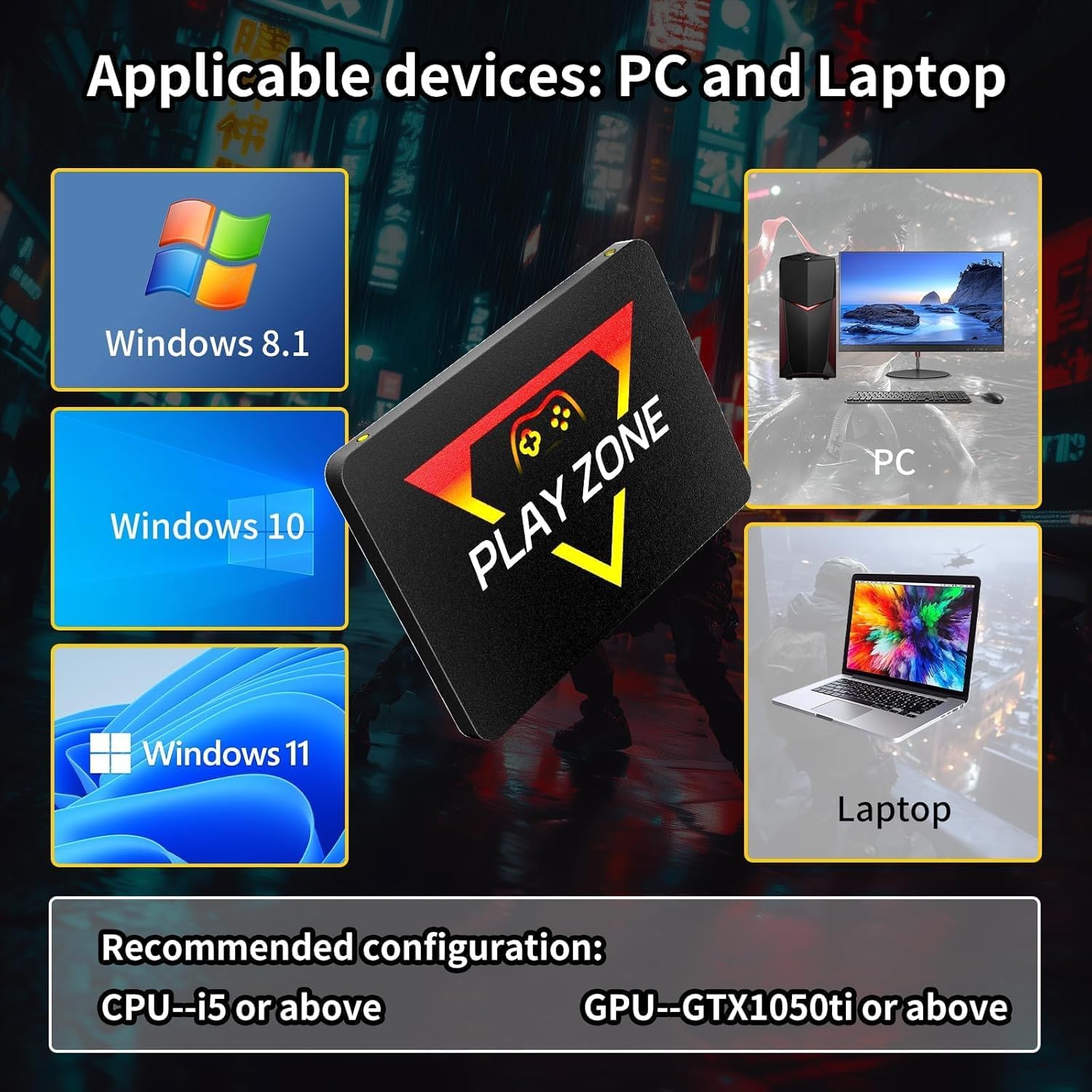
Image 2.1: Visual representation of compatible operating systems (Windows 8.1, 10, 11) and device types (PC, Laptop), along with recommended hardware specifications for optimal performance.
Kroky připojení:
- Ensure your PC or laptop meets the minimum system requirements.
- Connect the Playzone SSD to your computer using the provided SATA to USB-A cable. The SATA cable connects to the SSD, and the USB-A end connects to an available USB port on your computer.
- Once connected, your operating system should automatically detect the SSD.
- Navigate to 'This PC' or 'My Computer' to locate the newly connected drive.
- Open the drive to access the pre-installed game systems and begin playing.
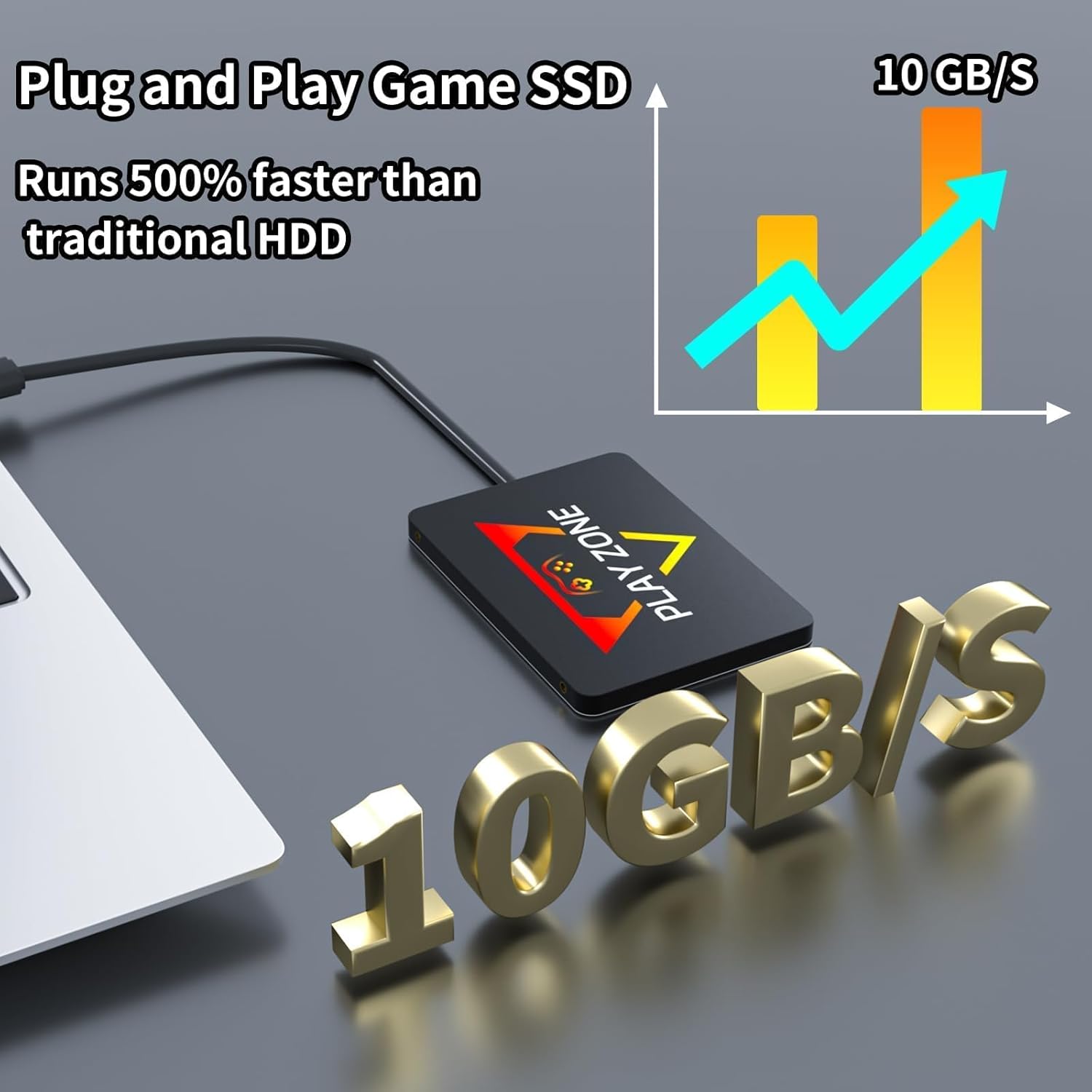
Image 2.2: The Playzone Game SSD connected to a laptop via its cable, emphasizing its high-speed 10 GB/s data transfer rate compared to traditional HDDs.
3. Návod k obsluze
The Playzone HDD Console provides access to three distinct gaming environments.
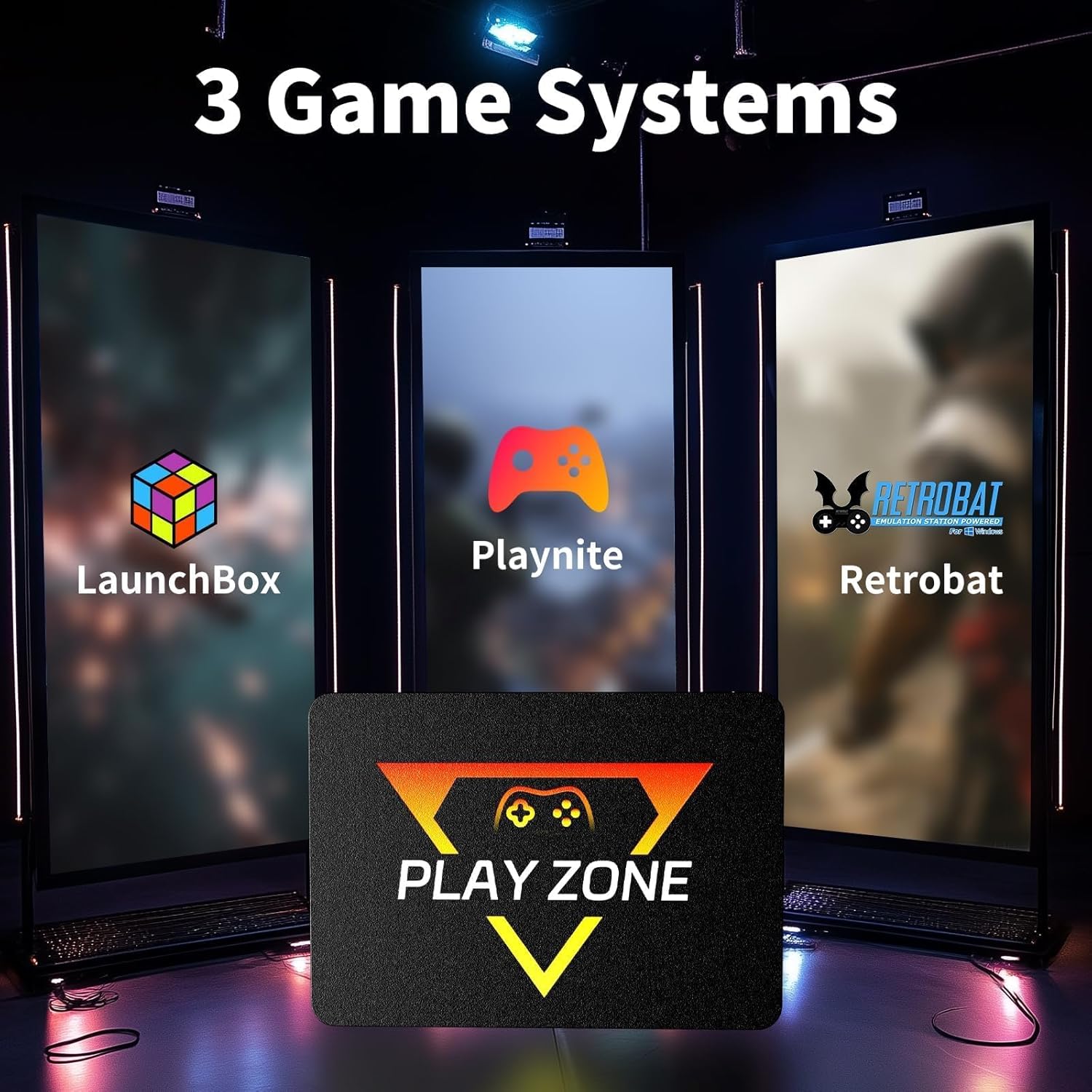
Image 3.1: Visual representation of the three primary game systems included: LaunchBox, Playnite, and Retrobat, each designed for different types of gaming experiences.
Accessing Game Systems:
- Once the SSD is connected and recognized by your computer, open the drive.
- You will find folders or executable files for each of the three game systems: Retrobat, Playnitea Launchbox.
- Double-click the desired system's executable file spustit.
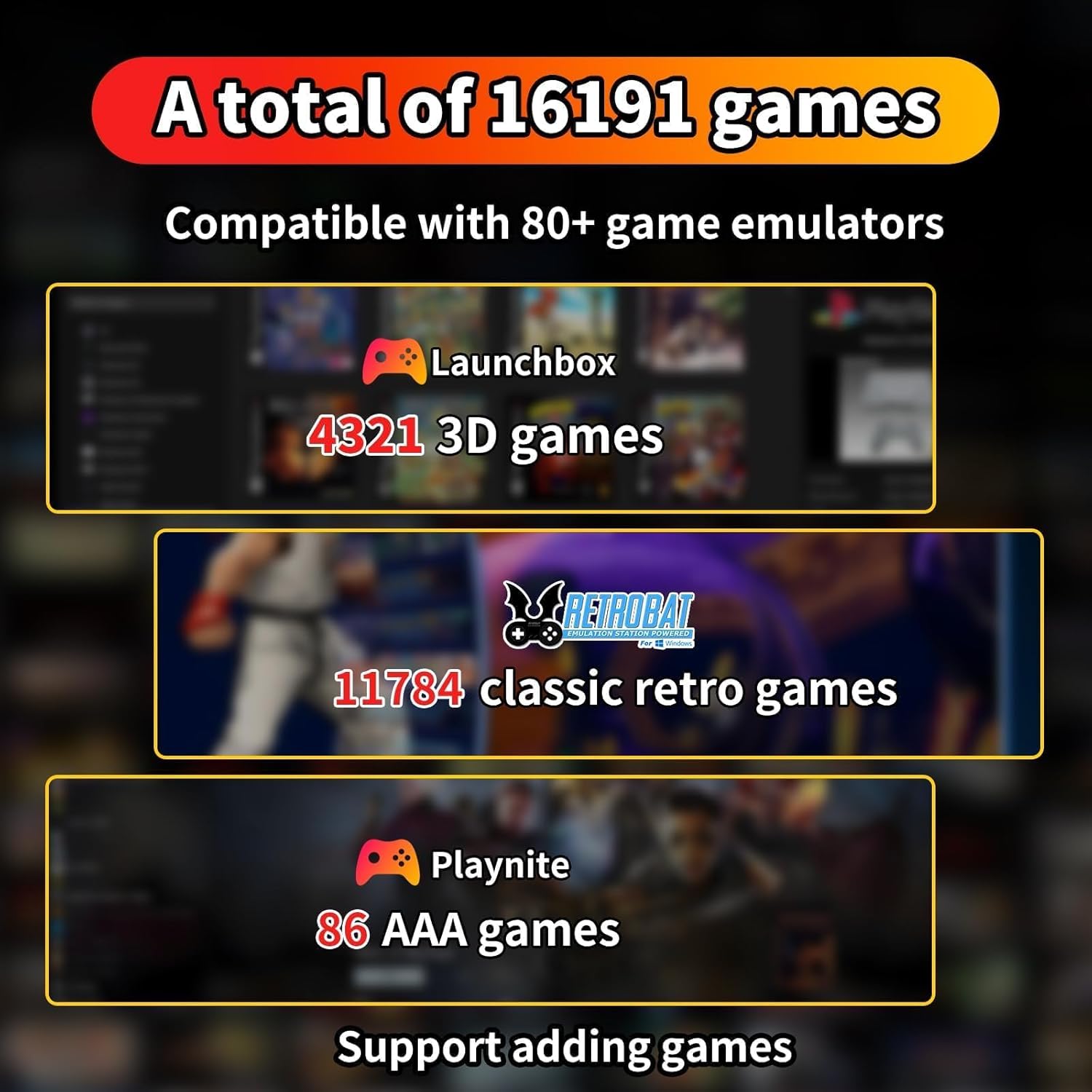
Image 3.2: Breakdown of the game library, showing 4321 3D games in Launchbox, 11784 classic retro games in Retrobat, and 86 AAA games in Playnite, with support for adding more games.
Kategorie her:
- Retrobat: Primarily for classic retro games.
- Playnite: Focuses on AAA (triple-A) games.
- Launchbox: Dedicated to 3D games.
The console supports adding games by yourself. Refer to the specific documentation or community resources for each emulator (Retrobat, Playnite, Launchbox) for detailed instructions on adding new games.
4. Údržba
The Playzone HDD Console is a robust SSD designed for durability. Minimal maintenance is required to ensure its longevity and optimal performance.
- Skladování: SSD disk skladujte na chladném a suchém místě mimo dosah přímého slunečního záření a extrémních teplot.
- Zacházení: Avoid dropping or subjecting the SSD to physical shocks, as this can damage internal components.
- Čištění: Use a soft, dry cloth to gently wipe the exterior of the SSD if it becomes dusty. Do not use liquid cleaners or abrasive materials.
- Aktualizace softwaru: Periodically check for updates for the installed game systems (Retrobat, Playnite, Launchbox) to ensure compatibility and access to the latest features.
5. Řešení problémů
If you encounter issues with your Playzone HDD Console, consider the following troubleshooting steps:
- SSD nezjištěno:
- Ensure the SATA to USB-A cable is securely connected to both the SSD and your computer's USB port.
- Zkuste se připojit k jinému portu USB na počítači.
- Verify that your computer's operating system is 64-bit Windows 8.1, 10, or 11.
- Restart your computer and try connecting the SSD again.
- Games Not Launching/Crashing:
- Confirm your computer meets the recommended CPU (i5 or above) and GPU (GTX 1050 Ti or above) specifications.
- Ujistěte se, že máte aktuální ovladače grafické karty.
- Check the specific game system's documentation for any additional software dependencies (e.g., DirectX, Visual C++ Redistributables).
- If only certain games are affected, they might require specific configurations within the emulator.
- Pomalý výkon:
- Ensure no other demanding applications are running in the background on your computer.
- Verify that your USB port is functioning correctly and providing adequate power.
- Check your computer's resource usage (CPU, RAM) during gameplay to identify bottlenecks.
If issues persist, consult the seller or manufacturer for further assistance.
6. Specifikace
Detailed technical specifications for the Playzone HDD Console.
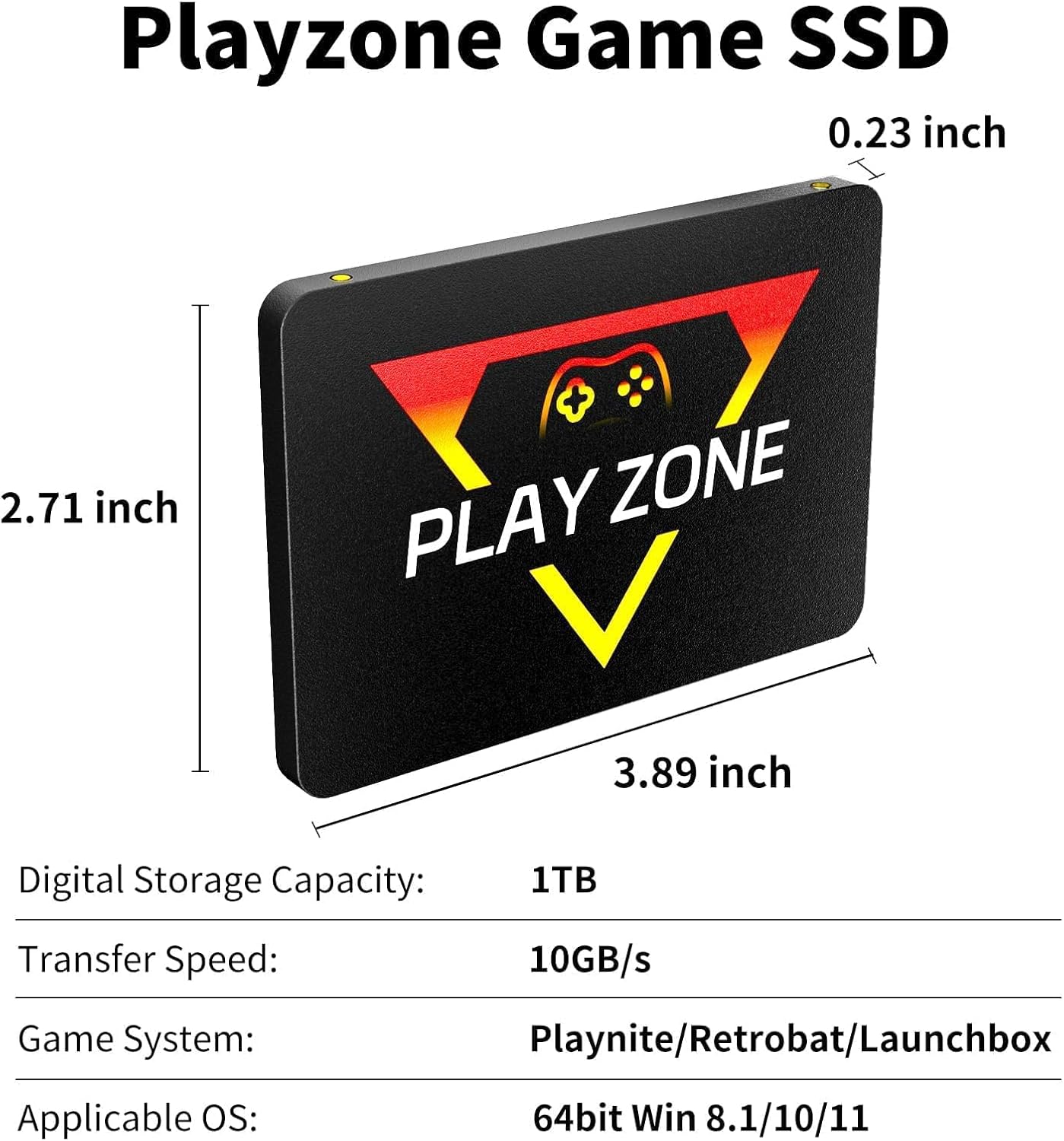
Obrázek 6.1: Detailní view of the Playzone Game SSD, showing its physical dimensions (2.71 x 0.23 x 3.89 inches) and listing key specifications such as digital storage capacity, transfer speed, game systems, and applicable operating systems.
| Funkce | Detail |
|---|---|
| Rozměry produktu | 2.7 x 0.23 x 3.89 palce |
| Digitální kapacita úložiště | 1TB |
| Rychlost přenosu | 10 Gb/s |
| Herní systémy | Playnite, Retrobat, Launchbox |
| Použitelný operační systém | 64-bit Windows 8.1 / 10 / 11 |
| Vstupní zařízení | Gamepad (compatible) |
| Barva | Černý |
| Výrobce | playzone |
| Název modelu | playzone |
| Číslo modelu položky | ad754a8f-8a58-4183-be43-cda433ee3b26 |
| Doporučený věk | 12 měsíců a více |
| Země původu | Čína |
7. Co je v krabici
The Playzone HDD Console package includes the following items:
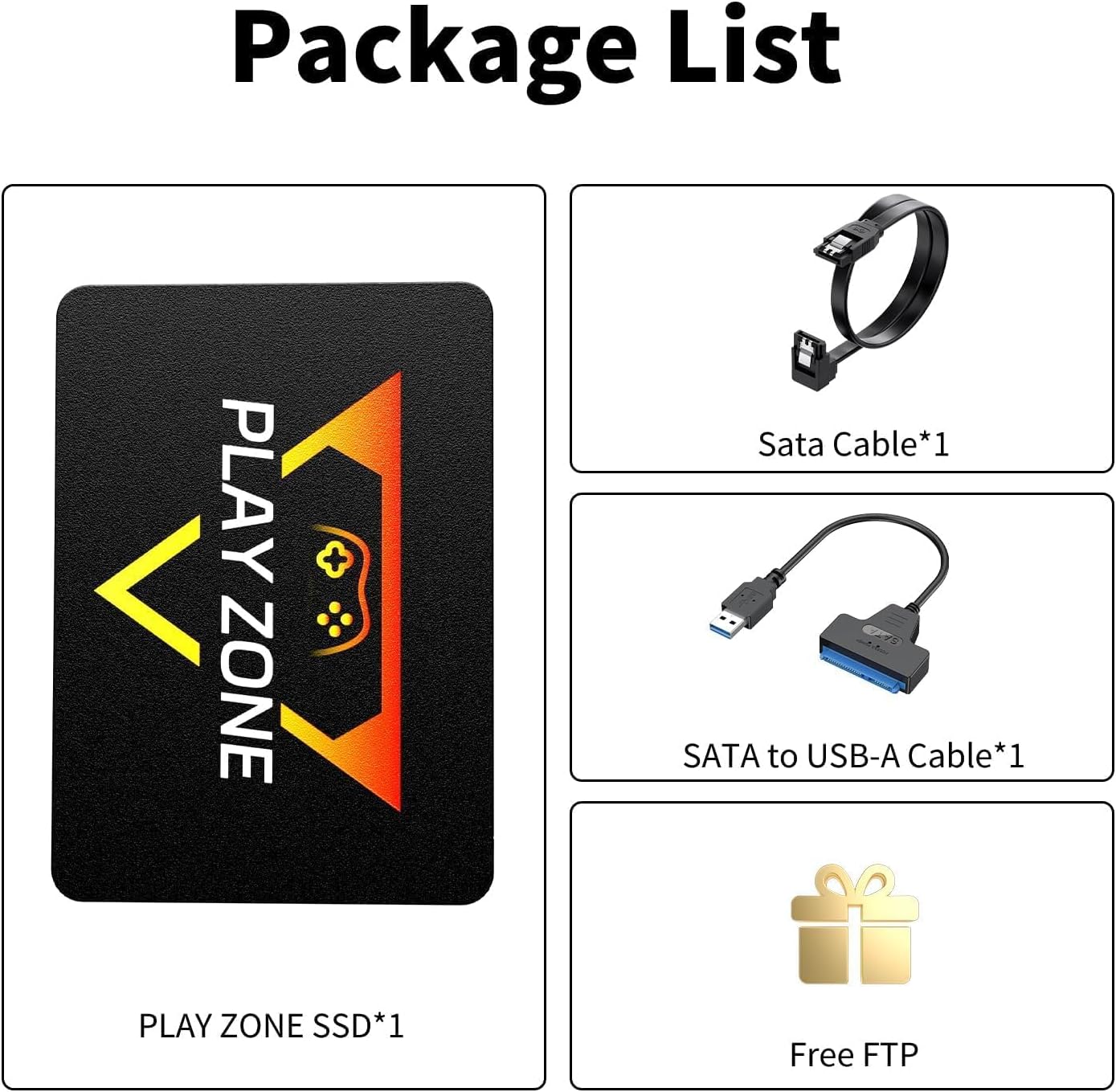
Image 7.1: Contents of the Playzone HDD Console package, including the Playzone SSD, a SATA cable, a SATA to USB-A cable, and information about free FTP access.
- 1 x Playzone SSD (Game Console)
- Kabel 1 x SATA
- 1 x SATA to USB-A Cable
- Access to Free FTP (for additional resources/games, details provided by seller)
8. Záruka a podpora
For information regarding product warranty, returns, or technical support, please contact the seller directly through your purchase platform. Any available protection plans are typically offered at the point of sale and managed by third-party providers.
Doporučuje se uschovat si doklad o koupi pro případné reklamace nebo dotazy na podporu.
Ask a question about this manual
Ask about setup, troubleshooting, compatibility, parts, safety, or missing instructions. Manuals+ will review the question and use this page’s manual context to help answer it.