
GrandStream GCC6010
Uživatelská příručka Grandstream GCC6010
Integrated IP PBX, Firewall, VPN Router, and Network Switch
1. Úvod
The Grandstream GCC6010 series offers a comprehensive, multifunctional solution designed to streamline communication and networking for small and medium businesses. This device integrates the functionalities of a VPN router, a next-generation firewall, an IP PBX, and a network switch into a single platform. It enables users to establish and manage wired and wireless networks, implement VPNs, ensure enterprise-level network security, and utilize a leading unified communication and collaboration platform.
The GCC6010 facilitates quick configuration of complete unified communication (UC), network, and security solutions. Management can be performed via the Grandstream Device Management System (GDMS) cloud platform, a mobile application, the local web interface, or through SSH console management. This integrated approach simplifies data security, business communication, and collaboration.
2. Obsah balení
Verify that all items are present in your package. If any item is missing or damaged, contact your vendor immediately.
- Jednotka Grandstream GCC6010
- Univerzální napájecí adaptér
- Průvodce rychlou instalací
3. Fyzický overview
The Grandstream GCC6010 features a compact design with various ports and indicators for network connectivity and system status.
3.1. Device Front View
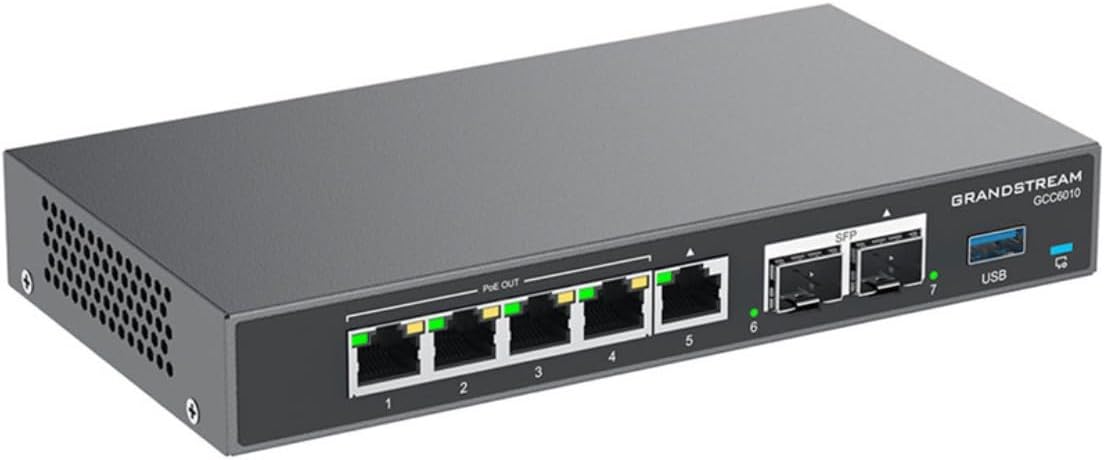
Obrázek 1: Zkosená přední strana view of the Grandstream GCC6010, displaying the network ports, SFP slots, and USB port.
Tento obrázek poskytuje úhlový pohled view of the GCC6010, highlighting its front panel. Visible features include multiple Ethernet ports (labeled 1-5), two SFP ports (labeled 6-7), and a USB port. LED indicators above each port show connection status and activity. The device casing is dark gray with the Grandstream logo and model number clearly visible.
3.2. Rozložení předního panelu

Obrázek 2: Detailní view of the Grandstream GCC6010 front panel, showing port numbering and LED indicators.
The front panel of the GCC6010 features five Gigabit Ethernet ports (1-5), with ports 1-4 supporting PoE Out. Each Ethernet port has corresponding LED indicators for link/activity status. Two SFP ports (6-7) are provided for fiber optic connections, also with individual LED indicators. A USB 3.0 port is located on the far right, alongside a system status LED.
3.3. Rear Panel Layout

Obrázek 3: Detailní view of the Grandstream GCC6010 rear panel, showing power input, reset button, and Micro SD slot.
The rear panel includes the 48V DC power input jack, a recessed reset button, and a Micro SD card slot for storage. Additionally, there is a Kensington lock slot for security and a grounding screw terminal.
4. Nastavení
4.1. Instalace hardwaru
- Připojení napájení: Connect the universal power adapter to the 48V DC power input on the rear panel of the GCC6010 and then plug it into a power outlet.
- Internetové připojení: Connect your internet service provider's modem or router to one of the WAN ports (typically port 5, consult the Quick Installation Guide for specifics) on the GCC6010. Connect your local network devices (computers, switches, IP phones) to the LAN ports (1-4).
- Optional SFP Connection: If using fiber optic connections, insert compatible SFP modules into the SFP ports (6-7) and connect the fiber cables.
- Optional USB Storage: For additional storage or specific applications, connect a USB drive to the USB port.
- Optional Micro SD Storage: Insert a Micro SD card into the Micro SD slot on the rear panel for additional storage.
4.2. Přístup k počáteční konfiguraci
After connecting the hardware, you can access the device for initial configuration using one of the following methods:
- Web Rozhraní: Connect a computer to a LAN port of the GCC6010. Open a web browser and enter the default IP address (refer to the Quick Installation Guide or device label for the default IP). Follow the on-screen prompts to complete the initial setup wizard.
- Grandstream Device Management System (GDMS): For cloud-based management, register your GCC6010 device on the GDMS platform. This allows for centralized management and configuration.
- Mobilní aplikace: Utilize the Grandstream mobile application for basic monitoring and configuration.
- SSH Console: For advanced users, access the device via SSH for command-line configuration.
It is highly recommended to change default passwords immediately after initial access for security purposes.
5. Návod k obsluze
The GCC6010 combines multiple functionalities. This section provides an overview of its primary operational aspects.
5.1. Network Configuration (Router & Switch)
- WAN Setup: Configure your internet connection settings (DHCP, Static IP, PPPoE) through the web rozhraní.
- LAN Management: Manage IP addresses, DHCP server settings, and VLANs for your local network.
- Přepínání: The integrated switch ports (1-5) provide basic layer 2 switching capabilities. Ports 1-4 support Power over Ethernet (PoE) output for compatible devices.
- Bezdrátové sítě: If external Grandstream Wi-Fi Access Points are connected and managed by the GCC6010, configure SSIDs, security protocols, and guest networks.
5.2. IP PBX Features
The GCC6010 functions as an IP PBX, supporting up to 10 users and 4 simultaneous calls.
- Správa uživatelů: Create and manage extensions for IP phones and softphones.
- Call Routing: Configure inbound and outbound call routes, IVRs (Interactive Voice Response), and ring groups.
- Hlasová schránka: Set up voicemail boxes and access methods.
- Konference: Utilize built-in conferencing features for multi-party calls.
5.3. Firewall and VPN
- Pravidla brány firewall: Configure security policies, access control lists (ACLs), and port forwarding to protect your network.
- Nastavení VPN: Establish Virtual Private Network (VPN) connections for secure remote access or site-to-site connectivity. Supported VPN protocols may include OpenVPN, IPsec, etc.
- Intrusion Detection/Prevention: Utilize advanced security features to detect and prevent network threats.
5.4. Správa systému
- Web Rozhraní: The primary method for detailed configuration and monitoring.
- GDMS: For managing multiple Grandstream devices from a centralized cloud platform.
- Záznamy a zprávy: Monitor system logs, call detail records (CDRs), and network traffic reports for diagnostics and performance analysis.
6. Údržba
6.1. Aktualizace firmwaru
Regularly check for and apply firmware updates to ensure optimal performance, security, and access to new features. Firmware can be updated via the web interface or GDMS.
- Download the latest firmware from the official Grandstream webmísto.
- Přístup k zařízení web rozhraní a přejděte do sekce aktualizace firmwaru.
- Follow the instructions to upload and install the new firmware. Do not power off the device during the upgrade process.
6.2. Zálohování a obnovení konfigurace
It is recommended to regularly back up your device's configuration settings. This allows for quick restoration in case of system issues or when migrating settings to a new device.
- Přístup k web interface and locate the backup/restore section.
- Uložte konfiguraci file na bezpečné místo.
- To restore, upload the saved configuration file through the same interface.
6.3. Reset systému
If the device becomes unresponsive or you need to revert to factory settings, a system reset can be performed. Use the recessed reset button on the rear panel. Press and hold the button for approximately 10 seconds until the device reboots to factory defaults. Varování: A factory reset will erase all configurations and data.
7. Řešení problémů
Tato část obsahuje základní kroky pro řešení běžných problémů.
- Bez napájení: Ensure the power adapter is securely connected to the device and a working power outlet. Check the power LED indicator.
- Bez síťového připojení:
- Verify Ethernet cables are properly connected to the correct ports (WAN/LAN).
- Check port LED indicators for link and activity.
- Confirm IP address settings on connected devices.
- Restart the GCC6010 and connected network devices.
- Nelze přistupovat Web Rozhraní:
- Ensure your computer is on the same network segment as the GCC6010 (e.g., connected to a LAN port).
- Ověřte, zda je IP adresa zadaná v prohlížeči správná.
- Vymažte mezipaměť prohlížeče nebo zkuste jiný prohlížeč.
- Dočasně deaktivujte veškerý firewall v počítači.
- IP PBX Call Issues:
- Check SIP registration status for extensions.
- Verify inbound/outbound routes and firewall rules.
- Ensure sufficient bandwidth for voice traffic.
For more advanced troubleshooting, consult the comprehensive online documentation or contact Grandstream technical support.
8. Specifikace
| Funkce | Detail |
|---|---|
| Značka | GrandStream |
| Číslo modelu | GCC6010 |
| Síťové porty | 5 x Gigabit Ethernet (RJ45), 2 x 2.5 Gigabit (SFP) |
| PoE výstup | Yes, on ports 1-4 |
| Zahrnuté komponenty | GCC6010 unit, Universal Power Adapter, Quick Installation Guide |
| Barva | Černý |
| Kompatibilní zařízení | Desktop computers, Laptops, Printers, Servers |
| Rozhraní | RJ45, SFP, USB, Micro SD |
| Typ přepínače | Unmanaged (Layer 2 functionality) |
| Kompatibilita platformy | Všechny operační systémy |
| CasinMateriál | Plast |
| Hmotnost položky | 1.85 libry (přibližně 0.84 kg) |
| Výrobce | Sítě Grandstream |
| Země původu | Portugalsko |
| IP PBX Capacity | 10 users, 4 simultaneous calls |
9. Záruka a podpora
For detailed warranty information, please refer to the warranty card included with your product or visit the official Grandstream website. Technical support is available through Grandstream's support portal, knowledge base, and community forums. Contact information for support can be found on the Grandstream webmísto.
Ask a question about this manual
Ask about setup, troubleshooting, compatibility, parts, safety, or missing instructions. Manuals+ will review the question and use this page’s manual context to help answer it.