
1. Úvod
Thank you for choosing the MEETION BTM011 Ergonomic Wireless Bluetooth Vertical Mouse. This device is designed to provide a comfortable and efficient computing experience by promoting a natural hand position, reducing wrist strain. It offers versatile connectivity options for multiple devices and adjustable precision to suit various tasks.

The ergonomic design of the MEETION vertical mouse helps maintain a natural hand and wrist posture, reducing discomfort compared to traditional mice.
2. Obsah balení
- MEETION BTM011 Ergonomic Wireless Bluetooth Vertical Mouse
- USB 2.4G Receiver (stored in the mouse battery compartment)
- Adaptér USB-A na USB-C
- Uživatelská příručka
3. Konec produktuview
Familiarize yourself with the various components and buttons of your MEETION BTM011 mouse.

Detailní view of the mouse components, including the Mode Switching Button, Power Switch (ON/OFF), Low Battery Indicator, Charging Indicator, DPI Speed Switch Button, 2.4G Connection Indicator, Bluetooth 1 Connection Indicator, and Bluetooth 2 Connection Indicator.
- Levé tlačítko: Standardní funkce levého kliknutí.
- Pravé tlačítko: Standardní funkce kliknutí pravým tlačítkem myši.
- Rolovací kolečko: For scrolling up and down.
- Tlačítko vpřed: Naviguje vpřed web prohlížeče popř file průzkumníci.
- Tlačítko Zpět: Naviguje zpět web prohlížeče popř file průzkumníci.
- Tlačítko přepínání DPI: Upravuje citlivost kurzoru.
- Tlačítko přepínání režimů: Switches between 2.4G, Bluetooth 1, and Bluetooth 2 modes.
- Vypínač (ON/OFF): Zapne nebo vypne myš.
- Přihrádka na baterie: Located at the bottom, for 1x AA battery and USB receiver storage.
4. Pokyny k nastavení
4.1 Instalace baterie
Myš vyžaduje jednu baterii AA (není součástí balení).
- Vyhledejte kryt přihrádky na baterie na spodní straně myši.
- Posunutím otevřete kryt.
- Vložte jednu baterii typu AA a dbejte na správnou polaritu (+/-).
- Bezpečně zavřete kryt bateriového prostoru.

Insert one AA battery into the compartment. The USB receiver is also stored here.
4.2 Zapnutí/vypnutí
Slide the power switch located on the bottom of the mouse to the "ON" position to turn it on. Slide to "OFF" to conserve battery when not in use.
4.3 Režimy připojení
The MEETION BTM011 mouse supports three connection modes: 2.4GHz wireless (via USB receiver) and two independent Bluetooth 5.3 channels (BT1 and BT2). You can connect to up to three devices simultaneously and switch between them.

The mouse supports 2.4G wireless and two Bluetooth 5.3 connections for seamless switching between devices.
4.4 2.4GHz USB Connection
- Take out the USB receiver from the battery compartment of the mouse.
- Insert the USB receiver into an available USB-A port on your computer. If your computer only has USB-C ports, use the provided USB-A to USB-C adapter.
- Zapněte myš pomocí vypínače.
- Press the Mode Switching Button until the 2.4G Connection Indicator (green light) lights up. The mouse should now be connected.
4.5 Připojení Bluetooth (BT1 / BT2)
- Zapněte myš pomocí vypínače.
- Press the Mode Switching Button to select either Bluetooth 1 (BT1) or Bluetooth 2 (BT2). The corresponding blue indicator light will blink, indicating pairing mode.
- On your device (computer, laptop, tablet, smartphone), go to Bluetooth settings.
- Hledat new devices. You should find "Meetion_MS_BT1" or "Meetion_MS_BT2".
- Select the device to pair. Once paired, the blue indicator light will stop blinking and remain solid for a few seconds.

Visual guide for connecting the mouse via 2.4G USB receiver and Bluetooth modes.
5. Návod k obsluze
5.1 Nastavení DPI
The mouse features 4 adjustable DPI levels: 1200, 1600, 2400, and 3200. Press the DPI Switch Button (located behind the scroll wheel) to cycle through these settings. Each press changes the cursor speed, allowing you to select the precision suitable for your task.
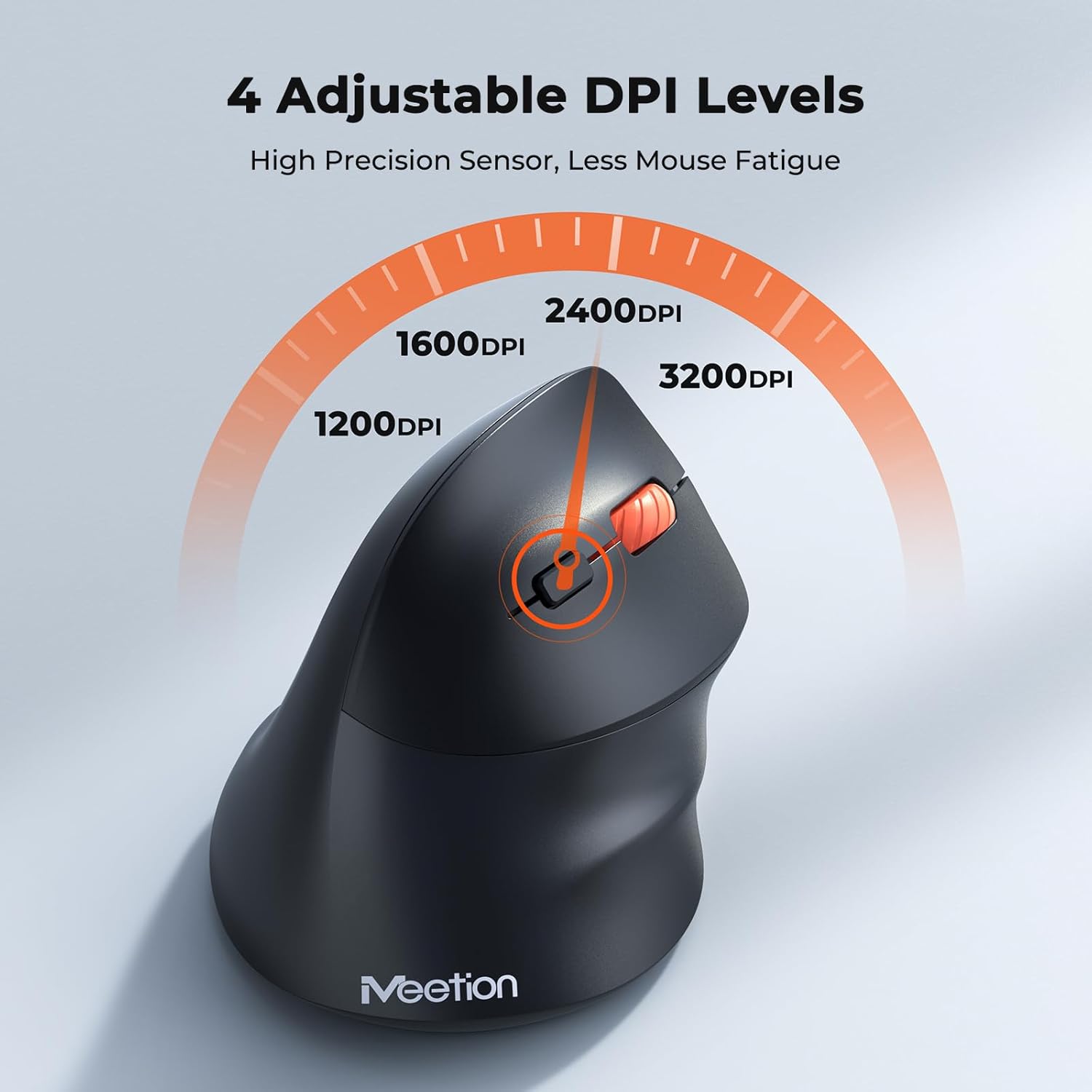
Adjust the DPI to match your preference for cursor speed and precision.
5.2 Přepínání více zařízení
To switch between connected devices, simply press the Mode Switching Button located on the bottom of the mouse. The corresponding indicator light (green for 2.4G, blue for BT1/BT2) will illuminate to show the active connection.
5.3 Forward/Back Buttons
Use the Forward and Back buttons, conveniently located on the side of the mouse, for quick navigation in web browsers, file explorers, and other applications that support these functions.
6. Řízení spotřeby
6.1 Auto-Sleep Mode
To conserve battery life, the mouse will automatically enter sleep mode after 20 minutes of inactivity. This intelligent feature helps extend the battery's operational time.
6.2 Waking the Mouse
To wake the mouse from sleep mode, simply press any button. It will instantly reconnect to the last active device.
6.3 Životnost baterie
With typical usage, a single AA battery can power the mouse for up to 3 months. Actual battery life may vary based on usage patterns and battery quality.
7. Údržba
To ensure optimal performance and longevity of your mouse, follow these maintenance guidelines:
- Čištění: K otření povrchu myši použijte měkký, suchý hadřík. V případě odolných nečistot použijte lehceamp Lze použít hadřík, ale dbejte na to, aby se do zařízení nedostala vlhkost. Nepoužívejte agresivní chemikálie ani abrazivní čisticí prostředky.
- Výměna baterie: Replace the AA battery when the low battery indicator lights up or when mouse performance degrades. Always dispose of used batteries responsibly.
- Skladování: When not in use for extended periods, turn off the mouse and store it in a dry, cool place.
8. Řešení problémů
If you encounter issues with your MEETION BTM011 mouse, refer to the following solutions:
| Problém | Řešení |
|---|---|
| Myš neodpovídá |
|
| Pohyb kurzoru je nepravidelný nebo pomalý |
|
| Nelze se připojit přes Bluetooth |
|
| Forward/Back buttons not working |
|
9. Specifikace
| Funkce | Detail |
|---|---|
| Model | BTM011 |
| Konektivita | Bezdrátové připojení 2.4 GHz, Bluetooth 5.3 (BT1, BT2) |
| Úrovně DPI | 1200/1600/2400/3200 |
| Tlačítka | 7 (Left, Right, Scroll Wheel, Forward, Back, DPI Switch, Mode Switch) |
| Zdroj napájení | 1x AA baterie (není součástí balení) |
| Auto-Sleep | Po 20 minutách nečinnosti |
| Kompatibilita | Windows, Mac OS, Linux, Android, iOS (for iPad/iPhone) |
| Materiál | Plast |
| Rozměry (cca) | 4.4 x 3.29 x 2.74 palce (11.18 x 8.36 x 6.96 cm) |
10. Záruka a podpora
10.1 Informace o záruce
MEETION products are designed and manufactured to the highest quality standards. This product is covered by a limited warranty against defects in materials and workmanship. Please retain your proof of purchase for warranty claims. Specific warranty terms may vary by region; refer to your local retailer or the official MEETION webstránky pro podrobnosti.
10.2 Zákaznická podpora
For technical assistance, troubleshooting, or general inquiries, please contact MEETION customer support:
- E-mail: service@meetion.com
- Webmísto: Visit the official MEETION webweb s častými dotazy a dalšími zdroji.