
1. Úvod
The DYMO LabelManager Executive 640 CB is a portable label printer designed for efficient and precise label creation. This device offers versatile labeling solutions for various environments, from office organization to field work. It features a QWERTY keyboard, a high-resolution color screen, and multiple connectivity options including Bluetooth Low Energy and USB-C.
This manual provides detailed instructions on how to set up, operate, maintain, and troubleshoot your LabelManager Executive 640 CB, ensuring you can maximize its functionality.

Image 1.1: The DYMO LabelManager Executive 640 CB portable label printer, shown with its packaging, a label tape cassette, and a USB-C charging cable.
2. Nastavení
2.1 Nabíjení zařízení
The LabelManager Executive 640 CB is powered by a rechargeable lithium-ion battery. Before initial use, fully charge the device.
- Connect the provided USB-C cable to the USB-C port on the label printer.
- Druhý konec kabelu USB-C připojte ke kompatibilnímu napájecímu adaptéru USB (není součástí balení) nebo k portu USB počítače.
- The charging indicator on the device will illuminate. Allow sufficient time for a full charge.

Image 2.1: The portable nature of the LabelManager Executive 640 CB, demonstrating its use for labeling items on a shelf, highlighting its rechargeable battery for on-the-go use.
2.2 Inserting a Label Cassette
The printer uses DYMO D1 Standard and Durable labels, available in widths from 6mm (1/4") to 24mm (1").
- Ujistěte se, že je zařízení vypnuté.
- Open the label compartment cover, typically located on the back or side of the device.
- Insert the label cassette with the label tape facing the print head, ensuring it clicks into place.
- Close the label compartment cover.
2.3 Zapnutí/vypnutí
- Pro zapnutí stiskněte a podržte tlačítko napájení, dokud se nerozsvítí obrazovka.
- Chcete-li zařízení vypnout, stiskněte a podržte tlačítko napájení, dokud se zařízení nevypne.
3. Provoz
3.1 Using the QWERTY Keyboard and On-Device Screen
The integrated QWERTY keyboard allows for direct label creation on the device. The high-resolution color screen provides clear visibility of your label design.
- Text Entry: Type your desired text using the QWERTY keyboard.
- Formátování: Use the navigation buttons and menu options to select fonts, sizes, styles (bold, italic), and add symbols or borders.
- Předview: The screen displays a real-time preview of your label.
- Vytisknout: Stiskněte tlačítko tisku pro vytvoření štítku.

Image 3.1: The large color screen of the LabelManager Executive 640 CB, displaying label text and options for customizing background colors, enhancing readability and design.
3.2 Connecting via Bluetooth (Mobile App)
The DYMO LM Connect mobile app allows for advanced label design and printing from your smartphone or tablet.
- Download the "DYMO LM Connect" app from your device's app store.
- Ensure Bluetooth is enabled on your mobile device and the label printer.
- Open the app and follow the on-screen instructions to connect to your LabelManager Executive 640 CB. The device should appear automatically without manual pairing.
- Design your label within the app, utilizing features like QR codes, signatures, and backgrounds.
- Send the label to the printer via the app's print function.

Image 3.2: A user interacting with the DYMO LM Connect mobile app on a smartphone to design a label, with the LabelManager Executive 640 CB visible on the desk, demonstrating Bluetooth connectivity.
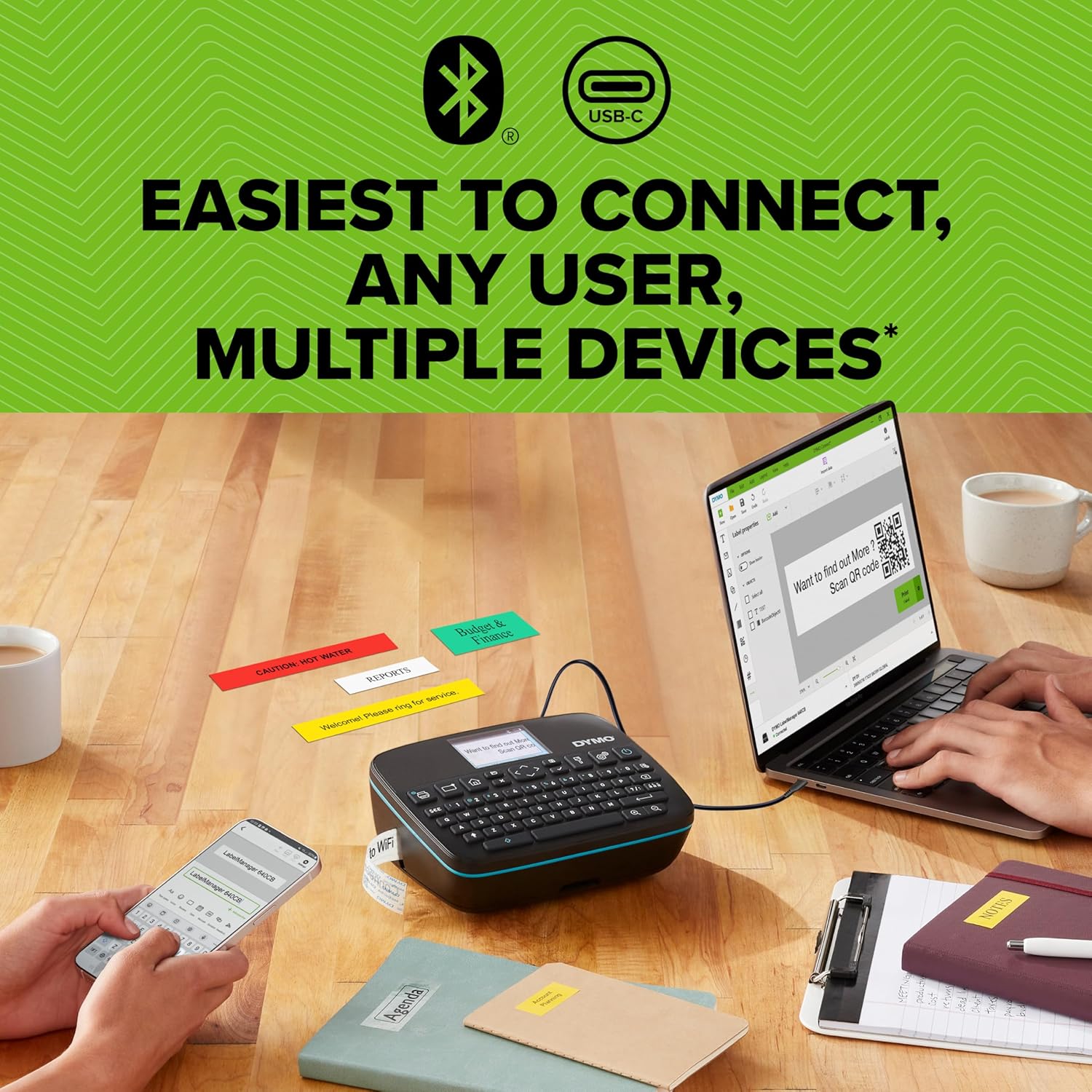
Image 3.3: The LabelManager Executive 640 CB demonstrating its dual connectivity, linked to both a laptop via USB-C and a smartphone via Bluetooth, with various printed labels on the table.
3.3 Connecting via USB-C (Desktop Software)
For comprehensive label design and management, connect your printer to a computer using the DYMO Connect for Desktop software.
- Download and install the "DYMO Connect for Desktop" software from the official DYMO webmísto.
- Connect the label printer to your computer using the USB-C cable.
- Launch the software. The printer should be recognized automatically.
- Utilize the software's features to create and print labels.

Image 3.4: A user operating the DYMO LabelManager Executive 640 CB connected to a laptop via USB-C, demonstrating the use of desktop software for label design and printing.
3.4 Label Customization and Versatility
The LabelManager Executive 640 CB supports a wide range of label customization options.
- Typy štítků: Compatible with D1 Standard and Durable labels.
- Šířky štítků: Supports widths from 6mm (1/4") to 24mm (1").
- Prvky designu: Incorporate various fonts, sizes, styles, symbols, clip art, barcodes, and QR codes into your labels.

Image 3.5: An assortment of customized labels created with the DYMO LabelManager Executive 640 CB, showcasing different text, colors, barcodes, and QR codes for diverse applications.
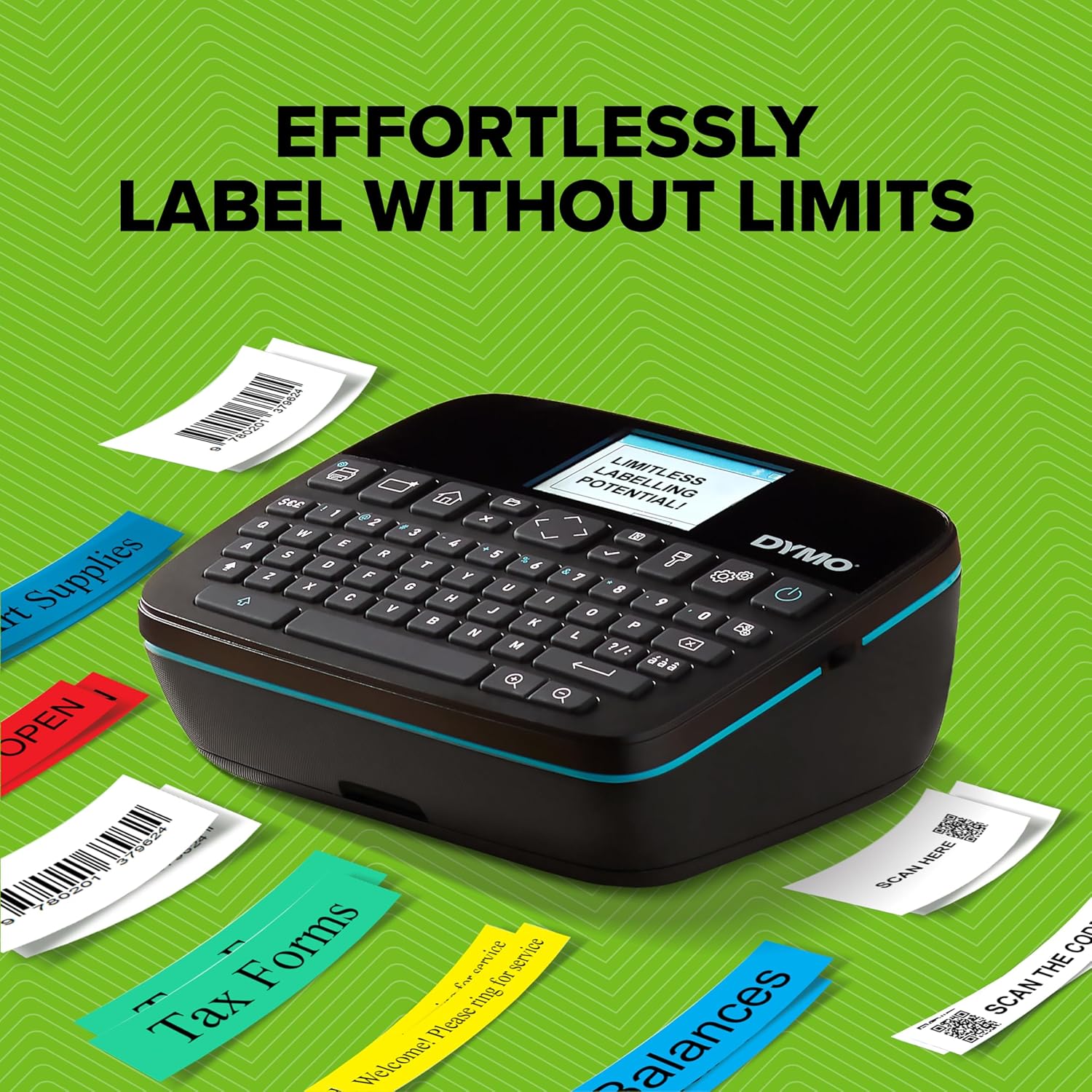
Image 3.6: The DYMO LabelManager Executive 640 CB demonstrating its capability to produce a variety of labels for organizational purposes, such as "Tax Forms" and "Balances," highlighting its versatility.
4. Údržba
4.1 Čištění tiskové hlavy
To ensure optimal print quality, periodically clean the print head.
- Power off the device and open the label compartment.
- Gently wipe the print head with a clean, lint-free cloth or a cotton swab lightly dampzakončené isopropylalkoholem.
- Allow the print head to dry completely before closing the compartment and powering on the device.
4.2 Péče o baterii
- Abyste prodloužili životnost baterie, vyhněte se častému úplnému vybíjení.
- Pokud zařízení delší dobu nepoužíváte, skladujte jej na chladném a suchém místě.
- K nabíjení používejte pouze dodaný kabel USB-C.
4.3 Ukládání štítků
Store label cassettes in a cool, dry place away from direct sunlight and extreme temperatures to maintain adhesive quality and print integrity.
5. Řešení problémů
| Problém | Možná příčina | Řešení |
|---|---|---|
| Zařízení se nezapne. | Slabá nebo vybitá baterie. | Nabijte zařízení pomocí kabelu USB-C. |
| Špatná kvalita tisku. | Dirty print head or incorrect label type. | Clean the print head (refer to Section 4.1). Ensure you are using genuine DYMO D1 labels. |
| Nelze se připojit přes Bluetooth. | Bluetooth is off, app permissions, or device not discoverable. | Ensure Bluetooth is enabled on both devices. Check app permissions for location services (required by some operating systems for Bluetooth scanning). Restart both devices. |
| Excessive blank margin on labels. | Automatic cutting feature or software settings. | Review settings in the mobile app or desktop software for margin adjustments. Note that some margin is inherent to the printing process. |
| Software (app/desktop) issues. | Outdated software or compatibility issues. | Ensure your DYMO Connect app or desktop software is updated to the latest version. Check DYMO's website for system requirements. |
If you encounter issues not listed here, please refer to the official DYMO support resources.
6. Specifikace
- Název modelu: LabelManager Executive 640 CB
- Číslo modelu: 2197370
- Značka: DYMO
- Technologie připojení: Bluetooth Low Energy, USB Type C
- Technologie tisku: Thermal Transfer
- Tiskový výstup: Monochromatický
- Maximální velikost média: 1 palců (24 mm)
- Compatible Label Widths: 6mm (1/4") to 24mm (1")
- Compatible Labels: DYMO D1 Standard and Durable Labels
- Zdroj napájení: Rechargeable Lithium Polymer Battery (included)
- Způsob ovládání: On-device QWERTY keyboard, Mobile App (DYMO LM Connect), Desktop Software (DYMO Connect for Desktop)
- Rozměry produktu: Přibližně 30 cm H x 8 cm Š x 6 cm V (Note: This dimension may refer to packaging. Please refer to the product for exact device dimensions.)
- Hmotnost položky: 1.51 libry (685 gramů)
- Maximální rozlišení tisku: 200 dpi (černobíle)
- Zahrnuté komponenty: Label Printer, 1 Label Tape, USB-C Cable
7. Záruka a podpora
7.1 Informace o záruce
The DYMO LabelManager Executive 640 CB comes with a limited warranty. Please refer to the warranty card included with your product or visit the official DYMO webPodrobné podmínky týkající se záručního krytí a doby trvání naleznete na webových stránkách.
7.2 Zákaznická podpora
For technical assistance, product inquiries, or to access additional resources, please visit the official DYMO support webmísto or contact their customer service department. Contact information can typically be found on the DYMO webmístě nebo na obalu produktu.