
1. Úvod
This manual provides essential information for setting up, operating, maintaining, and troubleshooting your HP EliteDesk 800 G5 Mini PC. This compact desktop computer is designed for efficient performance, featuring an Intel Core i7-9700 processor, 16GB of RAM, and a 512GB SSD, running on Windows 11 Pro. Please read this manual thoroughly to ensure proper use and longevity of your device.

Figure 1.1: HP EliteDesk 800 G5 Mini PC with included wireless keyboard and mouse.
2. Nastavení
2.1 Rozbalení a obsah
Opatrně vybalte všechny součásti z krabice. Zkontrolujte, zda jsou dodávány následující položky:
- 1 x HP EliteDesk 800 G5 MINI PC Desktop Computer
- 1 x Wireless Keyboard Mouse Combo
- 1 x kabel DisplayPort
- 1 x Napájecí kabel
2.2 Připojení periferních zařízení
Follow these steps to connect your peripherals:
- Připojení monitoru: Use the included DisplayPort cable to connect your monitor to one of the DisplayPort connectors on the rear of the Mini PC. The HP EliteDesk 800 G5 supports 4K resolution.
- Připojení klávesnice a myši: The included keyboard and mouse are wireless. Insert the USB receiver (typically found in the mouse battery compartment or a small bag) into any available USB port on the Mini PC. The system will automatically detect and install the necessary drivers.
- Připojte napájení: Plug the power cord into the power connector on the rear of the Mini PC, then plug the other end into a grounded electrical outlet.
- Volitelná připojení: Connect any other desired peripherals such as external hard drives, USB devices, or audio devices to the available ports.

Figure 2.1: Front panel ports including USB Type-C, USB 3.1, headphone jack, universal audio jack, and power button.

Figure 2.2: Rear panel ports including DisplayPort, USB 3.1 Gen 2, USB 3.1 Gen 1, Ethernet (RJ-45), and power connector.
2.3 Počáteční spuštění
Press the power button located on the front of the Mini PC. The system will boot into Windows 11 Pro. Follow the on-screen instructions for the initial Windows setup, including language, region, network connection, and user account creation.
3. Návod k obsluze
3.1 Zapnutí/vypnutí
- Zapnutí: Stiskněte tlačítko napájení na předním panelu.
- Vypnout: Click the Start button in Windows 11, select the Power icon, and then choose 'Shut down'.
- Restartovat: Click the Start button, select the Power icon, and then choose 'Restart'.
- Spát: Click the Start button, select the Power icon, and then choose 'Sleep'.
3.2 Konektivita
Your HP EliteDesk 800 G5 Mini PC offers various connectivity options:
- Wi-Fi: The system supports Wi-Fi 5 (802.11ac) for wireless network connections. To connect, click the network icon in the taskbar, select your desired Wi-Fi network, and enter the password if prompted.
- Bluetooth: Integrated Bluetooth 4.0 allows connection to wireless peripherals such as headphones, speakers, or other Bluetooth-enabled devices. Access Bluetooth settings via the Windows Settings menu.
- Ethernet: For a wired network connection, plug an Ethernet cable into the RJ-45 port on the rear of the Mini PC.
3.3 Využití portů
The Mini PC is equipped with a comprehensive set of ports for various needs:
- USB Type-A Ports (6 total): For connecting standard USB devices like external drives, printers, and other peripherals.
- USB 3.1 Gen 2 Ports (1 front, 2 rear): High-speed USB ports for faster data transfer with compatible devices.
- USB Type-C Port (1 front): A versatile reversible port for modern USB-C devices.
- DisplayPort Connectors (2 rear): For connecting monitors, supporting up to 4K resolution.
- Line-in/Microphone Connector (1 front): For connecting external microphones or audio input devices.
- Speaker/Headphone Connector (1 front): Pro připojení sluchátek nebo externích reproduktorů.
- Serial Port (1 rear): For legacy serial devices.
- Ethernet Port (1 rear): Pro připojení k kabelové síti.
- Ultra-slim Cable Lock Slot (1 rear): For securing the device with a compatible cable lock.
Video 3.1: Overview of the HP 800 G5 EliteDesk Mini PC, showcasing its compact design and features.
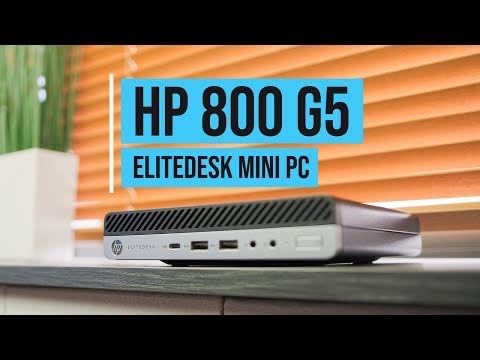
Figure 3.1: The compact HP EliteDesk 800 G5 Mini PC can be discreetly mounted behind a monitor for a clean workspace.
4. Údržba
4.1 Čištění
To maintain optimal performance and appearance, regularly clean your Mini PC:
- Použijte měkký hadřík, který nepouští vlákna dampnatřete vodou nebo jemným čisticím roztokem k otření vnějších povrchů.
- Vyhněte se používání agresivních chemikálií nebo abrazivních čisticích prostředků.
- Use compressed air to gently clear dust from vents and ports to ensure proper airflow and prevent overheating.
4.2 Aktualizace softwaru
Keep your Windows 11 Pro operating system and drivers updated to ensure security, stability, and performance:
- Aktualizace systému Windows: Go to 'Settings' > 'Windows Update' and check for available updates regularly.
- Aktualizace ovladačů: While Windows Update often handles drivers, you can also visit the HP support website for the EliteDesk 800 G5 Mini PC model to download the latest drivers if needed.
4.3 Správa úložiště
The 512GB SSD provides fast storage. To optimize its performance and longevity:
- Pravidelně mažte nepotřebné filea programy.
- Utilize Windows' built-in Disk Cleanup tool.
- Avoid filling the SSD to its maximum capacity; leave some free space for optimal operation.
5. Řešení problémů
Tato část se zabývá běžnými problémy, se kterými se můžete setkat u počítače HP EliteDesk 800 G5 Mini PC.
5.1 Bez napájení
- Zkontrolujte připojení napájení: Ensure the power cord is securely plugged into the Mini PC and the electrical outlet. Try a different outlet if possible.
- Napájení: Verify that the power adapter (if external) is functioning correctly.
5.2 Žádný displej
- Připojení monitoru: Ensure the DisplayPort cable is firmly connected to both the Mini PC and the monitor.
- Výkon monitoru: Check if your monitor is powered on and set to the correct input source (e.g., DisplayPort).
- Try Another Monitor/Cable: If available, test with a different monitor or DisplayPort cable to rule out faulty hardware.
5.3 Periferie nereagují
- USB připojení: Ensure USB devices are properly seated in their ports. Try a different USB port.
- Bezdrátová zařízení: For wireless keyboard/mouse, check battery levels and ensure the USB receiver is correctly inserted.
- Ovladače: In Windows Device Manager, check for any devices with warning signs (yellow exclamation marks) and update or reinstall drivers if necessary.
5.4 Zpomalení systému
- Zavření nepoužívaných aplikací: Too many open programs can consume resources.
- Check Task Manager: Use Ctrl+Shift+Esc to open Task Manager and identify processes consuming high CPU, memory, or disk usage.
- Místo na disku: Ensure there is sufficient free space on the 512GB SSD.
- Skenování malwaru: Spusťte úplnou kontrolu systému pomocí antivirového softwaru.
6. Specifikace
Detailed technical specifications for the HP EliteDesk 800 G5 Mini PC:
| Funkce | Specifikace |
|---|---|
| Značka | HP |
| Série | EliteDesk 800 G5 HP Mini Desktop |
| Číslo modelu | Minipočítač HP EliteDesk 800 G5 |
| Procesor | Intel Core i7-9700T 8-Core (up to 4.70 GHz) / 3.5 GHz core_i7 |
| BERAN | 16GB DDR4 SDRAM |
| Skladování | 512GB SSD |
| Operační systém | Windows 11 Pro 64-bit |
| Grafický koprocesor | Grafická karta Intel UHD 630 (integrovaná) |
| Maximální rozlišení obrazovky | 3840 x 2160 pixelů (podpora 4K) |
| Bezdrátový typ | 802.11ac (Wi-Fi 5), Bluetooth 4.0 |
| Ethernet | Gigabit Ethernet |
| USB porty | 6 x USB 3.1 Gen 1, 4 x USB 2.0, 1 x USB-C 3.1 |
| Zobrazit porty | 2 x DisplayPort |
| Audio porty | 1 x Headphone/Microphone Combo Jack, 1 x Headphone Jack, 1 x Audio-In, 1 x Audio-Out (Rear) |
| Rozměry (D x Š x V) | 6.97 x 6.89 x 1.35 palců (přibližně 17.7 x 17.5 x 3.4 cm) |
| Hmotnost položky | 5.63 libry (přibližně 2.55 kg) |

Figure 6.1: Dimensions of the HP EliteDesk 800 G5 Mini PC.
7. Záruka a podpora
7.1 Informace o záruce
This HP EliteDesk 800 G5 Mini PC comes with a 90denní záruka. Please refer to your purchase documentation for specific terms and conditions of the warranty provided by the seller.
7.2 Zákaznická podpora
For technical assistance, troubleshooting beyond this manual, or warranty claims, please contact the seller or the authorized refurbisher from whom you purchased this product. Have your product model number and purchase details ready when contacting support.