
1. Úvod a konecview
This manual provides essential information for the setup, operation, and maintenance of your CHUWI Hi10 X2 Tablet Keyboard with Touchpad. Designed specifically for the CHUWI Hi10 X2 and Hi10 X1 Windows tablets, this 2-in-1 magnetic keyboard transforms your tablet into a versatile laptop, enhancing productivity and convenience.
The keyboard features a magnetic docking interface for seamless connection, eliminating the need for separate charging or Bluetooth pairing. Its ultra-slim and portable design makes it ideal for various uses, from business and education to everyday tasks and gaming.
2. Vlastnosti produktu
- Magnetic Docking Interface: Designed for CHUWI Hi10 X2 / Hi10 X1 Windows tablets, ensuring easy and stable connection.
- No Charging or Pairing Required: The docking magnetic suction design provides energy efficiency and a faster input response time compared to Bluetooth keyboards.
- Integrovaný touchpad: Supports multi-touch gestures for responsive navigation and control.
- Vylepšené možnosti psaní: Features a borderless keyboard with well-spaced keys and optimized key travel for accuracy and comfort.
- Funkce 2 v 1: Transforms your tablet into a versatile laptop instantly, complete with a sturdy stand for optimal viewing úhly.
- Ultra Slim and Portable: Lightweight and easy to attach or remove, making it convenient for travel and daily use.

Image: The CHUWI Hi10 X2 Tablet Keyboard provides an enhanced typing experience with its well-spaced keys, designed for comfort and precision.

Image: The high-precision touchpad supports multi-touch gestures for responsive navigation and control.
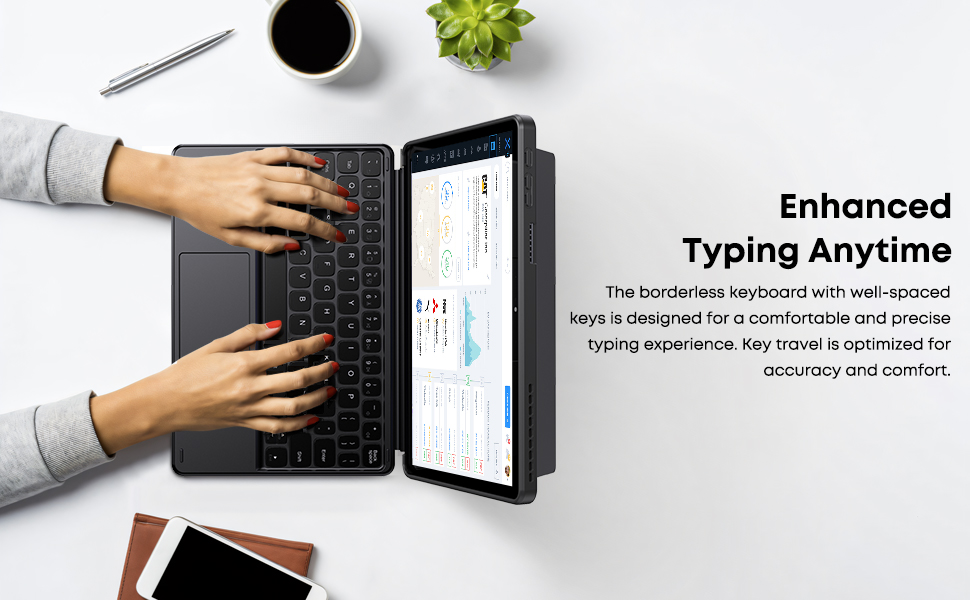
Image: The Smart Keyboard attaches magnetically to the Hi10 X1/X2 tablet, providing instant power and a great typing experience without needing charging or pairing.
3. Nastavení
- Připojení klávesnice: Align the magnetic docking interface of the keyboard with the corresponding pins on your CHUWI Hi10 X2 or Hi10 X1 tablet. The magnets will guide the keyboard into place, establishing an instant connection.
- Using the Kickstand: The keyboard case includes a built-in stand. Fold out the stand from the back of the case to prop up your tablet at a comfortable viewing or typing angle.
- Počáteční použití: No initial charging or Bluetooth pairing is required for the keyboard to function with your compatible CHUWI tablet once magnetically docked.
Video: This video demonstrates the installation of the CHUWI Hi10 X1 keyboard and showcases the protective case. It illustrates how to attach the tablet to the keyboard and utilize the case's features.
4. Návod k obsluze
- psaní: Begin typing immediately after docking your tablet. The keyboard provides a familiar layout for efficient text input.
- Použití touchpadu: The integrated touchpad supports standard mouse functions and multi-touch gestures.
- Klepnutí jedním prstem: Levé kliknutí.
- Klepnutí dvěma prsty: Klikněte pravým tlačítkem myši.
- Posouvání dvěma prsty: Přejděte nahoru nebo dolů.
- Přiblížení roztažením/roztažením prstů: Pro přiblížení nebo oddálení použijte dva prsty.
- Detaching the Keyboard: Gently pull the tablet away from the magnetic docking interface to detach the keyboard.
5. Údržba
- Čištění: Use a soft, dry, lint-free cloth to clean the keyboard and touchpad surfaces. For stubborn marks, slightly damphadřík vodou. Vyhněte se agresivním chemikáliím nebo abrazivním materiálům.
- Skladování: When not in use, keep the keyboard attached to the tablet to protect the screen and keys. Store in a cool, dry place away from direct sunlight and extreme temperatures.
- Zacházení: Avoid placing heavy objects on the keyboard or bending it excessively to prevent damage to the keys or internal components.
6. Řešení problémů
- Klávesnice nereaguje:
- Ensure the tablet is correctly docked to the magnetic interface.
- Odpojte a znovu připojte klávesnici, abyste resetovali připojení.
- Restart your CHUWI tablet.
- Touchpad Not Working:
- Check if the touchpad has been accidentally disabled (refer to your tablet's settings for input devices).
- Ensure the touchpad surface is clean and free from obstructions.
- Try detaching and reattaching the keyboard.
- Keys Sticking or Unresponsive:
- Clean around the affected keys with a soft, dry brush or compressed air to remove any debris.
- Zabraňte rozlití tekutin na klávesnici.
7. Specifikace
| Značka: | CHUWI |
| Číslo modelu: | CHUWI Hi10 X1 Tablet Keyboard (Compatible with Hi10 X2) |
| Kompatibilní zařízení: | Hi10 X1 tablet, Hi10 X2 tablet |
| Technologie připojení: | Magnetic Docking Interface (faster than Bluetooth) |
| Popis klávesnice: | Numeric (Standard QWERTY layout with touchpad) |
| Speciální vlastnosti: | Foldable, Lightweight, Portable, Integrated Touchpad, Magnetic Connection |
| Barva: | Černý |
| Materiál: | Silikon |
| Hmotnost položky: | 9.9 unce |
| Rozměry balení: | 9.88 x 7.8 x 0.67 palce |
| Zahrnuté komponenty: | Hi10 X1 Tablet Keyboard |
8. Záruka a podpora
Your CHUWI Hi10 X2 Tablet Keyboard is covered by a 1-year service period, valid immediately after purchase. CHUWI is committed to providing high-quality products and excellent service.
For any questions or support needs, CHUWI offers lifetime factory professional support and 24-hour online assistance. Please refer to the contact information provided with your tablet or visit the official CHUWI webstránky pro další podrobnosti.