Zavedení
This manual provides detailed instructions for the Phomemo PM-248-WF WiFi Thermal Label Printer. It covers initial setup, operational procedures, maintenance guidelines, and troubleshooting steps to ensure optimal performance and longevity of your device. Please read this manual thoroughly before using the printer.

Image: The Phomemo PM-248-WF printer demonstrating its WiFi capability with a printed label.
Obsah balení
Ověřte, zda jsou všechny níže uvedené položky součástí balení. Pokud některé položky chybí nebo jsou poškozené, kontaktujte zákaznickou podporu.
- 1x Phomemo 248-WF Wi-Fi Label Printer
- 1x Power Cord & Adapter
- 1x USB kabel
- 1x USB-C adaptér
- Uživatelská příručka 1x
- 10 sheets of 4x6 Label Paper

Image: A visual representation of all components included in the Phomemo 248-WF product package.
Začínáme: Nastavení
1. Připojení napájení
- Připojte napájecí adaptér k napájecímu portu tiskárny.
- Zapojte napájecí kabel do standardní elektrické zásuvky.
- Stisknutím tlačítka napájení zapněte tiskárnu. Rozsvítí se kontrolka.
2. Načítání štítků
- Otevřete kryt tiskárny.
- Adjust the label guides to match the width of your labels (supports 1 to 4.6 inches).
- Insert the labels with the print side facing up. Ensure the labels are fed smoothly into the printer.
- Zavřete kryt tiskárny. Tiskárna automaticky detekuje a kalibruje velikost štítku.

Image: The printer's adjustable label guides, accommodating various label widths.
3. Instalace softwaru a připojení
Mobile Device Setup (Labelife App)
- Download the "Labelife" app from the App Store (iOS) or Google Play Store (Android).
- Ujistěte se, že máte v telefonu zapnuté Bluetooth a Wi-Fi.
- Open the Labelife app and connect to the printer (PM-248-WF).
- Follow the in-app instructions for network configuration, entering your Wi-Fi password when prompted.
- Once connected, you can import and print labels directly from the app.

Image: Step-by-step guide for connecting the printer via the Labelife mobile application.
Computer Setup (Printer Setting Tool)
- Download the Printer Setting Tool for Windows or macOS from the official Phomemo webwebu popř aimotech.com/labelife/analysis.html.
- Connect your computer to the printer via the provided USB cable.
- Launch the Printer Setting Tool. Select your Wi-Fi network and enter the password to configure the printer's Wi-Fi connection.
- After initial Wi-Fi setup, the printer will automatically connect to the configured network upon power-on. USB connection is also available for printing.

Image: Instructions for configuring the printer's Wi-Fi network using the computer-based Printer Setting Tool.
Wireless (Wi-Fi) Connection
The PM-248-WF supports 5GHz Wi-Fi for stable and fast wireless printing from iOS, Android, iPad, macOS, and Windows devices. Ensure your device is connected to the same Wi-Fi network as the printer.
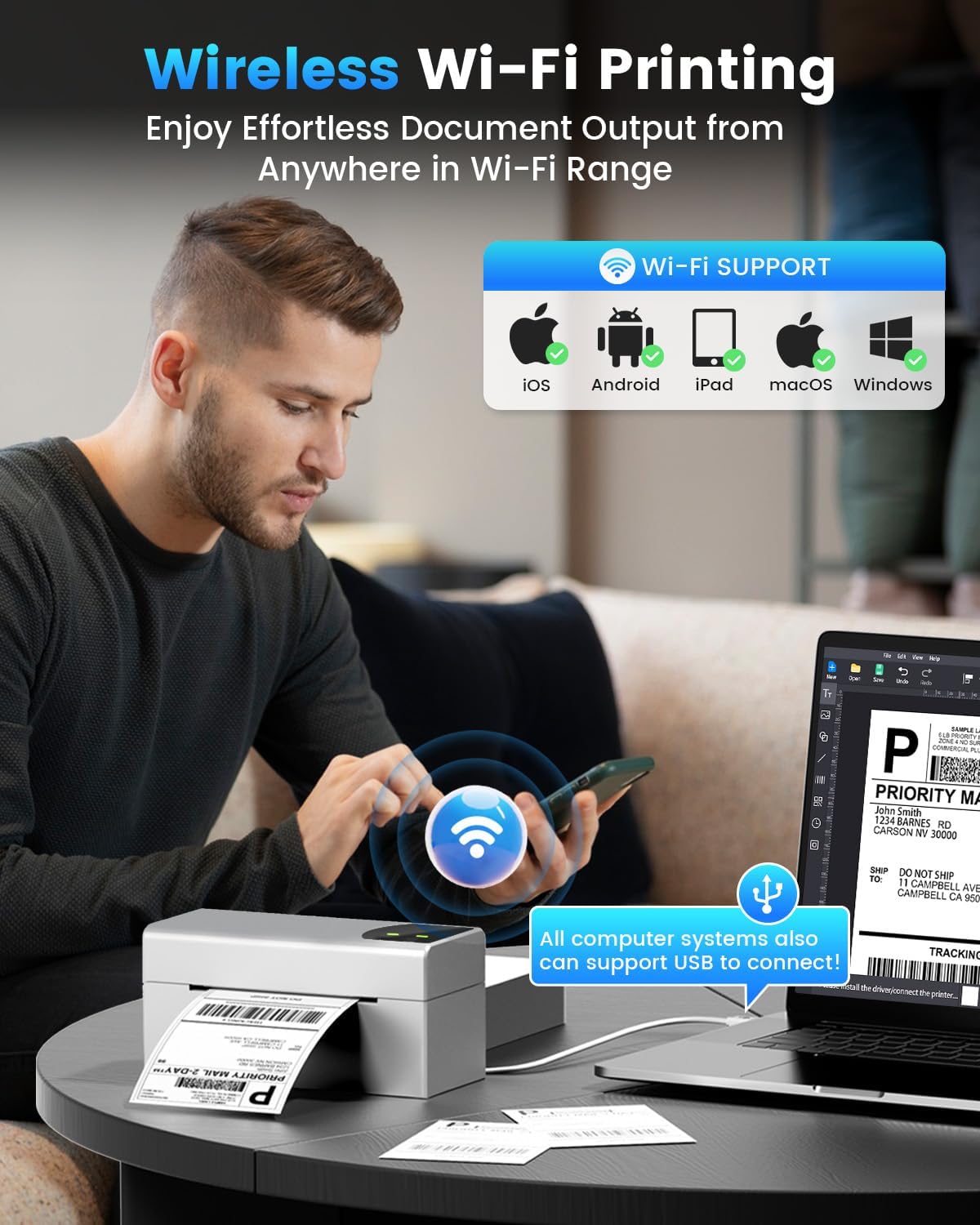
Image: Demonstrates wireless printing from various devices to the Phomemo printer.
Připojení USB
For direct connection, use the provided USB cable. The printer is compatible with ChromeOS, Linux, macOS, and Windows systems via USB. This offers an alternative to wireless printing.
Operace
1. Tisk štítků
Once the printer is set up and labels are loaded, you can initiate printing from your connected device or computer. The printer features a speed of 150 mm/s, capable of producing up to 72 sheets of 4x6 labels per minute with 203 DPI resolution.

Image: The printer's high-speed printing capability, highlighting its efficiency.
2. Podporované platformy a typy štítků
The Phomemo PM-248-WF is compatible with major shipping platforms and marketplaces, including FedEx, UPS, USPS, ShipStation, Shopify, Amazon, Etsy, eBay, and more. It supports various label sizes from 1 to 4.6 inches, allowing for printing of shipping labels, barcodes, product labels, and custom stickers.

Image: The printer's broad compatibility with various e-commerce and shipping platforms.

Image: Printer in use for shipping packages.

Image: Printer used for custom labels on jars.
Údržba
Regular maintenance ensures the longevity and performance of your thermal label printer.
- Čištění tiskové hlavy: Použijte vatový tampon lehceampened with isopropyl alcohol to gently wipe the print head. Ensure the printer is off and cooled down before cleaning. Allow it to dry completely before use.
- Čištění tiskového válce: Rotate the platen roller and wipe it with a damp cloth to remove any dust or adhesive residue.
- Čištění exteriéru: Vnější povrch tiskárny otřete měkkým, suchým hadříkem. Nepoužívejte agresivní chemikálie ani abrazivní čisticí prostředky.
- No Ink or Toner Required: As a thermal printer, it does not require ink cartridges or toner, simplifying maintenance.
Odstraňování problémů
Běžné problémy a jejich řešení naleznete v následující tabulce.
| Problém | Možná příčina | Řešení |
|---|---|---|
| Tiskárna se nezapíná | Napájecí kabel odpojen; problém se zásuvkou | Zkontrolujte připojení napájecího kabelu; zkuste jinou zásuvku. |
| Nelze se připojit přes Wi-Fi | Incorrect Wi-Fi password; printer not on same network; 5GHz compatibility issue | Verify Wi-Fi password; ensure printer and device are on the same 5GHz network; reconfigure Wi-Fi using the app or computer tool. |
| Printer not detected by computer/app | Software not installed; USB cable issue; Bluetooth/Wi-Fi off | Install Labelife app or Printer Setting Tool; check USB cable connection; ensure Bluetooth/Wi-Fi is enabled on your device. |
| Špatná kvalita tisku (bledý, rozmazaný) | Print head dirty; low-quality labels; incorrect print density settings | Clean the print head; use high-quality thermal labels; adjust print density in software settings. |
| Štítky se nepodávají správně | Labels loaded incorrectly; label guides not adjusted; paper sensor issue | Reload labels correctly (print side up); adjust label guides snugly; clean paper sensor if accessible. |
| Tiskárna přestane tisknout uprostřed úlohy | Connectivity interruption; out of labels; overheating | Check Wi-Fi/USB connection; replace label roll; allow printer to cool down. |
Technické specifikace
| Funkce | Specifikace |
|---|---|
| Název modelu | PM-248-WF |
| Technologie tisku | Tepelný |
| Technologie připojení | USB, Wi-Fi (5GHz) |
| Maximální rychlost tisku (černobíle) | 150 mm/s (72 sheets of 4x6 labels per minute) |
| Maximální rozlišení tisku | 203 DPI |
| Maximální velikost média | 4 x 6 palce |
| Supported Label Widths | 1" - 4.6" |
| Kompatibilní zařízení | iOS, Android, iPad, macOS, Windows (Wi-Fi); ChromeOS, Linux, macOS, Windows (USB) |
| Rozměry produktu | 7.16"H x 3.54"Š x 3.5"V |
| Hmotnost položky | 1.58 libry |
| Speciální funkce | Portable, Wireless Wi-Fi & USB Connection, No Ink, Auto Detection, Auto Paper Return, Intelligent Self-Test |
Záruka a podpora
The Phomemo PM-248-WF Thermal Label Printer comes with a limited warranty. For specific details regarding warranty coverage and duration, please refer to the warranty card included in your package or visit the official Phomemo webmísto.
For technical assistance, troubleshooting, or any product-related inquiries, please contact Phomemo customer support. Contact information can typically be found in the user guide or on the manufacturer's webmísto.