
1. Úvod
The S25HH0 303DH US KVM Switch allows you to control up to three computers using a single set of keyboard, mouse, and three monitors. This device supports high-resolution video output and USB 3.0 peripheral sharing, enhancing productivity in multi-computer environments.
Please read this manual thoroughly before installation and operation to ensure proper use and to maximize the performance of your KVM switch.
2. Bezpečnostní informace
- Ensure the KVM switch is placed on a stable, flat surface.
- Nevystavujte zařízení vodě, vlhkosti ani extrémním teplotám.
- Používejte pouze dodaný napájecí adaptér. Použití nesprávného adaptéru může poškodit zařízení a vést ke ztrátě záruky.
- Neblokujte ventilační otvory, aby nedošlo k přehřátí.
- Nepokoušejte se zařízení otevírat ani opravovat sami. Veškerý servis svěřte kvalifikovanému personálu.
- Disconnect power before cleaning. Clean the device with a soft, dry cloth.
3. Obsah balení
Po obdržení zkontrolujte obsah balení. Pokud některé položky chybí nebo jsou poškozené, kontaktujte prodejce.
- S25HH0 303DH US Triple Monitor KVM Switch
- Napájecí adaptér
- Kabelový dálkový spínač
- USB 3.0 Cables (Quantity may vary based on package)
- HDMI Cables (Quantity may vary based on package)
- Uživatelská příručka (tento dokument)
4. Konec produktuview
The KVM switch features multiple ports for connecting your computers, monitors, and USB peripherals. Familiarize yourself with the port layout before proceeding with installation.

Obraz: Přední a zadní view of the S25HH0 303DH US KVM Switch. This image illustrates the various input and output ports, including HDMI, USB 3.0, and the power input, along with the physical switch buttons for PC selection.
Přední panel
- PC Selection Buttons: Used to manually switch between connected computers.
- USB porty: 3.0 For connecting keyboard, mouse, and other USB 3.0 peripherals.
- LED indikátory: Zobrazit, který počítač je aktuálně vybrán.
Zadní panel
- HDMI Input Ports (PC1, PC2, PC3): Připojte k HDMI výstupu vašeho počítače.
- USB 3.0 Input Ports (PC1, PC2, PC3): Connect to the USB 3.0 ports of your computers.
- HDMI Output Ports (Monitor 1, Monitor 2, Monitor 3): Connect to your monitors.
- Vstup DC 12V: Připojte dodaný napájecí adaptér.
- Remote Switch Port: Connect the wired remote control for switching.
5. Pokyny k nastavení
Follow these steps to connect your KVM switch:
- Vypínací zařízení: Před jakýmkoli připojením se ujistěte, že jsou všechny počítače a monitory vypnuty.
- Připojení monitorů: Connect your three monitors to the HDMI Output ports (Monitor 1, Monitor 2, Monitor 3) on the KVM switch using HDMI cables.
- Připojení počítačů (PC1):
- Connect the HDMI output from your first computer to the HDMI Input (PC1) on the KVM switch.
- Connect a USB 3.0 cable from your first computer's USB 3.0 port to the USB 3.0 Input (PC1) on the KVM switch.
- Connect Computers (PC2 & PC3): Repeat step 3 for your second and third computers, connecting them to the respective HDMI Input (PC2/PC3) and USB 3.0 Input (PC2/PC3) ports.
- Připojení periferií: Connect your keyboard, mouse, and any other USB 3.0 peripherals to the USB 3.0 ports on the front panel of the KVM switch.
- Připojení kabelového dálkového ovladače (volitelné): If desired, connect the wired remote switch to the dedicated port on the KVM switch.
- Zapnutí: Connect the provided 12V power adapter to the DC 12V input on the KVM switch, then plug it into a power outlet.
- Zapnutí zařízení: Power on your monitors, then power on your computers.

Obraz: Connection diagram illustrating how two PCs share four USB 3.0 devices and multiple monitors through the KVM switch. This highlights the USB 3.0 ports for peripherals like keyboards, mice, and printers.
6. Návod k obsluze
6.1 Přepínání mezi počítači
You can switch between connected computers using two methods:
- Physical Button Switch: Press the corresponding PC selection button (PC1, PC2, or PC3) on the front panel of the KVM switch. The LED indicator will light up for the selected computer.
- Wired Remote Switch: Use the wired remote control to switch between computers. Press the button on the remote to cycle through the connected PCs.
Obraz: Two switching methods for the KVM switch: the physical buttons on the device and the external wired remote control. This illustrates the flexibility in controlling which computer is active.
6.2 Display Modes (Extend Mode / Copy Mode)
After connecting correctly, you can choose your desired display mode:
- Stiskněte "Windows + P" na vaší klávesnici.
- A pop-up window will appear, allowing you to select between display modes such as Rozšířit or Duplicate (Copy).

Obraz: Comparison of Extend Mode and Copy Mode. In Extend Mode, each monitor displays unique content, expanding the desktop. In Copy Mode, all three monitors display the same content, duplicating the desktop.
6.3 Sdílení zařízení USB 3.0
The KVM switch allows up to four USB 3.0 devices to be shared between the connected computers. When you switch to a different computer, the connected USB peripherals (keyboard, mouse, USB drives, etc.) will automatically switch to that computer.
USB 3.0 offers a faster transfer rate of 5Gbps compared to USB 2.0's 480Mbps, ensuring efficient data transfer for your peripherals.
7. Display Resolution and Refresh Rate
The KVM switch supports high-resolution video outputs, ensuring a clear and smooth visual experience.
- DisplayPort (DP1.4) Support: Up to 8K@30Hz, 4K@144Hz, 4K@120Hz. Backward compatible with lower resolutions and refresh rates.
- HDMI (HDMI2.1) Support: Up to 8K@60Hz, 4K@120Hz. Backward compatible with lower resolutions and refresh rates.
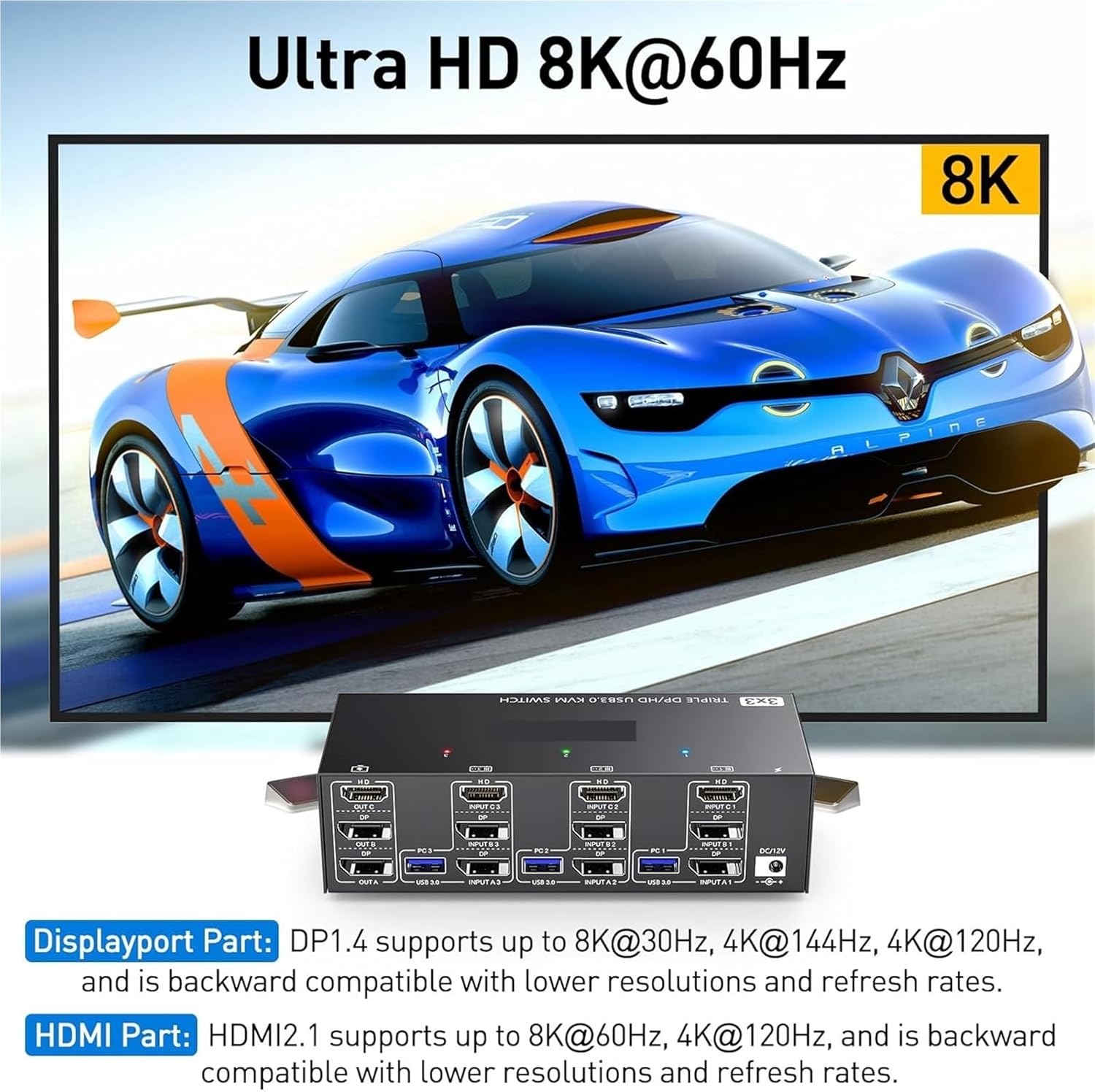
Obraz: Visual representation of Ultra HD 8K@60Hz capability. This image details the supported resolutions and refresh rates for both DisplayPort 1.4 and HDMI 2.1 connections, emphasizing high-quality video output.
8. Údržba
- Keep the KVM switch in a cool, dry place away from direct sunlight.
- Regularly clean the exterior of the device with a soft, dry, lint-free cloth.
- Do not use liquid or aerosol cleaners, as they may contain flammable substances or chemicals that can damage the device.
- Ensure all cables are securely connected and free from kinks or damage.
9. Řešení problémů
Pokud narazíte na problémy s přepínačem KVM, podívejte se na následující běžné problémy a jejich řešení:
| Problém | Možná příčina / řešení |
|---|---|
| No display on monitors. |
|
| Klávesnice nebo myš nefunguje. |
|
| Nelze přepínat mezi počítači. |
|
| Špatná kvalita videa nebo blikání. |
|
10. Specifikace
| Funkce | Specifikace |
|---|---|
| Značka | S25HH0 |
| Model | 303DH US |
| Vstupní porty | 3 x HDMI, 3 x USB 3.0 |
| Výstupní porty | 3 x HDMI, 4 x USB 3.0 |
| Video Standard | HDMI 2.1, DisplayPort 1.4 (backward compatible) |
| Maximální rozlišení (HDMI) | 8K@60Hz, 4K@120Hz |
| Max Resolution (DisplayPort) | 8K@30Hz, 4K@144Hz, 4K@120Hz |
| USB Standardní | USB 3.0 (5 Gb/s) |
| Kontrolní metoda | Physical Button, Wired Remote |
| Provozní svtage | 12 voltů |
| Hmotnost položky | 50 gramů |
| Certifikace | CE, RoHS |
11. Záruka a podpora
Tento produkt je dodáván se standardní zárukou výrobce. Konkrétní záruční podmínky naleznete v záruční kartě, která je součástí balení, nebo se obraťte na svého prodejce.
For technical support or further assistance, please contact your vendor or the manufacturer's customer service. Contact information can typically be found on the product packaging or the manufacturer's official webmísto.