
1. Úvod
Thank you for choosing the FMOUSE Dual Mode Wireless Mouse M101. This mouse offers versatile connectivity options, a comfortable ergonomic design, and quiet operation, making it ideal for various computing environments. This manual provides detailed instructions for setup, operation, and maintenance to ensure optimal performance.
2. Klíčové vlastnosti
- Duální připojení: Seamlessly switch between 2.4GHz USB receiver and Bluetooth connections for use with two different devices.
- Tichý design s kliknutím: Specially engineered buttons provide quiet clicks, minimizing disturbance in shared environments.
- Ergonomický komfort: Designed for a comfortable grip, suitable for extended use by students and business professionals.
- Energeticky účinný: Features an intelligent power-saving mode that activates after 10 minutes of inactivity, extending battery life.
- Univerzální kompatibilita: Connects easily with MacBook, iPad, Laptops, and Desktop devices across Windows, MacOS, iPadOS, and Android systems.
- Přenosný design: Kompaktní a lehký pro snadnou přepravu.
3. Obsah balení
Ujistěte se prosím, že máte v balení všechny položky:
- FMOUSE Dual Mode Wireless Mouse M101
- 2.4GHz USB přijímač
- Uživatelská příručka (tento dokument)
Note: 1 AA battery is required and not included in the package.
4. Průvodce nastavením
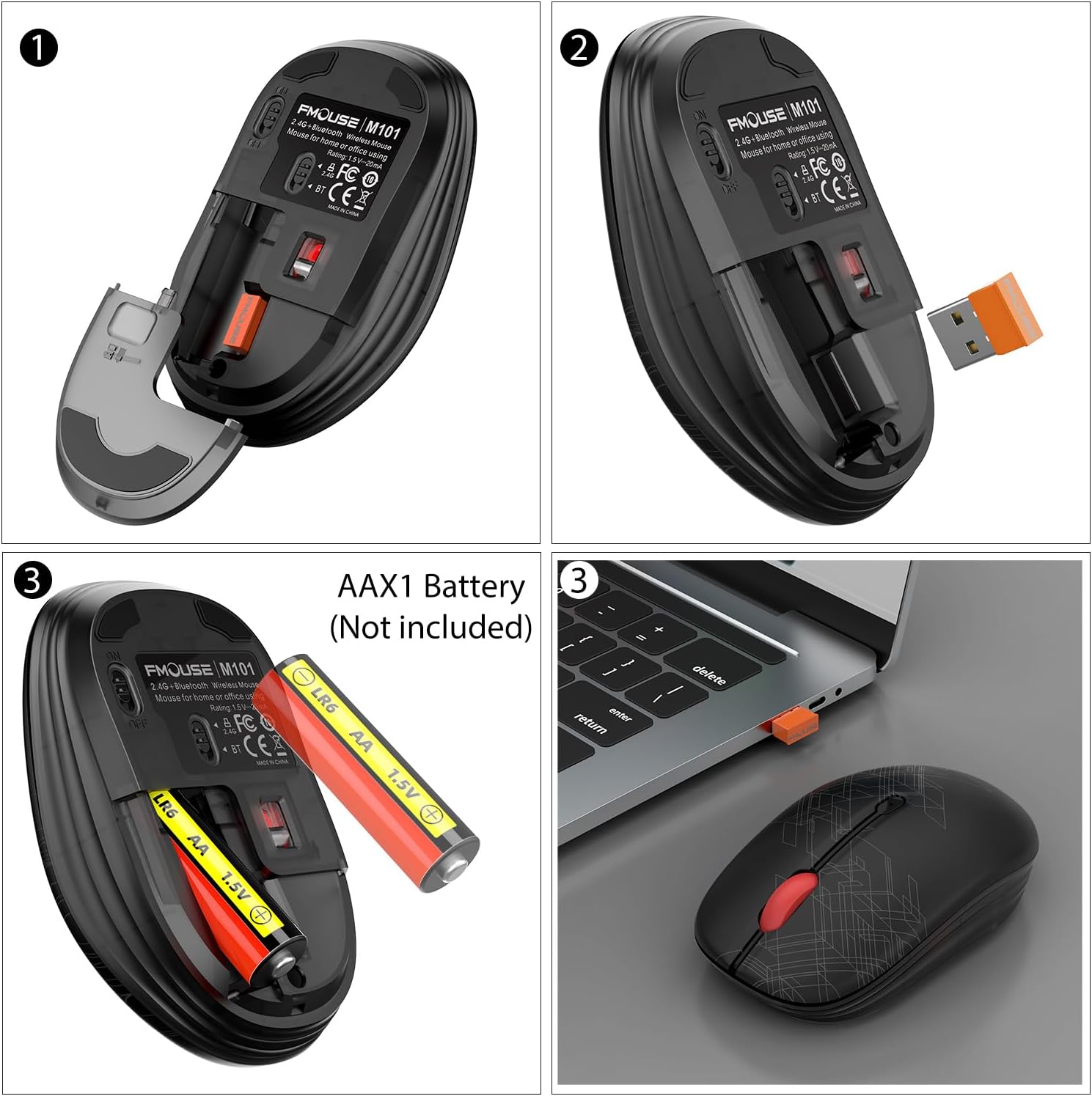
4.1. Instalace baterie
- Jemně zvedněte horní kryt myši zezadu, abyste odhalili prostor pro baterii.
- Insert one AA battery into the compartment, ensuring correct polarity (+/-).
- Nasaďte zpět horní kryt a ujistěte se, že bezpečně zacvakne na své místo.
4.2. Connecting via 2.4GHz USB Receiver
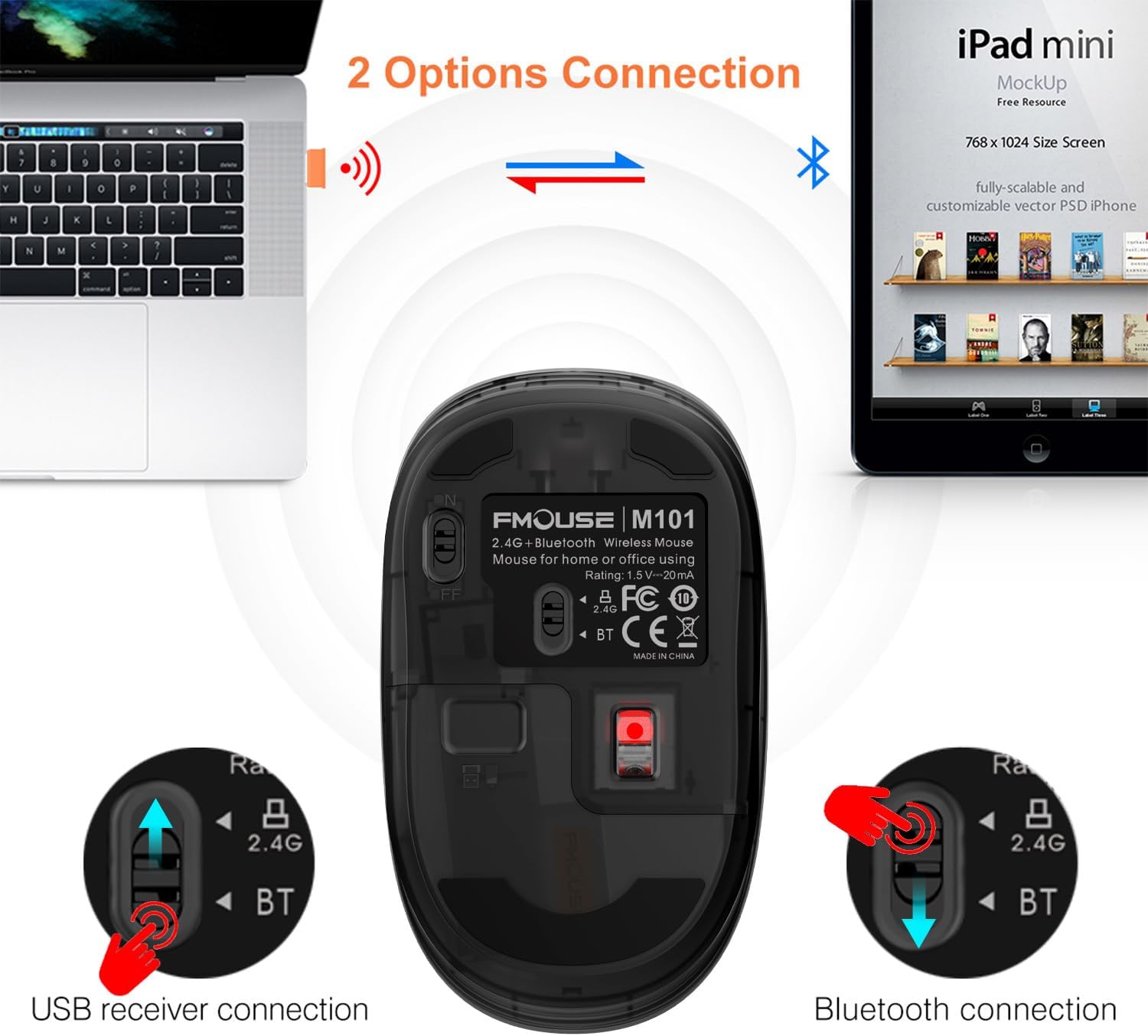
- Locate the 2.4GHz USB receiver stored inside the mouse's battery compartment.
- Zapojte USB přijímač do volného USB portu na vašem počítači.
- Slide the switch on the bottom of the mouse to the '2.4G' position. The indicator light will flash green.
- Myš by se měla automaticky připojit k počítači.
4.3. Připojení přes Bluetooth
- Slide the switch on the bottom of the mouse to the 'BT' (Bluetooth) position. The indicator light will flash blue.
- Na svém zařízení (notebooku, tabletu atd.) přejděte do nastavení Bluetooth a povolte Bluetooth.
- Hledat available devices and select 'FMOUSE M101' from the list.
- Dokončete proces párování podle pokynů na obrazovce.

5. Návod k obsluze
5.1. Přepínání duálního režimu
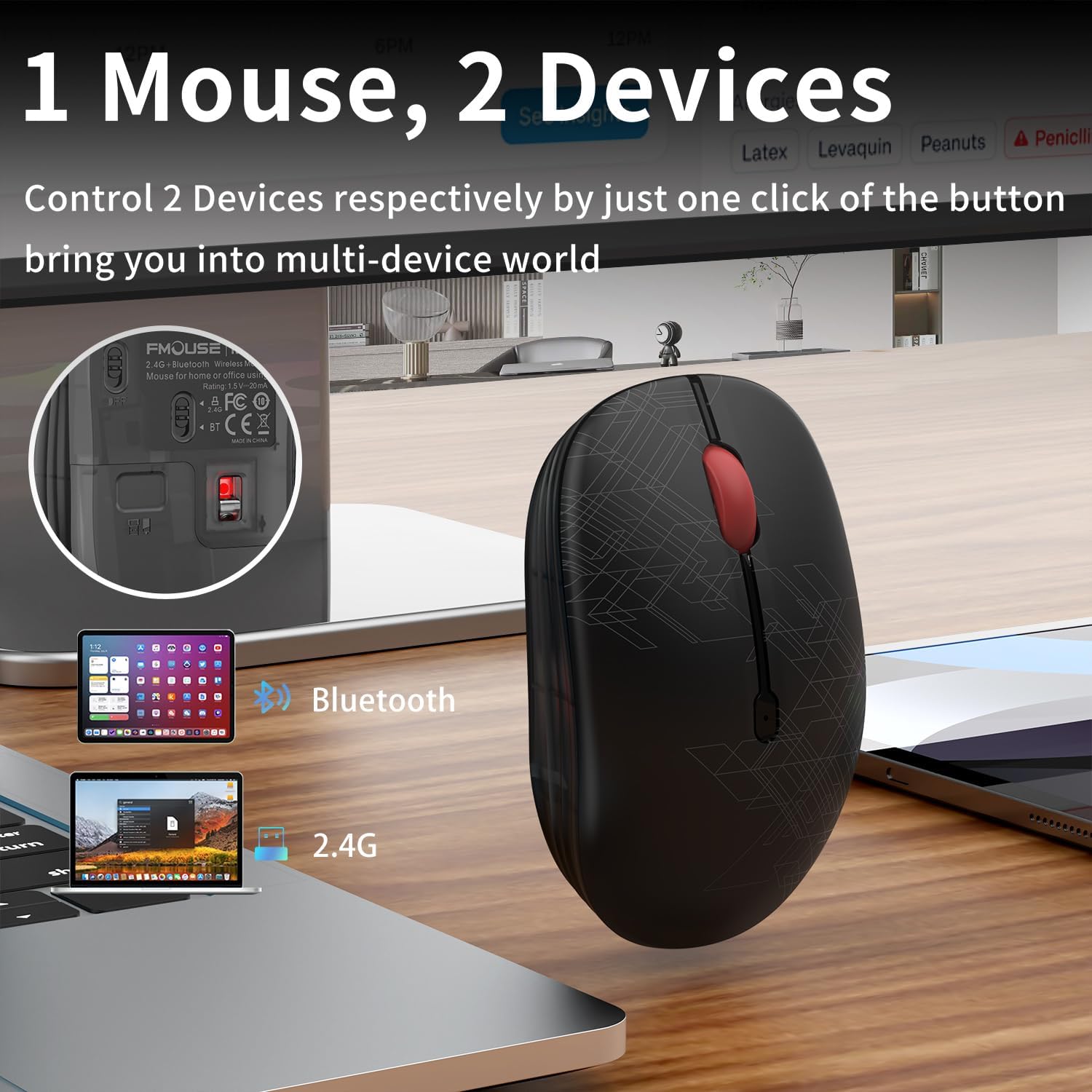
The FMOUSE M101 allows you to switch between two connected devices using the mode switch on the bottom of the mouse. Simply slide the switch to the desired connection type (2.4G or BT) to instantly connect to the corresponding device.
5.2. Silent Click Operation
The mouse features silent click buttons, ensuring a quiet working environment. This is particularly beneficial in libraries, offices, or during late-night use to avoid disturbing others.

6. Řízení spotřeby
The FMOUSE M101 is designed for energy efficiency. It enters a sleep mode after 10 minutes of inactivity to conserve battery life. To wake the mouse, simply click any button.
The mouse is powered by one AA battery. When the battery is low, the scroll wheel will flash red as an alert.
7. Kompatibilita
The FMOUSE M101 is compatible with a wide range of operating systems and devices, including:
- Windows
- MacOS
- iPadOS
- Android
- MacBook, iPad, Laptops, Desktop devices
8. Specifikace
| Funkce | Detail |
|---|---|
| Číslo modelu | M101 |
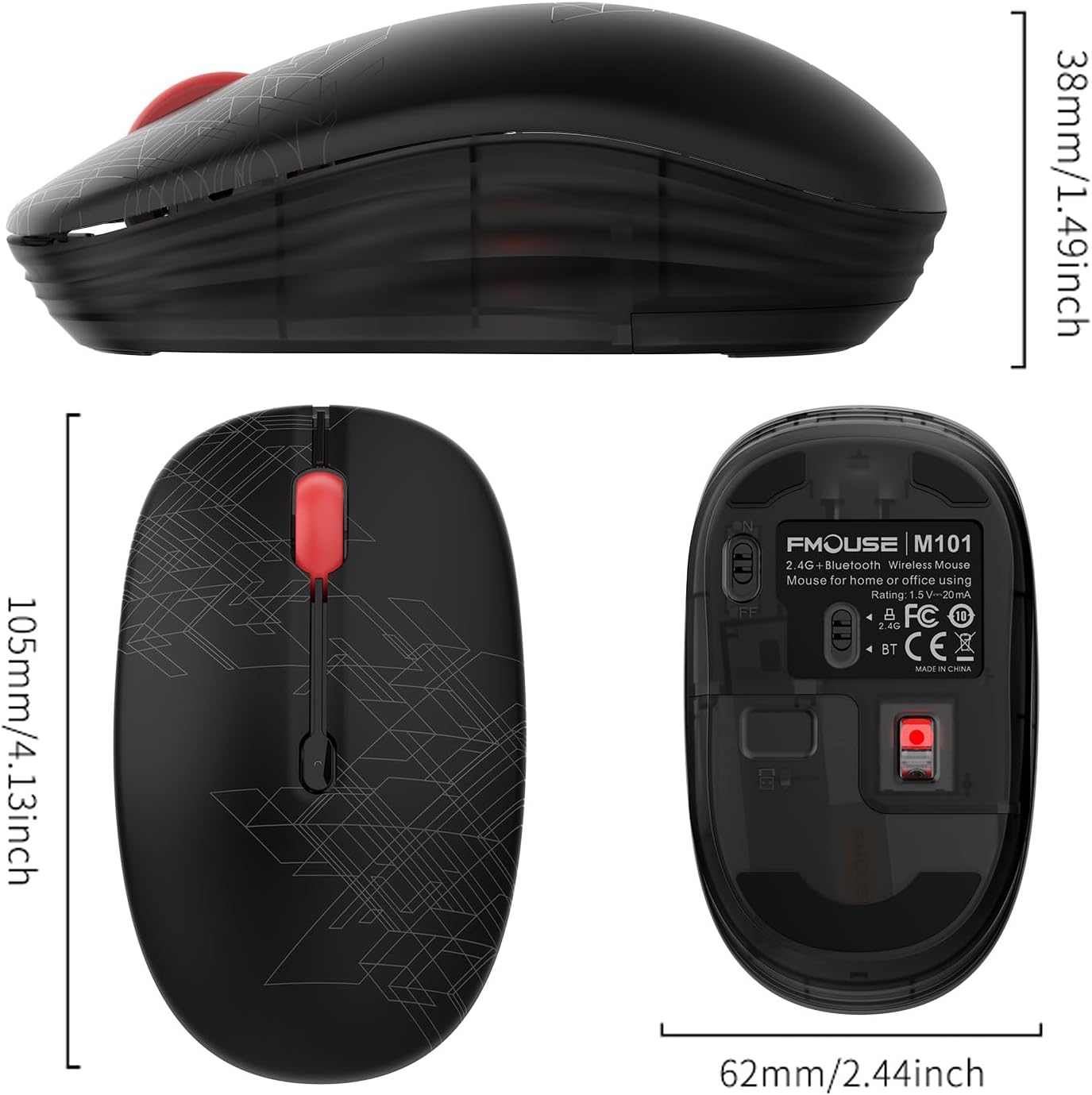
| Rozměry produktu | 4.13 x 2.44 x 0.1 palce |
| Hmotnost položky | 2.05 unce |
| Baterie | Vyžaduje 1 AA baterii (není součástí dodávky) |
| Technologie připojení | Bluetooth, 2.4 GHz USB |
| Technologie detekce pohybu | Optický |
| Speciální funkce | Soundless (Silent Click) |
9. Řešení problémů
9.1. Myš nereaguje
- Zkontrolujte baterii: Ujistěte se, že je baterie AA správně vložena a dostatečně nabitá. V případě potřeby ji vyměňte.
- Vypínač: Verify the ON/OFF switch on the bottom of the mouse is in the 'ON' position.
- Výběr režimu: Confirm the mode switch (2.4G or BT) matches your intended connection method.
9.2. 2.4GHz Connection Issues
- USB přijímač: Ujistěte se, že je USB přijímač bezpečně zapojený do funkčního USB portu v počítači. Zkuste jiný USB port.
- Rušení: Move the mouse closer to the USB receiver to rule out signal interference.
9.3. Problémy s připojením Bluetooth
- Bluetooth povoleno: Ensure Bluetooth is enabled on your device and the mouse is in 'BT' mode.
- Oprava párování zařízení: If the mouse was previously paired, try removing it from your device's Bluetooth list and re-pairing it.
- Kompatibilita zařízení: Confirm your device supports Bluetooth connectivity.
10. Záruka a podpora
FMOUSE products come with a standard manufacturer's warranty. For detailed warranty information, technical support, or customer service inquiries, please refer to the contact information provided on the product packaging or visit the official FMOUSE webmísto.