
Zavedení
This manual provides comprehensive instructions for the Akko MG75 ABNT2 Mechanical Keyboard. Designed for efficiency and customization, this 75% layout keyboard features Akko Silver V3 Pro mechanical switches, full RGB backlighting, and hot-swappable switch sockets. Please read this manual carefully to ensure proper use and maintenance of your device.
1. Nastavení
1.1 Obsah balení
- Akko MG75 ABNT2 Mechanical Keyboard
- USB-C Cable (Removable)
- Stahovač klíčů
- Stahovák spínačů
- Další přepínače
- Uživatelská příručka (tento dokument)
1.2 Připojení klávesnice
- Vyhledejte port USB-C na zadní straně klávesnice.
- Connect the provided USB-C cable to the keyboard.
- Připojte druhý konec kabelu USB-C k volnému portu USB v počítači.
- Klávesnici váš operační systém automaticky rozpozná. Pro základní funkce obvykle nejsou vyžadovány žádné další ovladače.

Image: USB-C port for connecting the keyboard.
1.3 Nastavení výšky klávesnice
The Akko MG75 keyboard features three levels of adjustable height. Flip out the feet located on the underside of the keyboard to select your preferred typing angle.
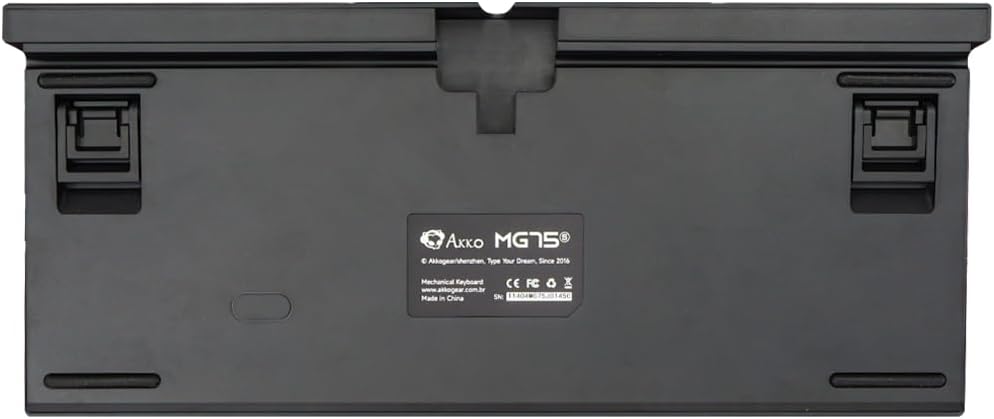
Image: Underside of the keyboard with adjustable feet.
2. Návod k obsluze
2.1 Ovládání RGB osvětlení
The Akko MG75 keyboard features full RGB backlighting with multiple effects and customization options. Refer to the included quick guide or the official Akko software for detailed instructions on changing lighting modes, colors, and brightness. Typically, lighting effects can be cycled using specific key combinations (e.g., Fn + certain keys).
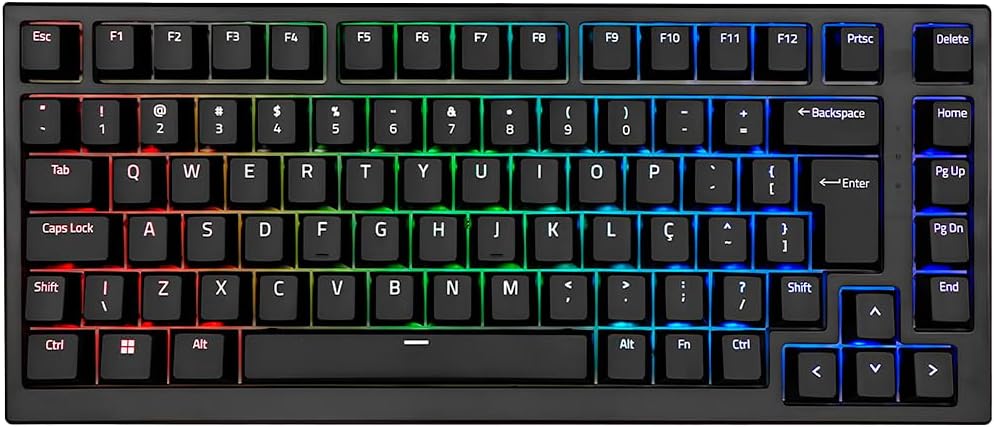
Image: Akko MG75 keyboard displaying RGB lighting.
2.2 Přepínače vyměnitelné za provozu
The Akko MG75 supports hot-swappable mechanical switches, compatible with both 3-pin and 5-pin switches. This allows for easy customization of your typing experience without soldering.
Výměna přepínačů:
- Use the provided switch puller to carefully remove the desired switch from the keyboard. Grip the switch firmly and pull straight up.
- Zarovnejte piny nového spínače s otvory na desce plošných spojů. Ujistěte se, že piny jsou rovné.
- Gently press the new switch into place until it clicks securely. Do not force the switch if it does not go in easily; check pin alignment.

Image: Akko mechanical switches, illustrating their design for hot-swapping.
2.3 ABNT2 Layout
This keyboard features the ABNT2 layout, which includes specific keys for Portuguese language characters and punctuation, such as 'Ç' and dedicated keys for accents. This layout is standard for Brazilian Portuguese users.

Obrázek: Shora dolů view of the Akko MG75 keyboard, highlighting the ABNT2 layout.
3. Údržba
3.1 Čištění klávesnice
- Před čištěním odpojte klávesnici od počítače.
- Pomocí měkkého kartáče nebo stlačeného vzduchu odstraňte prach a nečistoty z prostoru mezi klávesami.
- V případě odolných nečistot jemně otřete klávesy a povrch klávesnice lehceamp cloth (water only). Avoid excessive moisture.
- Nepoužívejte drsné chemikálie ani abrazivní čisticí prostředky.
3.2 Výměna krytky kláves
To replace keycaps, use the provided keycap puller. Gently hook the puller onto the keycap and pull straight up. To install a new keycap, align it with the switch stem and press down firmly until it is seated.
4. Řešení problémů
4.1 Klávesnice nereaguje
- Ujistěte se, že je kabel USB-C bezpečně připojen ke klávesnici i k počítači.
- Try disconnecting and reconnecting the USB-C cable multiple times. Some users have reported this resolves initial connection issues.
- Test the keyboard on a different USB port on your computer.
- If possible, test the keyboard on another computer to rule out system-specific issues.
- Check if the cable itself is damaged by trying a different USB-C cable if available.
4.2 RGB Lighting Not Working Correctly
- Ujistěte se, že je klávesnice správně připojena a napájena.
- Refer to the quick guide for key combinations to cycle through lighting modes and adjust brightness.
- If using Akko software, ensure it is up-to-date and correctly configured.
5. Specifikace
| Funkce | Detail |
|---|---|
| Značka | Akko |
| Model | MG75 |
| Rozložení | 75% ABNT2 |
| Spínače | Akko Silver V3 Pro Mechanical |
| Hot-swap | Yes (3-pin and 5-pin compatible) |
| Konektivita | USB-C (Removable Cable) |
| Podsvícení | RGB |
| Anti-Ghosting | N-keys Rollover |
| Klíčenky | ABS Laser |
| Nastavitelná výška | Ano, 3 úrovně |
| Kompatibilní zařízení | PC |
| Barva | Černý |
| Počet klíčů | 84 |
| Hrubá hmotnost | 1582 g |
| Čistá hmotnost | 1451 g |
| Package Dimensions (L x H x D) | 350 mm x 250 mm x 50 mm |
6. Záruka a podpora
6.1 Záruka na produkt
The Akko MG75 Mechanical Keyboard comes with a Záruka 12 měsíců against manufacturing defects from the date of purchase. Please retain your proof of purchase for warranty claims. This warranty does not cover damage caused by misuse, accidents, unauthorized modifications, or normal wear and tear.
6.2 Zákaznická podpora
For technical assistance, warranty claims, or further inquiries, please visit the official Akko website or contact your local retailer. You may find additional resources, FAQs, and software downloads on the manufacturer's support page.
Oficiální Akko Webmísto: www.akkogear.com