
1. Úvod
Thank you for choosing the LOFREE Zero ARTZ Mechanical Keyboard and Terrazzo Mouse combo. This manual provides essential information for setting up, operating, and maintaining your new devices. The Zero ARTZ keyboard features a 75% layout, hot-swappable switches, and versatile connectivity options including Bluetooth, 2.4GHz wireless, and USB-C. The accompanying Terrazzo Mouse offers dual-mode connectivity and adjustable DPI settings for enhanced productivity.

Image: The LOFREE Terrazzo Mouse, featuring its unique speckled design.
2. Obsah balení
Ujistěte se prosím, že máte v balení všechny položky:
- Mechanická klávesnice LOFREE Zero ARTZ
- Terrazzo myš LOFREE
- Kabel USB-C na USB-A
- 2.4 GHz bezdrátový přijímač
- Keycap Puller (for hot-swappable switches)
- Stahovák spínačů (pro spínače vyměnitelné za provozu)
- Uživatelská příručka (tento dokument)
3. Nastavení
3.1 Nabíjení zařízení
Both the keyboard and mouse are equipped with rechargeable batteries. Before first use, it is recommended to fully charge both devices.
- Connect the provided USB-C cable to the charging port on the keyboard and mouse.
- Druhý konec kabelu USB-C připojte k napájecímu adaptéru USB (není součástí balení) nebo k portu USB počítače.
- Kontrolka nabíjení se během nabíjení rozsvítí a po úplném nabití zhasne nebo změní barvu.
3.2 Keyboard Connectivity
The Zero ARTZ keyboard supports three connection modes: Bluetooth, 2.4GHz Wireless, and USB-C wired.
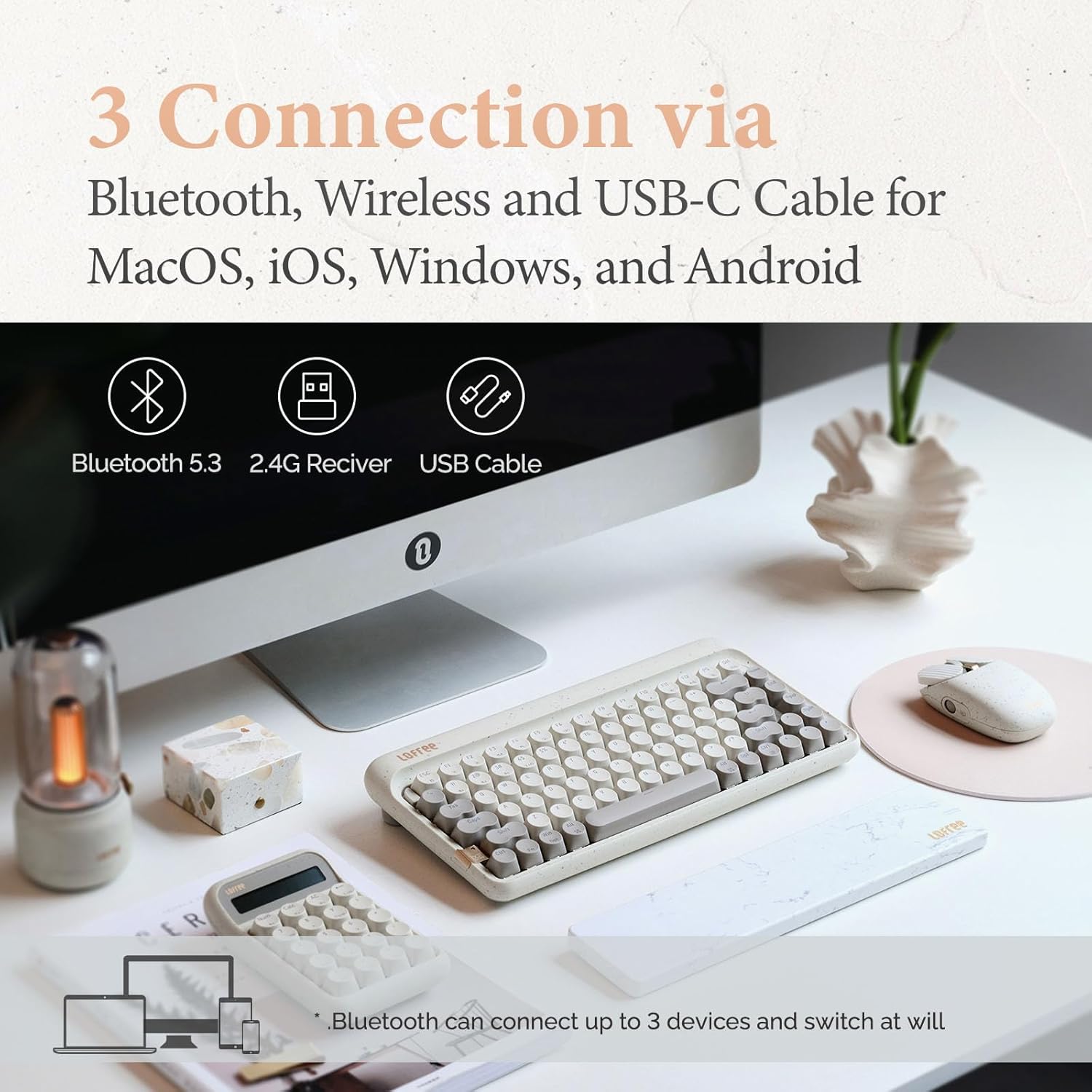
Image: Illustration showing the three connection methods: Bluetooth 5.3, 2.4G Receiver, and USB Cable, compatible with MacOS, iOS, Windows, and Android.
3.2.1 Připojení Bluetooth
- Locate the mode switch on the keyboard and set it to 'BT' (Bluetooth).
- Stiskněte a podržte Fn + 1, Fn + 2nebo Fn + 3 for 3-5 seconds until the indicator light flashes rapidly, indicating pairing mode. The keyboard can store up to three Bluetooth devices.
- On your device (computer, tablet, smartphone), enable Bluetooth and search for 'LOFREE Zero ARTZ'.
- Vyberte klávesnici, kterou chcete spárovat. Po připojení kontrolka přestane blikat.
- Chcete-li přepínat mezi spárovanými zařízeními Bluetooth, stiskněte Fn + 1, Fn + 2nebo Fn + 3 krátce.
3.2.2 Bezdrátové připojení 2.4 GHz
- Locate the mode switch on the keyboard and set it to '2.4G'.
- Vložte bezdrátový přijímač 2.4 GHz do volného portu USB v počítači.
- Klávesnice by se měla automaticky připojit. Pokud ne, stiskněte Fn + 4 pro zahájení párování.
3.2.3 Kabelové připojení USB-C
- Locate the mode switch on the keyboard and set it to 'USB'.
- Připojte dodaný kabel USB-C z klávesnice k portu USB počítače.
- The keyboard will be recognized as a standard USB device and is ready for use.
3.3 Mouse Connectivity
The Terrazzo Mouse supports dual-mode connection: Bluetooth and 2.4GHz Wireless.
3.3.1 Připojení Bluetooth
- Locate the mode switch on the bottom of the mouse and set it to 'BT'.
- Press and hold the Bluetooth pairing button (usually near the mode switch) for 3-5 seconds until the indicator light flashes.
- On your device, enable Bluetooth and search for 'LOFREE Terrazzo Mouse'.
- Select the mouse to pair. The indicator light will stop flashing once connected.
- The mouse can connect to 2 devices simultaneously. Use the pairing button to switch between them.
3.3.2 Bezdrátové připojení 2.4 GHz
- Locate the mode switch on the bottom of the mouse and set it to '2.4G'.
- Vložte bezdrátový přijímač 2.4 GHz do volného portu USB v počítači.
- Myš by se měla automaticky připojit.
4. Návod k obsluze
4.1 Funkce klávesnice
The Zero ARTZ keyboard is designed for optimal typing experience with a gasket mount structure and 1000Hz polling rate.

Obrázek: Rozložený view of the LOFREE keyboard showing the Gasket Mount, Keycaps, Switches, Gasket Pad, Poron, PCBA IXPE Foam, EVA Foam, EVA Pad, Upper Case, and Bottom Case layers.
4.1.1 Function Key Combinations (Fn)
Použijte Fn klávesa v kombinaci s dalšími klávesami pro přístup ke speciálním funkcím:
- Fn + 1/2/3: Switch between Bluetooth devices.
- Fn + 4: Activate 2.4GHz wireless pairing.
- Fn + Q/W/E/R: (Specific to some models) Switch between operating system layouts (e.g., Mac/Windows). Refer to the keycap legends for specific OS modes.
- Fn+F1-F12: Multimedia and system control keys (e.g., volume, playback, screen brightness). The specific functions are indicated by icons on the keycaps.
4.1.2 Kompatibilita operačních systémů
The keyboard is compatible with MacOS, iOS, Windows, and Android. Ensure the correct operating system mode is selected if available, typically via a switch or Fn key combination, to ensure proper key mapping.

Image: A user typing on the LOFREE keyboard, highlighting the 1000Hz Polling Rate for responsive input.
4.2 Funkce myši
The Terrazzo Mouse features an ergonomic design and adjustable sensitivity.

Image: A hand comfortably resting on the LOFREE Terrazzo Mouse, demonstrating its ergonomic design.
4.2.1 Nastavení DPI
The mouse offers 5 adjustable DPI levels to suit different preferences and tasks. Press the DPI button (usually located on the top or bottom of the mouse) to cycle through the available DPI settings. The indicator light may change color or flash to indicate the current DPI level.
4.2.2 Thumb Wheel and Button
The mouse includes a thumb wheel and an additional button for multi-gesture use, enhancing navigation and productivity. Refer to your operating system's mouse settings for customization options.
5. Údržba
5.1 Čištění
To maintain the appearance and functionality of your devices:
- K otření povrchů klávesnice a myši použijte měkký, suchý hadřík, který nepouští vlákna.
- Pro odolnou špínu lehceampOmyjte hadřík vodou nebo jemným, neabrazivním čisticím prostředkem. Zabraňte nadměrné vlhkosti.
- To clean between keycaps, use compressed air or a small brush.
5.2 Přepínače vyměnitelné za provozu
The Zero ARTZ keyboard features hot-swappable switches, allowing for easy replacement without soldering.
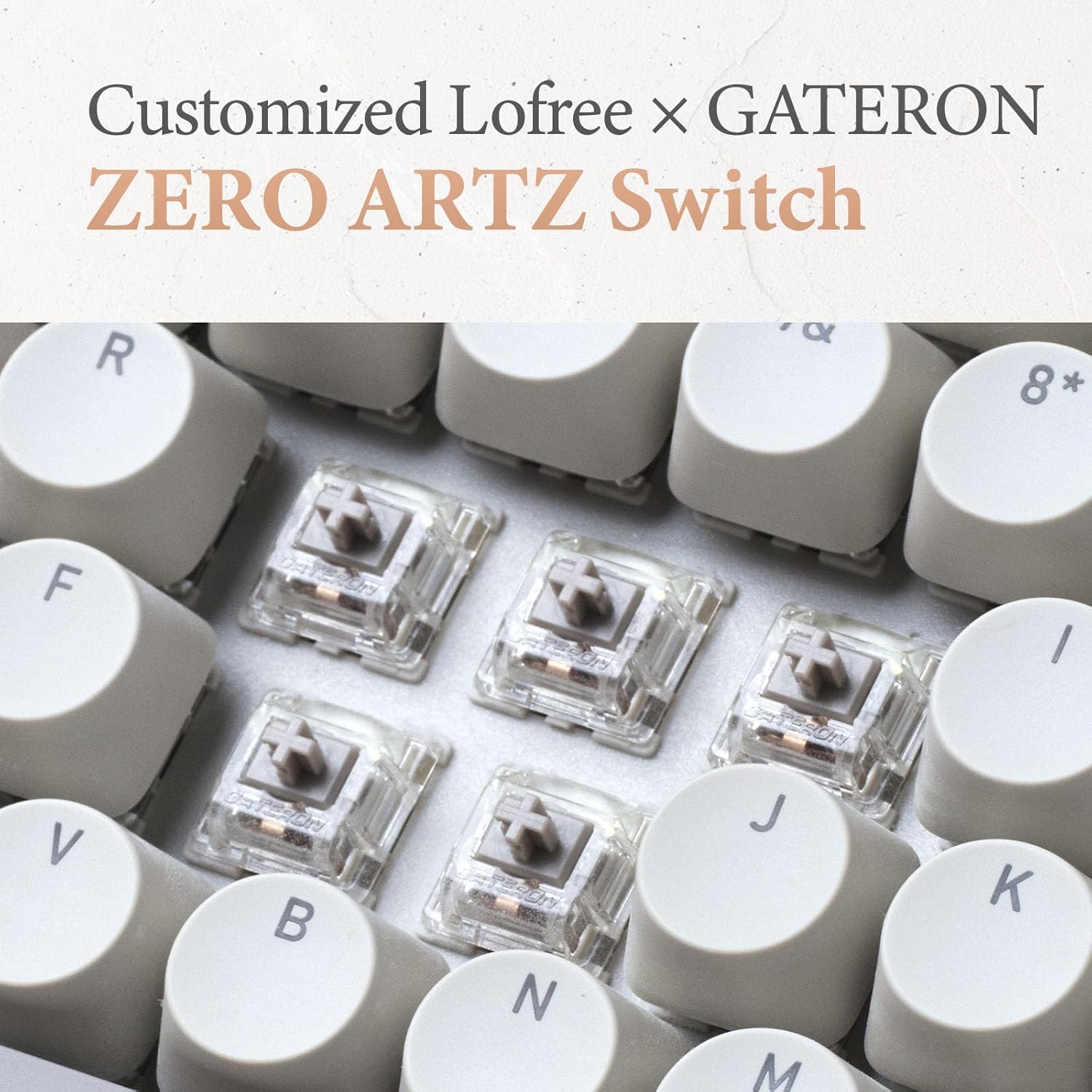
Image: Close-up of the customized LOFREE x GATERON ZERO ARTZ switches installed in the keyboard.
- Pomocí dodaného stahováku na klávesy opatrně vyjměte požadovanou klávesu.
- Use the provided switch puller to gently grip the switch from its top and bottom clips, then pull it straight up to remove.
- Zarovnejte piny nového spínače s otvory na desce plošných spojů a pevně jej zatlačte dolů, dokud nezacvakne. Ujistěte se, že piny nejsou ohnuté.
- Vyměňte krytku kláves.
5.3 Péče o baterii
Chcete -li prodloužit životnost baterie:
- Vyhněte se častému úplnému vybíjení baterie.
- Pokud zařízení delší dobu nepoužíváte, skladujte je na chladném a suchém místě.
- Recharge the devices when the low battery indicator appears. The mouse has an approximate 50-day battery life on a single charge, depending on usage.
6. Řešení problémů
6.1 Problémy s připojením
- Zařízení se nepřipojuje přes Bluetooth: Ensure the keyboard/mouse is in pairing mode. Check your device's Bluetooth settings and try re-pairing. Ensure no other devices are interfering.
- 2.4GHz wireless not working: Ensure the 2.4GHz receiver is securely plugged into a USB port. Try a different USB port. Ensure the keyboard/mouse is set to 2.4G mode.
- Wired connection issues: Ensure the USB-C cable is properly connected to both the keyboard and the computer. Try a different USB-C cable or port.
6.2 Klávesnice/myš nereaguje
- Zkontrolujte stav baterie a v případě potřeby ji dobijte.
- Ensure the correct connection mode (Bluetooth, 2.4G, USB) is selected on the device.
- Restartujte počítač nebo zařízení.
- For the keyboard, ensure the correct operating system mode (Mac/Windows) is selected.
6.3 DPI Adjustment Not Working (Mouse)
- Ujistěte se, že je myš zapnutá a připojená.
- Press the DPI button firmly. If there's no visual indicator, try moving the mouse after each press to feel the change in sensitivity.
7. Specifikace
| Funkce | Detail |
|---|---|
| Značka | ZDARMA |
| Model | Nula ARTZ |
| Rozložení klávesnice | 75% QWERTY |
| Technologie připojení | Bluetooth 5.3, bezdrátové připojení 2.4 GHz, kabelové připojení USB-C |
| Kompatibilní zařízení | Laptop, Personal Computer, Smartphone, Tablet (Windows, Mac OS, iOS, Android) |
| Zdroj napájení | Napájení z baterie (dobíjecí) |
| Rychlost dotazování klávesnice | 1000 Hz |
| Přepínače klávesnice | Customized LOFREE x GATERON ZERO ARTZ (Linear) |
| Klávesy na klávesnici | Dual Color PBT |
| Úrovně DPI myši | 5 nastavitelné úrovně |
| Výdrž baterie myši | Approx. 50 days (depending on usage) |
| ASIN | B0DKJB48FR |
| Datum první dostupnosti | 22. října 2024 |
8. Záruka a podpora
LOFREE products are covered by a limited warranty. For detailed warranty information, please refer to the warranty card included with your product or visit the official LOFREE website. If you encounter any issues or require technical assistance, please contact LOFREE customer support through their official channels.
- Oficiální LOFREE Webmísto: www.lofree.co
- E-mail zákaznické podpory: Viz obal produktu nebo webstránky s aktuálními kontaktními informacemi.