
1. Úvod
Thank you for choosing the Cuifati Bluetooth Transparent Mouse. This device offers dual-mode connectivity (Bluetooth 5.0 and 2.4G USB receiver), RGB backlighting, and a rechargeable design for versatile use with PCs, laptops, and tablets. This manual provides detailed instructions for setup, operation, maintenance, and troubleshooting to ensure optimal performance.
2. Obsah balení
Prosím, ověřte, zda jsou v balení přítomny všechny položky:
- 1 x Cuifati Bluetooth Transparent Mouse
- 1 x nabíjecí kabel (typu C)
- 1 x USB přijímač (2.4 G)
- 1 x Uživatelská příručka

Image: Contents of the Cuifati mouse package, including the mouse, Type-C charging cable, and 2.4G USB receiver.
3. Specifikace
| Funkce | Detail |
|---|---|
| Nastavení DPI | 800, 1200, 1600 |
| Režimy přenosu | Bezdrátové 2.4G, Bluetooth 5.0 |
| Kapacita baterie | Li-ion baterie 400mAh |
| Rozměry myši | Approx. 113.5 x 58 x 25mm (±2mm) |
| Způsob nabíjení | Typ C USB |
| Provozní svtage | 3.3V-4.2V |
| Operating Current (Light mode) | ≤25 mA |
| Operating Current (Non-lighting mode) | ≤8 mA |
| 2.4G systémové požadavky | Windows XP/7/8/10+, Android 4.4+, OS X 10.5+, Linux Kernel 2.6+2, Chrome OS |
| Systémové požadavky Bluetooth | Windows 8/10, Android 5.0+, OS X 10.10+ (Bluetooth 4.0 and above adapter required) |
| Materiál | PC |
4. Nastavení
4.1. Nabíjení myši
Before first use, fully charge the mouse. Connect the provided Type-C charging cable to the mouse's charging port and the other end to a USB power source (e.g., computer USB port, USB wall adapter). A full charge typically takes 2-3 hours.

Image: The Cuifati mouse being charged via its Type-C port, indicating a 2-3 hour charging time.
4.2. Připojení přes 2.4G USB přijímač
- Locate the USB receiver, usually stored within the mouse's magnetic cover or packaging.
- Zapojte USB přijímač do volného USB portu na vašem počítači nebo zařízení.
- Turn on the mouse and switch it to 2.4G mode (refer to Section 5.1 for mode switching).
- Myš by se měla automaticky připojit k vašemu zařízení.

Image: The transparent design of the Cuifati mouse, showing the internal components and the USB receiver slot.
4.3. Připojení přes Bluetooth 5.0
- Turn on the mouse and switch it to Bluetooth mode (refer to Section 5.1 for mode switching).
- On your device (PC, laptop, tablet), navigate to the Bluetooth settings.
- Povolte Bluetooth a vyhledejte nová zařízení.
- Select "Cuifati Mouse" or a similar name from the list of available devices to pair.
- Dokončete proces párování podle pokynů na obrazovce.
Note: You cannot use Bluetooth mode and 2.4G USB mode simultaneously. Ensure only one mode is active at a time.
5. Návod k obsluze
5.1. Zapnutí/vypnutí a přepínání režimů
The mouse features a switch on its underside to power it on/off and select the connection mode. Slide the switch to the desired position for 2.4G or Bluetooth connectivity, or to the 'Off' position to conserve battery.
5.2. Nastavení DPI
The mouse supports three DPI (Dots Per Inch) settings: 800, 1200, and 1600. Press the DPI button (usually located near the scroll wheel or on the underside) to cycle through these settings and adjust cursor sensitivity to your preference.
5.3. Ovládání RGB osvětlení
The mouse features various RGB lighting effects. A dedicated lighting switch key, typically on the underside or a side button, allows you to cycle through 11 different lighting modes or turn off the lights completely. This enhances the aesthetic appeal during use.
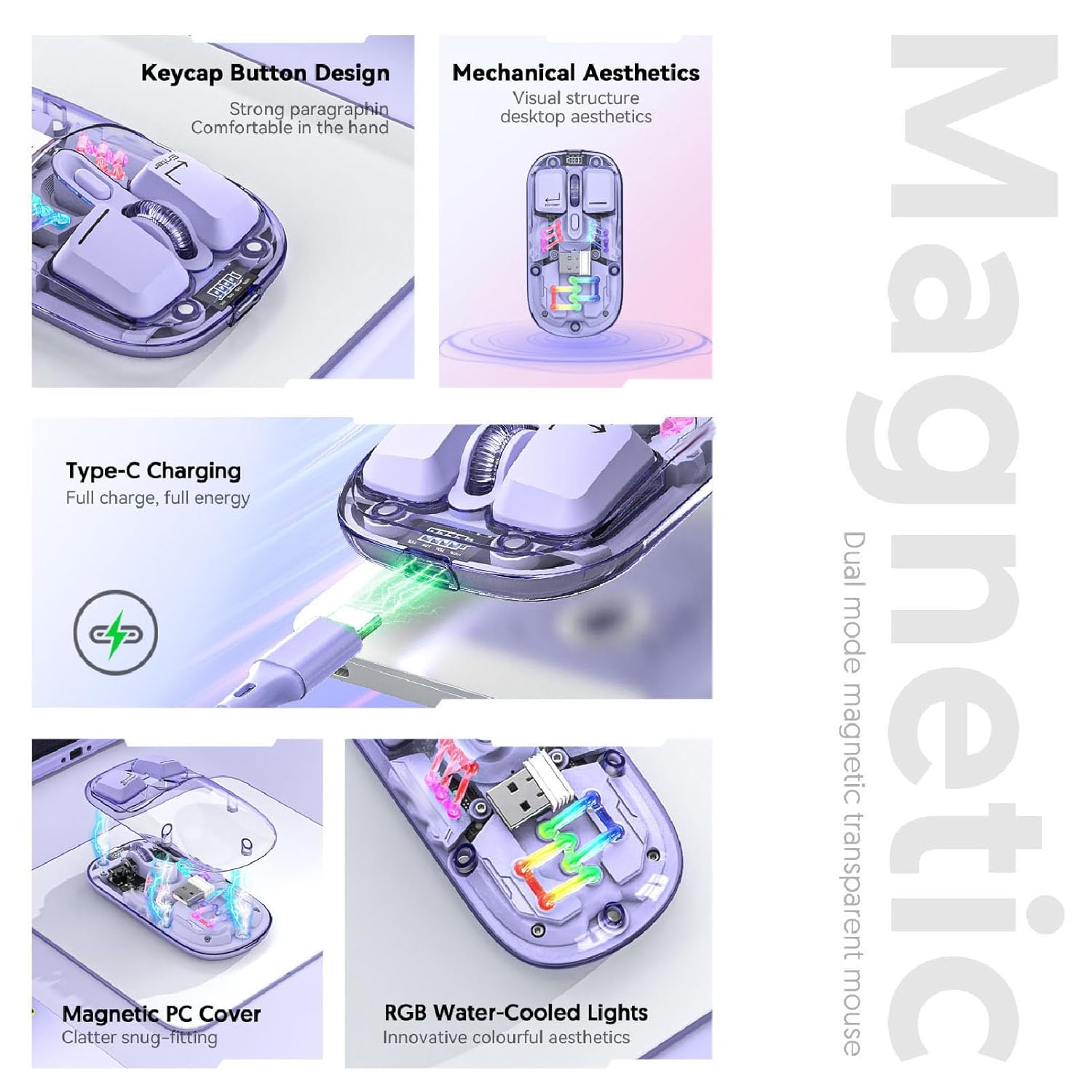
Obrázek: Kompozitní view highlighting the RGB lighting, Type-C charging, and magnetic cover design of the mouse.
5.4. Zobrazení stavu baterie
The mouse is equipped with a power display to check the remaining battery level at any time. This display typically uses indicator lights to show the charge status:
- 4 svítí kontrolky: 100% baterie
- 3 svítí kontrolky: 75% baterie
- 2 svítí kontrolky: 50% baterie
- 1 kontrolka svítí: 25% baterie

Image: Close-up of the Cuifati mouse's battery level display, illustrating how indicator lights correspond to charge percentage.
5.5. Automatic Energy Saving
To conserve battery life, the mouse features an automatic sleep function:
- Lehké spaní: After 60 seconds of no operation, the mouse enters a light sleep state.
- Hluboký spánek: If no operation occurs for 10 minutes, the mouse enters a deep sleep mode.
- Vzbudit: To wake the mouse from sleep, simply move it or press any button.
Note: Actual power saving performance may vary based on usage habits.

Image: Visual representation of the mouse's power-saving states: light sleep after 60 seconds, deep sleep after 10 minutes, and how to wake it up.
6. Údržba
6.1. Čištění
To maintain the mouse's appearance and functionality, regularly clean its surfaces. Use a soft, dry, lint-free cloth. For stubborn dirt, slightly dampen the cloth with water or a mild, non-abrasive cleaner. Avoid using harsh chemicals or abrasive materials that could damage the transparent shell or internal components.

Image: The Cuifati mouse with its magnetic top cover detached, revealing the internal structure for potential cleaning or maintenance.
6.2. Péče o baterie
The built-in Li-ion battery is designed for long-term use. To prolong battery life:
- Vyhněte se častému úplnému vybíjení baterie.
- Myš nabíjejte pomocí dodaného kabelu typu C.
- Pokud myš delší dobu nepoužíváte, skladujte ji na chladném a suchém místě.
7. Řešení problémů
If you encounter issues with your Cuifati mouse, please refer to the following common solutions:
- Myš nereaguje:
- Ujistěte se, že je myš zapnutá.
- Zkontrolujte stav baterie a v případě potřeby ji nabijte.
- Ověřte, zda je vybrán správný režim připojení (2.4G nebo Bluetooth).
- Pro 2.4G se ujistěte, že je USB přijímač bezpečně zapojený. Zkuste jiný USB port.
- V případě Bluetooth se ujistěte, že je na vašem zařízení povoleno Bluetooth a myš je spárovaná. Zkuste spárování zopakovat.
- Pohyb kurzoru je nepravidelný nebo pomalý:
- Vyčistěte optický senzor na spodní straně myši.
- Ujistěte se, že myš používáte na vhodném povrchu (není silně reflexní ani průhledný).
- Adjust the DPI setting (refer to Section 5.2).
- RGB světla nefungují:
- Ujistěte se, že je myš zapnutá.
- Press the lighting switch key to cycle through modes or turn them on (refer to Section 5.3).
- Zkontrolujte stav baterie; slabá baterie může deaktivovat osvětlení.
- Cannot connect via Bluetooth and 2.4G simultaneously:
- This is expected behavior. The mouse is designed to operate in one mode at a time. Switch to the desired mode using the selector switch.
8. Záruka a podpora
The Cuifati Bluetooth Transparent Mouse comes with a standard manufacturer's warranty. Please refer to the warranty card included in your package or visit the official Cuifati webpodrobné záruční podmínky naleznete na webu.
For technical support, product inquiries, or warranty claims, please contact Cuifati customer service through their official channels. Contact information can typically be found on the product packaging or the manufacturer's webmísto.