
Falcon Electronics EagleEye 2nd Gen Triple Cam 2K Dashcam
FalconEye Electronics EagleEye 2nd Gen Triple Cam 2K Dashcam User Manual
Model: EagleEye 2nd Gen Triple Cam 2K Dashcam
1. Úvod
This manual provides detailed instructions for the installation, operation, and maintenance of your FalconEye Electronics EagleEye 2nd Gen Triple Cam 2K Dashcam. Please read this manual thoroughly before using the device to ensure proper functionality and to maximize its benefits.
2. Co je v krabici
Ověřte, zda jsou v balení obsaženy všechny níže uvedené komponenty:
- Main Dash 2K Front Facing Camera with 4.0" LCD
- 2 Additional 1080P Waterproof Rear Cameras with 19' cables
- 1 mobilní nabíječka do zapalovače cigaret
- 1 Suction Cup Windshield Mount
- GPS Antenna (for speed and location tracking)
- Uživatelská příručka
- TF Card slot (supports up to 128GB microSD card, card not included in all variants)
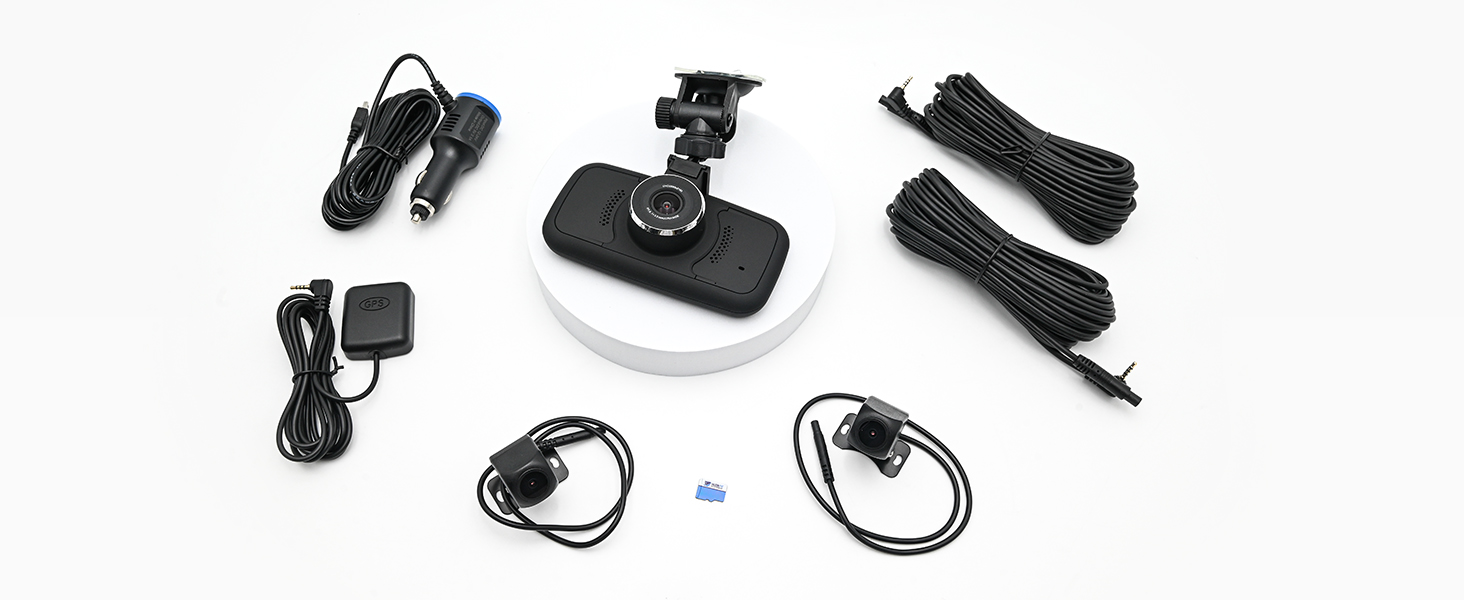
Image: All components included in the FalconEye EagleEye 2nd Gen Dashcam package.

Image: The included cigarette lighter power adapter and cable.

Image: The GPS antenna and the two external cameras with their connecting cables.
3. Konec produktuview
The FalconEye EagleEye 2nd Gen Dashcam is a triple-camera system designed to provide comprehensive video surveillance for your vehicle. It features a 2K front camera and two 1080P waterproof rear cameras, a 4-inch LCD screen, built-in WiFi, and GPS functionality.
Klíčové vlastnosti:
- Násobek Viewbody: Records simultaneously from a 2K front-facing camera and two 1080P waterproof rear cameras.
- Nahrávání ve vysokém rozlišení: Captures clear video with excellent night vision capabilities.
- 4" LCD displej: Umožňuje přímé viewing and playback of recordings.
- Slot pro SD kartu: Supports microSD cards up to 128GB for video storage.
- Funkce GPS: Records vehicle speed and location data (can be disabled by unplugging the antenna).
- WiFi připojení: Enables easy transfer and viewing of recordings via a mobile application.
- G-senzor: Automaticky uzamkne video files upon detecting sudden impacts or collisions.
- Nahrávání ve smyčce: Nepřetržitě nahrává přepisováním nejstarších files, když je paměťová karta plná.

Image: The main dashcam unit with its 4-inch LCD screen and the two external cameras.

Obrázek: Overview of the dashcam's features including GPS, G-Sensor, easy installation, and loop recording.

Obrázek: Boční view of the dashcam highlighting its connectivity ports: USB, 3.5mm jacks for cameras/GPS, and the Micro SD card slot.
4. Nastavení a instalace
Follow these steps for proper installation of your dashcam system.
4.1 Instalace hlavní jednotky
- Vyčistěte oblast čelního skla, kam chcete namontovat palubní kameru.
- Attach the suction cup mount to the main dashcam unit.
- Bezpečně připevněte přísavný držák k čelnímu sklu a zajistěte tak čistý view silnice.
- Connect the cigarette lighter power adapter to the dashcam and plug it into your vehicle's 12V power outlet. Route the cable neatly to avoid obstruction.

Obrázek: Přední strana view of the main dashcam unit with its suction cup mount.
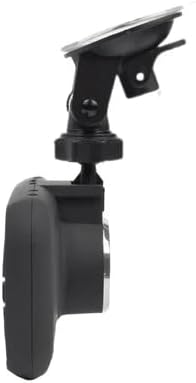
Obrázek: Boční view of the dashcam mounted, illustrating its position relative to the windshield.
4.2 External Camera Installation
The two additional cameras are waterproof and designed for external mounting, typically on side mirrors or the rear of the vehicle. The 19-foot cables provide flexibility for routing.
- Identify suitable mounting locations for the two external cameras, ensuring a clear field of view. Common locations include side mirrors or the rear of the vehicle.
- Securely mount the cameras using appropriate hardware (not specified, assume included or user-provided).
- Route the camera cables from the external mounting points to the main dashcam unit. Ensure cables are tucked away and secured to prevent interference with vehicle operation or damage.
- Connect the 3.5mm jacks of the external cameras to the corresponding ports on the main dashcam unit.

Obrázek: Přample of external cameras installed on the side mirrors of a truck.
4.3 Instalace GPS antény
- Mount the GPS antenna on your dashboard or another location with a clear view oblohy pro optimální příjem signálu.
- Connect the GPS antenna's 3.5mm jack to the designated port on the main dashcam unit.
- If you do not wish to record speed and location data, you may leave the GPS antenna unplugged.
4.4 Vložení karty MicroSD
- Ujistěte se, že je palubní kamera vypnutá.
- Insert a compatible microSD card (Class 10 or higher, up to 128GB) into the TF card slot on the side of the main unit until it clicks into place.
- Format the microSD card through the dashcam's menu settings before first use to ensure compatibility and optimal performance.
5. Návod k obsluze
5.1 Zapnutí/vypnutí
- The dashcam will automatically power on and begin recording when connected to a power source and the vehicle ignition is turned on.
- It will automatically power off shortly after the vehicle ignition is turned off.
- Pro ruční zapnutí/vypnutí stiskněte a podržte tlačítko napájení na jednotce.
5.2 Režimy nahrávání
- Nahrávání ve smyčce: The dashcam continuously records video in short segments (e.g., 1, 3, or 5 minutes). When the memory card is full, the oldest unprotected files jsou přepsány.
- G-Sensor Recording: In the event of a sudden impact or collision, the built-in G-Sensor will detect the event and automatically lock the current video file, čímž se zabrání jeho přepsání nahráváním ve smyčce.
- Ruční nouzové nahrávání: Press the designated button (refer to device layout) to manually lock the current recording segment.
5.3 Playback on LCD Screen
- Stop recording by pressing the 'OK' button (or equivalent).
- Navigate to the playback mode using the menu buttons.
- Use the navigation buttons to browse through recorded video files.
- Vyberte a file and press 'OK' to play.
6. WiFi připojení
The built-in WiFi feature allows you to connect your smartphone or tablet to the dashcam for easy viewing, downloading, and management of recorded videos.
- Download the dedicated mobile application (refer to the dashcam's on-screen instructions or packaging for app name).
- Enable WiFi on your dashcam through the settings menu.
- On your mobile device, go to WiFi settings and connect to the dashcam's WiFi network (SSID and password will be displayed on the dashcam screen).
- Open the mobile application to access live view, browse recordings, and download files do vašeho zařízení.
7. Funkce GPS
When the GPS antenna is connected, the dashcam records your vehicle's speed and location data, embedding this information into the video files. Tato data mohou být viewed during playback on the dashcam or through the mobile application/PC viewer software.
- Ensure the GPS antenna is securely connected and has a clear view z nebe.
- GPS data will automatically be recorded with your video files.
- To disable GPS recording, simply unplug the GPS antenna from the main unit.
8. G-Sensor and Accident Recording
The G-Sensor detects sudden acceleration, braking, or impacts. When such an event occurs, the dashcam automatically locks the current video segment, ensuring it is not overwritten by loop recording. This feature is crucial for preserving evidence in case of an accident.
- The G-Sensor sensitivity can typically be adjusted in the dashcam's settings menu (Low, Medium, High, Off).
- A higher sensitivity setting will trigger the G-Sensor more easily.
- Zamčeno files are stored in a separate folder on the microSD card.
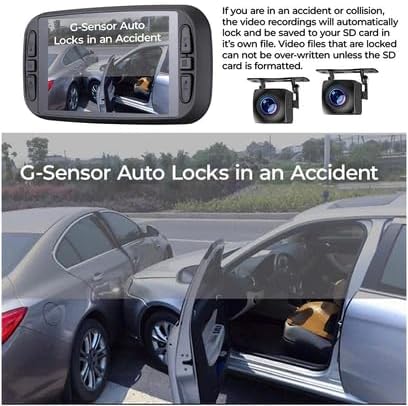
Image: The dashcam display indicating a G-Sensor activated recording during an accident scenario.
9. Údržba
9.1 Čištění
- Pravidelně čistěte čočky kamery měkkým hadříkem, který nepouští vlákna, abyste zajistili čistou kvalitu videa.
- Wipe the dashcam body with a dry or slightly damp tkanina. Vyhněte se používání agresivních chemikálií nebo abrazivních čisticích prostředků.
9.2 Správa karet MicroSD
- Format the microSD card periodically (e.g., once a month) to maintain optimal performance and prevent data corruption. This will erase all data on the card, so back up important files první.
- Replace the microSD card if you notice frequent errors or degraded performance.
9.3 aktualizací firmwaru
- Check the FalconEye Electronics webpravidelně navštěvujte web kvůli aktualizacím firmwaru. Aktualizace mohou zlepšit výkon, přidat nové funkce nebo opravit chyby.
- Follow the instructions provided with the firmware update carefully.
10. Řešení problémů
Pokud narazíte na problémy s palubní kamerou, podívejte se na následující běžné problémy a jejich řešení:
| Problém | Možné řešení |
|---|---|
| Autokamera se nezapne. | Check power connection to the 12V outlet. Ensure the vehicle ignition is on. Test the power adapter in another vehicle or with another device if possible. |
| Nahrávání se zastaví nebo zamrzne. | Ensure the microSD card is Class 10 or higher. Format the microSD card. Try a different microSD card. Check for firmware updates. |
| Špatná kvalita videa. | Clean the camera lenses. Ensure the protective film is removed from the lenses. Check video resolution settings. |
| GPS not recording location/speed. | Ensure the GPS antenna is securely connected. Place the antenna in a location with a clear view z nebe. |
| Problémy s připojením k Wi-Fi. | Ensure WiFi is enabled on the dashcam. Restart both the dashcam and your mobile device. Ensure you are within range of the dashcam's WiFi signal. |
| G-Sensor not triggering or too sensitive. | Adjust the G-Sensor sensitivity setting in the dashcam's menu. |
If the problem persists after trying these solutions, please contact FalconEye Electronics customer support.
11. Specifikace
| Funkce | Detail |
|---|---|
| Rozlišení předního fotoaparátu | 2K |
| Rozlišení zadní kamery | 1080p (x2) |
| Zobrazit | 4.0" LCD displej |
| Skladování | MicroSD card, up to 128GB (Class 10 or higher recommended) |
| Konektivita | Wi-Fi |
| Speciální funkce | Built-In WiFi, GPS, G-Sensor, Loop Recording, Night Vision |
| Zdroj napájení | 12V Cigarette Lighter Charger (Hardwire Kit optional) |
| Rozměry produktu | 1"H x 6"Š x 4"V |
| Hmotnost položky | 2.49 libry |
| Baterie | 1 lithium-iontová baterie (součástí balení) |
| Typ služby vozidla | Auto, náklaďák |
12. Záruka a podpora
FalconEye Electronics products are designed for reliability and performance. For specific warranty details, please refer to the warranty card included with your product or visit the official FalconEye Electronics webmísto.
Zákaznická podpora:
If you require technical assistance, have questions about your product, or need to initiate a warranty claim, please contact FalconEye Electronics customer support through their official channels. Contact information can typically be found on their webmístě nebo na obalu produktu.
Při kontaktování podpory si prosím připravte model produktu a datum zakoupení.
Ask a question about this manual
Ask about setup, troubleshooting, compatibility, parts, safety, or missing instructions. Manuals+ will review the question and use this page’s manual context to help answer it.