
1. Úvod
Thank you for choosing the CCYLEZ 1080P Security Camera. This device is designed to provide reliable indoor monitoring with advanced features such as dual-way video, two-way audio communication, and smart detection capabilities. Please read this manual carefully before operating the camera to ensure proper use and optimal performance. Keep this manual for future reference.
2. Konec produktuview
2.1 Klíčové vlastnosti
- 1080P Full HD video: Captures clear and detailed images.
- Dual-Way Video Monitoring: Allows for remote monitoring and video calls from a mobile device.
- Obousměrný rozhovor: Enables voice communication between the camera and a connected mobile device.
- 2.8palcová HD obrazovka: Built-in display for direct video viewing on the camera unit.
- One-Click Call Function: Green key on the camera for easy initiation of phone calls to paired devices.
- 3 Modes of Communication: Vzdálený Viewing (one-way video), Voice Call (two-way audio), and Video Call (two-way video and audio).
- Advanced 3K Image Sensor: Paired with a wide-angle lens for broad and detailed visuals.
- Funkce otáčení a naklápění: 355° horizontal and 90° vertical rotation for comprehensive coverage.
- Infrared Detection & Smart Alarm: Detects human movement and sends push notifications.
- Camera Feed Sharing: Share access with up to 30 smartphones for individual video calls.
2.2 Obsah balení
Ujistěte se, že v balení jsou přítomny všechny položky:
- CCYLEZ 1080P Security Camera Unit
- Napájecí kabel USB
- Uživatelská příručka (tento dokument)

Image: The CCYLEZ 1080P Security Camera unit shown alongside its USB power cable, illustrating the main components included in the package.
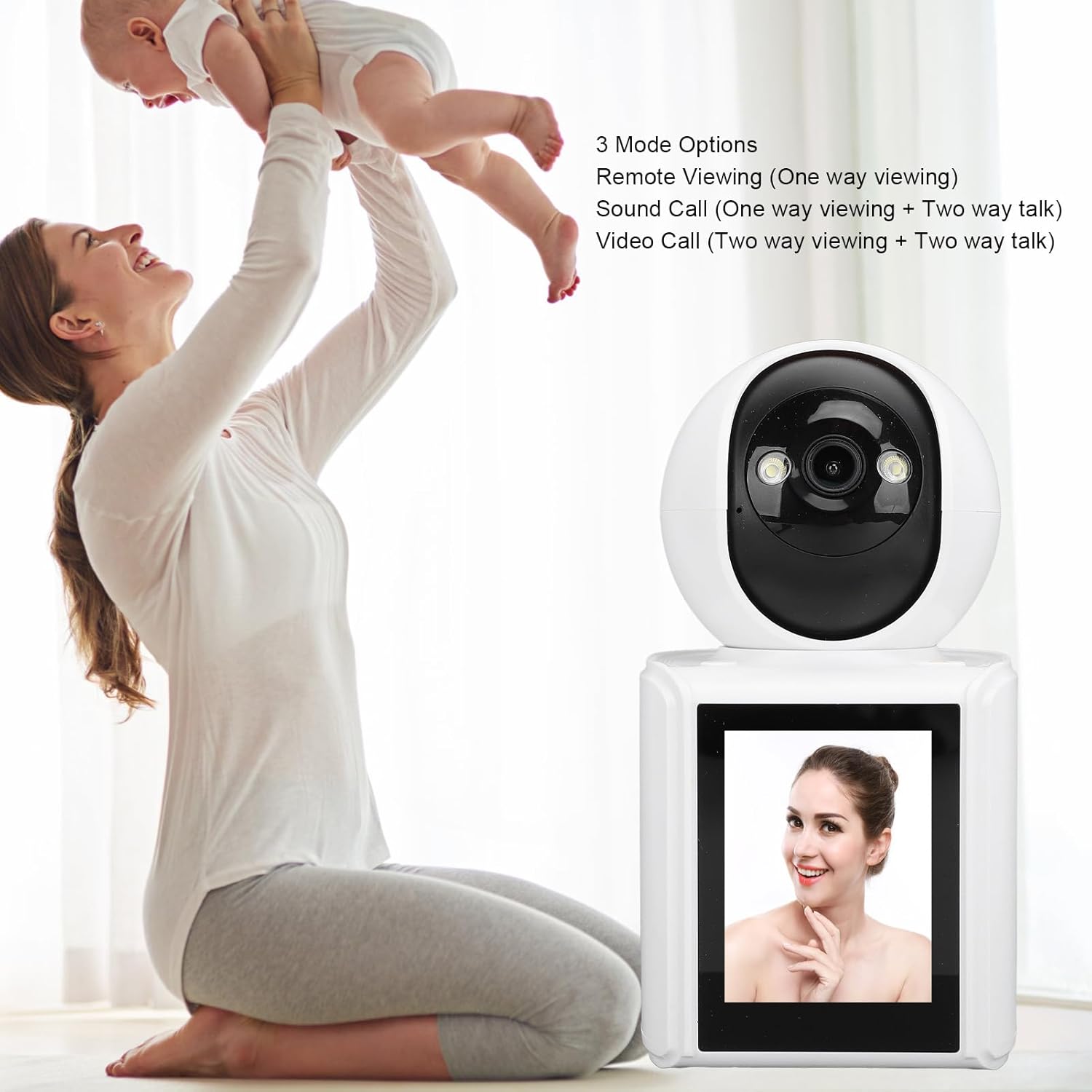
Image: The CCYLEZ 1080P Security Camera with text overlay highlighting its three communication modes: Remote Viewing, Sound Call, and Video Call.

Image: The CCYLEZ 1080P Security Camera, emphasizing its 2.8-inch high-definition screen, crystal clear video quality, and wide-angle lens for detailed images.

Image: The CCYLEZ 1080P Security Camera, highlighting its advanced 3K image sensor technology and wide-angle lens for enhanced security visuals.
3. Pokyny k nastavení
3.1 Zapnutí fotoaparátu
- Connect the provided USB power cable to the camera's power input port.
- Plug the other end of the USB cable into a compatible AC/DC power adapter (not always included) and then into a wall outlet.
- The camera will power on, and the screen will illuminate.
3.2 Mobile App Installation and Pairing
To utilize the camera's full features, including remote monitoring and communication, you will need to install the dedicated mobile application on your Android device.
- Stáhněte si aplikaci: Hledat the official CCYLEZ security camera app in the Google Play Store.
- Vytvořit účet: Otevřete aplikaci a postupujte podle pokynů na obrazovce k vytvoření nového uživatelského účtu nebo se přihlaste, pokud již nějaký máte.
- Přidat zařízení: In the app, select the option to 'Add Device' or 'Add Camera'.
- Postupujte podle pokynů na obrazovce: The app will guide you through the pairing process, which typically involves scanning a QR code displayed on the camera's screen or entering a device ID. Ensure your mobile device is connected to a stable Wi-Fi network during this process.
- Internetové připojení: The camera connects via Ethernet. Ensure it is connected to your home network for remote access.
3.3 Umístění kamery
Place the camera on a stable, flat surface indoors, such as a shelf, table, or desk, ensuring it has a clear line of sight to the area you wish to monitor. Avoid placing it near heat sources or in direct sunlight.

Image: The CCYLEZ 1080P Security Camera positioned on a wooden shelf, demonstrating a typical indoor placement for monitoring.
4. Návod k obsluze
4.1 Dálkové ovládání ViewIng
Once the camera is paired with your mobile app, you can access live video feed from anywhere with an internet connection.
- Open the CCYLEZ app on your smartphone.
- Vyberte fotoaparát ze seznamu zařízení, view the live feed. This is a one-way video monitoring mode.
4.2 Obousměrná komunikace
The camera supports both voice calls and video calls, allowing for interactive communication.

Image: A visual comparison demonstrating the three communication modes: Remote Viewing (one-way video), Voice Chat (two-way audio), and Video Chat (two-way video and audio).
4.2.1 Initiating a Call from the Camera
For children or elderly individuals at home, the camera provides a simple way to initiate a call:
- Stiskněte tlačítko green key located on the camera unit.
- This will initiate a call to the primary paired mobile device.

Image: A close-up diagram illustrating the location and function of the one-click call button on the CCYLEZ camera.
4.2.2 Initiating a Call from the Mobile App
- Zatímco viewing the live feed in the app, tap the microphone icon for two-way voice communication.
- Tap the video call icon to initiate a two-way video call.
4.3 Ovládání otáčení a naklápění
Upravte nastavení fotoaparátu viewing angle remotely through the mobile app.
- V přímém přenosu view interface of the app, use the directional controls to move the camera lens.
- The camera supports 355° horizontal rotation and 90° vertical tilt.

Image: A diagram showing the CCYLEZ camera's ability to rotate 355 degrees horizontally and tilt 90 degrees vertically, providing wide area coverage.
4.4 Smart Detection and Alarm
The camera is equipped with infrared detection and smart alarm features to enhance security.
- Detekce člověka: The camera can identify human figures, reducing false alarms.
- Inteligentní alarm: When motion is detected, the camera can trigger an alarm and send push notifications to your mobile device.
- Configure detection sensitivity and notification preferences within the mobile app settings.

Image: An illustration depicting the CCYLEZ camera's infrared detection capabilities and smart alarm system, showing how it can detect movement and alert users.
4.5 Sharing Camera Feed
Přístup k živému přenosu z kamery můžete sdílet s členy rodiny nebo důvěryhodnými osobami.
- Navigate to the sharing settings within the mobile app.
- You can share the camera feed with up to 30 other smartphones, allowing them to participate in individual video calls.

Image: An illustration showing how the CCYLEZ camera feed can be shared with multiple users, represented by profile icons and people interacting with smartphones.
5. Údržba
5.1 Čištění fotoaparátu
- Před čištěním se ujistěte, že je fotoaparát vypnutý a odpojený od sítě.
- Use a soft, dry cloth to gently wipe the camera body and lens.
- Do not use liquid cleaners, aerosols, or abrasive solvents, as these may damage the camera's surface or internal components.
5.2 Aktualizace softwaru
Periodically check the mobile application for available firmware updates for your camera. Keeping the firmware updated ensures optimal performance, security, and access to new features.
- Open the CCYLEZ app and navigate to the camera settings.
- Look for an option like 'Firmware Update' or 'Device Information'.
- Follow the on-screen instructions to download and install any available updates. Ensure the camera remains powered on and connected to the internet during the update process.
6. Řešení problémů
If you encounter issues with your CCYLEZ Security Camera, refer to the following common problems and solutions:
| Problém | Možná příčina | Řešení |
|---|---|---|
| Kamera se nezapíná | Power cable not connected properly; Power adapter faulty; Outlet not working. | Check all power connections. Try a different power adapter or outlet. |
| Unable to connect to Wi-Fi/Network | Incorrect Wi-Fi password; Camera too far from router; Network issues; Ethernet cable disconnected. | Verify Wi-Fi password. Move camera closer to router. Restart router. Ensure Ethernet cable is securely connected. |
| Poor video quality or no video feed | Insufficient network bandwidth; Camera lens dirty; Low light conditions; App issue. | Ensure stable internet connection. Clean the camera lens. Check app settings for image quality. |
| Nefunguje obousměrný zvuk | Microphone/speaker muted in app; Volume too low; Network delay. | Check app audio settings. Increase volume. Ensure stable network connection. |
| Smart alarm not triggering | Detection sensitivity too low; Alarm notifications disabled; Camera not detecting motion. | Adjust detection sensitivity in app. Enable push notifications. Ensure camera has a clear view sledované oblasti. |
If the problem persists, please contact CCYLEZ customer support for further assistance.
7. Specifikace
| Funkce | Detail |
|---|---|
| Značka | CCYLEZ |
| Název modelu | CCYLEZq2bi3d5vgy |
| Doporučená použití | Krytý |
| Technologie připojení | Ethernet |
| Speciální funkce | Adjustable (Pan/Tilt) |
| Typ ovladače | Android (via mobile app) |
| Zdroj napájení | AC/DC |
| Počet jednotek | 1.0 Počet |
| Velikost displeje | 2.8 palcová HD obrazovka |
| Rozlišení videa | 1080P Full HD |
| Horizontální rotace | 355° |
| Vertikální náklon | 90° |
8. Záruka a podpora
For warranty information and technical support, please refer to the warranty card included with your product or visit the official CCYLEZ website. You may also contact CCYLEZ customer service directly for assistance with product setup, operation, or troubleshooting.
Kontakt na zákaznický servis: Please refer to your product packaging or the CCYLEZ official webstránky s nejaktuálnějšími kontaktními informacemi.