
Zavedení
The HP 527pq 27-inch WQHD LED Monitor is designed to enhance productivity and provide a comfortable viewing experience. Featuring a 27-inch WQHD (2560 x 1440) resolution IPS panel with a 100 Hz refresh rate, it delivers clear and vibrant visuals with 100% sRGB color accuracy. The monitor offers 4-way adjustability for ergonomic comfort and includes HP Eye Ease technology to reduce blue light without impacting color. Its sleek design features a 3-sided micro-edge bezel, and it supports daisy-chaining with other compatible HP Series 5 Pro USB-C monitors or docks. Constructed with at least 90% recycled plastic content and sustainably sourced packaging, this monitor reflects a commitment to environmental responsibility.
Co je v krabici
Před zahájením instalace ověřte, zda jsou všechny komponenty přítomny.
- HP Series 5 Pro 27 inch QHD Monitor - 527pq
- Kabel DisplayPort
- HDMI kabel
- Záruční list
- Kabel USB typu B na A
- Plakát s rychlým nastavením
- AC napájecí kabel
Nastavení
1. Sestavení monitoru
Opatrně vyjměte komponenty monitoru a stojanu z obalu. Připevněte základnu stojanu ke sloupku stojanu a poté sestavený stojan upevněte k zadní straně monitoru, dokud nezacvakne. Ujistěte se, že všechna spojení jsou pevná.
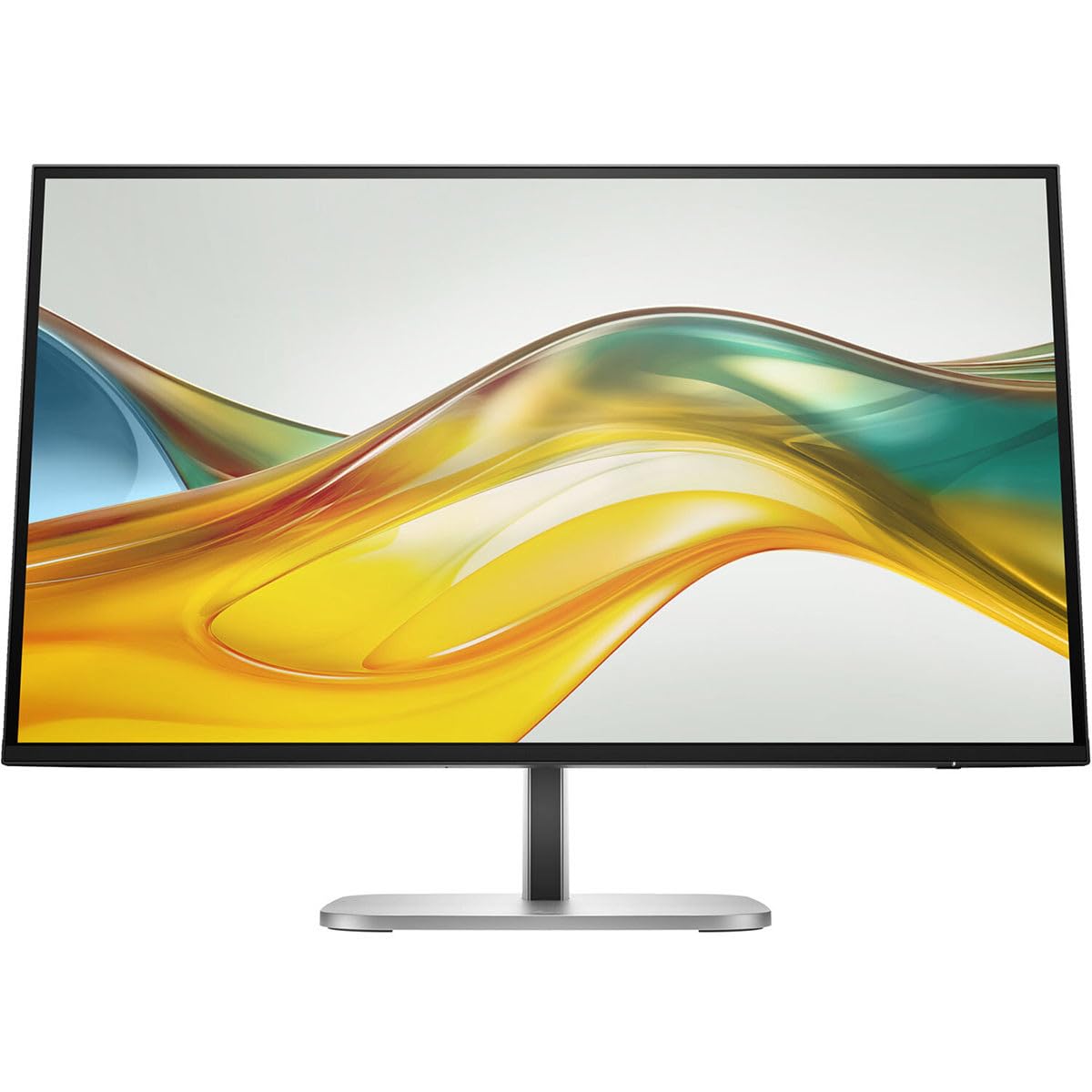
Obrázek 1: Přední strana view of the HP 527pq monitor with stand.
2. Propojovací kabely
Connect the power cord to the monitor and a power outlet. For video input, use either the provided HDMI cable or DisplayPort cable to connect the monitor to your computer's video output port. To enable the integrated USB hub, connect the USB Type-B to A cable from the monitor to an available USB port on your computer.

Obrázek 2: Zadní view of the monitor with connection ports and cable management slot.
Utilize the integrated cable management slot on the stand to organize your cables for a tidy workspace.
3. Ergonomické nastavení
Adjust the monitor's height, tilt, swivel, and pivot to achieve an optimal viewing position. Refer to the Quick Setup Poster for detailed ergonomic guidelines. The monitor's 4-way adjustability helps reduce strain during extended use.

Obrázek 3: Strana view znázorňující nastavitelný stojan monitoru.
Návod k obsluze
Zapnutí/vypnutí
Press the power button, usually located on the bottom right bezel or rear of the monitor, to turn the monitor on or off. The power indicator light will illuminate when the monitor is active.
Nabídka na obrazovce (OSD).
Access the OSD menu by pressing the menu button on the monitor. Use the navigation buttons to browse through options such as brightness, contrast, color settings, and input selection. Press the select button to confirm changes and the exit button to close the menu.
Výběr vstupu
If you have multiple devices connected, use the OSD menu or a dedicated input select button to switch between HDMI and DisplayPort inputs.
Nastavení zobrazení
- Jas a kontrast: Adjust these settings in the OSD menu to suit your viewprostředí.
- Nastavení barev: The monitor supports 100% sRGB. Fine-tune color temperature and gamma for optimal visual fidelity. HP Progressive White Balance ensures consistent color representation.
- HP Eye Ease: This feature reduces blue light emissions without affecting color accuracy, contributing to eye comfort during prolonged use. It can be enabled or disabled via the OSD menu.
Údržba
Čištění monitoru
- Obrazovka: Jemně otřete obrazovku měkkým hadříkem, který nepouští vlákna. V případě odolných skvrn lehceampOtřete hadřík vodou nebo neabrazivním čističem obrazovek. Nepoužívejte čisticí prostředky na bázi alkoholu ani agresivní chemikálie.
- Casing: K čištění monitoru používejte měkký, suchý hadřík casing. Do not spray cleaning solutions directly onto the monitor.
- Před čištěním vždy odpojte monitor od elektrické zásuvky.
Správa kabelů
Regularly check and adjust cables routed through the stand's cable management slot to prevent tangles and ensure proper airflow. This helps maintain a clean and organized workspace.
Odstraňování problémů
| Problém | Možná příčina | Řešení |
|---|---|---|
| Žádná síla | Odpojený napájecí kabel nebo problém se zásuvkou. | Ensure the AC power cord is securely connected to both the monitor and a working power outlet. |
| No signal on screen | Video cable disconnected or incorrect input selected. | Check that the HDMI or DisplayPort cable is firmly connected to both the monitor and your computer. Select the correct input source via the OSD menu. |
| Blikající nebo zkreslený obraz | Nesprávné nastavení rozlišení nebo obnovovací frekvence. | Adjust your computer's display settings to the recommended WQHD (2560 x 1440) resolution and 100 Hz refresh rate. |
| USB porty nefungují | USB Type-B to A cable not connected. | Ensure the USB Type-B to A cable is connected from the monitor to your computer to activate the USB hub functionality. |
Specifikace
| Funkce | Detail |
|---|---|
| Číslo modelu | 9D9S0UT#ABA |
| Velikost obrazovky | 27 palce |
| Rezoluce | WQHD (2560 x 1440) |
| Panel Technology | Technologie přepínání v rovině (IPS) |
| Poměr stran | 16:9 |
| Obnovovací frekvence | 100 Hz |
| Jas | 350 Nit |
| Doba odezvy | 5 ms |
| Konektivita | HDMI, DisplayPort, USB Hub |
| Barva | Černý |
| Rozměry produktu (DxŠxV) | 1.8 x 24.1 x 14 palce |
| Hmotnost položky | 10.1 libry |
| Výrobce | Hewlett Packard |
Záruka a podpora
This HP monitor comes with a manufacturer's warranty. Please refer to the included Warranty Card for specific terms, conditions, and duration of your product's warranty. For technical support, service, or additional information, please visit the official HP support website or contact HP customer service. Keep your purchase receipt and product serial number readily available when seeking support.