
CHUWI Hi10 Max
Uživatelská příručka k tabletu CHUWI Hi10 Max 2 v 1 s Windows
Model: Hi10 Max
1. Úvod
This manual provides essential information for setting up, operating, and maintaining your CHUWI Hi10 Max 2-in-1 Windows Tablet. Please read this guide thoroughly to ensure proper use and to maximize your device's performance and longevity.
The CHUWI Hi10 Max is a versatile 2-in-1 device featuring a 12.96-inch 3K touchscreen, powered by an Intel N150 processor, 12GB LPDDR5 RAM, and a 512GB SSD. It runs on Windows 11 and includes a detachable magnetic keyboard for enhanced productivity.
2. Obsah balení
Ověřte, zda jsou v balení produktu přítomny všechny položky:
- CHUWI Hi10 Max Tablet
- Detachable Magnetic Keyboard
- Magnetic Bracket (Stand)
- Sada nabíječky
- Multi-language User Manual (This document)

Image: CHUWI Hi10 Max Tablet, detachable keyboard, and magnetic stand.
3. Konec produktuview
3.1 Klíčové vlastnosti
- Zobrazit: 12.96-inch IPS Touchscreen, 2880x1920 (3K) resolution, 3:2 aspect ratio.
- Procesor: 12th Gen Intel N150 (4 Cores/4 Threads, up to 3.6GHz).
- Paměť: 12 GB RAM LPDDR5.
- Skladování: 512GB SSD, expandable up to 2TB.
- Operační systém: Windows 11 Home.
- Kamery: 8MP Rear Camera with autofocus, 5MP Front Camera.
- Konektivita: Wi-Fi 6 (802.11ax), Bluetooth 5.2.
- Porty: Dual full-featured USB-C, USB 3.2 Gen1, Micro HDMI, 3.5mm Headphone Jack.
- Baterie: 4800mAh, supports PD fast charging.
- Design: 9mm thin, 0.78 lbs (tablet only), Metal Unibody.
- Příslušenství: Detachable magnetic backlit keyboard, supports MPP stylus (stylus sold separately).
3.2 Rozložení zařízení
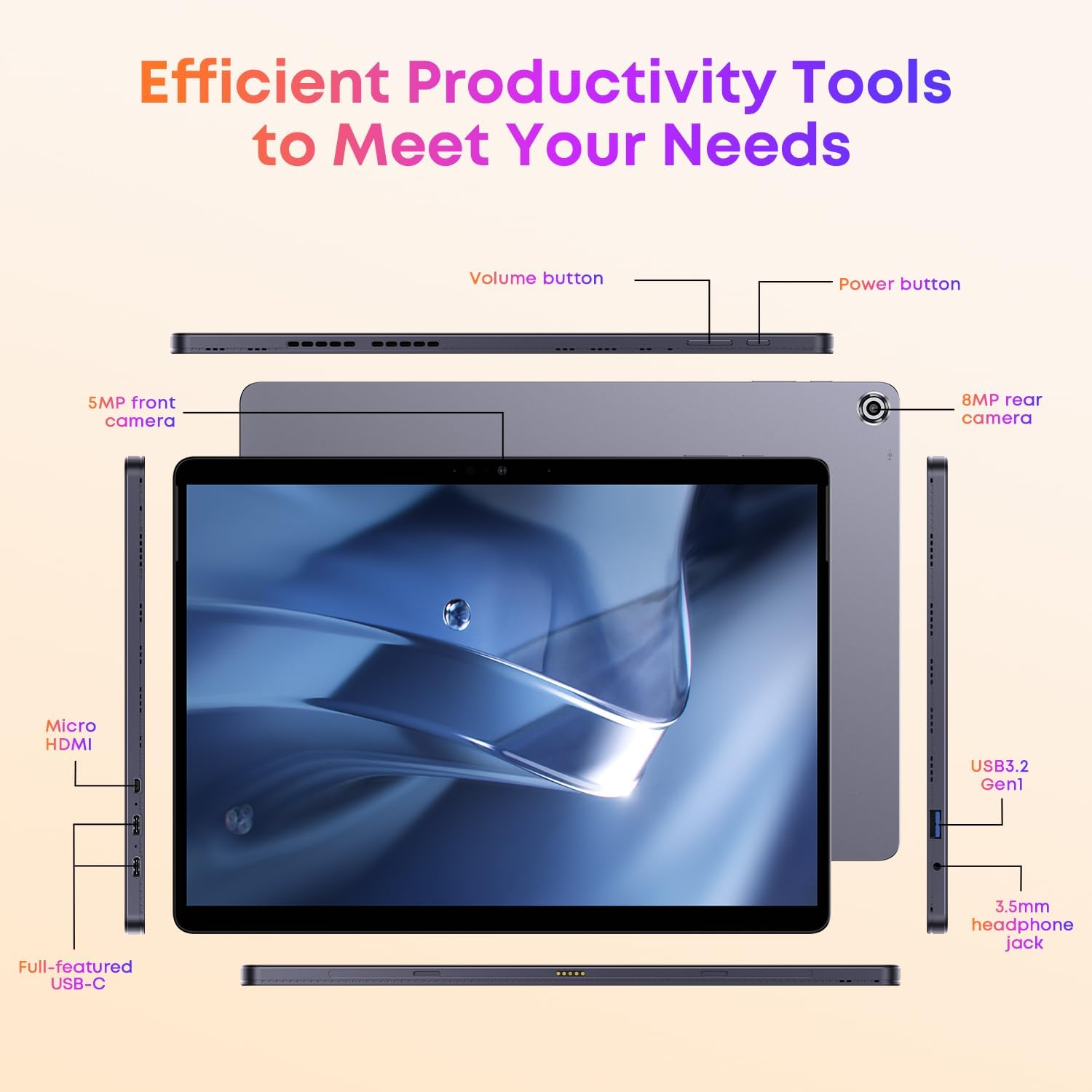
Obrázek: Overview of the CHUWI Hi10 Max tablet's ports and buttons.
Refer to the image above for the location of the following components:
- Vypínač: Located on the top edge. Press and hold to power on/off or sleep/wake.
- Tlačítka hlasitosti: Located on the top edge, next to the power button, to adjust audio volume.
- 5MP přední fotoaparát: Located on the top bezel when held horizontally, for video calls and selfies.
- 8MP zadní fotoaparát: Nachází se na zadním panelu a slouží k pořizování fotografií a videí.
- Full-featured USB-C Ports (x2): Located on the left and right sides. Supports charging, data transfer, and video output.
- Port USB 3.2 1. generace: Located on the right side, for connecting USB devices.
- Port Micro HDMI: Located on the left side, for connecting to external displays.
- 3.5mm konektor pro sluchátka: Located on the right side, for audio output.
- Keyboard Connector: Magnetic pins on the bottom edge for attaching the detachable keyboard.
4. Nastavení
4.1 Počáteční nabíjení
Before first use, fully charge your CHUWI Hi10 Max tablet. Connect the provided charger to one of the USB-C ports on the tablet and plug it into a power outlet. The charging indicator will illuminate.
4.2 Zapnutí/vypnutí
- Zapnutí: Stiskněte a podržte tlačítko napájení, dokud se obrazovka nerozsvítí.
- Vypnutí: Press and hold the Power Button, then select "Shut down" from the on-screen options. Alternatively, go to Start Menu > Power > Shut down.
- Spánek/Probuzení: Krátkým stisknutím tlačítka napájení tablet uspíte nebo probudíte.
4.3 Attaching the Detachable Keyboard
Align the magnetic connector on the keyboard with the corresponding pins on the bottom edge of the tablet. The keyboard will snap into place magnetically. No Bluetooth pairing is required for the keyboard to function.

Image: CHUWI Hi10 Max tablet with the detachable keyboard connected.
4.4 Počáteční nastavení systému Windows 11
Upon first power-on, you will be guided through the Windows 11 setup process. Follow the on-screen instructions to:
- Vyberte si region a rozložení klávesnice.
- Připojte se k síti Wi-Fi.
- Přihlaste se pomocí svého účtu Microsoft nebo si vytvořte nový.
- Nastavte si PIN pro rychlé přihlášení.
- Upravte nastavení soukromí.
5. Ovládání tabletu
5.1 Navigace na dotykové obrazovce
The 12.96-inch touchscreen supports multi-touch gestures:
- Klepněte na: Vyberte položku nebo otevřete aplikaci.
- Klepnutí a podržení: Přístup k kontextovým nabídkám nebo přetahování položek.
- Výpad: Procházejte obsahem nebo se pohybujte mezi obrazovkami.
- Přiblížení/zvětšení prsty: Přiblížení nebo oddálení obrázků a web stránky.
5.2 Using the Detachable Keyboard and Touchpad
Once attached, the keyboard functions like a standard laptop keyboard. The integrated touchpad allows for precise cursor control and supports multi-touch gestures similar to the touchscreen.

Image: User operating the CHUWI Hi10 Max with its full-size detachable keyboard.
The keyboard is backlit, which can be toggled on or off using a dedicated function key (refer to keyboard markings).
5.3 Connecting to Networks (Wi-Fi & Bluetooth)
- Wi-Fi: Go to Settings > Network & internet > Wi-Fi. Turn Wi-Fi on, select your desired network, and enter the password if required. The tablet supports Wi-Fi 6 for faster and more stable connections.
- Bluetooth: Go to Settings > Bluetooth & devices. Turn Bluetooth on, and the tablet will search for nearby devices. Select the device you wish to pair with and follow any on-screen prompts.

Image: Visual representation of Wi-Fi 6 and Bluetooth 5.2 capabilities.
5.4 Using External Displays (Micro HDMI & USB-C)
Connect your tablet to an external monitor or TV using the Micro HDMI port or one of the full-featured USB-C ports. You may need an appropriate adapter for USB-C video output. Once connected, Windows will automatically detect the display. You can configure display settings (duplicate, extend, second screen only) in Display Settings.
5.5 Obsluha kamery
The tablet features a 5MP front camera and an 8MP rear camera. Open the "Camera" application in Windows to take photos or record videos. The rear camera includes autofocus for clearer images.
5.6 Podpora stylusu
The CHUWI Hi10 Max supports an MPP (Microsoft Pen Protocol) stylus for note-taking, drawing, and precise interaction. A stylus is not included and must be purchased separately.
6. Údržba
6.1 Čištění zařízení
- K čištění obrazovky a těla tabletu použijte měkký hadřík, který nepouští vlákna.
- Na odolné šmouhy lehce otřeteampOpláchněte hadřík vodou nebo roztokem na čištění obrazovky. Vyhněte se agresivním chemikáliím.
- Před čištěním se ujistěte, že je zařízení vypnuté a odpojené ze zásuvky.
6.2 Péče o baterii
- Nevystavujte tablet extrémním teplotám.
- For optimal battery longevity, try to keep the charge level between 20% and 80% when possible.
- Use only the provided charger or a compatible PD fast charger.
6.3 Aktualizace softwaru
Regularly check for and install Windows updates to ensure your system has the latest security patches and performance improvements. Go to Settings > Windows Update to check for updates.
6.4 Správa úložiště
Pravidelně znovuview vaše nainstalované aplikace a files to free up storage space. You can expand storage using an M.2 2280 SSD (up to 2TB) if needed.
7. Řešení problémů
If you encounter issues with your CHUWI Hi10 Max, refer to the following common solutions:
| Problém | Řešení |
|---|---|
| Zařízení se nezapne. | Ujistěte se, že je baterie nabitá. Připojte nabíječku a před opětovným zapnutím počkejte několik minut. |
| Obrazovka nereaguje. | Restartujte tablet. Pokud problém přetrvává, ujistěte se, že je obrazovka čistá a bez nečistot. |
| Klávesnice nefunguje. | Ensure the keyboard is securely attached to the magnetic connector. Detach and reattach it. |
| Problémy s připojením k Wi-Fi. | Restart your Wi-Fi router and the tablet. Check Wi-Fi settings to ensure the correct network is selected and the password is entered accurately. |
| Pomalý výkon. | Close unnecessary applications. Check for Windows updates. Ensure sufficient free storage space. |
| Baterie se rychle vybíjí. | Adjust screen brightness. Close background applications. Check power settings in Windows. |
7.1 Obnovení továrního nastavení
If persistent issues occur, you may consider performing a factory reset. This will erase all data on your tablet and reinstall Windows. Před pokračováním si zálohujte všechna důležitá data.
- Go to Settings > System > Recovery.
- Under "Recovery options," click "Reset PC."
- Choose "Remove everything" to fully reset the device.
- Follow the on-screen instructions to complete the reset.
8. Specifikace
| Funkce | Detail |
|---|---|
| Značka | CHUWI |
| Název modelu | Hi10 Max Set |
| Operační systém | Windows 11 |
| Velikost obrazovky | 12.96 palce |
| Rozlišení obrazovky | 2880 x 1920 pixelů (3K) |
| Procesor | Intel N150 (až 3.6 GHz) |
| BERAN | 12GB LPDDR5 |
| Pevný disk | 512 GB SSD |
| Grafický koprocesor | Grafika Intel UHD |
| Bezdrátový typ | 802.11ax (Wi-Fi 6) |
| Bluetooth | Bluetooth 5.2 |
| Průměrná životnost baterie | 6 hodiny |
| Hmotnost položky | 1.72 pounds (tablet only) |
| Rozměry produktu (DxŠxV) | 11.3 x 8.2 x 0.35 palce |
| Zadní WebRozlišení vačky | 8 MP |
| Přední WebRozlišení vačky | 5 MP |
| Zdroj napájení | Napájení z baterie |
| Baterie | 1 lithium-iontová baterie (součástí balení) |
9. Záruka a podpora
For warranty information and technical support, please refer to the documentation included with your purchase or visit the official CHUWI webUschovejte si doklad o koupi pro případ reklamace.
For further assistance, you may also contact CHUWI customer service through their official channels.
Ask a question about this manual
Ask about setup, troubleshooting, compatibility, parts, safety, or missing instructions. Manuals+ will review the question and use this page’s manual context to help answer it.