
1. Úvod
This manual provides detailed instructions for the installation, configuration, and maintenance of your CCYLEZ B85M K Motherboard. Please read this manual thoroughly before proceeding with installation to ensure correct setup and optimal performance.
2. Bezpečnostní informace
Vždy dodržujte následující bezpečnostní opatření:
- Disconnect the power supply from your computer before installing or removing any components.
- Noste antistatický náramek, abyste zabránili poškození součástí elektrostatickým výbojem (ESD).
- Součástky manipulujte za hrany a vyvarujte se kontaktu s kolíky nebo obvody.
- Zajistěte dostatečné větrání uvnitř skříně počítače, abyste zabránili přehřátí.
- Pokud si nejste jisti některým krokem instalace, poraďte se s kvalifikovaným technikem.
3. Obsah balení
Ověřte, zda jsou v balení přítomny všechny položky:
- 1 x CCYLEZ B85M K Motherboard
- 1 x Metal Plate (I/O Shield)
- 1 x Connection Cable (likely SATA cable)
4. Konec produktuview
The CCYLEZ B85M K Motherboard is designed for desktop computing, offering robust features for enhanced performance.

Obrázek 1: Konecview of CCYLEZ B85M K Motherboard key features. This image highlights the dual DDR3 memory slots supporting up to 16GB, the LGA1150 CPU socket, M.2 NGFF/NVMe interface for high-speed data transfer, a PCI Express x16 slot for graphics cards, and a Gigabit network port.
Klíčové vlastnosti:
- Podpora CPU: LGA1150 socket for Intel Core i3/i5/i7 4th and 5th generation processors.
- Paměť: 2 x UDIMM DDR3 slots, supporting 1066/1333/1600MHz, up to 16GB total capacity.
- Skladování: 3 x SATA3.0 ports, 2 x SATA2.0 ports.
- Rozšiřující sloty: 1 x PCI Express x16 slot for graphics cards, 1 x PCI Express x1 slot.
- Networking: 1 x RTL8111H Gigabit NIC for high-speed wired internet.
- USB porty: 2 x USB2.0, 2 x USB3.0.
- Video výstup: VGA rozhraní.
- Návrh napájení: Full solid capacitors for stable power delivery and enhanced durability.
- Konstrukce: Premium PCB material for stable and efficient performance.
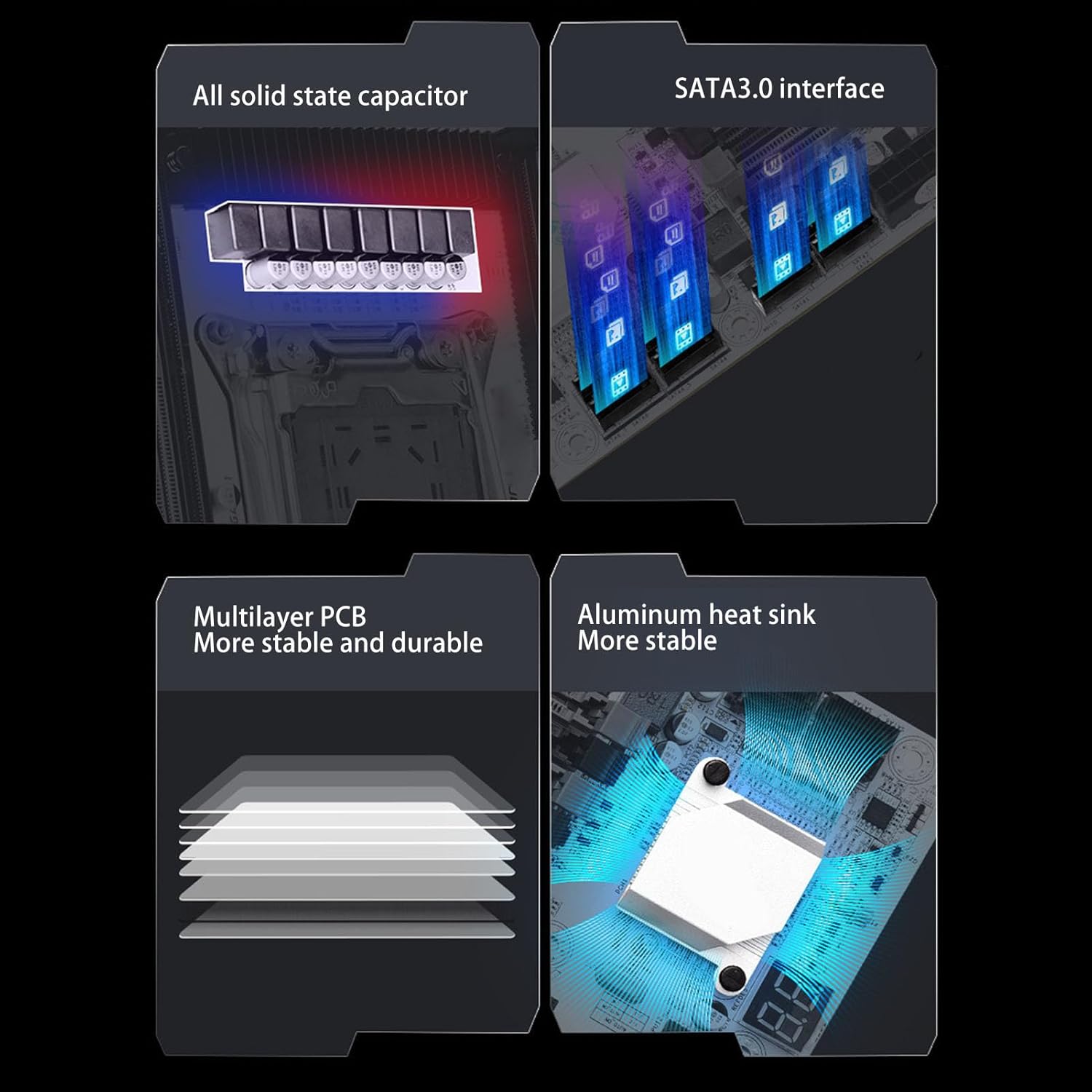
Obrázek 2: Detailní view of motherboard components. This image illustrates the full solid state capacitors for stable power, the SATA3.0 interfaces for high-speed storage, the multilayer PCB design for durability, and the aluminum heat sink for efficient cooling.
Zadní I/O panel:
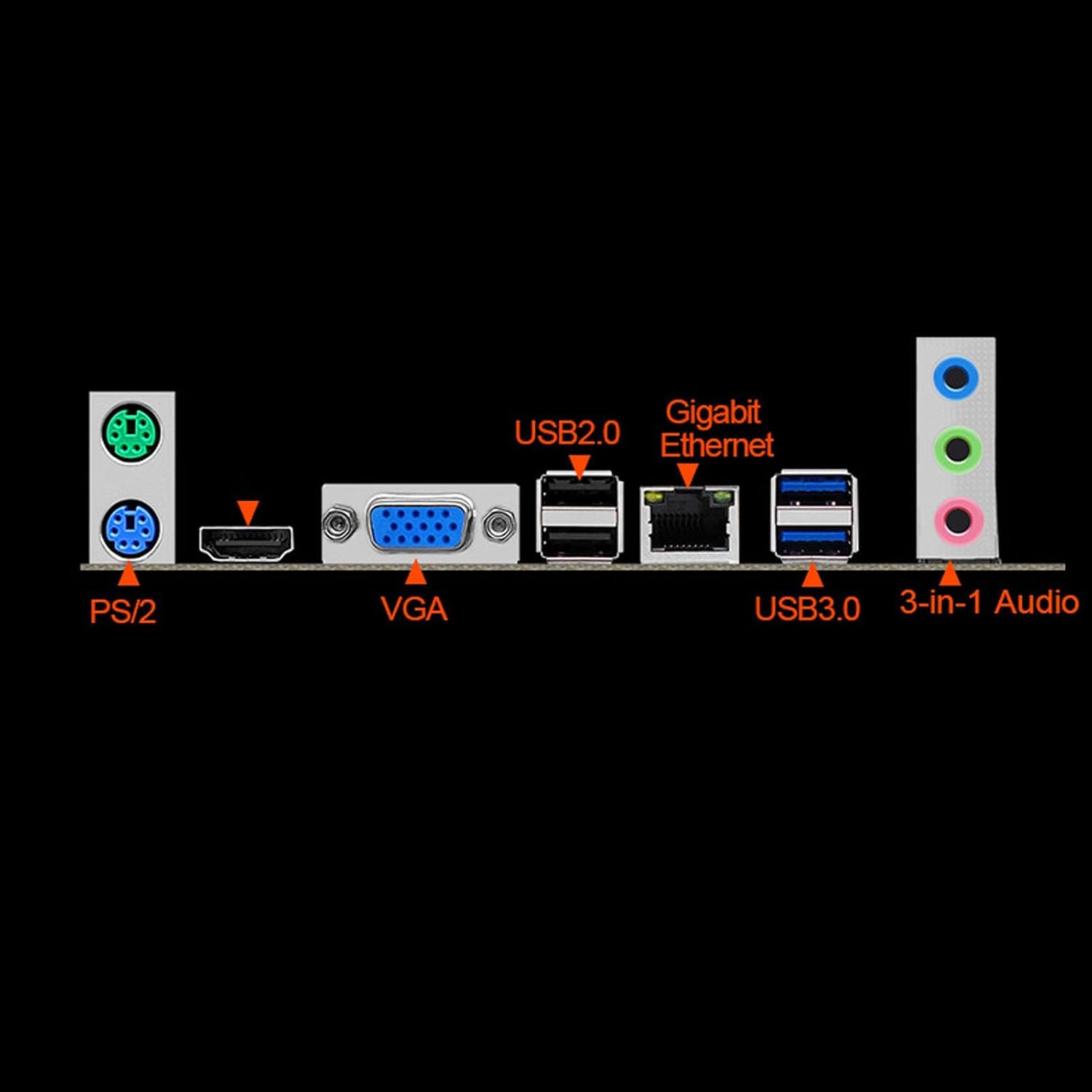
Image 3: Rear Input/Output (I/O) Panel. This image displays the various ports available on the rear of the motherboard, including PS/2 ports for keyboard/mouse, a VGA port for display output, USB 2.0 ports, a Gigabit Ethernet port, USB 3.0 ports, and 3-in-1 audio jacks.
- 2 x PS/2 Ports (Keyboard/Mouse)
- 1× VGA port
- 2 x USB 2.0 porty
- 1 x Gigabit Ethernet Port
- 2 x USB 3.0 porty
- 3 x Audio Jacks (Line In, Line Out, Mic In)
5. Nastavení a instalace
Při instalaci základní desky a jejích součástí pečlivě dodržujte tyto kroky.
5.1 Instalace základní desky
- Připravte si případ: Install the I/O shield (metal plate) into the rear opening of your computer case.
- Montáž základní desky: Carefully align the motherboard with the standoffs in your case and secure it with screws. Ensure no components are touching the case directly without proper insulation.
5.2 Instalace procesoru (LGA1150)
- Otevřený socket CPU: Gently push down the load lever on the LGA1150 socket and pull it to the side to open the metal retention frame.
- Vložte CPU: Zarovnejte trojúhelníkovou značku na procesoru s odpovídající značkou na patici. Opatrně vložte procesor do patice, aniž byste jej museli silou zasunout.
- Zavřít socket CPU: Close the metal retention frame and push the load lever back into its locked position.
- Instalace chladiče CPU: Apply thermal paste (if not pre-applied) and install your CPU cooler according to its manufacturer's instructions. Connect the CPU fan cable to the "CPU_FAN" header on the motherboard.
5.3 Instalace paměti (RAM)
- Volné sloty DIMM: Otevřete klipy na obou koncích slotů pro paměti DDR3.
- Vložte moduly RAM: Align the notch on the DDR3 memory module with the key in the DIMM slot. Press down firmly on both ends of the module until the clips snap into place.
- Dvoukanálová konfigurace: For optimal performance, install memory modules in matching slots (e.g., both in the same color slots if applicable, or as indicated in the motherboard diagram). This motherboard has 2 UDIMM DDR3 slots.
5.4 Instalace úložného zařízení (SATA)
- Připojení datového kabelu SATA: Connect one end of the SATA data cable to a SATA port on the motherboard (SATA3.0 for faster drives) and the other end to your SSD or HDD.
- Připojení napájecího kabelu SATA: Connect a SATA power cable from your power supply unit (PSU) to your SSD or HDD.
5.5 Graphics Card Installation (PCI Express x16)
- Otevřená západka slotu PCIe: If present, open the retention latch at the end of the PCI Express x16 slot.
- Vložte grafickou kartu: Align your graphics card with the PCI Express x16 slot and press down firmly until it is fully seated and the latch (if applicable) snaps into place.
- Bezpečná karta: Secure the graphics card to the computer case with a screw.
- Připojte napájení: If your graphics card requires additional power, connect the appropriate PCIe power cables from your PSU.
5.6 Připojení napájení
- 24-Pin ATX Power: Connect the main 24-pin ATX power connector from your PSU to the corresponding socket on the motherboard.
- 4-Pin ATX 12V Power: Connect the 4-pin ATX 12V power connector (CPU power) from your PSU to the socket near the CPU.
5.7 Připojení předního panelu a periferních zařízení
- Záhlaví na předním panelu: Connect the power switch, reset switch, HDD LED, and power LED cables from your computer case to the front panel header pins on the motherboard. Refer to the motherboard diagram for correct pin assignments.
- USB záhlaví: Connect front panel USB 2.0 and USB 3.0 cables to the corresponding headers on the motherboard.
- Zvuková hlavička: Connect the front panel audio cable to the "F_AUDIO" header.
- Periferní zařízení: Connect your keyboard, mouse, monitor (to the graphics card or motherboard VGA port), and Ethernet cable to the rear I/O panel.
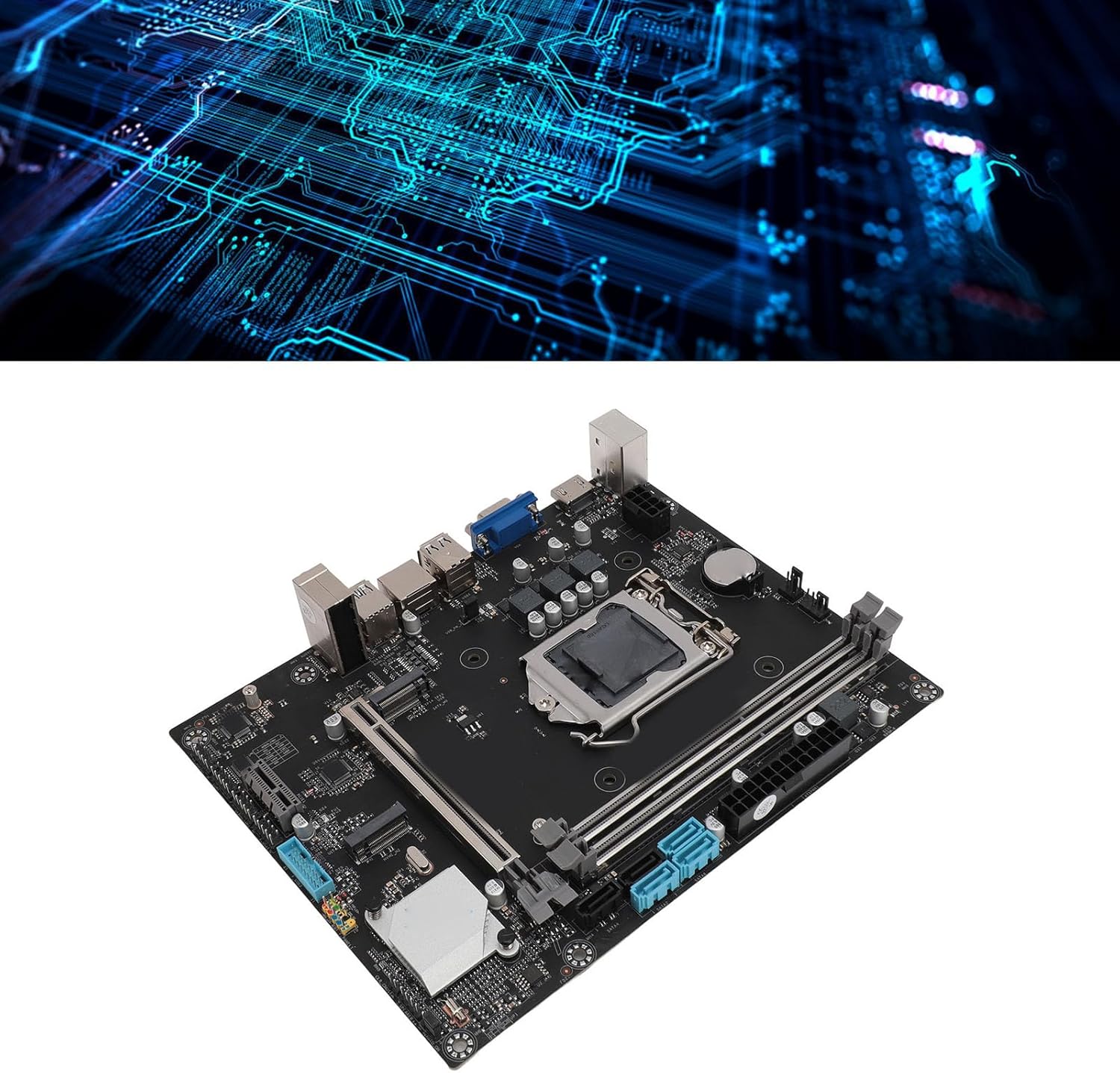
Obrázek 4: Úhlové view of the CCYLEZ B85M K Motherboard. This image provides a general perspective of the motherboard layout, including the CPU socket, RAM slots, and various connectors.
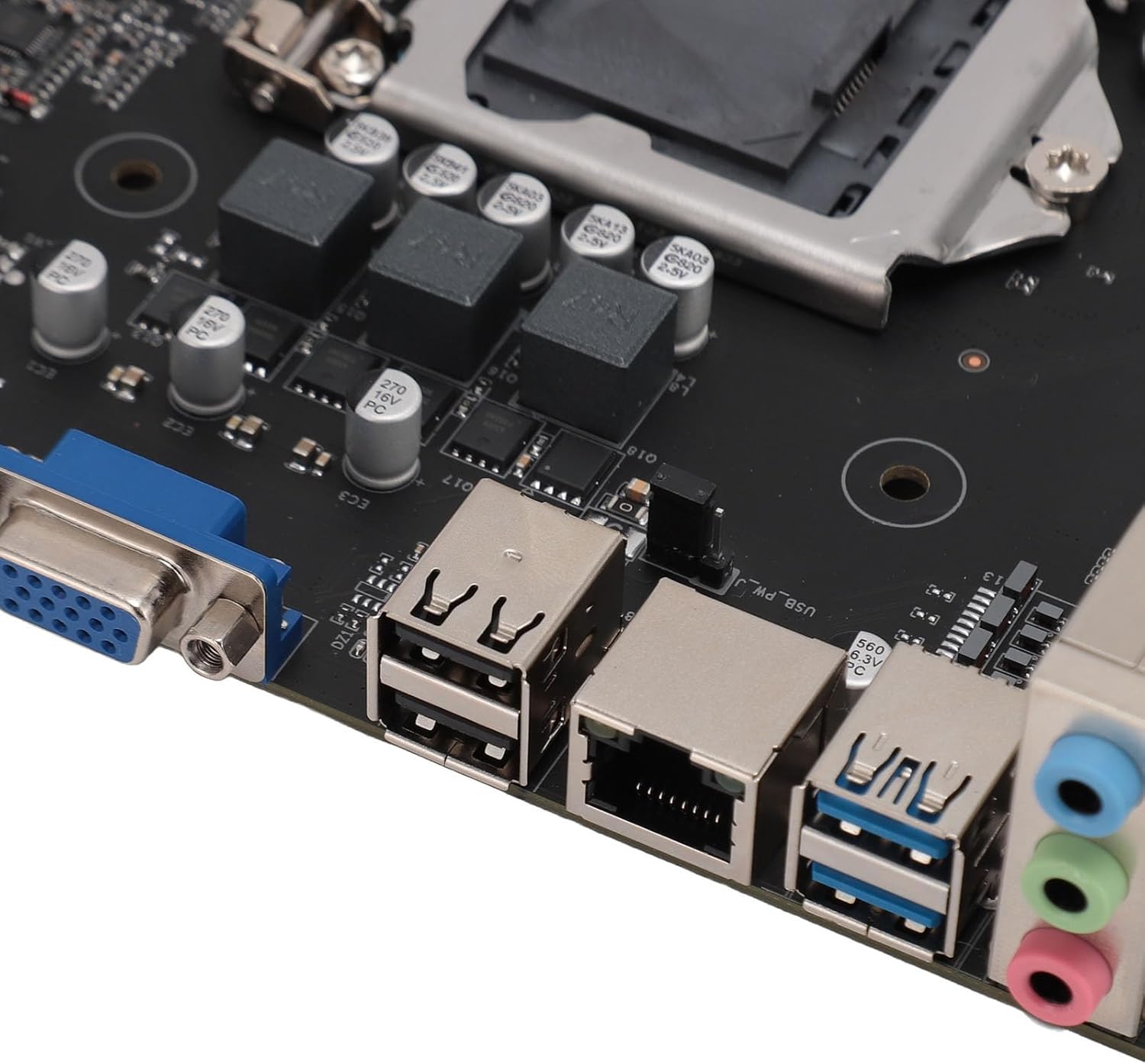
Image 5: Close-up of USB, Ethernet, and Audio Ports. This image provides a detailed view of the connectivity options on the rear I/O panel, specifically highlighting the USB 2.0, USB 3.0, Gigabit Ethernet, and audio ports.

Image 6: Close-up of Internal Headers and SATA Ports. This image shows the front panel headers (power, reset, LEDs), the USB 3.0 header, and the SATA data ports for connecting storage devices.

Image 7: Close-up of 24-Pin ATX Power Connector and SATA Ports. This image details the main power input for the motherboard and additional SATA ports.
6. Návod k obsluze
- Zapnutí: After all components are installed and connected, connect the power cord to your PSU and press the power button on your computer case.
- Nastavení BIOSu/UEFI: During startup, press the designated key (usually DEL or F2) to enter the BIOS/UEFI setup utility. Here you can configure boot order, system time, and other advanced settings.
- Instalace operačního systému: Vložte instalační médium operačního systému (USB disk nebo DVD) a postupujte podle pokynů na obrazovce k instalaci preferovaného operačního systému.
- Instalace ovladače: After OS installation, install the necessary drivers for your motherboard (chipset, audio, LAN, etc.) from the manufacturer's webweb nebo zahrnutá média.
7. Údržba
Pravidelná údržba pomáhá zajistit dlouhou životnost a stabilní provoz vaší základní desky a systému.
- Odstranění prachu: Pravidelně čistěte prach z vnitřku počítačové skříně, zejména z ventilátorů a chladičů, pomocí stlačeného vzduchu. Před čištěním se ujistěte, že je systém vypnutý a odpojený od sítě.
- Aktualizace BIOSu/UEFI: Zkontrolujte výrobce webweb pro aktualizace systému BIOS/UEFI. Aktualizace mohou zlepšit kompatibilitu, stabilitu a výkon. Pečlivě dodržujte pokyny k aktualizaci, abyste předešli poškození systému.
- Správa kabelů: Zajistěte úhledné vedení kabelů, aby se zlepšilo proudění vzduchu a zabránilo se rušení.
8. Řešení problémů
Pokud narazíte na problémy, postupujte podle následujících běžných kroků pro řešení potíží:
- Bez napájení:
- Check if the power supply unit (PSU) is switched on.
- Ensure all power cables (24-pin ATX, 4-pin CPU, PCIe for graphics card) are securely connected.
- Zkontrolujte připojení vypínače na předním panelu k základní desce.
- Bez displeje:
- Ensure your monitor is connected to the correct video output (graphics card or motherboard VGA port).
- Znovu vložte grafickou kartu a paměťové moduly.
- Test with a single RAM stick if multiple are installed.
- Nestabilita/pády systému:
- Zkontrolujte teplotu CPU a GPU. Ujistěte se, že jsou chladiče správně nainstalovány.
- Ověřte, zda jsou moduly RAM správně usazeny.
- Spusťte nástroje pro diagnostiku paměti.
- Ujistěte se, že všechny ovladače jsou aktuální.
- Periferní zařízení nebylo detekováno:
- Zkuste připojit periferní zařízení k jinému USB portu.
- Zkontrolujte správce zařízení, zda se nevyskytují problémy s ovladači.
9. Specifikace
Detailed technical specifications for the CCYLEZ B85M K Motherboard:
| Funkce | Specifikace |
|---|---|
| Model základní desky | B85M K |
| Form Factor | M-ATX |
| Zásuvka CPU | LGA 1150 |
| Kompatibilní procesory | Intel Core i3-4xxx, i5-4xxx, i7-4xxx, i3-5xxx, i5-5xxx, i7-5xxx |
| Čipová sada | Intel B85 |
| Paměťové sloty | 2x UDIMM DDR3 |
| Podporovaný typ paměti | DDR3 1066/1333/1600MHz |
| Maximální kapacita paměti | 16 GB |
| Slot grafické karty | 1 x PCI Express x16 |
| Rozšiřující sloty | 1 x PCI Express x1 |
| SATA porty | 3 x SATA3.0, 2 x SATA2.0 (Total 5) |
| USB porty (zadní) | 2 x USB2.0, 2 x USB3.0 (Total 4) |
| Ethernet | 1 x RTL8111H Gigabit NIC |
| Video výstup | 1 x VGA |
| Zvuk | 3-in-1 Audio Jacks |
| Napájecí konektory | 1 x 24-Pin ATX, 1 x 4-Pin ATX 12V |
| Vestavěná baterie | 1 x 240mAh CR2032 Battery |
10. Záruka a podpora
For product support, please refer to the retailer where the product was purchased. This product typically includes a standard return policy of 30 days from the date of purchase for refund or replacement, as per retailer terms.
Pro rozšířené krytí mohou být k dispozici volitelné plány ochrany:
- Dvouletý ochranný plán
- Dvouletý ochranný plán
- Kompletní ochrana (měsíční předplatné)
Please check with your retailer for details on available protection plans and their terms.