
1. Úvod
This manual provides detailed instructions for the installation, setup, and operation of your new ViaBecs Android 13 Radio. This unit is specifically designed for Toyota Camry models manufactured between 2007 and 2011, equipped with the JBL sound system, utilizing the CAN005-X wiring harness. It features a 9-inch QLED HD touch screen, 6GB RAM, 128GB internal storage, Wireless Apple CarPlay, Android Auto, WiFi, DSP, Steering Wheel Control (SWC), and AM/FM radio functionality. Please read this manual thoroughly before installation and use to ensure proper function and safety.
2. Konec produktuview & Klíčové vlastnosti
The ViaBecs Android 13 Radio enhances your driving experience with advanced features and seamless integration:
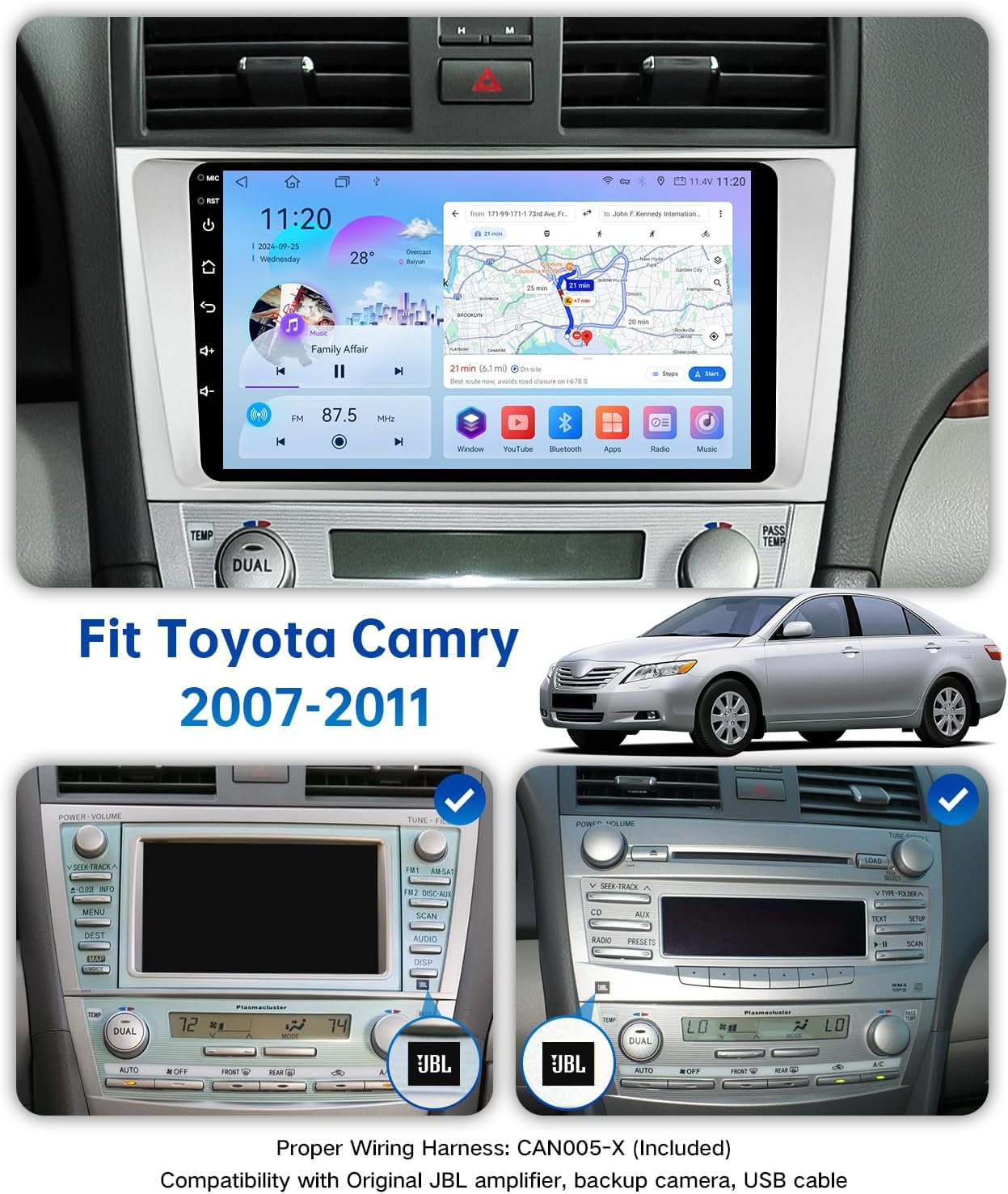
- Kompatibilita vozidla: Specifically designed for 2007-2011 Toyota Camry models with JBL sound system. Includes CAN005-X wiring harness. (Note: For non-JBL systems, a different model may be required.)
- Vysoce výkonný hardware: Powered by Android 13 with a UIS7862S Octa-core processor (2 Cortex-A75 + 6 Cortex-A55 cores at 2.0 GHz), 6GB RAM, and 128GB internal storage for smooth operation and ample prostor.
- 9-Inch QLED HD Touch Screen: Provides a clear, vibrant display for navigation, media, and applications.
- Integrated Apple CarPlay & Android Auto: Enjoy wireless Apple CarPlay and both wired/wireless Android Auto for seamless smartphone integration. Access navigation, music, messages, and calls via Siri or Google Assistant.
- Ovládání na volantu (SWC): Retains original steering wheel control functionality for safe and convenient operation of audio and calls.
- Pokročilé zpracování zvuku: Built-in DSP (Digital Sound Processor) with 48-band EQ and TDA7851 4*50W Amplifier output for customizable and high-quality sound.
- Konektivita: Features Bluetooth 5.0, WiFi (5GHz), 4G support, and USB ports.
3. Instalace
Doporučuje se odborná instalace. Před zahájením instalace se ujistěte, že je odpojena baterie vozidla.
3.1. Demontáž továrního rádia
Carefully remove the existing factory radio and surrounding trim. Refer to the video below for a visual guide on removing the Toyota Camry factory radio.
Video: Guide on removing the Toyota Camry factory radio. This video demonstrates the process of safely detaching the original head unit from the dashboard.
3.2. Připojení vodičů
Connect the provided CAN005-X wiring harness to the new Android unit and the vehicle's existing wiring. This harness is specifically for JBL-equipped models and supports the original backup camera.
Obraz: Illustration of the wiring harness (CAN005-X) and various retained factory functions such as door open hint, A/C information, steering wheel controls, factory USB/AUX port, factory amplifier, and factory backup camera. This image highlights the seamless integration of the new unit with existing vehicle features.

Obraz: Detailed radio wiring diagram showing connections for GPS Antenna, 4G Antenna, USB Inputs, SUB Output, CVBS Inputs, Audio Outputs, 12V+ AMP CONT, External MIC, 4G SIM Slot, 16PIN Power Port, Wifi Antenna, and FM/AM ANT. This diagram is essential for correct wiring during installation.
3.3. Installing the New Unit
Mount the new Android 13 radio into the dashboard opening. Ensure all connections are secure and the unit is properly seated. The fitment is designed to appear factory-installed.

Obraz: The ViaBecs Android 13 Radio seamlessly installed in the dashboard of a Toyota Camry, showcasing its integrated appearance and the QLED HD touch screen displaying a navigation interface.
4. Setup & Connectivity
4.1. Počáteční zapnutí
After installation, reconnect the vehicle battery and power on the unit. Follow any on-screen prompts for initial setup.
4.2. Bezdrátové Apple CarPlay a Android Auto
The unit supports both wireless Apple CarPlay and wired/wireless Android Auto. To connect:
- Ujistěte se, že máte na svém smartphonu zapnuté Bluetooth a Wi-Fi.
- On the head unit, navigate to the CarPlay/Android Auto application.
- Follow the on-screen instructions to pair your phone via Bluetooth. Once paired, the unit will automatically establish a wireless CarPlay or Android Auto connection.
- For wired Android Auto, connect your phone via a USB cable.
Video: Demonstrates the process of connecting Wireless Apple CarPlay to the ViaBecs head unit. This video guides users through the pairing and connection steps for seamless smartphone integration.

Obraz: The Wireless Apple CarPlay interface displayed on the ViaBecs head unit, showing various iOS applications like Phone, Music, Maps, and Messages, with Siri voice control enabled.

Obraz: The Wired and Wireless Android Auto interface on the ViaBecs head unit, featuring Android applications such as Maps, Music, and Calls, providing a familiar smartphone experience in the car.
4.3. Bluetooth & Wi-Fi
Connect to Bluetooth for hands-free calling and audio streaming. Connect to Wi-Fi for online features, app updates, and internet access.

Obraz: Depicts the ultra-clear microphone feature, including both built-in and external microphone options, ensuring clear communication even in noisy environments during Bluetooth calls.
5. Návod k obsluze
5.1. Navigace na dotykové obrazovce
The 9-inch QLED HD touch screen allows for intuitive control. Swipe left/right to navigate between app pages, tap icons to launch applications, and use pinch-to-zoom gestures for maps.
5.2. Denní a noční režim
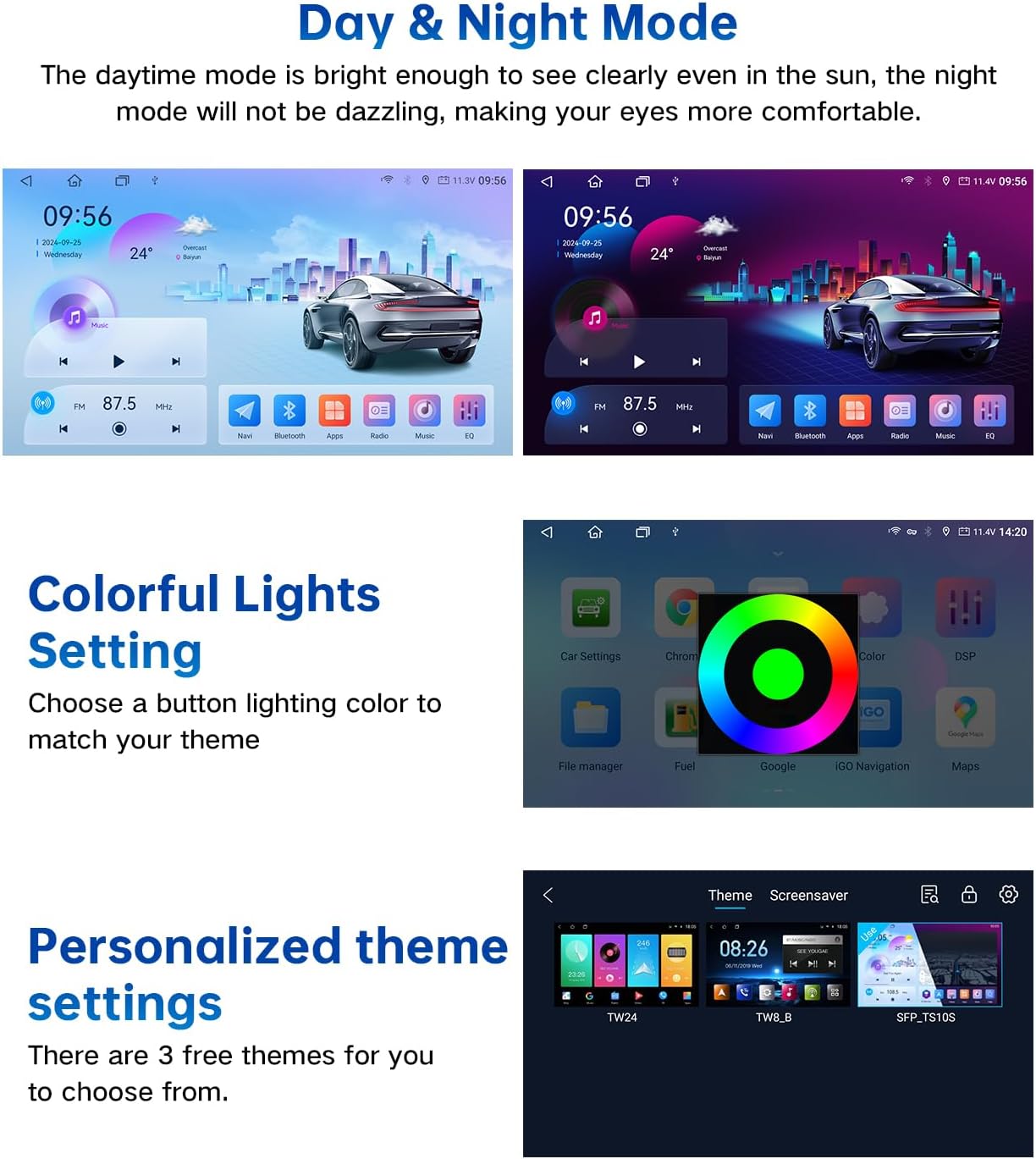
The unit automatically adjusts screen brightness for optimal visibility in various lighting conditions. Day mode is bright enough for sunlight, while night mode is designed to prevent glare.
5.3. Personalized Settings
Customize your experience with various settings:
- Barevná světla: Choose button lighting colors to match your vehicle's interior theme.
- motivy: Select from multiple free themes to personalize the user interface.
Obraz: Displays the unit's Day & Night Mode functionality, showing how the screen adapts to different lighting. Also illustrates the Colorful Lights Setting for button customization and Personalized Theme settings with three available themes.
5.4. Audio Control (DSP & EQ)
Utilize the built-in DSP and 48-band graphic equalizer to fine-tune your audio experience. Adjust frequency response, bass, and surround sound settings to suit your preferences for any music genre.

Obraz: Highlights the built-in DSP feature, allowing adjustment of Subwoofer Frequency, Bass Boost, Bass Filter, and Immersive Surround Sound for an enhanced audio experience.
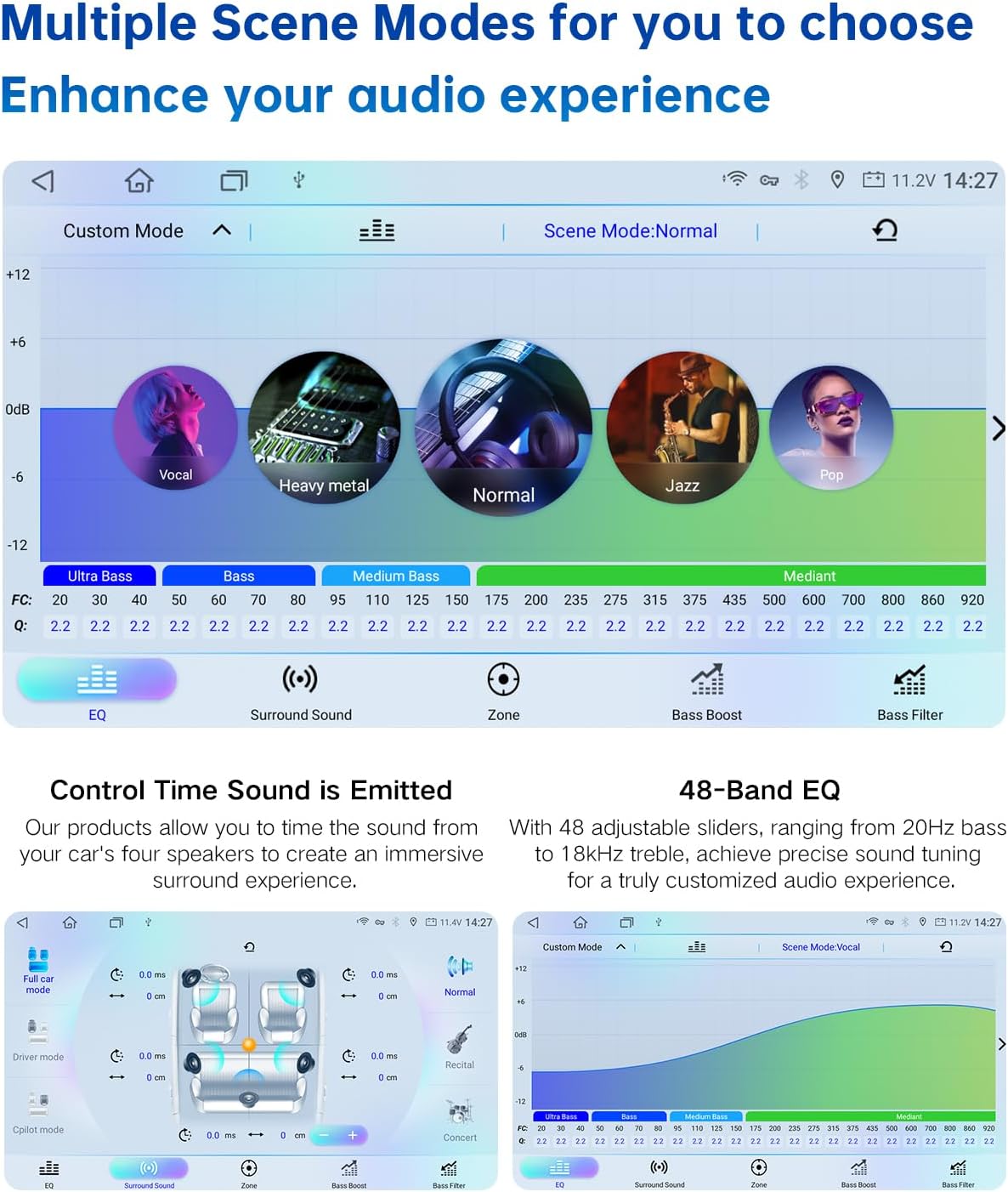
Obraz: Illustrates the 'Multiple Scene Modes' for audio, offering presets like Vocal, Heavy Metal, Normal, Jazz, and Pop. It also details the 48-Band EQ with adjustable sliders for precise sound tuning from 20Hz bass to 18KHz treble, and 'Control Time Sound is Emitted' for immersive surround sound.
5.5. Split-Screen Multitasking
The split-screen function allows you to run two applications simultaneously, such as navigation and music, enhancing convenience and enjoyment during your drive.

Obraz: Demonstrates the split-screen multitasking feature, allowing users to view and interact with two applications simultaneously, such as a music player and a web browser, for a more enjoyable driving experience.
6. Řešení problémů
Pokud narazíte na problémy, podívejte se na následující běžná řešení:
- Connection Problems with Wireless Apple CarPlay: If the connection takes more than 40 seconds, open your iPhone's Wi-Fi settings and tap on the car radio's hotspot name to connect directly. This often resolves connection delays.
Video: Provides solutions for resolving connection problems with Wireless Apple CarPlay. This video guides users through steps to troubleshoot and establish a stable connection.
Video: Komplexní konecview of the ViaBecs Android 13 Radio for Toyota Camry 2007-2011, demonstrating its features, installation, and overall functionality within the vehicle. This video serves as a general guide for understanding the product.
7. Specifikace
| Značka | ViaBecs |
| Číslo modelu | 6G+128G, CAN005-X for JBL |
| Operační systém | Android 13 |
| Procesor | UIS7862S Octa-core (2 Cortex-A75 + 6 Cortex-A55 @ 2.0 GHz) |
| BERAN | 6 GB |
| Interní úložiště | 128 GB |
| Velikost obrazovky | 9 Inch QLED HD Touch Screen |
| Technologie připojení | Bluetooth 5.0, WiFi (5GHz), 4G, USB |
| Speciální funkce | Wireless Apple CarPlay, Android Auto, DSP 48-band EQ, Steering Wheel Control, Touchscreen |
| Režim zvukového výstupu | Stereo |
| Výstupní výkon | 200 wattů (4 kanály) |
| Podporované internetové služby | Pandora, Spotify, Google Play Store |
8. Záruka a podpora
Your ViaBecs Android 13 Radio comes with a one-year warranty. For any questions, technical assistance, or support, please reach out to us via email on desertcart. We are committed to promptly addressing your inquiries and ensuring your satisfaction.