
1. Úvod
This manual provides essential information for setting up, operating, maintaining, and troubleshooting your Maxtang MTN-6900HX Mini PC. Please read this manual thoroughly before using the product to ensure proper and safe operation.
The Maxtang MTN-6900HX is a high-performance mini PC equipped with an AMD Ryzen 9 6900HX processor, designed for a wide range of applications including office work, multimedia, and light gaming. Its compact design and robust features make it a versatile computing solution.
2. Obsah balení
Pečlivě vybalte krabici a ujistěte se, že jsou všechny níže uvedené položky přítomny a v dobrém stavu. Pokud některé položky chybí nebo jsou poškozeny, kontaktujte prosím svého prodejce.
- 1x Maxtang MTN-6900HX Mini PC
- 1x HDMI kabel
- 1x napájecí adaptér
- 1x napájecí kabel
- 1x držák VESA
- 4x montážní šrouby
- 1x Manuál k produktu (tento dokument)

Figure 2.1: Maxtang MTN-6900HX Mini PC and Included Accessories
3. Konec produktuview
The Maxtang MTN-6900HX Mini PC features a comprehensive set of ports and internal components designed for high performance and connectivity.
3.1 Přední a zadní panel
Familiarize yourself with the input/output ports on your Mini PC:
- Přední panel: Power Button, USB 3.2 Gen2 ports, USB 2.0 port, Audio Jack.
- Zadní panel: 2x USB-C (USB4) ports, 2x USB 3.2 Gen2 ports, 1x 2.5GbE LAN port, 1x HDMI port, 1x DisplayPort (DP), DC-in power port.

Obrázek 3.1: Porty na předním a zadním panelu
3.2 Vnitřní komponenty
The Mini PC supports upgrades for memory and storage:
- Paměť: Dual channel SO-DIMM DDR5 memory slots, supporting up to 64GB.
- Skladování: Two PCIe Gen4 2280 M.2 slots for NVMe SSDs, supporting up to 4TB each, for a total of up to 8TB.
- Bezdrátový: One M.2 slot for Wi-Fi and Bluetooth modules.

Figure 3.2: Internal Memory and Storage Expansion
4. Nastavení
Follow these steps to set up your Maxtang MTN-6900HX Mini PC.
4.1 Počáteční připojení
- Připojení displeje: Connect your monitor to the Mini PC using an HDMI, DisplayPort, or USB4 cable. The Mini PC supports up to three displays simultaneously.
- Připojení periferií: Zapojte klávesnici, myš a další zařízení USB do dostupných portů USB.
- Připojení k síti (volitelné): For a wired connection, connect an Ethernet cable from your router or modem to the 2.5GbE LAN port on the Mini PC. For wireless, ensure the Wi-Fi antenna (if external) is connected or the internal module is installed.
- Připojte napájení: Connect the power adapter to the DC-in port on the Mini PC, then plug the power cord into an electrical outlet.
4.2 Instalace držáku VESA
The included VESA mount allows you to attach the Mini PC to the back of a compatible monitor or to a wall, saving desk space.
- Attach the VESA bracket to the back of your monitor or desired surface using the provided mounting screws. Ensure it is securely fastened.
- Zasuňte Mini PC do držáku VESA, dokud nezacvakne na místo.
5. Návod k obsluze
5.1 Zapnutí/vypnutí
- Zapnutí: Stiskněte tlačítko napájení na předním panelu. Rozsvítí se kontrolka napájení.
- Vypnout: From the Windows 11 Pro operating system, click the Start button, then Power > Shut down. Alternatively, you can press and hold the power button for 4-6 seconds to force a shutdown (use only when necessary).
5.2 Operační systém
Your Maxtang MTN-6900HX Mini PC comes pre-installed with Windows 11 Pro (64-bit). Follow the on-screen instructions for initial setup, including language, region, and user account creation.
5.3 Nastavení více displejů
The Mini PC supports up to three independent displays via HDMI, DisplayPort, and USB4. Connect your monitors to the respective ports. Windows 11 Pro will automatically detect the displays. You can configure display settings (resolution, orientation, extension/duplication) through the Display Settings in Windows.
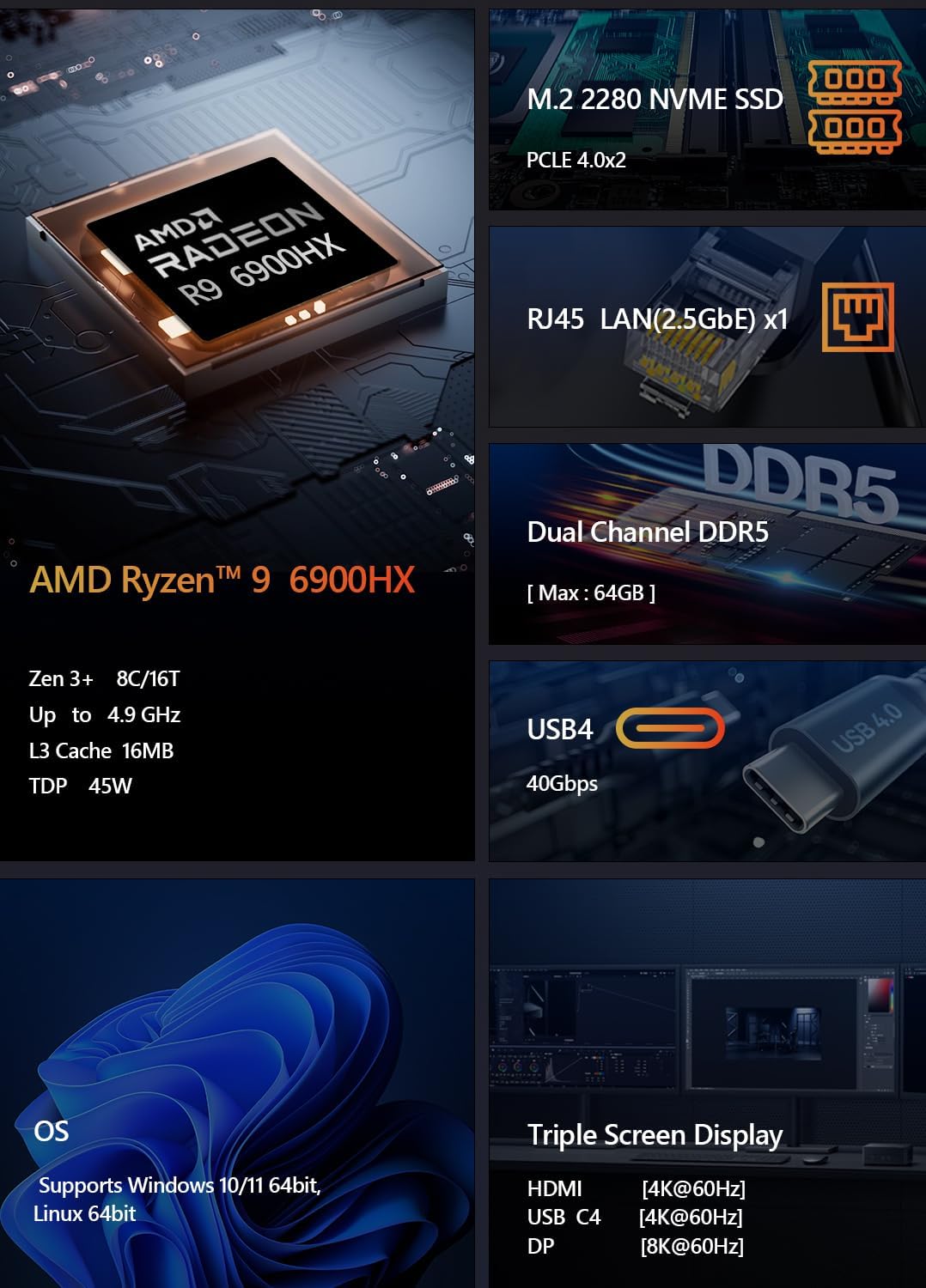
Figure 5.1: Triple Screen Display Setup
5.4 Funkce USB4
The USB4 ports offer versatile connectivity, supporting:
- Dodávka energie (PD 3.0): Up to 100W power input.
- Přenos dat: Up to 40Gbps, compatible with Thunderbolt 3.
- Video výstup: Up to 8K resolution via DisplayPort 1.4 Alt Mode.

Figure 5.2: USB4 All-in-One Connection
5.5 Síťové připojení
- Kabelová LAN: Connect an Ethernet cable to the 2.5GbE LAN port for high-speed wired internet access.
- Wi-Fi: The Mini PC supports Wi-Fi 6 for fast and stable wireless connectivity. Configure Wi-Fi settings through Windows Network & Internet settings.
- Bluetooth: Integrated Bluetooth 5.2 allows you to connect wireless peripherals such as keyboards, mice, and headphones.

Figure 5.3: LAN, Wi-Fi, and Bluetooth Connectivity
6. Údržba
Správná údržba zajistí dlouhou životnost a optimální výkon vašeho Mini PC.
6.1 Čištění
- Pravidelně čistěte vnější povrch Mini PC měkkým, suchým hadříkem.
- Use compressed air to clear dust from ventilation openings and ports to prevent overheating. Ensure the PC is powered off and unplugged before cleaning.
6.2 Vylepšení komponent
The Maxtang MTN-6900HX is designed for easy upgrades:
- Paměť: You can upgrade the DDR5 SO-DIMM memory up to a maximum of 64GB by replacing or adding modules in the two available slots.
- Skladování: The two M.2 2280 NVMe SSD slots allow for storage expansion up to 8TB (2x 4TB).
Poznámka: Always power off and unplug the Mini PC before opening the chassis for upgrades. Refer to online resources or professional assistance if you are unsure about the upgrade process.
7. Řešení problémů
If you encounter issues with your Mini PC, refer to the following common troubleshooting steps.
7.1 Bez napájení
- Ujistěte se, že je napájecí adaptér bezpečně připojen k Mini PC i k funkční elektrické zásuvce.
- Ověřte funkčnost elektrické zásuvky zapojením jiného zařízení.
- Zkontrolujte napájecí adaptér, zda nevykazuje viditelné poškození.
7.2 Žádný výstup na displej
- Confirm that the display cable (HDMI, DP, or USB4) is securely connected to both the Mini PC and the monitor.
- Ujistěte se, že je monitor zapnutý a nastavený na správný vstupní zdroj.
- Zkuste jiný kabel displeje nebo monitor, pokud je k dispozici.
7.3 Problémy s připojením k síti
- Kabelové: Check if the Ethernet cable is properly connected and if the router/modem is working.
- Bezdrátový: Ensure Wi-Fi is enabled in Windows settings and you are connected to the correct network with the correct password. Restart your router/modem.
7.4 Problémy s výkonem systému
- Zavřete nepotřebné aplikace běžící na pozadí.
- Ujistěte se, že systém Windows a ovladače jsou aktuální.
- Zkontrolujte, zda máte na SSD disku dostatek volného místa.
- Sledujte teploty systému, abyste zajistili správné chlazení.
8. Specifikace
Detailed technical specifications for the Maxtang MTN-6900HX Mini PC:
| Komponent | Specifikace |
|---|---|
| Číslo modelu | MTN-6900HX |
| Procesor | AMD Ryzen 9 6900HX (8 Cores/16 Threads, up to 4.9GHz) |
| Grafika | AMD Radeon 680M (integrovaná) |
| Operační systém | Windows 11 Pro (64bitový) |
| Paměť | Dual Channel DDR5 SO-DIMM, up to 64GB (2x slots) |
| Skladování | 2x M.2 2280 NVMe PCIe Gen4 SSD slots (up to 4TB each) |
| I/O porty | 2x USB-C (USB4), 4x USB 3.2 Gen2, 1x USB 2.0, 1x HDMI, 1x DisplayPort, 1x 2.5GbE LAN, Audio Jack |
| Bezdrátové připojení | Wi-Fi 6, Bluetooth 5.2 |
| Vstup napájení | 19V/20V DC-in |
| Způsob chlazení | Chlazení vzduchem |
| Rozměry | 127 mm × 135 mm × 55 mm (přibližně) |

Figure 8.1: AMD Ryzen 9 6900HX Processor Details

Obrázek 8.2: Podrobnosti o grafické kartě AMD Radeon 680M
9. Záruka a podpora
9.1 Záruka na produkt
The Maxtang MTN-6900HX Mini PC comes with a 12měsíční záruka na výrobek od data nákupu. Tato záruka se vztahuje na výrobní vady a zajišťuje, že výrobek splňuje stanovené vlastnosti. Uschovejte si prosím doklad o koupi pro případné reklamace.
9.2 Zákaznický servis
For technical support, warranty inquiries, or any questions regarding your Maxtang Mini PC, please contact our customer service team. Refer to the contact information provided with your purchase or visit the official Maxtang webmísto pro zdroje podpory.
Kontaktní údaje výrobce: 6/F, Bldg 3, Honghui Industrial Park, Liuxian 2nd Road, Bao'an Dist, Shenzhen, China 518101