
1. Úvod
This manual provides detailed instructions for the setup, operation, and maintenance of your Mvgges ZJ-9250 Bluetooth Thermal Label Printer. Please read this manual thoroughly before using the printer to ensure proper function and longevity.
The Mvgges ZJ-9250 is a versatile thermal label printer designed for efficient label printing. It supports both Bluetooth and USB connectivity, making it compatible with a range of devices including smartphones, tablets, and computers running Windows, Mac, iOS, and Android operating systems. This printer utilizes thermal printing technology, eliminating the need for ink or toner cartridges.
2. Obsah balení
Ověřte prosím, zda jsou ve vašem balení obsaženy všechny níže uvedené položky:
- 1 x Mvgges Thermal Label Printer
- 1 x napájecí adaptér
- 1 x napájecí kabel
- 1 x USB kabel
- 1 x USB Drive (includes drivers, installation videos, user manual, and FAQs)
- 1 x adaptér USB typu C.
- 1 x Uživatelská příručka
- 30 x Test Labels (4x6 inches)
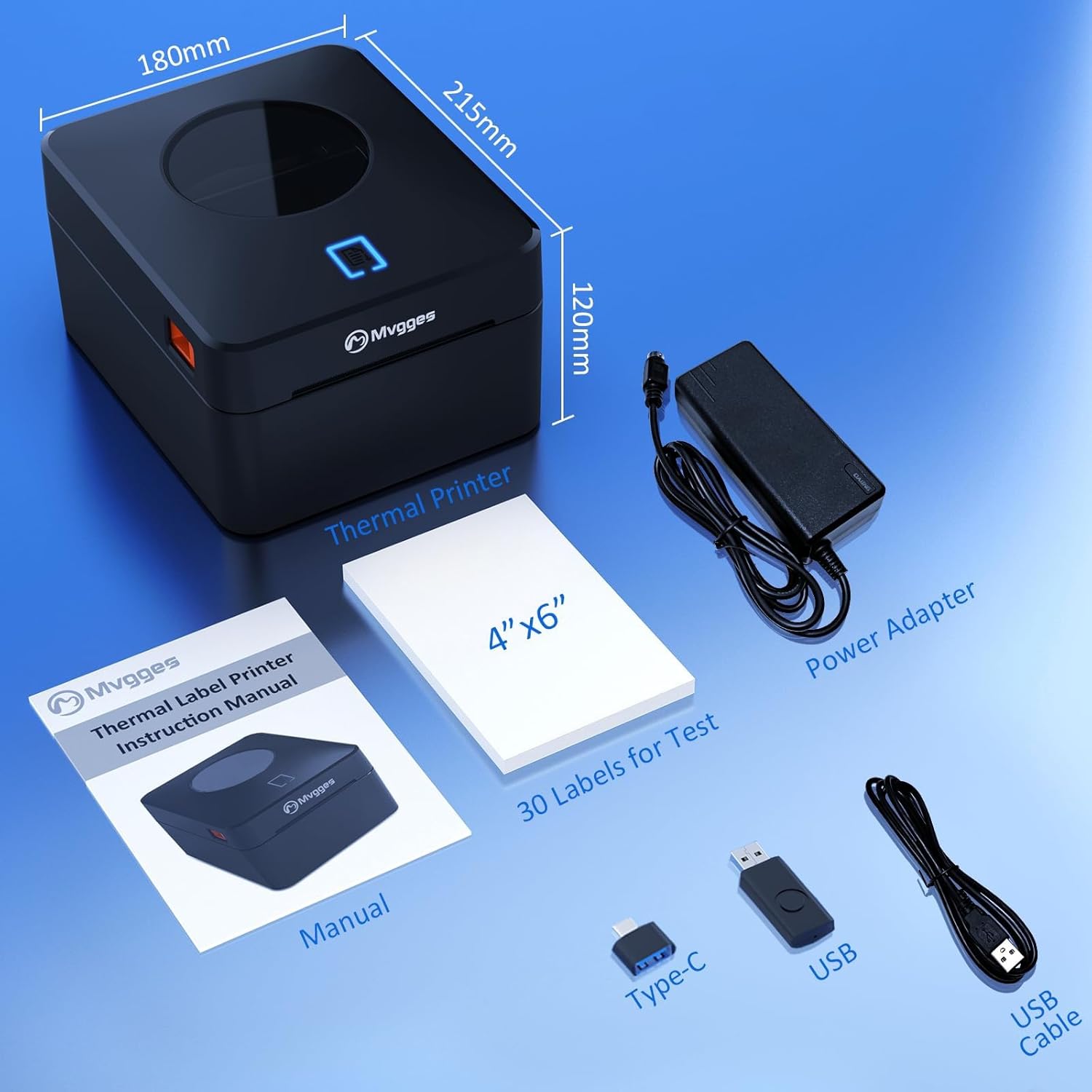
Obrázek 2.1: Contents of the Mvgges ZJ-9250 Thermal Label Printer package, including the printer, power adapter, USB cable, USB drive, and test labels.
3. Konec produktuview
The Mvgges ZJ-9250 printer is designed for high-speed, clear thermal label printing. Key features include:
- Duální konektivita: Supports both Bluetooth and USB connections.
- Vysoké rozlišení: 203 DPI for clear and professional label output.
- Rychlá rychlost tisku: Up to 160 mm/s (approximately 6.3 inches/s).
- Široká kompatibilita štítků: Supports thermal label widths from 20 mm to 104 mm (0.8 to 4.1 inches).
- Built-in Label Bin: Accommodates both roll and fan-fold labels without requiring an external holder.
- Bezinkoustový provoz: Uses direct thermal technology, eliminating the need for ink or toner.
- Široká kompatibilita s platformami: Spolupracuje s hlavními přepravními a e-commerce platformami.
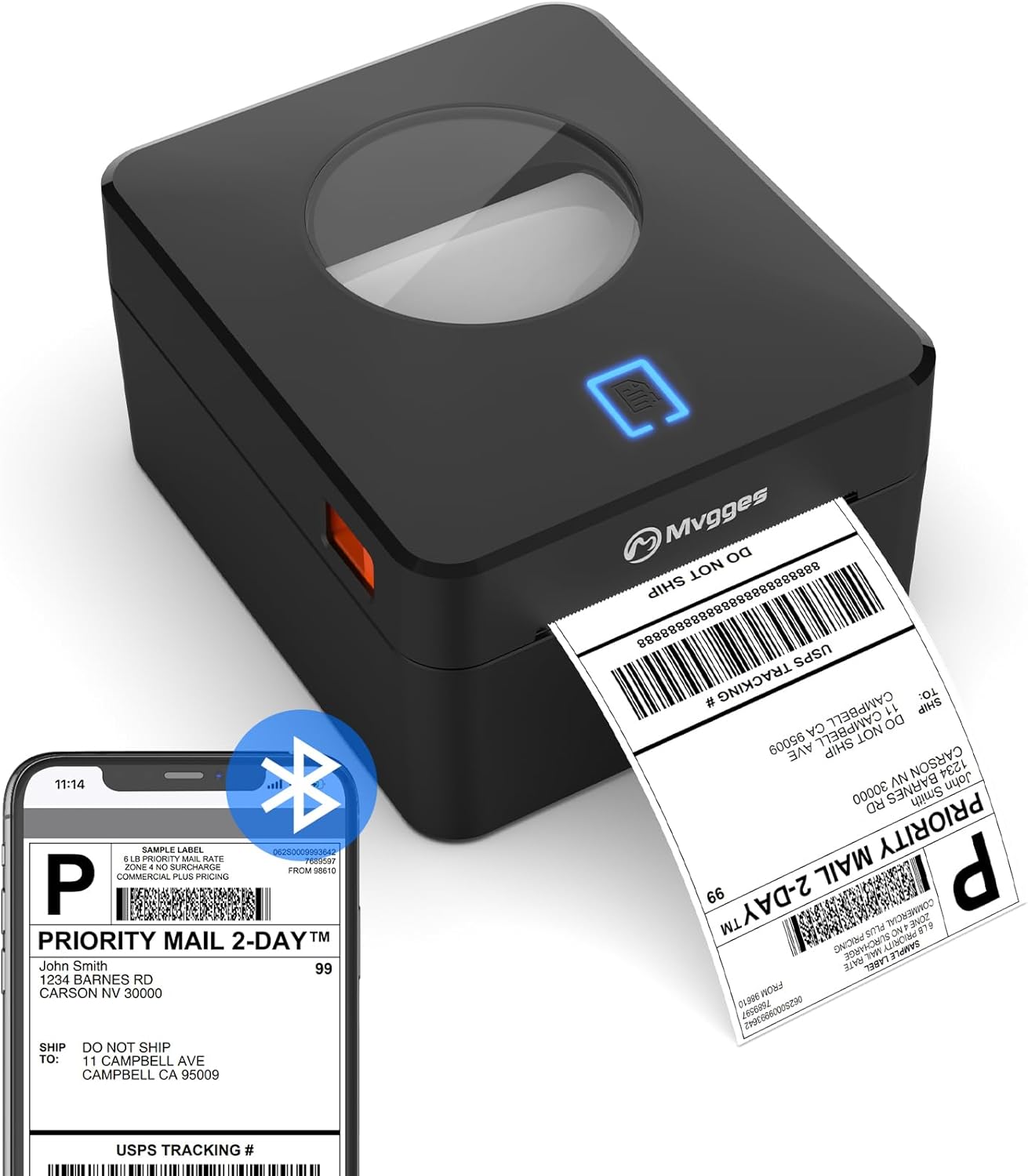
Obrázek 3.1: The Mvgges ZJ-9250 printer actively printing a shipping label, demonstrating its compact design and label output.
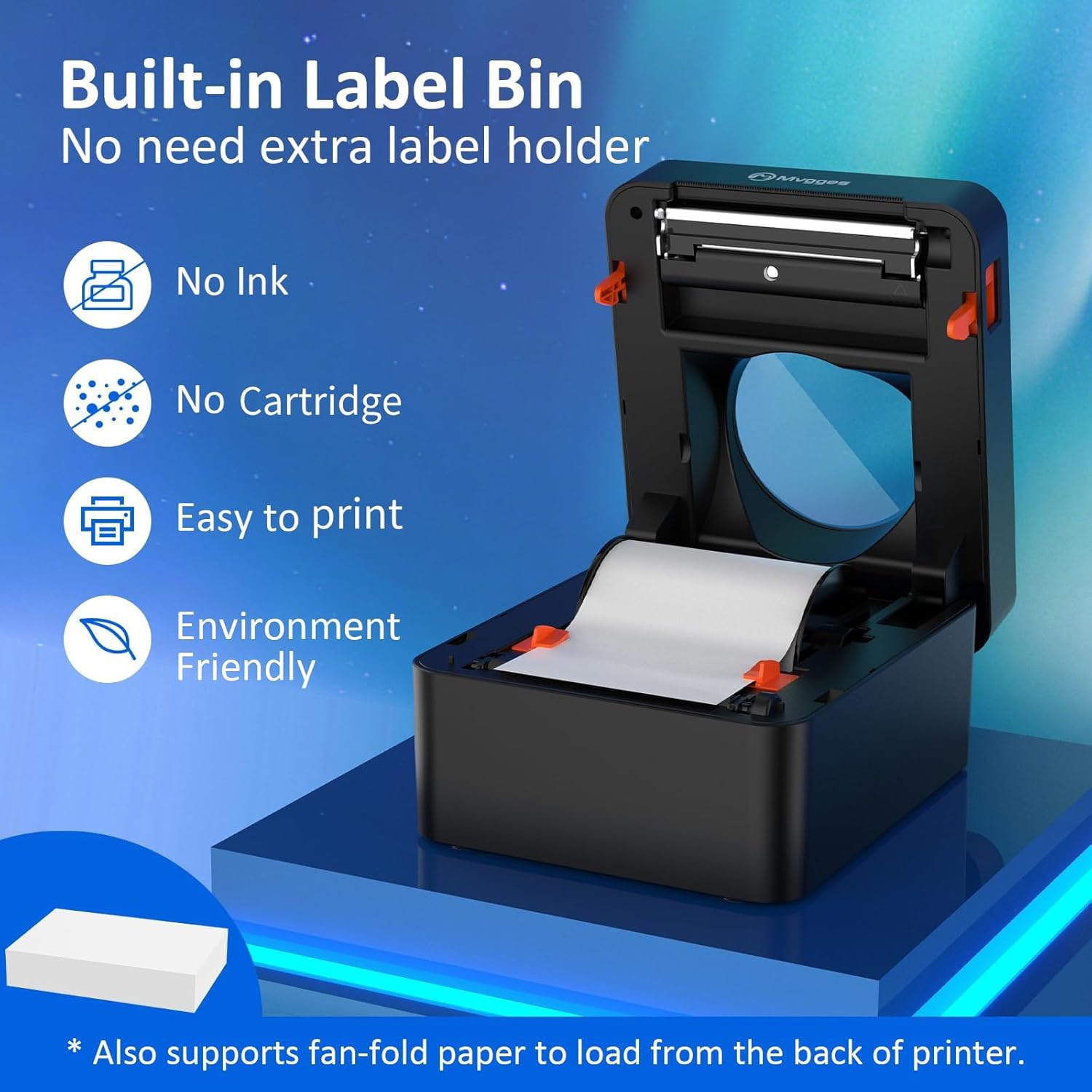
Obrázek 3.2: Vnitřní view of the printer with the lid open, highlighting the built-in label bin that supports both roll and fan-fold labels, and emphasizing its inkless operation.
4. Pokyny k nastavení
4.1. Fyzické připojení
- Connect the power adapter to the printer's power port and then plug the power cable into an electrical outlet.
- Rozsvítí se kontrolka napájení.
4.2. Načítání štítků
The printer supports both roll labels and fan-fold labels.
For Roll Labels:
- Otevřete horní kryt tiskárny.
- Place the roll of thermal labels into the built-in label bin, ensuring the printing side faces upwards.
- Feed the leading edge of the label paper through the paper guide until it is aligned with the print head.
- Close the top cover. The printer will automatically detect and calibrate the label size, feeding out one blank label.
For Fan-Fold Labels:
- Ensure the fan-fold labels are placed behind the printer.
- Feed the leading edge of the fan-fold labels into the rear paper slot, guiding them through to the front.
- Adjust the paper guides to fit the label width.
- The printer will automatically detect and calibrate the label size.
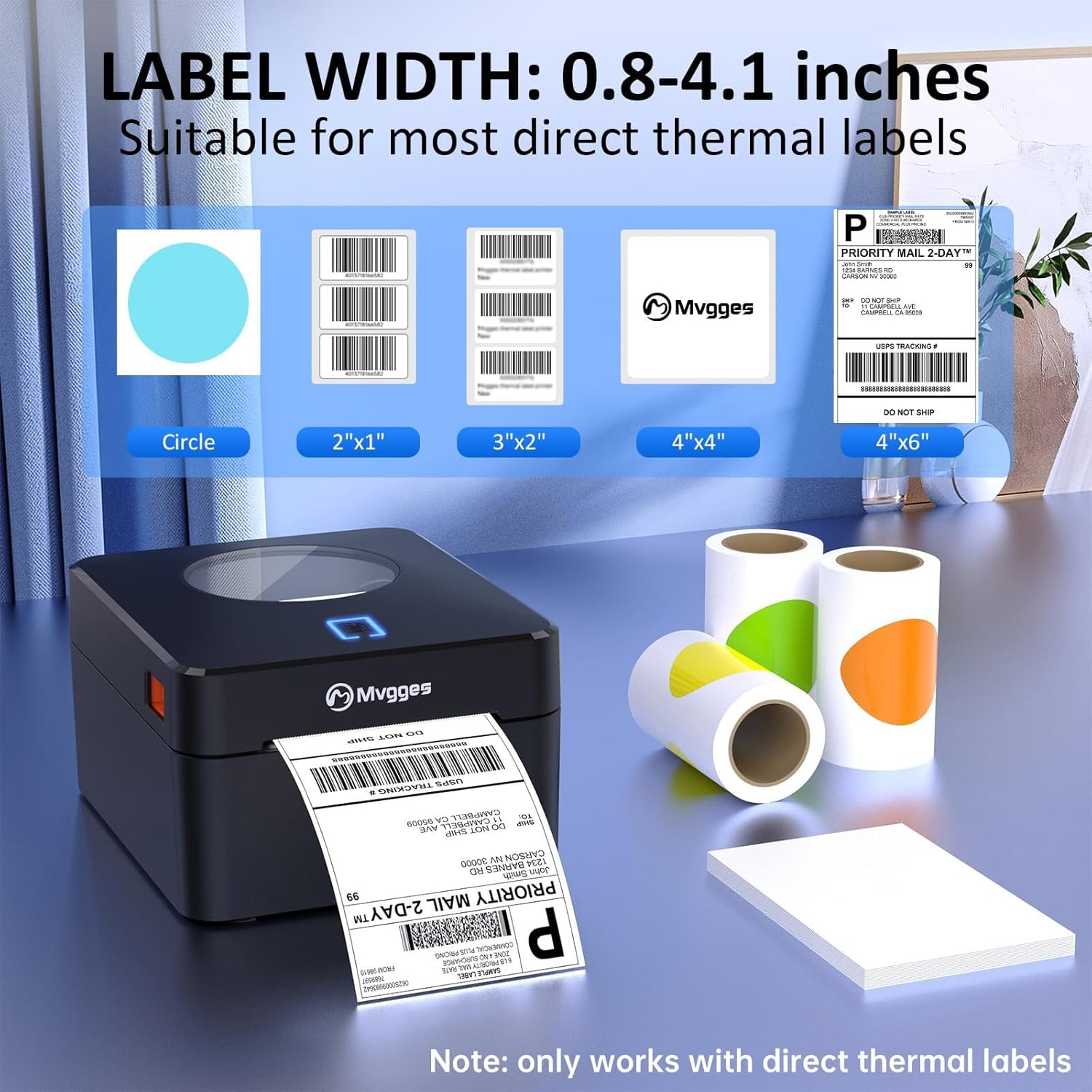
Obrázek 4.1: Illustration of the printer's compatibility with various direct thermal label widths, ranging from 0.8 to 4.1 inches, and different label shapes.
4.3. Instalace a připojení ovladače
The Mvgges ZJ-9250 offers both USB and Bluetooth connectivity. Please refer to the USB drive included in your package for detailed driver installation guides and videos for your specific operating system.
USB Connection (Windows/Mac/Linux/Chrome OS):
- Vložte dodaný USB disk do počítače.
- Install the appropriate printer driver for your operating system (Windows, Mac, Linux, Chrome OS).
- Připojte tiskárnu k počítači pomocí dodaného kabelu USB.
- Dokončete instalaci podle pokynů na obrazovce.
Bluetooth Connection (Android/iOS):
Bluetooth connectivity is supported for Android and iOS devices only. USB connection is required for Windows and Mac computers.
- Download the dedicated printing application:
- Pro Android: Hledat "Print Label" in the Google Play Store.
- Pro iOS: Hledat "Zlabel" in the Apple App Store.
- Ujistěte se, že je na vašem mobilním zařízení povoleno Bluetooth.
- Open the downloaded application and follow the in-app instructions to pair with your Mvgges printer.
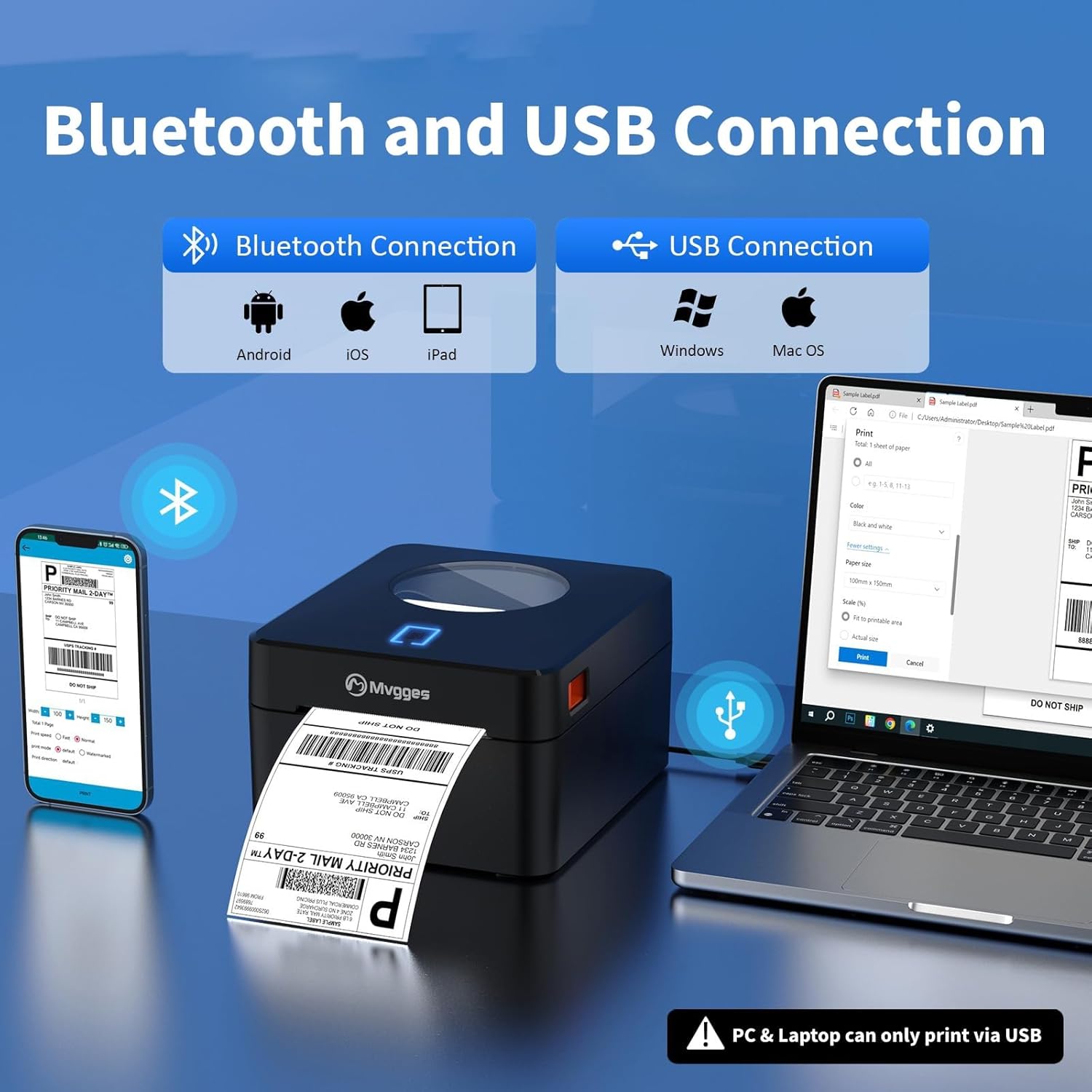
Obrázek 4.2: The printer supports Bluetooth for Android, iOS, and iPad, and USB for Windows and Mac OS. Note that PC/Laptop connections are USB only.
5. Návod k obsluze
5.1. Tisk štítku
- Ensure the printer is powered on and correctly connected to your device (via USB or Bluetooth).
- Load the appropriate thermal labels into the printer.
- Open the document or application from which you wish to print (e.g., a shipping platform, a PDF viewer, or the dedicated mobile app).
- Select the Mvgges ZJ-9250 printer from your device's print dialogue.
- Adjust print settings such as label size, orientation, and number of copies as needed. The printer supports a maximum print width of 104mm.
- Initiate the print command. The printer will begin printing at a speed of up to 160 mm/s with 203 DPI resolution.
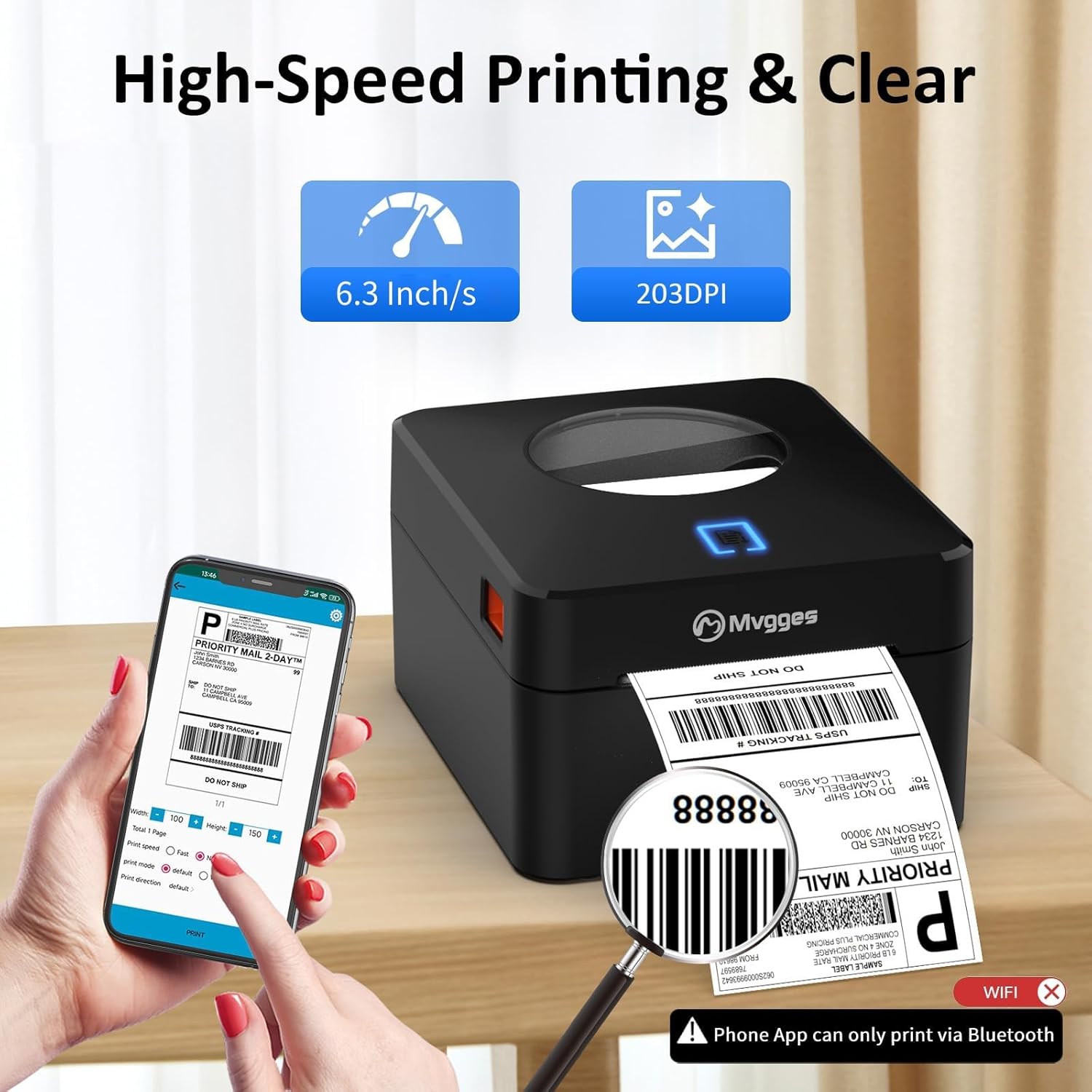
Obrázek 5.1: The printer's high-speed (6.3 inches/s) and clear (203 DPI) printing capabilities are shown, with a mobile phone interface for print settings. Note: Phone app prints via Bluetooth only.
5.2. Podporované platformy
The Mvgges ZJ-9250 printer is compatible with most major shipping and e-commerce platforms, including but not limited to:
- Amazonka
- Etsy
- eBay
- Shopify
- UPS
- USPS
- PayPal
- Lodní stanice
- Shippo
- Doprava XPS
- Endicia
- DHL
- EasyPost
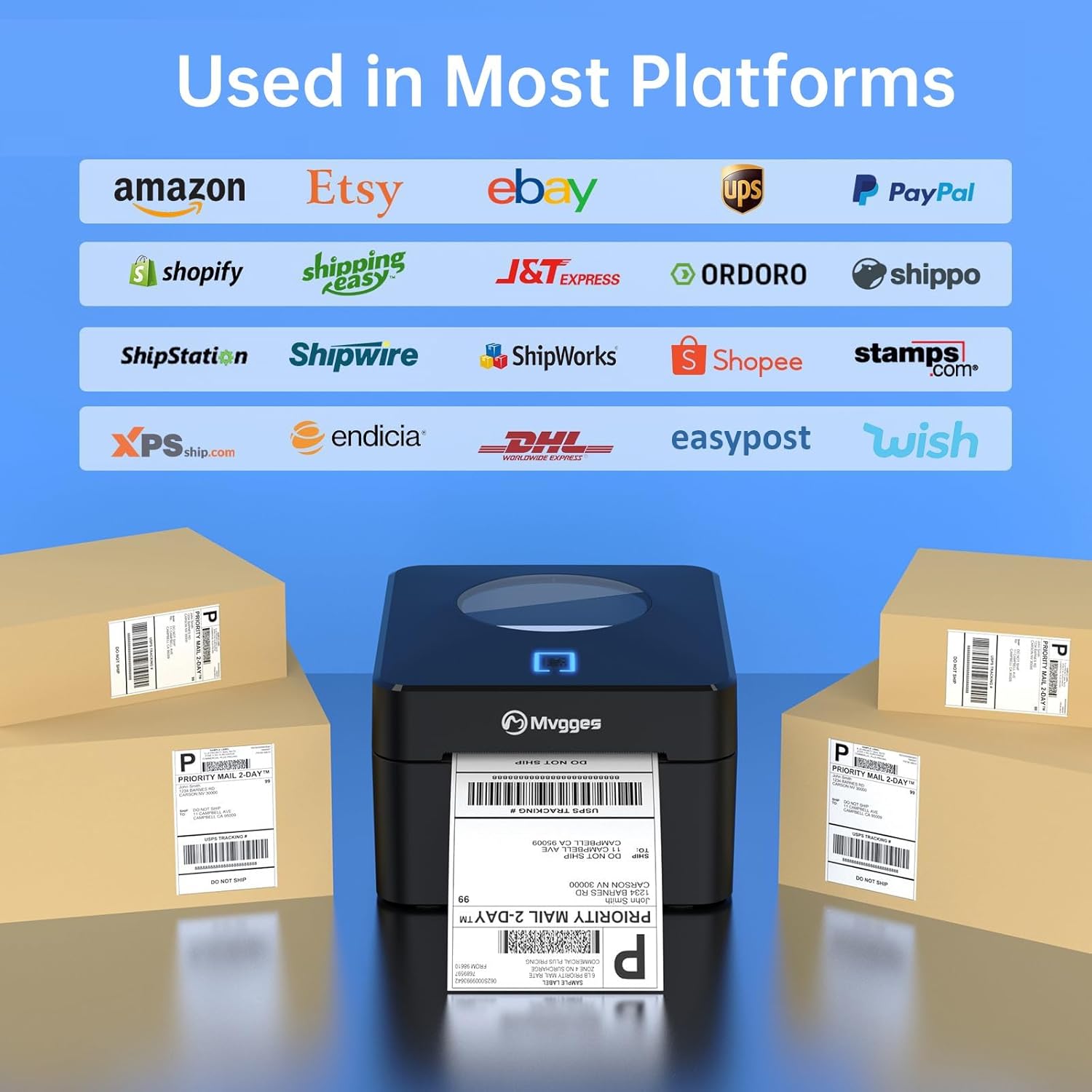
Obrázek 5.2: The Mvgges ZJ-9250 printer is shown integrated into a workflow with multiple shipping and e-commerce platforms, demonstrating its broad compatibility.
6. Údržba
Regular maintenance ensures optimal performance and extends the lifespan of your thermal label printer.
6.1. Čištění tiskové hlavy
The print head is a critical component and should be cleaned periodically, especially if print quality degrades.
- Vypněte tiskárnu a odpojte napájecí kabel.
- Open the top cover to access the print head.
- Jemně otřete tiskovou hlavu vatovým tamponem, lehceampened with isopropyl alcohol (70% or higher). Allow it to dry completely before closing the cover and powering on the printer.
6.2. Generální úklid
Vnější povrch tiskárny otřete měkkým, suchým hadříkem. Nepoužívejte abrazivní čisticí prostředky ani rozpouštědla.
6.3. Ukládání štítků
Store thermal labels in a cool, dry place away from direct sunlight and heat to prevent premature discoloration or damage to the thermal coating.
7. Řešení problémů
If you encounter issues with your Mvgges ZJ-9250 printer, please refer to the following common solutions. For more detailed troubleshooting, consult the FAQs document on the provided USB drive.
7.1. Printer Not Powering On
- Ensure the power adapter and cable are securely connected to both the printer and a working electrical outlet.
- Otestujte zásuvku pomocí jiného zařízení, abyste se ujistili, že je pod proudem.
7.2. No Print Output or Blank Labels
- Verify that thermal labels are loaded correctly with the printing side facing up.
- Check if the printer is properly connected to your device (USB or Bluetooth).
- Ensure the correct printer driver is installed and selected in your print settings.
- Vyčistěte tiskovou hlavu podle pokynů v části Údržba.
7.3. Špatná kvalita tisku
- Vyčistěte tiskovou hlavu.
- Ensure you are using high-quality direct thermal labels.
- Adjust print density settings in your printer preferences if available.
7.4. Problémy s připojením
USB připojení:
- Zkuste jiný port USB na počítači.
- Ujistěte se, že kabel USB není poškozen.
- Reinstall the printer driver.
Bluetooth Connection (Android/iOS):
- Ensure Bluetooth is enabled on your mobile device and the printer.
- Confirm you are using the correct mobile application ("Print Label" for Android, "Zlabel" for iOS).
- Unpair and re-pair the printer in your device's Bluetooth settings.
- Restartujte mobilní zařízení i tiskárnu.
8. Specifikace
| Funkce | Specifikace |
|---|---|
| Značka | Mvgges |
| Název modelu | ZJ-9250 (PL925U-black) |
| Technologie tisku | Tepelný |
| Technologie připojení | Bluetooth, USB |
| Maximální velikost média | 4 x 6 palce |
| Podporovaná šířka štítku | 0.8 - 4.1 palce (20 - 104 mm) |
| Rozlišení tisku | 203 DPI |
| Maximální rychlost tisku | 160 mm/s (72 pages per minute equivalent) |
| Kompatibilní zařízení | Laptop, Computers, Smartphones, Tablets |
| Podporované operační systémy | Windows, Mac OS, iOS, Android, Chrome OS, Linux |
| Barva | Černý |
| Hmotnost položky | 3 libry |
| Rozměry produktu | 17.8 D x 21.3 Š x 11.9 V centimetrů |
| Speciální funkce | Bluetooth and USB Connection, Built-in Label Bin |
9. Záruka a podpora
Mvgges offers a 1-year warranty for the thermal label printer. For any questions or assistance regarding your Mvgges Bluetooth Label Printer, please refer to the USB drive for additional resources including installation videos, user manual, and frequently asked questions. If further support is needed, please contact Mvgges customer service.