
1. Úvod
This manual provides detailed instructions for the operation and maintenance of your EazeID M950 Label Maker. Please read this manual thoroughly before using the device to ensure proper function and longevity.

Image 1.1: EazeID M950 Label Maker and accessories, including a label roll, USB-C cable, and printed labels.

Image 1.2: The EazeID M950 Label Maker being used to organize kitchen containers, demonstrating its practical application.
2. Obsah balení
Ověřte, zda jsou v balení přítomny všechny položky:
- 1 x EazeID M950 Label Maker
- 1 x Label Tape Cassette (12mm x 4M, Black on White)
- 1 x datový kabel typu C
- 1 x Uživatelská příručka

Image 2.1: Visual representation of the EazeID M950 Label Maker, tape cassette, Type-C cable, and user manual as included in the product package.
3. Konec produktuview
Familiarize yourself with the components and features of the EazeID M950 Label Maker.

Image 3.1: Key features of the EazeID M950, including the built-in 1200mAh Li-ion battery, safety label cutter, 203 DPI resolution, Bluetooth keyboard labeler functionality, and backlighting LCD screen.
Klíčové vlastnosti:
- Duální režimy tisku: Supports both QWERTY keyboard input and Bluetooth connectivity via the "Print Master" app.
- Dobíjecí baterie: Integrated 1200mAh lithium battery for portable use.
- Podsvícený LCD displej: Ensures visibility in various lighting conditions.
- Vestavěný řezák: For precise label cutting.
- Tepelný tisk: Není potřeba žádný inkoust ani toner.
- Waterproof Labels: Produces durable, water-resistant labels.
4. Nastavení
4.1 Nabíjení zařízení
The EazeID M950 Label Maker is equipped with a built-in 1200mAh rechargeable lithium-ion battery. Before first use, fully charge the device.
- Connect the provided Type-C USB cable to the charging port on the side of the label maker.
- Druhý konec kabelu připojte k napájecímu adaptéru USB (není součástí balení) nebo k portu USB počítače.
- Rozsvítí se kontrolka nabíjení. Úplné nabití obvykle trvá 1–2 hodiny.

Image 4.1: The EazeID M950 Label Maker being charged via its Type-C port, illustrating the fast charging capability.
4.2 Vkládání štítkové pásky
Ensure the device is powered off before loading or replacing label tape.
- Open the tape compartment cover located on the top of the label maker.
- Insert the label tape cassette with the tape end facing the printing slot. Ensure it clicks into place.
- Close the tape compartment cover securely.

Image 4.2: A visual comparison showing the integrated design of the EazeID M950's tape compartment with its rechargeable battery, contrasting with other models that use AAA batteries and separate covers.
4.3 Zapnutí/vypnutí
Press and hold the power button (usually located on the top right of the keyboard) for a few seconds to turn the device on or off. The backlit LCD screen will illuminate upon power-on.
5. Návod k obsluze
The EazeID M950 offers two primary printing methods: direct input via the QWERTY keyboard or connection via Bluetooth to the "Print Master" app.

Image 5.1: The EazeID M950 supports two printing modes: connecting via Bluetooth to a smartphone app or direct input using the integrated QWERTY keyboard.
5.1 QWERTY Keyboard Mode
This mode allows for direct text input and printing without needing a smartphone.
- Zapnutí: Turn on the label maker.
- Zadávání textu: Use the QWERTY keyboard to type your desired label text. The text will appear on the backlit LCD screen.
- Formátování: Use the function keys (e.g., 'Fn' key combined with other keys) to access formatting options such as font size, bold, italic, and symbols. Refer to the on-screen indicators for available options.
- Vytisknout: Press the 'Print' button to generate the label.
- Střih: After printing, press the built-in cutter lever (located on the left side) to cut the label.

Image 5.2: Instructions for QWERTY keyboard use: 1. Power On, 2. Keyboard input, 3. Print, 4. Built-in cutter.

Image 5.3: The EazeID M950 keyboard layout, highlighting access to over 100 frames, 23 languages, 3 sizes, 1000+ symbols, and accented characters.
5.2 Bluetooth App Mode (Print Master)
For advanced customization and template use, connect your label maker to the "Print Master" app.
- Stáhnout aplikaci: Download the "Print Master" app from your smartphone's app store (available on App Store and Google Play).
- Zapnutí: Turn on the label maker.
- Povolit Bluetooth: Ujistěte se, že je na vašem smartphonu povoleno Bluetooth.
- Připojit: Open the "Print Master" app and follow the on-screen instructions to connect to your EazeID M950 device.
- Štítek designu: Use the app's interface to create your label. The app offers a library of customizable templates, fonts, icons, barcodes, and QR codes.
- Vytisknout: Send the label design from the app to the label maker for printing.
- Střih: After printing, press the built-in cutter lever to cut the label.

Image 5.4: Instructions for Bluetooth app connection: 1. Power On, 2. Turn on Bluetooth, 3. Connect to "Print Master" app, 4. Printing.
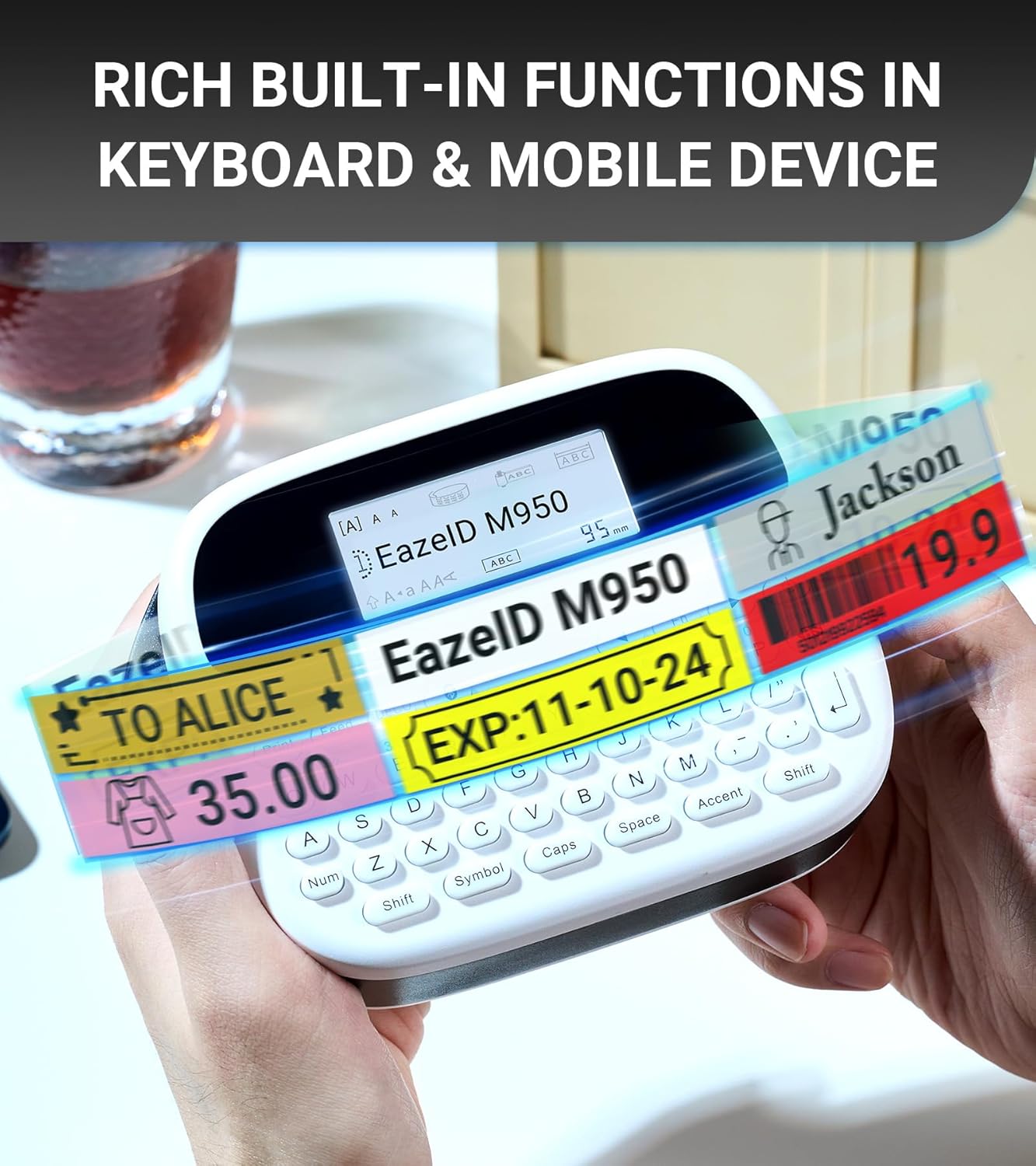
Obrázek 5.5: Příkladamples of labels showcasing the rich built-in functions available through the keyboard and mobile app, including text, symbols, and barcodes.
6. Údržba
6.1 Čištění tiskové hlavy
Pravidelné čištění tiskové hlavy zajišťuje optimální kvalitu tisku.
- Vypněte zařízení.
- Otevřete přihrádku na pásku.
- Gently wipe the print head with a soft, lint-free cloth moistened with isopropyl alcohol.
- Allow the print head to dry completely before closing the compartment and powering on the device.
6.2 Péče o baterii
- Chcete-li prodloužit životnost baterie, vyvarujte se častého úplného vybíjení.
- Pokud zařízení skladujete delší dobu, nabijte jej přibližně na 50 % a skladujte na chladném a suchém místě.
- Recharge the device every 3-6 months during storage.
6.3 Trvanlivost štítku
EazeID M950 labels are designed for durability in various environments.

Image 6.1: The labels produced by the EazeID M950 are designed to withstand high temperatures, low temperatures, water exposure, and resist fading over time.
7. Řešení problémů
| Problém | Možná příčina | Řešení |
|---|---|---|
| Zařízení se nezapne | Slabá baterie; Porucha zařízení | Charge the device; Contact customer support if issue persists. |
| Špatná kvalita tisku | Dirty print head; Incorrect tape loading; Low battery | Clean the print head (Section 6.1); Re-load tape correctly; Charge the device. |
| Nelze se připojit přes Bluetooth | Bluetooth off; App not installed; Device not discoverable | Ensure Bluetooth is on; Install "Print Master" app; Restart device and app. |
| Label tape jams | Improper tape loading; Foreign object in compartment | Open compartment, remove tape, clear any obstructions, re-load tape. |
8. Specifikace
| Funkce | Specifikace |
|---|---|
| Název modelu | EazeID M950 Label Maker |
| Rozměry produktu | 1 cm H x 1 cm Š x 1 cm V (přibližně 159 mm x 112 mm) |
| Hmotnost položky | 1.08 libry (přibližně 489 gramů) |
| Technologie tisku | Tepelný |
| Rozlišení tisku | 203 dpi (černobíle) |
| Maximální velikost média | 12 mm (0.47 palců) |
| Konektivita | Bluetooth, USB Type-C |
| Baterie | 1200mAh lithium-iontová baterie (součástí balení) |
| Kontrolní metoda | App, Push Button (QWERTY Keyboard) |
| Speciální funkce | Backlit LCD Screen, Waterproof Labels, Portable, Built-in Cutter |

Image 8.1: Dimensions of the EazeID M950 Label Maker (159mm x 112mm) and its weight (489g), illustrating its compact and portable design.
9. Záruka a podpora
9.1 Informace o záruce
The EazeID M950 Label Maker comes with a Limited Warranty. Please refer to the warranty card included in your package for specific terms and conditions. This warranty typically covers manufacturing defects under normal use.
9.2 Zákaznická podpora
For technical assistance, troubleshooting not covered in this manual, or warranty claims, please contact EazeID customer support through the retailer where the product was purchased or visit the official EazeID webstránky pro kontaktní informace.